語言
WPF 資料範本化模型對於資料呈現方式的定義,具有相當大的彈性。 WPF 控制項的內建功能支援自訂資料呈現方式。 本主題會首先示範如何定義 DataTemplate(資料模板),然後介紹其他資料模板功能,例如基於自訂邏輯的模板選擇,以及支援階層式資料的顯示。
先決條件
本主題著重資料範本化功能,而不是資料繫結概念簡介。 如需基本資料繫結概念的資訊,請參閱資料繫結概觀。
DataTemplate 與資料的呈現有關,是 WPF 樣式和範本化模型提供的多項功能之一。 如需 WPF 樣式和範本化模型的簡介(例如,如何使用樣式設定控制項的屬性),請參閱「樣式和範本化」主題。
此外,請務必了解 Resources,這本質上是讓像是 Style 和 DataTemplate 這樣的物件能夠重覆使用的關鍵因素。 如需更多有關資源的資訊,請參閱 XAML 資源。
資料範本化基本概念
為了說明DataTemplate的重要性,我們來演示一下資料繫結的範例。 在這個範例中,我們有一個ListBox,它綁定到Task物件的清單。 每個 Task 物件各有一個 TaskName (字串)、Description (字串)、Priority (整數),與一個 TaskType 型別的屬性,該型別是含有值 Home 和 Work 的 Enum。
<Window x:Class="SDKSample.Window1"
  xmlns="http://schemas.microsoft.com/winfx/2006/xaml/presentation"
  xmlns:x="http://schemas.microsoft.com/winfx/2006/xaml"
  xmlns:local="clr-namespace:SDKSample"
  Title="Introduction to Data Templating Sample">
  <Window.Resources>
    <local:Tasks x:Key="myTodoList"/>
</Window.Resources>
  <StackPanel>
    <TextBlock Name="blah" FontSize="20" Text="My Task List:"/>
    <ListBox Width="400" Margin="10"
             ItemsSource="{Binding Source={StaticResource myTodoList}}"/>
  </StackPanel>
</Window>
沒有 DataTemplate
如果沒有 DataTemplate,我們的 ListBox 目前看起來會像這樣:
顯示「資料範本化範例簡介」視窗的螢幕擷取畫面,其中「我的工作清單」ListBox 顯示每個來源物件的字串表示形式 SDKSample.Task。DataTemplatingIntro_fig1
當沒有任何具體指示時,ListBox 預設會在嘗試顯示集合中的物件時呼叫 ToString。 因此,如果 Task 物件覆寫 ToString 方法,則 ListBox 會顯示基礎集合中每個來源物件的字串表示法。
例如,如果 Task 類別以此方式覆寫 ToString 方法,而 name 是 TaskName 屬性的欄位︰
public override string ToString()
{
    return name.ToString();
}
Public Overrides Function ToString() As String
    Return _name.ToString()
End Function
然後,ListBox 看起來會像這樣:
顯示「資料範本化範例簡介」視窗的螢幕擷取畫面,其中「我的工作清單」清單方塊顯示了一系列工作清單。DataTemplatingIntro_fig2
不過,這是有限制的,而且缺乏彈性。 此外,如果是綁定到 XML 資料,您將無法覆寫 ToString。
定義簡單的 DataTemplate
解決方案是定義一個DataTemplate。 如果要這樣做,可以將ListBox的ItemTemplate屬性設為DataTemplate。 您在 DataTemplate 中指定的內容會成為您的資料物件的視覺結構。 以下範本相當簡單。 我們提供的指示是,每個項目在 StackPanel (部分機器翻譯) 內會顯示為三個 TextBlock (部分機器翻譯) 元素。 每個 TextBlock 元素會繫結至 Task 類別的屬性。
<ListBox Width="400" Margin="10"
         ItemsSource="{Binding Source={StaticResource myTodoList}}">
   <ListBox.ItemTemplate>
     <DataTemplate>
       <StackPanel>
         <TextBlock Text="{Binding Path=TaskName}" />
         <TextBlock Text="{Binding Path=Description}"/>
         <TextBlock Text="{Binding Path=Priority}"/>
       </StackPanel>
     </DataTemplate>
   </ListBox.ItemTemplate>
 </ListBox>
本主題中範例的基礎資料是 CLR 物件的集合。 如果是繫結至 XML 資料,基本概念都相同,但有些微的語法差異。 例如,與其擁有Path=TaskName,不如將XPath設定為@TaskName(如果TaskName是您 XML 節點的屬性)。
現在,我們的 ListBox 看起來像這樣:
![顯示 [資料範本化範例簡介] 視窗的螢幕擷取畫面,在其中 [我的工作清單] ListBox 以 TextBlock 元素的形式顯示工作。](media/datatemplatingintro-fig3.png "DataTemplatingIntro_fig3")
將 DataTemplate 建立為資源
在上述範例中,我們以內嵌方式定義了DataTemplate。 更常見的是將它定義於資源區段中以成為可重複使用的物件,如下列範例所述:
<Window.Resources>
<DataTemplate x:Key="myTaskTemplate">
  <StackPanel>
    <TextBlock Text="{Binding Path=TaskName}" />
    <TextBlock Text="{Binding Path=Description}"/>
    <TextBlock Text="{Binding Path=Priority}"/>
  </StackPanel>
</DataTemplate>
</Window.Resources>
現在您可以使用 myTaskTemplate 作為資源,如下列範例所示:
<ListBox Width="400" Margin="10"
         ItemsSource="{Binding Source={StaticResource myTodoList}}"
         ItemTemplate="{StaticResource myTaskTemplate}"/>
因為 myTaskTemplate 是資源,您現在可以將它用在接受 DataTemplate 型別的其他控制項屬性上。 如上所示,對於物件,例如 ListBox,屬性為 ItemTemplate。 若為 ContentControl 物件,其為 ContentTemplate 屬性。
DataType 屬性
DataTemplate 類別的 DataType 屬性與 Style 類別的 TargetType 屬性非常類似。 因此,您可以選擇不為在上面的範例中指定 x:Key 給 DataTemplate,而採用以下方法:
<DataTemplate DataType="{x:Type local:Task}">
  <StackPanel>
    <TextBlock Text="{Binding Path=TaskName}" />
    <TextBlock Text="{Binding Path=Description}"/>
    <TextBlock Text="{Binding Path=Priority}"/>
  </StackPanel>
</DataTemplate>
這個 DataTemplate 會自動套用至所有 Task 物件。 請注意,在此情況下,x:Key 是隱含設定的。 因此,如果您為這個 DataTemplate 賦予一個 x:Key 值,您將覆蓋隱含的 x:Key,而且 DataTemplate 將不會自動應用。
如果您要將 ContentControl 繫結至 Task 物件的集合,則 ContentControl 不會自動使用上面的 DataTemplate。 這是因為 ContentControl 上的繫結需要更多的資訊,來區分您是要繫結到整個集合,還是繫結到個別物件。 如果您的 ContentControl 正在追蹤 ItemsControl 類型的選取,您可以將 ContentControl 繫結的 Path 屬性設定為 "/",以表示您對目前的項目感興趣。 如需範例,請參閱繫結至集合並根據選取項目顯示資訊。 否則,您需要藉由設定 ContentTemplate 屬性來明確指定 DataTemplate。
當您有不同類型的資料物件集合時,CompositeCollection 屬性特別有用。 如需範例,請參閱實作 CompositeCollection。
加入更多內容至 DataTemplate
目前資料顯示了所需的資訊,不過還有一定的改進空間。 讓我們藉由新增Border、Grid 和一些描述所顯示資料的TextBlock元素來改善呈現方式。
<DataTemplate x:Key="myTaskTemplate">
  <Border Name="border" BorderBrush="Aqua" BorderThickness="1"
          Padding="5" Margin="5">
    <Grid>
      <Grid.RowDefinitions>
        <RowDefinition/>
        <RowDefinition/>
        <RowDefinition/>
      </Grid.RowDefinitions>
      <Grid.ColumnDefinitions>
        <ColumnDefinition />
        <ColumnDefinition />
      </Grid.ColumnDefinitions>
      <TextBlock Grid.Row="0" Grid.Column="0" Text="Task Name:"/>
      <TextBlock Grid.Row="0" Grid.Column="1" Text="{Binding Path=TaskName}" />
      <TextBlock Grid.Row="1" Grid.Column="0" Text="Description:"/>
      <TextBlock Grid.Row="1" Grid.Column="1" Text="{Binding Path=Description}"/>
      <TextBlock Grid.Row="2" Grid.Column="0" Text="Priority:"/>
      <TextBlock Grid.Row="2" Grid.Column="1" Text="{Binding Path=Priority}"/>
    </Grid>
  </Border>
</DataTemplate>
下列螢幕擷取畫面顯示具備修改後的 DataTemplate 的 ListBox:
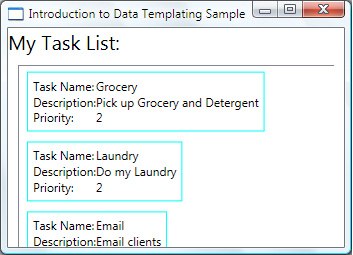 螢幕擷取畫面:顯示具有已修改 DataTemplate 之 [我的工作清單] ListBox 的 [資料範本化範例簡介] 視窗。DataTemplatingIntro_fig4
我們可以在 ListBox 上將 HorizontalContentAlignment 設定為 Stretch,以確保項目寬度完全佔據整個空間。
<ListBox Width="400" Margin="10"
     ItemsSource="{Binding Source={StaticResource myTodoList}}"
     ItemTemplate="{StaticResource myTaskTemplate}"
     HorizontalContentAlignment="Stretch"/>
將 HorizontalContentAlignment 屬性設定為 Stretch 時,ListBox 現在看起來會像這樣:
螢幕擷取畫面:資料範本化範例簡介視窗,顯示 [我的工作清單] ListBox 已在水平方向上延展為符合螢幕大小。
使用 DataTriggers 套用屬性值
目前的呈現並未告知我們 Task 是家庭任務還是辦公室任務。 記得,Task 物件有一個型別為 TaskType 的 TaskType 屬性,這是一個包含 Home 和 Work 值的列舉。
在下列範例中,如果 TaskType 屬性是 TaskType.Home,則 DataTrigger 會將名為 border 之元素的 BorderBrush 設定為 Yellow。
<DataTemplate x:Key="myTaskTemplate">
<DataTemplate.Triggers>
  <DataTrigger Binding="{Binding Path=TaskType}">
    <DataTrigger.Value>
      <local:TaskType>Home</local:TaskType>
    </DataTrigger.Value>
    <Setter TargetName="border" Property="BorderBrush" Value="Yellow"/>
  </DataTrigger>
</DataTemplate.Triggers>
</DataTemplate>
現在應用程式看起來就像下面這樣。 家務會用黃色框線框住,而公司工作則有水藍色框線框住:
![資料範本化範例視窗的螢幕擷取畫面,顯示 [我的工作清單] ListBox,其中包含以顏色醒目顯示的住家和辦公室工作框線。](media/datatemplatingintro-fig6.png "DataTemplatingIntro_fig6") 螢幕擷取畫面:這是 [資料範本化範例簡介] 視窗中 [我的工作清單] ListBox 的一個視窗截圖,顯示用顏色強調的住家和辦公室工作框線。DataTemplatingIntro_fig6
螢幕擷取畫面:這是 [資料範本化範例簡介] 視窗中 [我的工作清單] ListBox 的一個視窗截圖,顯示用顏色強調的住家和辦公室工作框線。DataTemplatingIntro_fig6
在此範例中,DataTrigger 使用 Setter 來設定屬性值。 觸發類別也擁有EnterActions和ExitActions屬性,這些屬性允許您開始一組動作,例如動畫。 此外,還有一個MultiDataTrigger類別,這可讓您根據多個資料繫結屬性值套用變更。
要達到相同效果,另一個方法是將 BorderBrush 屬性繫結至 TaskType 屬性,然後使用值轉換器,根據 TaskType 值返回色彩。 使用轉換器建立上述效果,就效能上來說會快些。 此外,建立自己的轉換器能提供更多的彈性,因為您可以提供自己的邏輯。 最後,要選擇使用哪種方式,取決於個別情況和您的偏好而定。 如需有關如何撰寫轉換器的資訊,請參閱 IValueConverter。
哪些內容屬於 DataTemplate 的範圍
在上一個範例中,我們使用 Triggers 屬性將觸發程序放在 DataTemplate 內。 觸發器的 Setter 設定在 DataTemplate 中的元素 (即 Border 元素) 的屬性值。 不過,如果與您的 Setters 有關的屬性不是目前 DataTemplate 內元素的屬性,則使用適用於 ListBoxItem 類別的 Style 來設定屬性可能會更適合(如果您要繫結的控制項是 ListBox 的話)。 例如,如果您希望您的 Trigger 當滑鼠指向某個項目時,為該項目的 Opacity 值進行動畫化,您可以在 ListBoxItem 樣式中定義觸發器。 如需範例,請參閱樣式設定和範本化範例的簡介。
一般而言,請記住 DataTemplate 會套用至每個產生的 ListBoxItem (如需其實際套用方式和套用位置的詳細資訊,請參閱 ItemTemplate 頁面)。 您的 DataTemplate 只與資料物件的展示方式和外觀有關。 在大多數情況下,所有其他展示方面,例如項目在選取時看起來的樣子,或是 ListBox 如何配置項目,都不屬於 DataTemplate 的定義範圍。 如需範例,請參閱「ItemsControl 的樣式設定和範本」一節。
根據資料物件的屬性選擇 DataTemplate
在 DataType 屬性 一節中提到過,您可以為不同的資料物件定義不同的資料範本。 當您有不同型別的 CompositeCollection 或包含不同型別項目的集合時,這就特別有用。 在使用資料觸發器套用屬性值一節中,我們說明過,如果您有相同型別資料物件的集合時,您可以建立資料範本 (英文),然後根據每個資料物件的屬性值使用觸發器套用變更。 不過,觸發程序雖然可以讓您套用屬性值或啟動動畫,但無法提供重新建構資料物件結構的彈性。 在某些情況下,您可能需要為相同類型但具有不同屬性的資料物件創建不同的 DataTemplate。
例如,當 Task 物件的 Priority 值為 1 時,您可能會想將其設計得完全不同,以作為對自己的提醒。 在此情況下,您可以建立用於顯示高優先順序Task物件的。 讓我們將下列 DataTemplate 新增至 resources 區段:
<DataTemplate x:Key="importantTaskTemplate">
  <DataTemplate.Resources>
    <Style TargetType="TextBlock">
      <Setter Property="FontSize" Value="20"/>
    </Style>
  </DataTemplate.Resources>
  <Border Name="border" BorderBrush="Red" BorderThickness="1"
          Padding="5" Margin="5">
    <DockPanel HorizontalAlignment="Center">
      <TextBlock Text="{Binding Path=Description}" />
      <TextBlock>!</TextBlock>
    </DockPanel>
  </Border>
</DataTemplate>
此範例使用 DataTemplate.Resources 屬性。 在該區段中定義的資源會由 DataTemplate 內的元素共用。
若要提供邏輯,以根據資料物件的 Priority 值選擇要使用的 DataTemplate,請建立 DataTemplateSelector 的子類別並覆寫 SelectTemplate 方法。 在下列範例中,SelectTemplate 方法會提供邏輯,根據 Priority 屬性的值來傳回適當的範本。 範本可以在封裝的 Window 元素的資源中找到。
using System.Windows;
using System.Windows.Controls;

namespace SDKSample
{
    public class TaskListDataTemplateSelector : DataTemplateSelector
    {
        public override DataTemplate
            SelectTemplate(object item, DependencyObject container)
        {
            FrameworkElement element = container as FrameworkElement;

            if (element != null && item != null && item is Task)
            {
                Task taskitem = item as Task;

                if (taskitem.Priority == 1)
                    return
                        element.FindResource("importantTaskTemplate") as DataTemplate;
                else
                    return
                        element.FindResource("myTaskTemplate") as DataTemplate;
            }

            return null;
        }
    }
}
Namespace SDKSample
    Public Class TaskListDataTemplateSelector
        Inherits DataTemplateSelector
        Public Overrides Function SelectTemplate(ByVal item As Object, ByVal container As DependencyObject) As DataTemplate

            Dim element As FrameworkElement
            element = TryCast(container, FrameworkElement)

            If element IsNot Nothing AndAlso item IsNot Nothing AndAlso TypeOf item Is Task Then

                Dim taskitem As Task = TryCast(item, Task)

                If taskitem.Priority = 1 Then
                    Return TryCast(element.FindResource("importantTaskTemplate"), DataTemplate)
                Else
                    Return TryCast(element.FindResource("myTaskTemplate"), DataTemplate)
                End If
            End If

            Return Nothing
        End Function
    End Class
End Namespace
然後就可以宣告TaskListDataTemplateSelector為資源:
<Window.Resources>
<local:TaskListDataTemplateSelector x:Key="myDataTemplateSelector"/>
</Window.Resources>
若要使用範本選取器資源,請將其指派給 ListBox 的 ItemTemplateSelector 屬性。
ListBox 會針對基礎集合中的每個項目呼叫 TaskListDataTemplateSelector 的 SelectTemplate 方法。 該呼叫會將資料物件當做項目參數傳遞。 由該方法返回的DataTemplate接著會套用到該資料物件。
<ListBox Width="400" Margin="10"
         ItemsSource="{Binding Source={StaticResource myTodoList}}"
         ItemTemplateSelector="{StaticResource myDataTemplateSelector}"
         HorizontalContentAlignment="Stretch"/>
具備範本選取器後,ListBox 現在會顯示如下:
![資料範本化範例簡介視窗的螢幕擷取畫面,顯示 [我的工作清單] ListBox,並以紅色框線醒目顯示 [優先順序 1] 工作。](media/datatemplatingintro-fig7.png "DataTemplatingIntro_fig7")
這個範例的討論到此結束。 如需完整範例,請參閱 資料範本化樣本簡介。
ItemsControl 的樣式設定和範本化
雖然 ItemsControl 不是唯一可與 DataTemplate 搭配使用的控制項類型,但將 ItemsControl 繫結至集合是非常常見的做法。 在哪些內容屬於 DataTemplate 的範圍一節中,我們討論了 DataTemplate 的定義應該僅與資料的展示有關。 為了了解何時不適合使用DataTemplate,重要的是要了解ItemsControl所提供的不同樣式和範本屬性。 下列範例是設計來說明每個屬性的功能。 這個範例中的 ItemsControl 繫結至與上一個範例相同的 Tasks 集合。 在此範例中,樣式和範本為了方便示範,都是以內嵌的方式宣告的。
<ItemsControl Margin="10"
              ItemsSource="{Binding Source={StaticResource myTodoList}}">
  <!--The ItemsControl has no default visual appearance.
      Use the Template property to specify a ControlTemplate to define
      the appearance of an ItemsControl. The ItemsPresenter uses the specified
      ItemsPanelTemplate (see below) to layout the items. If an
      ItemsPanelTemplate is not specified, the default is used. (For ItemsControl,
      the default is an ItemsPanelTemplate that specifies a StackPanel.-->
  <ItemsControl.Template>
    <ControlTemplate TargetType="ItemsControl">
      <Border BorderBrush="Aqua" BorderThickness="1" CornerRadius="15">
        <ItemsPresenter/>
      </Border>
    </ControlTemplate>
  </ItemsControl.Template>
  <!--Use the ItemsPanel property to specify an ItemsPanelTemplate
      that defines the panel that is used to hold the generated items.
      In other words, use this property if you want to affect
      how the items are laid out.-->
  <ItemsControl.ItemsPanel>
    <ItemsPanelTemplate>
      <WrapPanel />
    </ItemsPanelTemplate>
  </ItemsControl.ItemsPanel>
  <!--Use the ItemTemplate to set a DataTemplate to define
      the visualization of the data objects. This DataTemplate
      specifies that each data object appears with the Proriity
      and TaskName on top of a silver ellipse.-->
  <ItemsControl.ItemTemplate>
    <DataTemplate>
      <DataTemplate.Resources>
        <Style TargetType="TextBlock">
          <Setter Property="FontSize" Value="18"/>
          <Setter Property="HorizontalAlignment" Value="Center"/>
        </Style>
      </DataTemplate.Resources>
      <Grid>
        <Ellipse Fill="Silver"/>
        <StackPanel>
          <TextBlock Margin="3,3,3,0"
                     Text="{Binding Path=Priority}"/>
          <TextBlock Margin="3,0,3,7"
                     Text="{Binding Path=TaskName}"/>
        </StackPanel>
      </Grid>
    </DataTemplate>
  </ItemsControl.ItemTemplate>
  <!--Use the ItemContainerStyle property to specify the appearance
      of the element that contains the data. This ItemContainerStyle
      gives each item container a margin and a width. There is also
      a trigger that sets a tooltip that shows the description of
      the data object when the mouse hovers over the item container.-->
  <ItemsControl.ItemContainerStyle>
    <Style>
      <Setter Property="Control.Width" Value="100"/>
      <Setter Property="Control.Margin" Value="5"/>
      <Style.Triggers>
        <Trigger Property="Control.IsMouseOver" Value="True">
          <Setter Property="Control.ToolTip"
                  Value="{Binding RelativeSource={x:Static RelativeSource.Self},
                          Path=Content.Description}"/>
        </Trigger>
      </Style.Triggers>
    </Style>
  </ItemsControl.ItemContainerStyle>
</ItemsControl>
以下是範例呈現時的截圖:
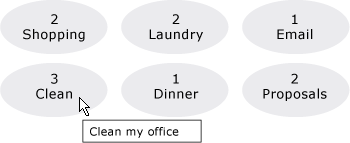 ItemsControl 範例螢幕截圖 DataBinding_ItemsControlProperties
請注意,與其使用 ItemTemplate,您可以使用 ItemTemplateSelector。 請參閱上一節中的範例。 同樣地,與其使用
此處未顯示的 ItemsControl 的另外兩個樣式相關屬性為 GroupStyle 和 GroupStyleSelector。
支援階層式資料
到目前為止,我們只討論了如何繫結和顯示單一集合。 有時候集合之中可能還有其他集合。
HierarchicalDataTemplate 類別的設計目的是要與 HeaderedItemsControl 類型搭配使用,以顯示這類資料。 在下列範例中,ListLeagueList 是由 League 物件組成的清單。 每個 League 物件都有一個 Name 和一個 Division 物件的集合。 每一個 Division 都有一個 Name 和 Team 物件的集合,並且每一個 Team 物件都有一個 Name。
<Window x:Class="SDKSample.Window1"
  xmlns="http://schemas.microsoft.com/winfx/2006/xaml/presentation"
  xmlns:x="http://schemas.microsoft.com/winfx/2006/xaml"
  Title="HierarchicalDataTemplate Sample"
  xmlns:src="clr-namespace:SDKSample">
  <DockPanel>
    <DockPanel.Resources>
      <src:ListLeagueList x:Key="MyList"/>

      <HierarchicalDataTemplate DataType    = "{x:Type src:League}"
                                ItemsSource = "{Binding Path=Divisions}">
        <TextBlock Text="{Binding Path=Name}"/>
      </HierarchicalDataTemplate>

      <HierarchicalDataTemplate DataType    = "{x:Type src:Division}"
                                ItemsSource = "{Binding Path=Teams}">
        <TextBlock Text="{Binding Path=Name}"/>
      </HierarchicalDataTemplate>

      <DataTemplate DataType="{x:Type src:Team}">
        <TextBlock Text="{Binding Path=Name}"/>
      </DataTemplate>
    </DockPanel.Resources>

    <Menu Name="menu1" DockPanel.Dock="Top" Margin="10,10,10,10">
        <MenuItem Header="My Soccer Leagues"
                  ItemsSource="{Binding Source={StaticResource MyList}}" />
    </Menu>

    <TreeView>
      <TreeViewItem ItemsSource="{Binding Source={StaticResource MyList}}" Header="My Soccer Leagues" />
    </TreeView>

  </DockPanel>
</Window>
這個範例說明使用HierarchicalDataTemplate可以輕鬆地顯示包含其他清單的清單資料。 以下是範例的螢幕擷取畫面。
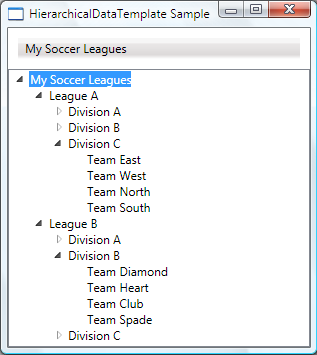 HierarchicalDataTemplate 範例螢幕擷取畫面DataBinding_HierarchicalDataTemplate
另請參閱
- 資料繫結
- 尋找 DataTemplate 產生的元素
- 樣式與模板設計
- 資料繫結概觀
- GridView 資料行標頭樣式和範本概觀
