了解如何從運行於 Azure App Service 上的網頁應用程式存取 Microsoft Graph。
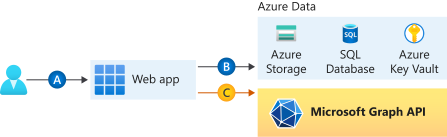
你要呼叫 Microsoft Graph 來做網頁應用程式。 讓 Web 應用程式存取資料的安全方式,是使用系統指派的受控識別。 Microsoft Entra ID 的管理身份允許 App Service 透過角色基礎存取控制(RBAC)存取資源,而無需應用程式憑證。 當你為網頁應用程式指派一個受管理身份後,Azure 會負責建立和分發憑證。 您不需要擔心管理祕密或應用程式認證。
在本教學課程中,您會了解如何:
- 在 Web 應用程式上建立系統指派的受控識別。
- 將 Microsoft Graph API 權限加入受管理身份。
- 透過管理身份從網頁應用程式呼叫 Microsoft Graph。
如果你沒有Azure帳號,請在開始前先建立一個free帳號。
必要條件
- 一個在 Azure App Service 上運行的網頁應用程式,已啟用 App Service 認證/授權模組。
啟用應用程式上的受控識別
如果你透過 Visual Studio 建立並發佈你的網頁應用程式,管理身份會在你的應用程式中自動啟用。
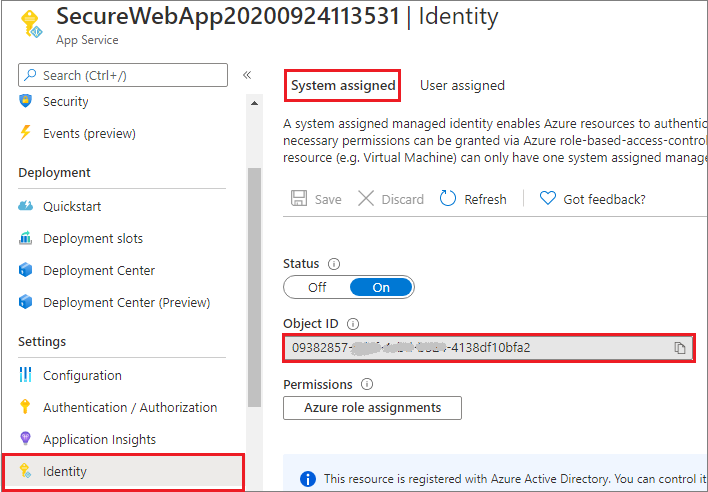
在應用程式服務中,選取左側窗格中的 [身分識別],然後選取 [系統指派]。
確定狀態設為開啟。
如果沒有,請設定為 開啟,然後選擇 儲存,再選擇 「是 」來啟用系統指派的管理身份。 啟用受控識別時,狀態會設定為「開啟」,且物件識別碼可供使用。
請注意物件 ID 值,這是你在下一節需要的。
授權使用 Microsoft Graph
在存取 Microsoft Graph 時,受管理身份必須擁有其想執行的操作的適當權限。 目前,沒有透過 Microsoft Entra admin center 分配此類權限的選項。
執行以下腳本,將請求的 Microsoft Graph API 權限加入受管理身份服務主體物件。
# Install the module. # Install-Module Microsoft.Graph -Scope CurrentUser # The tenant ID $TenantId = "aaaabbbb-0000-cccc-1111-dddd2222eeee" # The name of your web app, which has a managed identity. $webAppName = "SecureWebApp-20201106120003" $resourceGroupName = "SecureWebApp-20201106120003ResourceGroup" # The name of the app role that the managed identity should be assigned to. $appRoleName = "User.Read.All" # Get the web app's managed identity's object ID. Connect-AzAccount -Tenant $TenantId $managedIdentityObjectId = (Get-AzWebApp -ResourceGroupName $resourceGroupName -Name $webAppName).identity.principalid Connect-MgGraph -TenantId $TenantId -Scopes 'Application.Read.All','AppRoleAssignment.ReadWrite.All' # Get Microsoft Graph app's service principal and app role. $serverApplicationName = "Microsoft Graph" $serverServicePrincipal = (Get-MgServicePrincipal -Filter "DisplayName eq '$serverApplicationName'") $serverServicePrincipalObjectId = $serverServicePrincipal.Id $appRoleId = ($serverServicePrincipal.AppRoles | Where-Object {$_.Value -eq $appRoleName }).Id # Assign the managed identity access to the app role. New-MgServicePrincipalAppRoleAssignment ` -ServicePrincipalId $managedIdentityObjectId ` -PrincipalId $managedIdentityObjectId ` -ResourceId $serverServicePrincipalObjectId ` -AppRoleId $appRoleId執行腳本後,請在 Microsoft Entra 管理中心 確認所請求的 API 權限是否被分配給受管理身份。
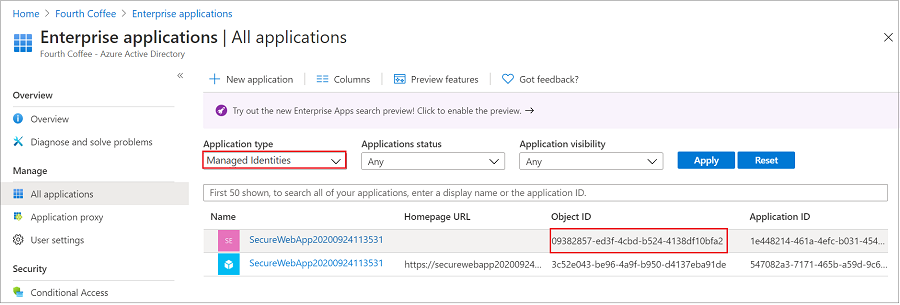
移至 [應用程式]。 此窗格會顯示您租用戶中的所有服務主體。 選擇新增篩選器,然後輸入應用程式類型==受管理身份。
選取受控識別的服務主體。
如果你有照著這個教學做,會發現有兩個顯示名稱相同的服務主體,例如 secureWebApp。 具有首頁 URL 的服務主體代表您租用戶中的 Web 應用程式。 出現在 [受控識別] 中的服務主體不應列出 [首頁 URL],且 [物件識別碼] 應與上一節中受控識別的物件識別碼值相符。
選取受控識別的服務主體。
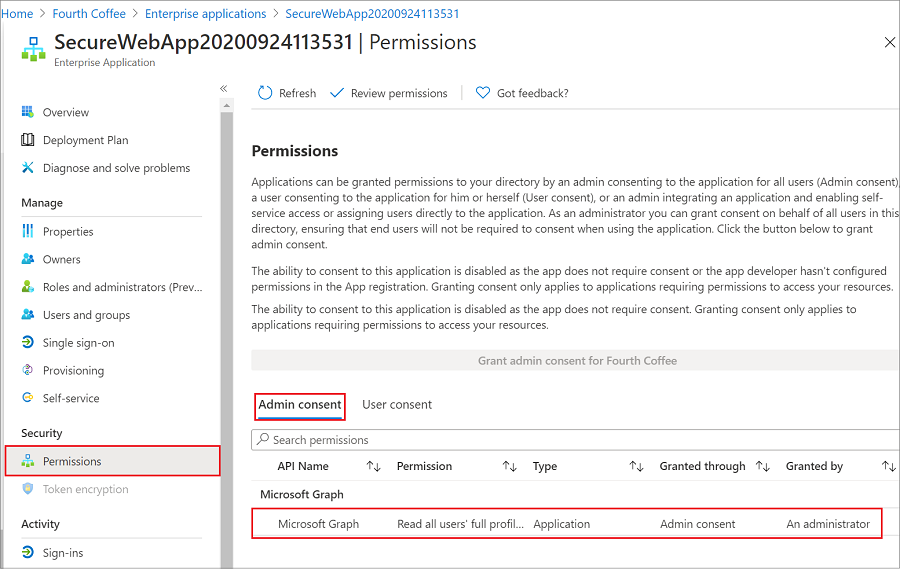
在 總覽中選擇 權限。 你會看到 Microsoft Graph 新增的權限。
使用 Node.js 呼叫 Microsoft Graph
你的網頁應用程式現在擁有所需的權限。 它也會將 Microsoft Graph 的客戶端 ID 加入登入參數中。
來自 DefaultAzureCredential 套件的 類別,可用來取得權杖認證,以便您的程式碼授權對 Azure 儲存體的要求。 建立 DefaultAzureCredential 類別的執行個體,此執行個體會使用受控身分識別來擷取憑證,並將其附加至服務用戶端。 下列程式碼範例取得驗證過的權杖憑證,並用來建立服務客戶端物件,以取得群組中的使用者。
注意
您的 Web 應用程式不需要 @azure/identity 套件,即可進行基本驗證/授權,或向 Microsoft Graph 驗證要求。 您可以只啟用 App Service 驗證/授權模組,安全地呼叫下游 API。
不過,App Service 的驗證/授權是針對更基本的驗證案例所設計。 對於較複雜的情境,例如處理自訂理賠,你需要 @azure/身份 套件。
一開始會有更多設定和設定工作,但這個 @azure/identity 套件可以和 App Service 認證/授權模組一起執行。 之後,當你的網頁應用程式需要處理更複雜的情境時,你可以停用 App Service 的認證/授權模組,因為該 @azure/identity 套件已經是應用程式的一部分。
安裝用戶端程式庫套件
在你的專案中安裝 @azure/identity 以及 @microsoft/microsoft-graph-client 套件。npm
npm install @azure/identity @microsoft/microsoft-graph-client
設定驗證資訊
// partial code in app.js
const appSettings = {
    appCredentials: {
        clientId: process.env.WEBSITE_AUTH_CLIENT_ID, // Enter the client Id here,
        tenantId: "common", // Enter the tenant info here,
        clientSecret: process.env.MICROSOFT_PROVIDER_AUTHENTICATION_SECRET // Enter the client secret here,
    },
    authRoutes: {
        redirect: "/.auth/login/aad/callback", // Enter the redirect URI here
        unauthorized: "/unauthorized" // enter the relative path to unauthorized route
    },
}
請代表應用程式致電 Microsoft Graph
以下程式碼說明如何以應用程式呼叫 Microsoft Graph 控制器並取得使用者資訊。
// graphController.js

const graphHelper = require('../utils/graphHelper');
const { DefaultAzureCredential } = require("@azure/identity");

exports.getUsersPage = async(req, res, next) => {

    const defaultAzureCredential = new DefaultAzureCredential();

    try {
        // get app's access token scoped to Microsoft Graph
        const tokenResponse = await defaultAzureCredential.getToken("https://graph.microsoft.com/.default");

        // use token to create Graph client
        const graphClient = graphHelper.getAuthenticatedClient(tokenResponse.token);

        // return profiles of users in Graph
        const users = await graphClient
            .api('/users')
            .get();

        res.render('users', { user: req.session.user, users: users });
    } catch (error) {
        next(error);
    }
}
前述程式碼依賴以下 getAuthenticatedClient 函式來回傳 Microsoft Graph 用戶端。
// utils/graphHelper.js

const graph = require('@microsoft/microsoft-graph-client');

getAuthenticatedClient = (accessToken) => {
    // Initialize Graph client
    const client = graph.Client.init({
        // Use the provided access token to authenticate requests
        authProvider: (done) => {
            done(null, accessToken);
        }
    });

    return client;
}
清除資源
如果你完成這個教學後不再需要網頁應用程式或相關資源,請清理你建立的資源。
刪除資源群組
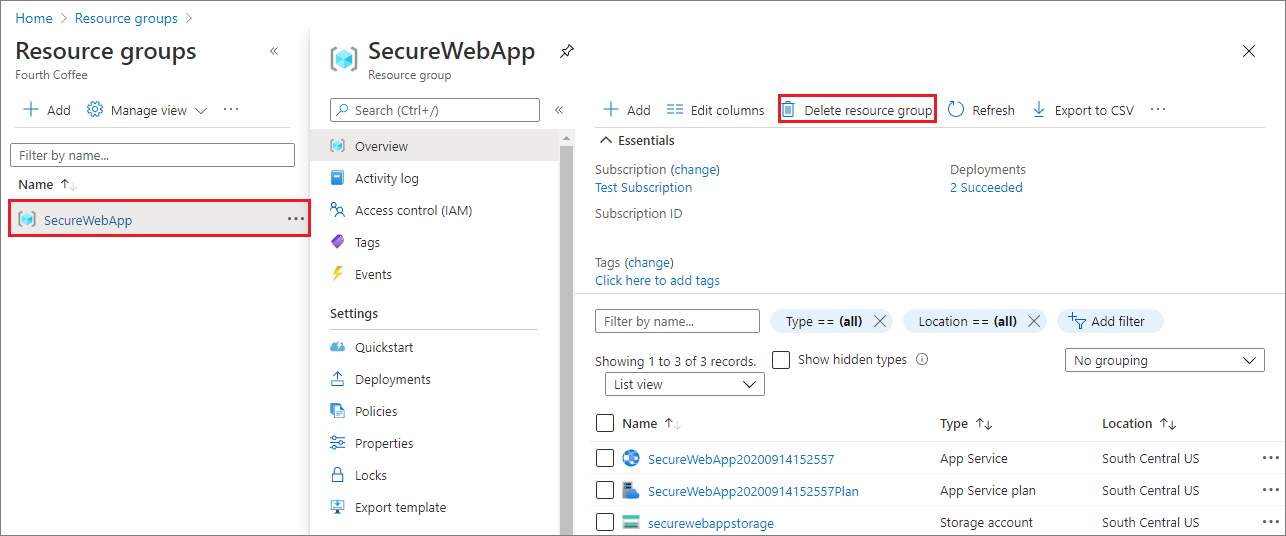
在 Azure 入口網站中,從 Azure 入口網站選單中選擇 資源群組 ,並選擇包含您的應用程式服務及應用程式服務計畫的資源群組。
選取 [刪除資源群組] 來刪除群組及所有資源。
輸入資源群組名稱以確認。
這個過程可能需要幾分鐘才能完成。
相關內容
在本教學課程中,您已了解如何:
- 在 Web 應用程式上建立系統指派的受控識別。
- 將 Microsoft Graph API 權限加入受管理身份。
- 透過管理身份從網頁應用程式呼叫 Microsoft Graph。
學習如何將 .NET Core 應用程式或 Node.js 應用程式 連接到資料庫。