自動化布建 是快速部署和設定執行 Azure 數據總管叢集所需的資源的程式。 這是 DevOps 或 DataOps 工作流程的重要部分。 布建程式不需要您手動設定叢集、不需要人為介入,而且很容易設定。
您可以使用自動化布建來部署預先設定的叢集與數據,作為持續整合和持續傳遞 (CI/CD) 管線的一部分。 這樣做的一些主要優點包括能夠:
- 定義和維護多個 環境。
- 追蹤原始檔控制中的部署。
- 更輕鬆地復原至舊版。
- 藉由布建專用的測試環境來加速自動化測試。
本文提供自動化 Azure 數據總管環境布建的不同機制概觀,包括 基礎結構、 架構實體和數據 擷取。 它也提供用來自動化布建程式之不同工具和技術的參考。

部署基礎結構
基礎結構部署與部署 Azure 資源有關,包括叢集、資料庫和數據連線。 有數種不同類型的基礎結構部署,包括:
ARM 範本和 Terraform 腳本是部署 Azure 數據總管基礎結構的兩個主要宣告式方法。
ARM 範本部署
ARM 樣本是 JSON 或 Bicep 檔案,可定義部署的基礎結構和組態。 您可以使用範本來部署 叢集、 資料庫、 數據連線,以及其他許多基礎結構元件。 如需詳細資訊,請參閱 使用 Azure Resource Manager 範本建立 Azure 數據總管叢集和資料庫。
您也可以使用 ARM 範本來部署 命令文稿,以協助您建立資料庫架構並定義原則。 如需詳細資訊,請參閱使用 Kusto 查詢語言 腳本設定資料庫。
Terraform 部署
Terraform 是開放原始碼的基礎結構即程式代碼軟體工具。 它提供一致的 CLI 工作流程來管理雲端服務。 Terraform 將雲端 API 編纂成宣告式組態檔。
Terraform 提供與ARM樣本相同的功能。 您可以使用 Terraform 來部署 叢集、 資料庫、 數據連線和其他基礎結構元件。
您也可以使用 Terraform 來部署 命令腳本,以協助您建立資料庫架構並定義原則。
命令式部署
您也可以使用任何支援的平臺,以命令方式部署基礎結構:
部署架構實體
架構實體布建與部署數據表、函式、原則和許可權有關。 您可以執行由管理命令組成的腳本來建立或更新實體。
您可以使用下列方法來自動化架構實體部署:
- ARM 範本
- Terraform 腳本
- Kusto CLI
- SDK
- 工具
- 同步 Kusto。 使用此互動式開發人員工具來擷取資料庫架構或管理命令腳本。 然後,您可以使用擷取的內容命令腳本進行自動部署。
- Delta Kusto:在 CI/CD 管線中叫用此工具。 它可以比較兩個來源,例如資料庫架構或管理命令腳本,以及計算差異管理命令腳本。 然後,您可以使用擷取的內容命令腳本進行自動部署。
- Azure 數據總管的 Azure DevOps 工作 。
內嵌資料
有時候您想要將資料內嵌到叢集中。 例如,您可能想要內嵌資料以執行測試或重新建立環境。 您可以使用下列方法來內嵌資料:
- SDK
- LightIngest CLI 工具
- 觸發 Azure Data Factory 管線
使用 CI/CD 管線的範例部署
在下列範例中,您會使用執行工具的 Azure DevOps CI/CD 管線,將基礎結構、架構實體和數據部署自動化。 這是使用一組特定工具的管線範例,但您可以使用其他工具和步驟。 例如,在生產環境中,您可能想要建立不會內嵌數據的管線。 您也可以將進一步步驟新增至管線,例如在建立的叢集上執行自動化測試。
在這裡,您會使用下列工具:
| 部署類型 | 工具 | Task |
|---|---|---|
| 基礎結構 | ARM 範本 | 建立叢集和資料庫 |
| 架構實體 | Kusto CLI | 在資料庫中建立資料表 |
| 資料 | LightIngest | 將數據內嵌至一個數據表 |

使用下列步驟建立管線。
步驟 1:建立服務連線
定義 Azure Resource Manager 類型的服務連線。 將連線指向您要在其中部署叢集的訂用帳戶和資源群組。 系統會建立 Azure 服務主體,並使用它來部署 ARM 範本。 您可以使用相同的主體來部署架構實體和內嵌數據。 您必須明確地將認證傳遞至 Kusto CLI 和 LightIngest 工具。
步驟 2:建立管線
定義您將用來部署叢集、建立架構實體及內嵌數據的管線 (deploy-environ)。
您必須先建立下列 秘密變數,才能使用管線:
| 變數名稱 | 描述 |
|---|---|
clusterName |
Azure 數據總管叢集的名稱。 |
serviceConnection |
用來部署ARM範本的 Azure DevOps 連線名稱。 |
appId |
用來與叢集互動之服務主體的用戶端標識碼。 |
appSecret |
服務主體的秘密。 |
appTenantId |
服務主體的租用戶標識碼。 |
location |
您將在其中部署叢集的 Azure 區域。 例如: eastus 。 |
resources:
- repo: self

stages:
- stage: deploy_cluster
  displayName: Deploy cluster
  variables: []
    clusterName: specifyClusterName
    serviceConnection: specifyServiceConnection
    appId: specifyAppId
    appSecret: specifyAppSecret
    appTenantId: specifyAppTenantId
    location: specifyLocation
  jobs:
  - job: e2e_deploy
    pool:
      vmImage: windows-latest
    variables: []
    steps:
    - bash: |
        nuget install Microsoft.Azure.Kusto.Tools -Version 5.3.1
        # Rename the folder (including the most recent version)
        mv Microsoft.Azure.Kusto.Tools.* kusto.tools
      displayName: Download required Kusto.Tools Nuget package
    - task: AzureResourceManagerTemplateDeployment@3
      displayName: Deploy Infrastructure
      inputs:
        deploymentScope: 'Resource Group'
        # subscriptionId and resourceGroupName are specified in the serviceConnection
        azureResourceManagerConnection: $(serviceConnection)
        action: 'Create Or Update Resource Group'
        location: $(location)
        templateLocation: 'Linked artifact'
        csmFile: deploy-infra.json
        overrideParameters: "-clusterName $(clusterName)"
        deploymentMode: 'Incremental'
    - bash: |
        # Define connection string to cluster's database, including service principal's credentials
        connectionString="https://$(clusterName).$(location).kusto.windows.net/myDatabase;Fed=true;AppClientId=$(appId);AppKey=$(appSecret);TenantId=$(appTenantId)"
        # Execute a KQL script against the database
        kusto.tools/tools/Kusto.Cli $connectionString -script:MyDatabase.kql
      displayName: Create Schema Entities
    - bash: |
        connectionString="https://ingest-$(CLUSTERNAME).$(location).kusto.windows.net/;Fed=true;AppClientId=$(appId);AppKey=$(appSecret);TenantId=$(appTenantId)"
        kusto.tools/tools/LightIngest $connectionString -table:Customer -sourcePath:customers.csv -db:myDatabase -format:csv -ignoreFirst:true
      displayName: Ingest Data
步驟 3:建立 ARM 範本以部署叢集
定義您將用來將叢集部署至訂用帳戶和資源群組的 ARM 範本 (deploy-infra.json)。
{
    "$schema": "https://schema.management.azure.com/schemas/2019-04-01/deploymentTemplate.json#",
    "contentVersion": "1.0.0.0",
    "parameters": {
        "clusterName": {
            "type": "string",
            "minLength": 5
        }
    },
    "variables": {
    },
    "resources": [
        {
            "name": "[parameters('clusterName')]",
            "type": "Microsoft.Kusto/clusters",
            "apiVersion": "2021-01-01",
            "location": "[resourceGroup().location]",
            "sku": {
                "name": "Dev(No SLA)_Standard_E2a_v4",
                "tier": "Basic",
                "capacity": 1
            },
            "resources": [
                {
                    "name": "myDatabase",
                    "type": "databases",
                    "apiVersion": "2021-01-01",
                    "location": "[resourceGroup().location]",
                    "dependsOn": [
                        "[resourceId('Microsoft.Kusto/clusters', parameters('clusterName'))]"
                    ],
                    "kind": "ReadWrite",
                    "properties": {
                        "softDeletePeriodInDays": 365,
                        "hotCachePeriodInDays": 31
                    }
                }
            ]
        }
    ]
}
步驟 4:建立 KQL 腳本以建立架構實體
定義您將用來在資料庫中建立數據表的 KQL 腳稿 (MyDatabase.kql)。
.create table Customer(CustomerName:string, CustomerAddress:string)

//  Set the ingestion batching policy to trigger ingestion quickly
//  This is to speedup reaction time for the sample
//  Do not do this in production
.alter table Customer policy ingestionbatching @'{"MaximumBatchingTimeSpan":"00:00:10", "MaximumNumberOfItems": 500, "MaximumRawDataSizeMB": 1024}'

.create table CustomerLogs(CustomerName:string, Log:string)
步驟 5:建立 KQL 腳本以內嵌數據
建立 CSV 資料檔 (customer.csv) 來內嵌。
customerName,customerAddress
Contoso Ltd,Paris
Datum Corporation,Seattle
Fabrikam,NYC

您可以使用您在管線中指定的服務主體認證來建立叢集。 若要授與用戶許可權,請遵循管理 Azure 數據總管資料庫許可權中的步驟。
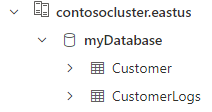
您可以對 Customer 資料表執行查詢來驗證部署。 您應該會看到從 CSV 檔案匯入的三筆記錄。
相關內容
- 使用 Azure Resource Manager 樣本建立叢集和資料庫。
- 使用 KQL 文稿設定資料庫