在本快速入門中,您會探索和自定義 Azure 開發人員 CLI 範本。
hello-azd 範本提供簡單的起點,可使用 Azure 開發人員 CLI 來azd建置和部署應用程式至 Azure。 本快速入門會擴充 快速入門 - 部署 azd 範本 一文中示範的概念。
先決條件
若要在瀏覽器中完成本快速入門,您需要:
- 存取 GitHub Codespaces
或者,若要使用本機工具完成本快速入門:
- 安裝在本機電腦上的 Azure 開發人員 CLI
- Visual Studio Code 或您選擇的編輯器
- 安裝在本機電腦上的 Docker 桌面
探索 Azure 開發人員 CLI 樣本結構
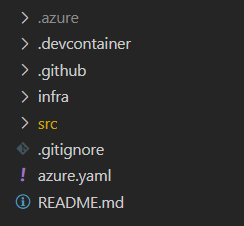
azd 範本是包含其他資產的標準程式代碼存放庫。 所有 azd 範本都會根據 azd 慣例共用類似的檔案結構:
-
infrafolder - 包含所有與azd範本相關的 Bicep 或 Terraform 基礎架構程式代碼檔案。azd會執行這些檔案,以建立應用程式所需的 Azure 資源。 -
srcfolder - 包含應用程式原始程式碼。azd會根據中的azure.yaml組態封裝和部署程序代碼。 -
azure.yamlfile - 組態檔,會將專案中的原始程式碼資料夾對應至部署資料夾中定義的infraAzure 資源。 例如,您可以在不同的資料夾中定義 API 服務和 Web 前端服務,並將其對應至不同的 Azure 資源以進行部署。 -
.azure資料夾 - 包含基本的 Azure 組態,例如部署資源的位置。
例如,大部分 azd 的範本都符合下列資料夾結構:
設定範例範本
hello-azd 是一個範例範本,其設計目的是展示您可以使用單一命令部署至 Azure 的基本功能 azd 。 此範本提供易記 UI,其中包含相關信息 azd 和小型示範工具,可讓您上傳和檢視支援票證。
樣本支援下列功能:
- 封裝容器化應用程式,並將容器化應用程式部署至 Azure 容器應用程式
- 建立應用程式所需的 Azure 資源,例如 Azure Cosmos DB 資料庫
- 可以使用 命令自動設定 CI/CD 管線
azd pipeline config
請遵循下列步驟來設定範本:
在 GitHub 上開啟 hello-azd 範本存放庫 。
選取 [ 程序代碼] 按鈕,然後選取 [Codespaces]。
建立新的 Codespace,以在瀏覽器中啟動完整設定的開發環境。 您可能需要等一會兒,環境才能初始化。
在 Codespaces 環境載入之後,請使用
azd命令初始化azd init範本:azd init -t hello-azd出現提示時,請輸入環境的名稱
azd,例如helloazd。
瀏覽範本
在您選擇的工具中開啟範本後,您可以瀏覽資料夾結構,以探索範本的運作方式 azd :
src展開資料夾以檢視應用程式的原始程式碼。- 此
hello-azd範本包含容器化的 .NET 應用程式,提供簡單的UI來瞭解azd及管理範例票證數據。azd也支援 JavaScript 和 Python 等其他語言。 - 當您執行
azd up時,應用程式會封裝為容器映像,並部署至 Azure 容器應用程式。
- 此
展開
infra資料夾,探索基礎設施即代碼檔案。此範本會使用 Bicep 檔案 (
.bicep) 來建立 Azure 資源,但您也可以使用 Terraform (.tf)。main.bicep檔案會透過參考infra資料夾中的其他 Bicep 模組來建立 Azure 資源,例如 Azure 儲存體帳戶:// Omitted... // Create a storage account module storage './core/storage/storage-account.bicep' = { name: 'storage' scope: rg params: { name: !empty(storageAccountName) ? storageAccountName : '${abbrs.storageStorageAccounts}${resourceToken}' location: location tags: tags containers: [ { name: 'attachments' } ] } } // Omitted...
在範本的根目錄中,開啟
azure.yaml檔案以檢視基本範本組態:此範本會定義一個稱為
aca的服務。服務
aca組態會azd指示將資料夾中的原始程式碼src封裝並部署至您先前探索的 Bicep 模組所布建的 Azure Container App。這些設定
docker會指示azd將應用程式封裝並部署為容器。metadata: template: hello-azd-dotnet # Specifies the template being used name: azd-starter # Name of the project services: aca: # Define the Azure Container App service project: ./src # Path to the source code language: csharp # Programming language host: containerapp # Hosting service docker: path: ./Dockerfile # Location of the Dockerfile
更新範本
您可以變更範本,以影響已部署的應用程式和資源。 在此範例中,您會對應用程式進行兩個小變更,並探索已部署的結果:
- 將應用程式標頭歡迎文字更新為您自己的訊息
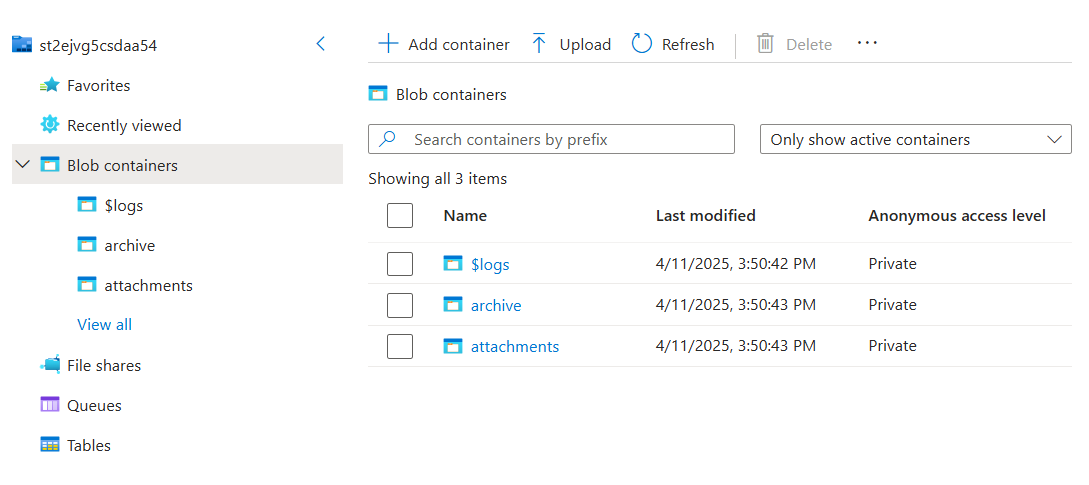
- 更新建立的儲存帳戶,使其建立兩個 Blob 容器,而不是一個
若要進行這些變更,請完成下列步驟:
在
src > Components > Pages資料夾中,開啟Home.razor元件。將頁面頂端的 Hello、Azure Developer CLI! 標頭文字取代為不同的訊息,例如 Hello、自定義範本! ,並儲存您的變更。
<MudText Typo="Typo.h2" GutterBottom="true">Hello, customized template!</MudText>在
infra資料夾中,開啟main.bicep檔案。在第 75 行附近找出 Bicep 程式碼區塊,其中建立了一個存儲帳戶和一個 Blob 容器。
// Create a storage account
module storage './core/storage/storage-account.bicep' = {
  name: 'storage'
  scope: rg
  params: {
    name: !empty(storageAccountName) ? storageAccountName : '${abbrs.storageStorageAccounts}${resourceToken}'
    location: location
    tags: tags
    containers: [
      {
        name: 'attachments'
      }
    ]
  }
}
使用下列片段取代程式碼:
// Create a storage account
module storage './core/storage/storage-account.bicep' = {
  name: 'storage'
  scope: rg
  params: {
    name: !empty(storageAccountName) ? storageAccountName : '${abbrs.storageStorageAccounts}${resourceToken}'
    location: location
    tags: tags
    containers: [
      {
        name: 'attachments'
      },
      {
        name: 'archive'
      }
    ]
  }
}
執行範本
進行變更之後,請使用 azd up 命令來布建和部署應用程式資源:
在專案目錄中開啟終端機。
若要布建及部署範本,請執行
azd up命令:azd up這個命令會:
- 封裝應用程式以進行部署
- 布建必要的 Azure 資源
- 使用更新的變更來部署您的應用程式
- 列印已部署應用程式的URL
若要查看您即時更新的應用程式,請開啟瀏覽器中控制台輸出記錄中列印的
azdURL。
若要檢視已建立的兩個 Blob 容器,請流覽至 Azure 入口網站中建立的記憶體帳戶。
結論
在本快速入門中,您已探索範本的結構 hello-azd 、自定義其應用程式和基礎結構,並使用 Azure 開發人員 CLI 將其部署至 Azure。 如需更進階的案例,請探索其他範本,或深入了解 azd 檔。