Azure DevOps 服務 |Azure DevOps Server |Azure DevOps Server 2022 |Azure DevOps Server 2020
您可以使用 Azure Pipelines,在 Linux 上建置、測試及自動將 Web 應用程式部署至 Azure App 服務 Web 應用程式容器。 在本文中,您將瞭解如何使用 YAML 或傳統管線來:
- 建置 Docker 映射並將其發佈至 Azure Container Registry。
- 建立 Azure Web 應用程式。
- 將容器部署至 Azure App Service。
- 部署至部署位置。
必要條件
| 產品 | 要求 |
|---|---|
| Azure DevOps | - Azure DevOps 組織和專案。
免費建立一個。 - 權限: - 若要授與專案中所有管線的存取權:您必須是 Project Administrators 群組的成員。 - 若要建立服務連線:您必須具有服務連線的系統管理員或建立者角色。 - 能夠在由 Microsoft 託管的代理上運行管線。 您可以購買平行作業,也可以申請免費方案。 |
| GitHub的 | - GitHub 帳戶。 |
| 天藍色 | - Azure 容器註冊表。 如果您還沒有 Azure 容器登錄 ,請建立。 |
取得程式碼
請在 GitHub 上分支下列範例應用程式。
https://github.com/spring-guides/gs-spring-boot-docker.git
建置 Docker 映射並將其發佈至 Azure Container Registry
若要順利完成本節,您必須擁有 Azure Container Registry。 如需詳細資料,請參閱必要條件一節。
登入您的 Azure DevOps 組織,然後瀏覽至您的專案。
選取管線,然後選取新增管線。
當系統提示您輸入原始程式碼的位置時,請 選取 [GitHub ],然後選取您的存放庫。
選取 Docker:建置並將映像推送至 Azure Container Registry 管線範本。
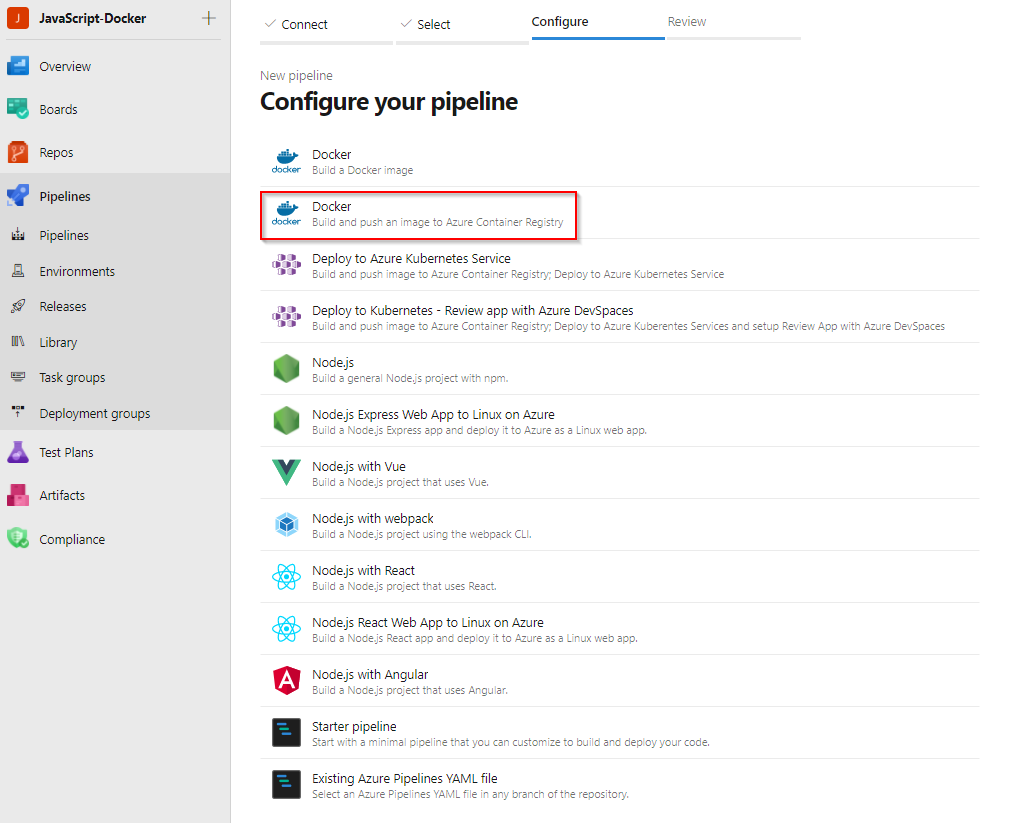
選取您的 Azure 訂用帳戶,然後選取 [ 繼續]。
從下拉功能表中選取您的 容器登錄 ,然後選取 [ 驗證並設定]。
![[驗證及設定 Docker] 畫面的螢幕快照。](media/validate-and-configure.png?view=azure-devops)
檢閱管線 YAML 範本,然後選取 [ 儲存並執行 ] 以建置 Docker 映射並將其發佈至 Azure Container Registry。
trigger:
- main

resources:
- repo: self

variables:
    # Container registry service connection established during pipeline creation
    dockerRegistryServiceConnection: '{{ containerRegistryConnection.Id }}'
    imageRepository: 'javascriptdocker'
    containerRegistry: 'sampleappcontainerregistry.azurecr.io'
    dockerfilePath: '$(Build.SourcesDirectory)/app/Dockerfile'
    tag: '$(Build.BuildId)'

    # Agent VM image name
    vmImageName: 'ubuntu-latest'

stages:
- stage: Build
    displayName: Build and push stage
    jobs:
    - job: Build
    displayName: Build
    pool:
        vmImage: $(vmImageName)
    steps:
    - task: Docker@2
        displayName: Build and push an image to container registry
        inputs:
        command: buildAndPush
        repository: $(imageRepository)
        dockerfile: $(dockerfilePath)
        containerRegistry: $(dockerRegistryServiceConnection)
        tags: |
            $(tag)
若要在管線執行完成後檢視已發佈的 Docker 映射,請移至 Azure 入口網站中的容器登錄,然後選取 [ 存放庫]。
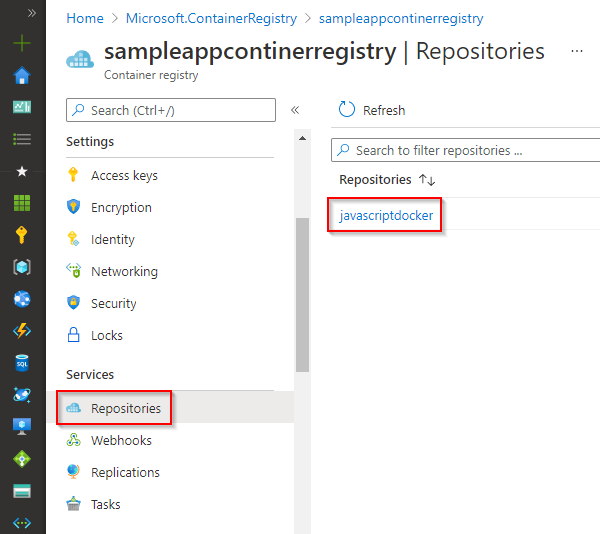
若要從容器登錄部署映像,請啟用系統管理員用戶帳戶。 移至 Azure 入口網站中的容器登錄,然後選取 [存取密鑰]。 然後,選取切換按鈕以 啟用系統管理員使用者。
建立 Web 應用程式
前往 Azure 入口網站。
選取 [建立資源>容器],然後選擇 [適用於容器的 Web 應用程式]。

輸入新 Web 應用程式的名稱,並建立新的資源群組。 針對 [作業系統] 選取 [Linux]。
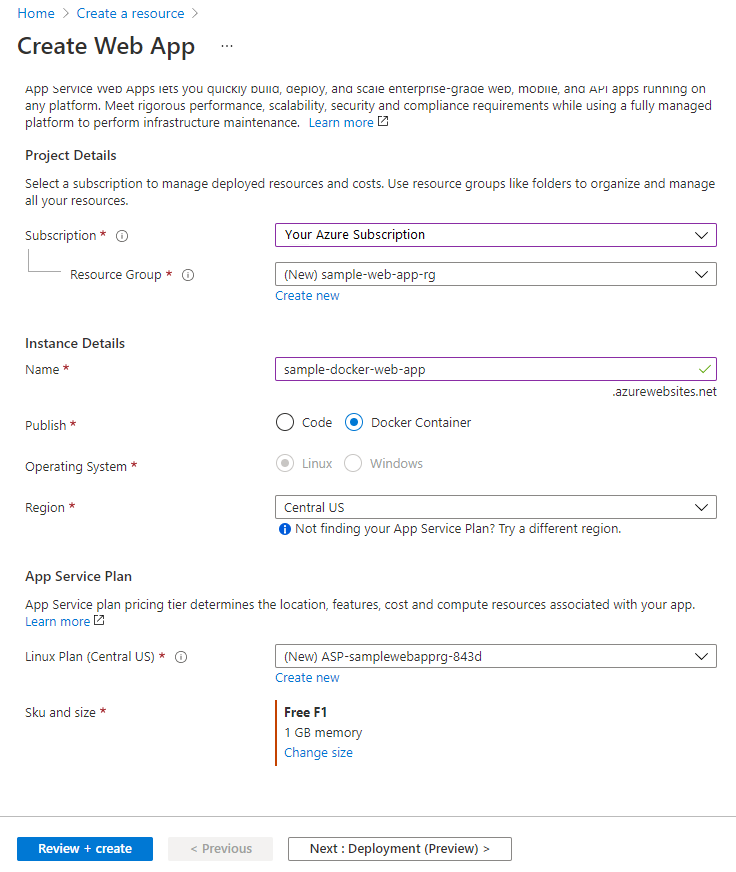
在 [ 定價方案] 區段中,選取 F1 免費方案。
選擇 審核與建立。 檢閱您的設定,然後在完成時選取 [ 建立 ]。
部署至適用於容器的 Web 應用程式
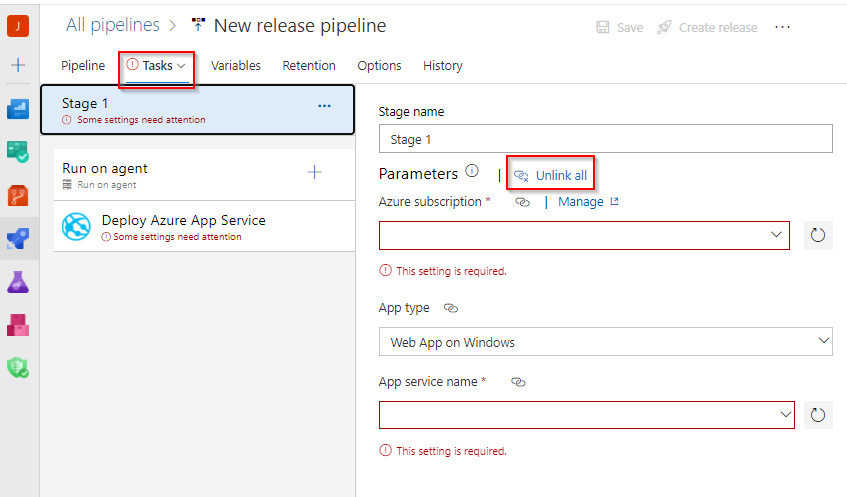
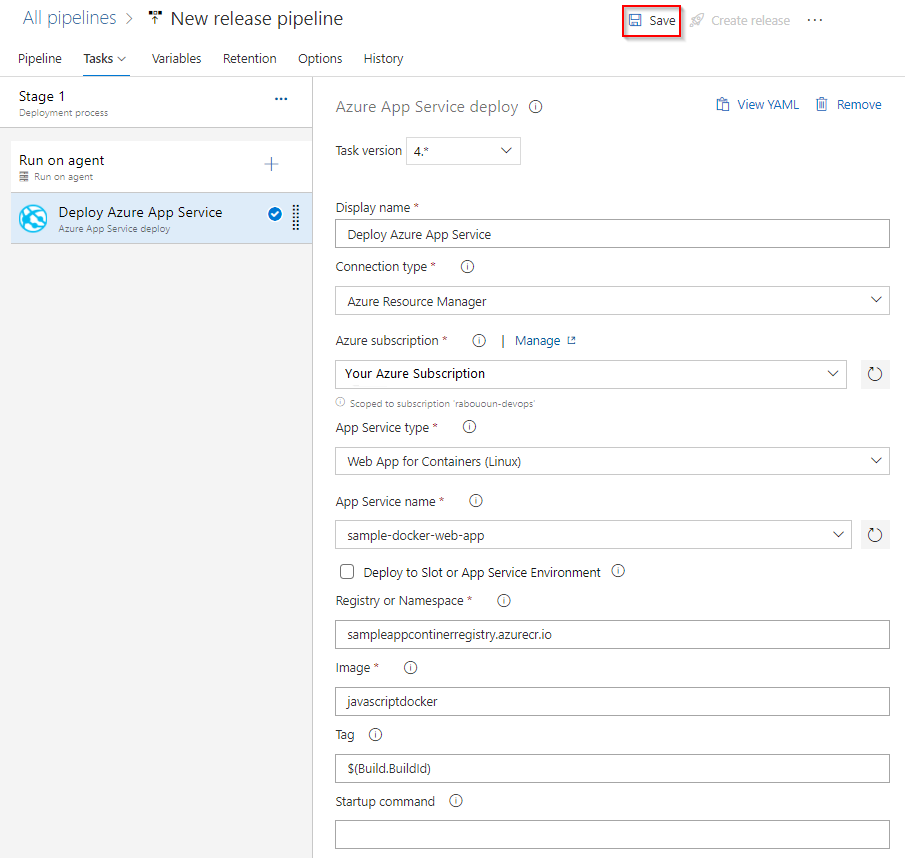
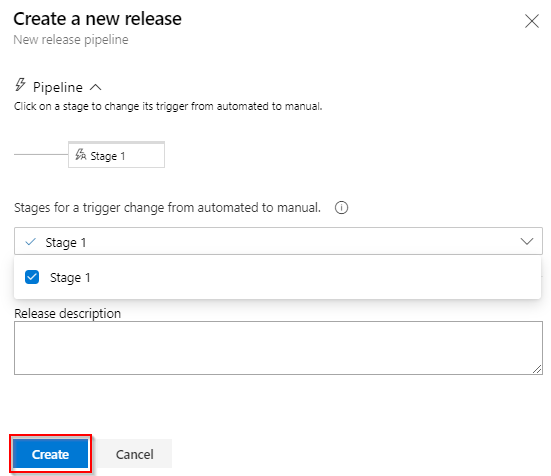
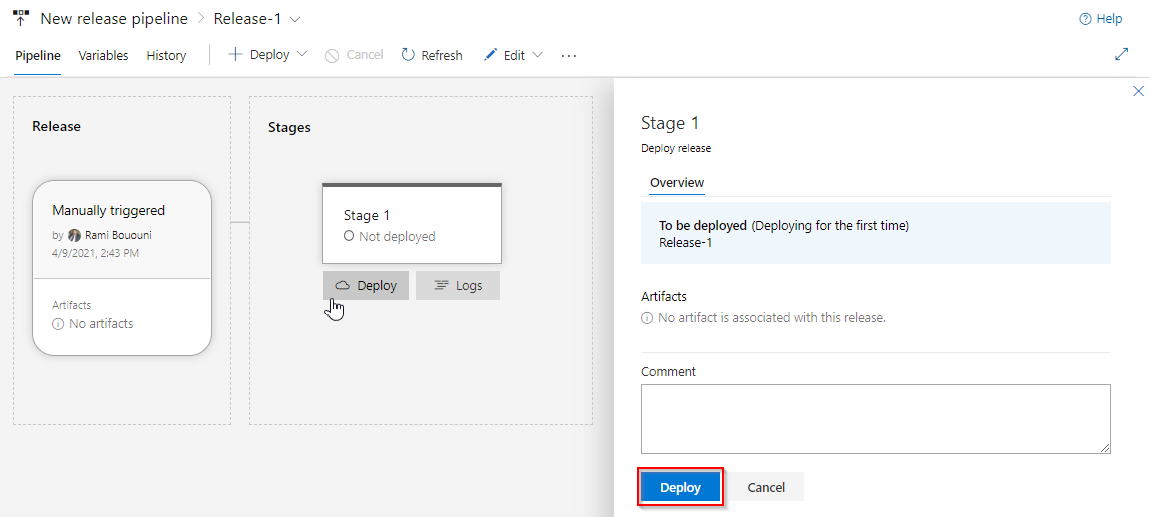
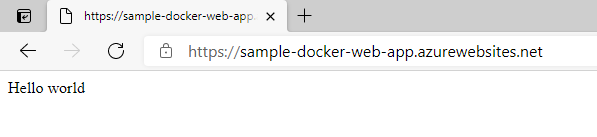
在此 YAML 中,您會建置 Docker 映像並將其推送至容器登錄,然後將它部署到適用於容器的 Azure Web 應用程式。 在 [建置] 階段中,您會使用 Docker@2 工作,建置 Docker 映射並推送至 Azure Container Registry。 AzureWebAppContainer@1 任務將映像部署至容器型 Web 應用程式。
trigger:
- main

resources:
- repo: self

variables:
  ## Add this under variables section in the pipeline
  azureSubscription: <Name of the Azure subscription>
  appName: <Name of the Web App>
  containerRegistry: <Name of the Azure container registry>
  dockerRegistryServiceConnection: '4fa4efbc-59af-4c0b-8637-1d5bf7f268fc'
  imageRepository: <Name of image repository>
  dockerfilePath: '$(Build.SourcesDirectory)/Dockerfile'
  tag: '$(Build.BuildId)'

  vmImageName: 'ubuntu-latest'

stages:
- stage: Build
  displayName: Build and push stage
  jobs:
  - job: Build
    displayName: Build
    pool:
      vmImage: $(vmImageName)
    steps:
    - task: Docker@2
      displayName: Build and push an image to container registry
      inputs:
        command: buildAndPush
        repository: $(imageRepository)
        dockerfile: $(dockerfilePath)
        containerRegistry: $(dockerRegistryServiceConnection)
        tags: |
          $(tag)


    ## Add the below snippet at the end of your pipeline
    - task: AzureWebAppContainer@1
      displayName: 'Azure Web App on Container Deploy'
      inputs:
        azureSubscription: $(azureSubscription)
        appName: $(appName)
        containers: $(containerRegistry)/$(imageRepository):$(tag)
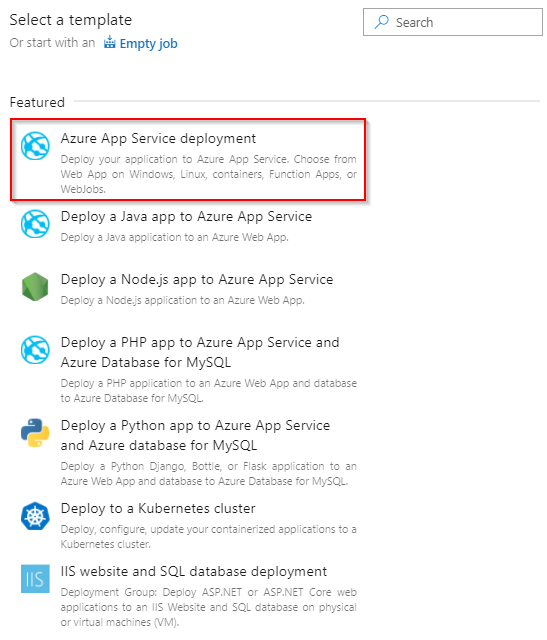

部署至部署位置
將 Azure Web 應用程式容器設定為有多個位置。 部署槽可讓您安全地部署應用程式,並進行測試,再提供給您的客戶使用。 在 建立預備環境中了解更多。
下列 YAML 程式碼片段示範如何部署至預備位置,然後交換成生產位置:
- task: AzureWebAppContainer@1
  inputs:
    azureSubscription: '<Azure service connection>'
    appName: '<Name of the web app>'
    containers: $(containerRegistry)/$(imageRepository):$(tag)
    deployToSlotOrASE: true
    resourceGroupName: '<Name of the resource group>'
    slotName: staging

- task: AzureAppServiceManage@0
  inputs:
    azureSubscription: '<Azure service connection>'
    WebAppName: '<name of web app>'
    ResourceGroupName: '<name of resource group>'
    SourceSlot: staging
    SwapWithProduction: true
FAQ
問:如何尋找我的 Docker 登錄認證?
答:移至 Azure 入口網站,然後選取適用於容器的 Web 應用程式。 選取 [組態>應用程式設定],然後選取以顯示值。
