本文顯示如何使用 Azure Digital Twins 資料,以從 Azure 地圖服務更新「室內地圖」上所顯示的資訊。 因為 Azure Digital Twins 會儲存 IoT 裝置關聯性的圖表,並將裝置資料路由傳送至不同的端點,所以這是更新地圖上資訊重疊的絕佳服務。
本指南涵蓋下列資訊:
- 設定 Azure Digital Twins 執行個體,以將對應項更新事件傳送至 Azure Functions 中的函數。
- 建立函數,以更新 Azure 地圖服務室內地圖功能狀態集。
- 將地圖 ID 和功能狀態集 ID 儲存至 Azure Digital Twins 圖表。
開始吧
本節為本文中的資訊設置額外的背景。
先決條件
繼續進行本文之前,請先設定個別 Azure Digital Twins 和 Azure 地圖服務資源。
- 針對 Azure Digital Twins:請遵循連線端對端解決方案中的指示,以範例孿生體圖和模擬資料流來設置 Azure Digital Twins 執行個體。
- 在本文中,您將使用另一個端點和路由來擴充該解決方案。 您還會在該教學課程中將另一個函數新增到函數應用程式中。
- 針對 Azure 地圖服務:請遵循使用 Creator 建立室內地圖中的指示,並建立具有「功能狀態集」的 Azure 地圖服務室內地圖。
- 功能狀態集是指派給資料集功能 (例如房間或設備) 的動態屬性 (狀態) 集合。 在上述的 Azure Maps 指示中,功能狀態集儲存著您將顯示於地圖上的房間狀態。
- 您將需要 Azure 地圖服務「訂用帳戶金鑰」、功能「狀態集識別碼」和 mapConfiguration。
拓撲學
下圖說明本教學課程中的室內地圖整合元素如何融入更大範圍的 Azure Digital Twins 全端方案中。
從 Azure Digital Twins 路由傳送雙胞更新通知
只要雙胞胎的狀態更新,Azure Digital Twins 執行個體就可以發出雙胞胎更新事件。 上面所連結的 Azure Digital Twins 端到端連接解決方案會逐步解說一個場景,其中使用溫度計來更新與房間數位雙胞相關的溫度屬性案例。 本教學課程透過訂閱 Azure 函數來接收數位雙胞胎的更新通知,並使用該函數來更新您的地圖,以擴充該解決方案。
此模式會直接從房間數據副本進行讀取,而非從 IoT 裝置讀取,這樣您可以靈活地更改溫度的資料來源,而不需要更新您的對應邏輯。 例如,您可以新增多個溫度計,或設定此房間以與另一間房間共用溫度計,而這些都不需要更新地圖邏輯。
首先,您將在 Azure Digital Twins 中建立路由,以將所有對應項更新事件轉送至「事件方格」主題。
使用下列 CLI 命令來建立「事件方格」主題,以接收來自 Azure Digital Twins 執行個體的事件:
az eventgrid topic create --resource-group <your-resource-group-name> --name <your-topic-name> --location <region>使用下列 CLI 命令來建立端點,以將「事件方格」主題連結至 Azure Digital Twins:
az dt endpoint create eventgrid --endpoint-name <Event-Grid-endpoint-name> --eventgrid-resource-group <Event-Grid-resource-group-name> --eventgrid-topic <your-Event-Grid-topic-name> --dt-name <your-Azure-Digital-Twins-instance-name>使用下列 CLI 命令以在 Azure Digital Twins 中建立路由,以將對應項更新事件傳送至您的端點。 在此指令中的 Azure Digital Twins 實例名稱佔位符處,您可以使用更容易辨識的名稱或主機名稱,以提升效能。
備註
Cloud Shell 目前具有影響這些命令群組的已知問題:
az dt route、az dt model、az dt twin。若要解決此問題,請在執行命令之前,先在 Cloud Shell 中執行
az login;或使用本機 CLI,而不是 Cloud Shell。 如需此作業的詳細資料,請參閱 Azure Digital Twins 已知問題。az dt route create --dt-name <your-Azure-Digital-Twins-instance-hostname-or-name> --endpoint-name <Event-Grid-endpoint-name> --route-name <my-route> --filter "type = 'Microsoft.DigitalTwins.Twin.Update'"
建立 Azure 函數以接收事件和更新地圖
在本節中,您將建立函數來接聽傳送至「事件方格」主題的事件。 函數將會讀取這些更新通知,並將對應的更新傳送至 Azure 地圖服務功能狀態集,以更新一間房間的溫度。
在 Azure Digital Twins 教學課程必要條件中,您已建立函數應用程式來儲存 Azure Functions Azure Digital Twins。 現在,請在函數應用程式中建立新的事件格觸發的 Azure 函數。
將函數程式碼取代為下列程式碼。 這樣只會篩選出太空雙胞胎的更新資料、讀取已更新的溫度,並將該資訊傳送至 Azure Maps。
using System;
using System.Threading.Tasks;
using System.Net.Http;
using Microsoft.Azure.WebJobs;
using Microsoft.Azure.WebJobs.Extensions.EventGrid;
using Microsoft.Extensions.Logging;
using Newtonsoft.Json;
using Newtonsoft.Json.Linq;
using Azure.Messaging.EventGrid;

namespace updateMaps
{
    public static class ProcessDTUpdatetoMaps
    {
        // Read maps credentials from application settings on function startup
        private static string statesetID = Environment.GetEnvironmentVariable("statesetID");
        private static string subscriptionKey = Environment.GetEnvironmentVariable("subscription-key");
        private static HttpClient httpClient = new HttpClient();

        [FunctionName("ProcessDTUpdatetoMaps")]
        public static async Task Run([EventGridTrigger]EventGridEvent eventGridEvent, ILogger log)
        {
            JObject message = (JObject)JsonConvert.DeserializeObject(eventGridEvent.Data.ToString());
            log.LogInformation($"Reading event from twinID: {eventGridEvent.Subject}: {eventGridEvent.EventType}: {message["data"]}");

            //Parse updates to "space" twins
            if (message["data"]["modelId"].ToString() == "dtmi:contosocom:DigitalTwins:Space;1")
            {
                // Set the ID of the room to be updated in your map.
                // Replace this line with your logic for retrieving featureID.
                string featureID = "UNIT103";

                // Iterate through the properties that have changed
                foreach (var operation in message["data"]["patch"])
                {
                    if (operation["op"].ToString() == "replace" && operation["path"].ToString() == "/Temperature")
                    {
                        // Update the maps feature stateset
                        var postcontent = new JObject(
                            new JProperty(
                                "States",
                                new JArray(
                                    new JObject(
                                        new JProperty("keyName", "temperature"),
                                        new JProperty("value", operation["value"].ToString()),
                                        new JProperty("eventTimestamp", DateTime.UtcNow.ToString("s"))))));

                        var response = await httpClient.PutAsync(
                            $"https://us.atlas.microsoft.com/featurestatesets/{statesetID}/featureStates/{featureID}?api-version=2.0&subscription-key={subscriptionKey}",
                            new StringContent(postcontent.ToString()));


                        log.LogInformation(await response.Content.ReadAsStringAsync());
                    }
                }
            }
        }
    }
}
您將需要在函數應用程式中設定兩個環境變數。 一個是您的 Azure 地圖服務主要訂用帳戶金鑰,另一個則是您的 Azure 地圖服務狀態集識別碼。
az functionapp config appsettings set --name <your-function-app-name> --resource-group <your-resource-group> --settings "subscription-key=<your-Azure-Maps-primary-subscription-key>"
az functionapp config appsettings set --name <your-function-app-name> --resource-group <your-resource-group> --settings "statesetID=<your-Azure-Maps-stateset-ID>"
檢視地圖中的即時更新
若要查看即時更新溫度,請遵循下列步驟:
- 從 Azure Digital Twins 連線端對端解決方案中執行 DeviceSimulator 專案,以開始傳送模擬的 IoT 資料。 此程序的指示位於設定和執行模擬一節中。
- 使用 Azure 室內地圖服務模組,以轉譯在 Azure 地圖服務建立工具中建立的室內地圖。
- 從範例:自訂樣式:在 WebSDK (預覽) 中取用地圖設定中,複製範例室內地圖 HTML 檔案。
- 將本機 HTML 檔案中的「訂用帳戶金鑰」、mapConfiguration、statesetID 和 region 取代為您的值。
- 在瀏覽器中開啟該檔案。
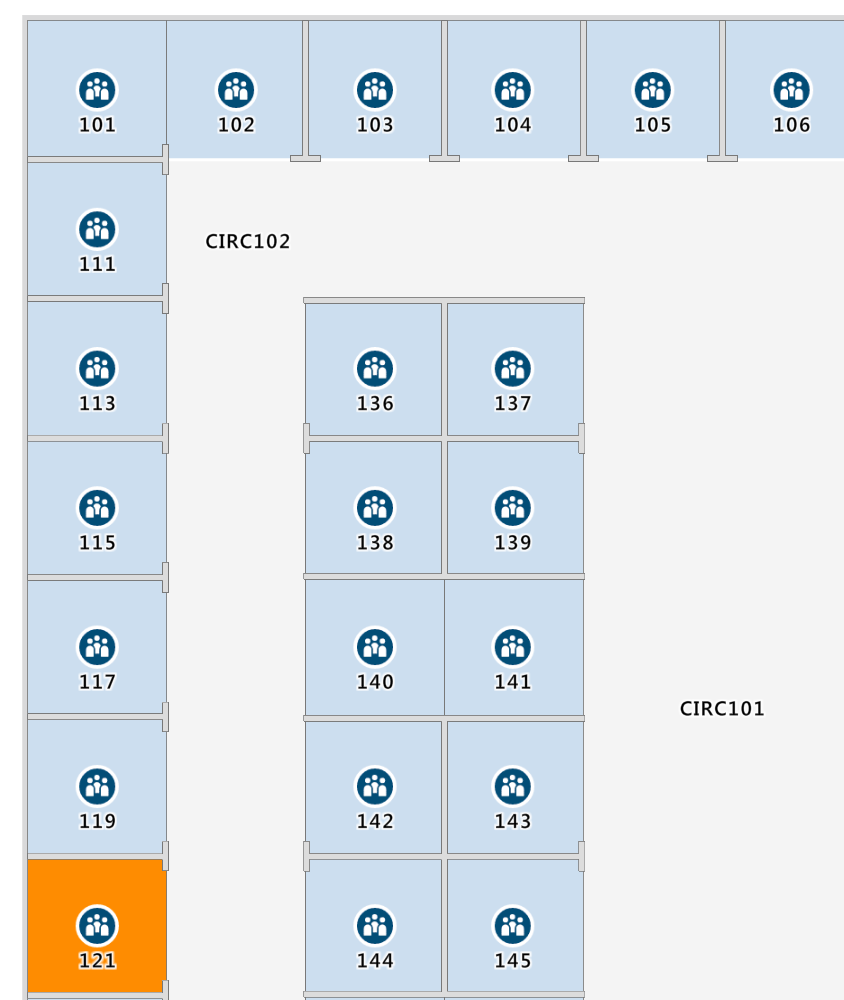
這兩個範例都會以相容範圍來傳送溫度,因此您應該會每隔 30 秒看到地圖上房間 121 更新的色彩。
將地圖資訊儲存至 Azure Digital Twins
既然您有硬式編碼的解決方案可更新地圖資訊,就可以使用 Azure Digital Twins 圖形來儲存更新室內地圖所需的所有資訊。 此資訊將會分別包括狀態集識別碼、地圖訂用帳戶識別碼,以及每個地圖和位置的功能識別碼。
此特定範例的解決方案將涉及更新每個頂層空間,以具有狀態集識別碼和訂閱識別碼映射屬性,以及更新每間房間以具有功能識別碼。 初始化對應項圖形時,您需要設定這些值一次,然後查詢每個對應項更新事件的這些值。
根據拓撲的設定,可以將這三個屬性儲存至與地圖細微性相互關聯的不同層級。
後續步驟
若要了解更多關於管理、升級和擷取資訊自雙胞圖的內容,請參閱以下參考資料: