適用於:Azure Logic Apps (標準)
當您想要在 Azure Logic Apps 中整合商業規則與標準工作流程時,您可以使用 Visual Studio Code 建立和建置 Azure Logic Apps 規則引擎專案。 規則會控管商業邏輯並決定商務流程的運作方式。
若要在工作流程中執行規則,對於包含 .NET 資料的規則集,請使用本機自訂函式。 對於僅使用 XML 事實的規則集,你可以改用內建的 執行規則引擎 動作,目前該動作目前處於預覽階段。
本指南說明如何建立 Azure Logic Apps 規則引擎專案:
建立 Azure Logic Apps 規則引擎專案的前提條件與設定,包括使用 Microsoft 規則編輯器建立專案的商業規則。
如果您有任何規則,請從 Microsoft BizTalk Server 匯出這些現有的規則。
使用 Visual Studio Code 為 Azure Logic Apps 規則引擎建立一個標準邏輯應用專案。
您可以使用本機自訂函式來處理 .NET 事實,或使用僅適用於 XML 事實的 Execute Rules Engine 動作,從工作流程執行規則集。
必要條件
下載並安裝 Microsoft規則編輯器,您用來建立規則集、商務規則和詞彙。
若要開展規則引擎專案的業務,請參閱下列文件:
在此版本中,只有 Visual Studio Code 支援 Azure Logic Apps 規則引擎專案的開發體驗。 若要符合使用 Visual Studio Code 的必要條件,請參閱 使用 Visual Studio Code 在單一租使用者 Azure Logic Apps 中建立標準邏輯應用程式工作流程。
若要使用 .NET 事實資料,Azure Logic Apps 規則引擎會使用 Visual Studio Code 中的自訂程式碼功能。 若要符合使用這項功能的必要條件,請參閱 在 Azure Logic Apps 中從標準工作流程建立和執行 .NET Framework 程式代碼。
建立專案之前
若要協助您確保規則引擎專案成功,請檢閱並執行下列一般工作和最佳做法:
決定商務規則如何融入您的商務程式。
規劃如何將商務規則併入您的應用程式。
識別您想要在應用程式中以規則表示的商業規則。
「業務邏輯」一詞可以參考許多事項。 例如,商業規則可能是「採購單大於 500 美元需要經理核准」。
識別規則元素的數據源。 您可以選擇性地定義詞彙,這是代表基礎系結的網域特定名詞。
定義從詞彙定義或直接從資料綁定應用的規則。 從這些規則中,建立代表商業規則的規則集。
從 Microsoft BizTalk Server 匯出規則
若要重用 Microsoft BizTalk Server 的現有規則,您可以匯出這些規則。 不過,目前尚不支援 DB 事實。 在匯出規則之前,請先使用 Microsoft BizTalk 規則編寫器移除或將其轉換為其他類型的事實。
從 Microsoft BizTalk Server,啟動 商務規則引擎部署精靈。
在 [ 歡迎使用規則引擎部署精靈 ] 頁面上,選取 [ 下一步]。
在 [ 部署工作 ] 頁面上,選取 [從資料庫匯出原則/詞彙至檔案],然後選取 [ 下一步]。
在 [ 原則存放區 ] 頁面上的 [SQL Server 名稱] 列表中,選取您的 SQL Server。 在所選伺服器清單中的 [組態資料庫] 中,選取 [BizTalkRuleEngineDb],然後選取 [ 下一步]。
在 [ 匯出原則 /詞彙] 頁面上,從 [ 原則 ] 列表中,選取您想要的原則。 若要尋找並選擇定義檔,請選取 [ 瀏覽]。
在您準備就緒後,選取 [下一步]。
確認伺服器、資料庫和原則或詞彙資訊,然後選取 [ 下一步]。
匯入或匯出完成後,選取 [ 下一步]。
檢閱匯入或導出的完成狀態,然後選取 [ 完成]。
建立 Azure Logic Apps 規則引擎專案
專案範本會建立一個函式專案和一個邏輯應用程式專案。 只有當你的規則集包含 .NET 事實時,才需要 function 專案和自訂程式碼。 對於只使用 XML 事實的規則集,請在工作流程中使用內建的 執行規則引擎 動作。
在 Visual Studio Code 的 [活動列] 上,選取 Azure 圖示。 (鍵盤:Shift+Alt+A)
在開啟的 Azure 視窗中,在 [工作區] 區段工具列上,從 Azure Logic Apps 功能表選取 [建立新的邏輯應用程式工作區]。
![此螢幕擷取畫面顯示 Visual Studio Code、Azure 視窗、工作區區段工具列,以及 [建立新邏輯應用程式工作區] 的選定選項。](media/create-rules-engine-project/create-workspace.png)
在 [選取資料夾] 方塊中,瀏覽至並選取您為專案建立的本機資料夾。
當 [建立新的邏輯應用程式工作區] 提示方塊出現時,提供工作區的名稱:

此範例將繼續以MyLogicAppRulesWorkspace。
當邏輯應用程式工作區提示方塊的 [選取專案範本] 出現時,請選取 [具有規則引擎專案的邏輯應用程式]。

遵循後續的提示,提供下列範例值:
項目 範例值 函數專案的函數名稱 RulesFunction 函式專案的命名空間名稱 Contoso 邏輯應用程式: LogicApp 工作流程範本:
- 有狀態的工作流程
- 無狀態工作流程具狀態工作流程 工作流程名稱 MyRulesWorkflow 選取 在目前視窗中開啟。
完成此步驟之後,Visual Studio Code 會建立工作區,其中包含函式專案和邏輯應用程式規則引擎專案,例如:

Node 描述 < 工作區名稱> 包含功能專案和邏輯應用工作流程專案。 功能 包含您函式專案的成品。 例如,<function-name>.cs 檔案是程式碼檔案,您可以在其中撰寫程式碼。 LogicApp 包含您邏輯應用程式規則引擎專案的成品,其中包括工作流程。
![此螢幕擷取畫面顯示 Visual Studio Code、Azure 視窗、工作區區段工具列,以及 [建立新邏輯應用程式工作區] 的選定選項。](media/create-rules-engine-project/create-workspace.png#lightbox)


為 .NET 事實資料撰寫規則引擎程式碼
如果你的規則集只使用 XML 事實,請跳過此節, 改用內建的執行規則引擎動作。 如果你的規則集包含 .NET 事實,請依本節所述建立本地自訂函式。
如果尚未展開,請在您的工作區中展開寒士節點。
開啟<函數名稱>.cs檔案,此範例中名為RulesFunction.cs。
依預設,此檔案包含範例程式碼,其中包含下列程式碼元素,以及先前提供的範例值 (如適用):
- 命名空間名稱
- 類別名稱
- 函式名稱
- 函數參數
- 傳回類型
- 複雜類型
下列範例顯示名為
RulesFunction之函式的完整範例程式代碼://------------------------------------------------------------ // Copyright (c) Microsoft Corporation. All rights reserved. //------------------------------------------------------------ namespace Contoso { using System; using System.Collections.Generic; using System.Threading.Tasks; using Microsoft.Azure.Functions.Extensions.Workflows; using Microsoft.Azure.WebJobs; using Microsoft.Azure.Workflows.RuleEngine; using Microsoft.Azure.Workflows.RuleEngine.Common; using Microsoft.Extensions.Logging; using System.Xml; using System.Text; /// <summary> /// Represents the RulesFunction flow invoked function. /// </summary> public class RulesFunction { private readonly ILogger<RulesFunction> logger; private FileStoreRuleExplorer ruleExplorer; public RulesFunction(ILoggerFactory loggerFactory) { logger = loggerFactory.CreateLogger<RulesFunction>(); this.ruleExplorer = new FileStoreRuleExplorer(loggerFactory); } /// <summary> /// Executes the logic app workflow. /// </summary> /// <param name="ruleSetName">The rule set name.</param> /// <param name="documentType">document type of input xml.</param> /// <param name="inputXml">input xml type fact</param> /// <param name="purchaseAmount">purchase amount, value used to create .NET fact </param> /// <param name="zipCode">zip code value used to create .NET fact .</param> [FunctionName("RulesFunction")] public Task<RuleExecutionResult> RunRules( [WorkflowActionTrigger] string ruleSetName, string documentType, string inputXml, int purchaseAmount, string zipCode) { /***** Summary of steps below ***** * 1. Get the rule set to Execute * 2. Check if the rule set was retrieved successfully * 3. create the rule engine object * 4. Create TypedXmlDocument facts for all xml document facts * 5. Initialize .NET facts * 6. Execute rule engine * 7. Retrieve relevant updates facts and send them back */ try { var ruleSet = this.ruleExplorer.GetRuleSet(ruleSetName); // Check if ruleset exists if(ruleSet == null) { // Log an error in finding the rule set this.logger.LogCritical($"RuleSet instance for '{ruleSetName}' was not found(null)"); throw new Exception($"RuleSet instance for '{ruleSetName}' was not found."); } // Create rule engine instance var ruleEngine = new RuleEngine(ruleSet: ruleSet); // Create a typedXml Fact(s) from input xml(s) XmlDocument doc = new XmlDocument(); doc.LoadXml(inputXml); var typedXmlDocument = new TypedXmlDocument(documentType, doc); // Initialize .NET facts var currentPurchase = new ContosoNamespace.ContosoPurchase(purchaseAmount, zipCode); // Provide facts to rule engine and run it ruleEngine.Execute(new object[] { typedXmlDocument, currentPurchase }); // Send the relevant results(facts) back var updatedDoc = typedXmlDocument.Document as XmlDocument; var ruleExectionOutput = new RuleExecutionResult() { XmlDoc = updatedDoc.OuterXml, PurchaseAmountPostTax = currentPurchase.PurchaseAmount + currentPurchase.GetSalesTax() }; return Task.FromResult(ruleExectionOutput); } catch(RuleEngineException ruleEngineException) { // Log any rule engine exceptions this.logger.LogCritical(ruleEngineException.ToString()); throw; } catch(XmlException xmlException) { // Log any xml exceptions this.logger.LogCritical("Encountered exception while handling xml. " + xmlException.ToString()); throw; } catch(Exception ex) { // Log any other exceptions this.logger.LogCritical(ex.ToString()); throw; } } /// <summary> /// Results of the rule execution /// </summary> public class RuleExecutionResult { /// <summary> /// rules updated xml document /// </summary> public string XmlDoc { get; set;} /// <summary> /// Purchase amount post tax /// </summary> public int PurchaseAmountPostTax { get; set;} } } }的
RulesFunction函式定義包含可用來開始使用的預設RunRules方法。 這個範例RunRules方法示範如何將參數傳遞至 Azure Logic Apps 規則引擎。 在此範例中,方法會傳遞規則集名稱、輸入檔類型、XML 事實和其他值,以便進一步處理。< function-name>.cs 檔案也包含
ILogger介面,其支援將事件記錄至 Application Insights 資源。 您可以將追蹤資訊傳送至 Application Insights,並將該資訊與工作流程中的追蹤資訊一起儲存。 < 功能名稱>.cs 檔案也包含存取規則集的FileStoreRuleExplorer物件。 如您所見,FileStoreRuleExplorer的建構函式會使用loggerFactory,也將遙測資訊傳送至 Application Insights:private readonly ILogger<RulesFunction> logger; private FileStoreRuleExplorer ruleExplorer; public RulesFunction(ILoggerFactory loggerFactory) { logger = loggerFactory.CreateLogger<RulesFunction>(); this.ruleExplorer = new FileStoreRuleExplorer(loggerFactory); } <...>Azure Logic Apps 規則引擎的運作方式如下的步驟所述:
引擎使用
FileStoreRuleExplorer物件來存取規則集。 規則集檔案會儲存在 Standard 邏輯應用程式的 Rules 目錄中。在此範例中,規則集檔案稱為
SampleRuleSet.xml,這是使用 Microsoft Rules Composer 建立或使用 Microsoft BizTalk Server 匯出。
var ruleSet = this.ruleExplorer.GetRuleSet(ruleSetName);

// Check if ruleset exists
if(ruleSet == null)
{
// Log an error in finding the rule set
  this.logger.LogCritical($"RuleSet instance for '{ruleSetName}' was not found(null)");
  throw new Exception($"RuleSet instance for '{ruleSetName}' was not found.");
}
重要
規則集會保留其事實的參考。 Microsoft Rules Composer 會尋找事實的組件,以驗證規則集是否可供編輯。 若要在 Microsoft Rules Composer 中開啟規則集,例如
SampleRuleSet.xml,您必須將它們放在對應的 .NET 事實集中。 否則,您會收到例外狀況。引擎使用
ruleSet物件來建立RuleEngine物件實例。物件
RuleEngine會使用Execute方法接收規則的事實。在此範例中
Execute,方法會接收兩個事實:名為typedXmlDocument的 XML 事實和名為currentPurchase的 .NET 事實。在引擎執行之後,事實的值會以引擎執行所產生的值覆寫:
// Create rule engine instance var ruleEngine = new RuleEngine(ruleSet: ruleSet); // Create a typedXml Fact(s) from input xml(s) XmlDocument doc = new XmlDocument(); doc.LoadXml(inputXml); var typedXmlDocument = new TypedXmlDocument(documentType, doc); // Initialize .NET facts var currentPurchase = new ContosoNamespace.ContosoPurchase(purchaseAmount, zipCode); // Provide facts to rule engine and run it ruleEngine.Execute(new object[] { typedXmlDocument, currentPurchase }); // Send the relevant results(facts) back var updatedDoc = typedXmlDocument.Document as XmlDocument;- 引擎使用
RuleExecutionResult自定義類別將值傳回至RunRules方法:
var ruleExectionOutput = new RuleExecutionResult()
             {
                 XmlDoc = updatedDoc.OuterXml,
                 PurchaseAmountPostTax = currentPurchase.PurchaseAmount + currentPurchase.GetSalesTax()
             };

             return Task.FromResult(ruleExectionOutput);
將範例函式程式碼取代為您自己的函式程式碼,並針對您自己的案例編輯預設的
RunRules方法。此範例會繼續使用範例程序代碼,而不需要進行任何變更。
編譯並建置您的 .NET 知識點程式碼
如果你的規則集只使用 XML 事實,且打算使用內建的 執行規則引擎 動作,請跳過此部分。 如果你的規則集包含 .NET 事實,寫完程式碼後,編譯確認沒有建置錯誤。 你的函式專案會自動包含建置任務,這些任務會先編譯,然後將任何自訂程式碼程式庫(包括你的 .NET Facts 組件)加入你 Logic App 專案中的 lib\custom 資料夾,工作流程會在該處尋找要執行的自訂函式。 這些工作會將組件放在 lib\custom\net472 資料夾中。
在 Visual Studio Code 的 [終端機] 功能表中,選取 [新增終端機]。
從出現的工作目錄清單中,選取 [函式] 作為新終端機的目前工作目錄。

Visual Studio Code 會開啟具有命令提示字元的終端機視窗。
在終端視窗中,於控制台命令提示符中,輸入 dotnet restore .\RulesFunction.csproj。

命令提示字元重新出現之後,輸入 dotnet build .\RulesFunction.csproj。
如果您的建置成功,終端機視窗會顯示建置成功。
確認邏輯應用程式專案中有下列項目:
在您的工作區中,展開下列資料夾:LogicApp>lib\custom>net472。 確認名為 net472 的子資料夾包含執行程式代碼所需的多個元件,包括名為 <function-name> 的檔案.dll。
在您的工作區中,展開下列資料夾:LogicApp>lib\custom><function-name>。 確認名為 <function-name> 的子資料夾包含 function.json 檔案,其包含您撰寫的函式程式碼的相關中繼資料。 工作流程設計工具會使用此檔案來判斷呼叫程式碼時所需的輸入和輸出。
下列範例顯示邏輯應用程式專案中產生的範例組件和其他檔案:


從工作流程呼叫您的規則
使用本機自訂函式呼叫 .NET 事實資料
對於包含 .NET 事實的規則集,請使用本地自訂函式。 確認程式代碼會編譯,且邏輯應用程式規則引擎專案具有執行程式代碼所需的檔案之後,請開啟邏輯應用程式專案隨附的預設工作流程。
在工作區中的 LogicApp 下,展開 <workflow-name> 節點,開啟 workflow.json 的捷徑功能表,然後選取 [開啟設計工具]。
在開啟的工作流程設計工具上,邏輯應用程式專案隨附的預設工作流程會顯示,並具有下列觸發程序和動作:
- 內建的 請求觸發器名為 「當收到 HTTP 請求時」。
- 在此邏輯應用程式中,名為呼叫本機規則函式的內建動作。
- 內建的Response回應動作,僅在您使用 Request 觸發程式時用來回覆呼叫者。
選取名為 在此邏輯應用程式中呼叫本機規則函式 的動作。
動作的資訊窗格在右側開啟。

檢閱並確認 函數名稱 參數值已設定為您要執行的規則函數。 檢閱或變更函式使用的任何其他參數值。

使用「執行規則引擎」動作呼叫 XML 事實
對於僅使用 XML 事實的規則集,請使用內建的 執行規則引擎 動作。 你不需要寫、編譯或呼叫本地自訂函式。
重要
執行規則引擎動作目前處於預覽階段,僅支援 XML 事實。 要使用 .NET 資訊,請呼叫本機自訂函式。
在工作區中的 LogicApp 下,展開 <workflow-name> 節點,開啟 workflow.json 的捷徑功能表,然後選取 [開啟設計工具]。
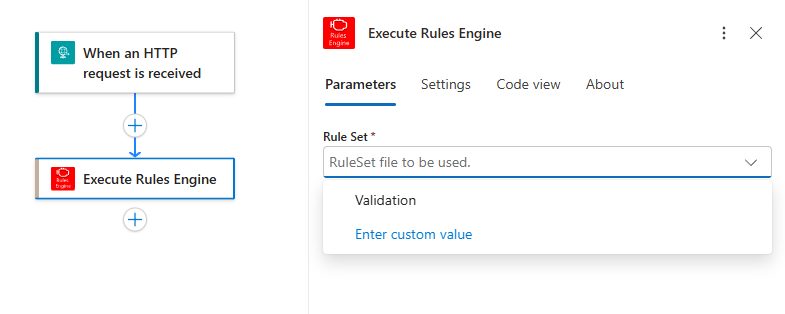
在工作流程設計器中,在你想執行規則集的觸發器或動作下方,依照一般步驟加入名為執行規則引擎的動作,將動作加入工作流程。
在動作資訊窗格中,從 規則集 清單中選擇你想執行的規則集。 此範例選取 Validation。
打開 進階參數 清單。
對於所選規則集預期的每個 XML 事實,清單中包含一個以 Fact: 前綴開頭的參數。 此範例選擇了 Fact: Backend。
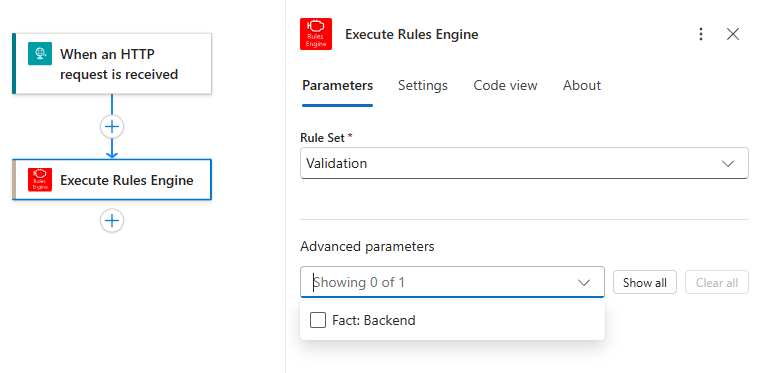
選擇你想提供的每個事實參數。
對每個事實參數,提供對應的 XML 文件。
你可以輸入 XML 或選擇先前工作流程操作中的 XML 輸出。 此範例使用前一個 Compose XML with schema 動作 所輸出的 Body XML。
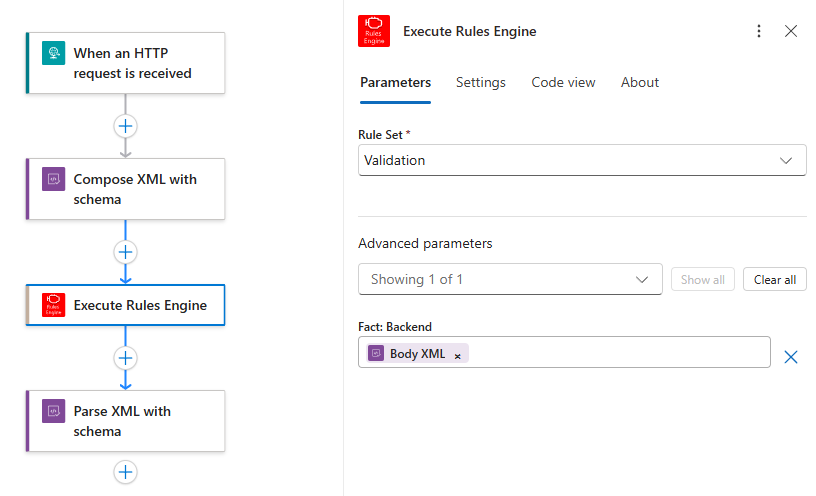
當動作執行時,規則引擎會將所選規則集套用到 XML 事實。 你可以在後續的工作流程操作中使用動作輸出。 在此範例中,工作流程使用 Parse XML 搭配結構 來處理產生的 XML。
進行程式碼與工作流程的除錯
當你使用包含 .NET 事實的本地自訂函式來處理規則集時,以下步驟會適用。 對於僅使用 XML 規則集且使用內建 執行規則引擎 動作,請除錯工作流程,並檢視工作流程執行歷史中的動作輸入與輸出。
重複下列步驟以啟動 Azurite 儲存體模擬器三次:下列 Azure 儲存體服務各一次:
- Azure Blob 服務
- Azure 佇列服務
- Azure 表格服務
從 Visual Studio Code [檢視] 功能表,選取 [命令選擇區]。
在出現的提示中,尋找並選取 [Azurite:啟動 Blob 服務]。
從出現的工作目錄清單中,選取 [LogicApp]。
針對 [Azurite:啟動佇列服務] 和 [Azurite:啟動表格服務] 重複這些步驟。
當畫面底部的 Visual Studio Code 工作列顯示三個儲存體服務執行中時,您便已成功,例如:

在 Visual Studio Code 活動列上,選取 [執行並偵錯]。 (鍵盤:Ctrl+Shift+D)
![此螢幕擷取畫面顯示 Visual Studio Code 活動列,其中選取了 [執行並偵錯]。](media/create-rules-engine-project/run-debug.png)
從 [執行並偵錯] 清單,選取 [連結至邏輯應用程式 (LogicApp)],如果尚未選取,則選取 [播放] (綠色箭號)。
![此螢幕擷取畫面顯示 [執行並偵錯] 清單,其中選取了 [連結到邏輯應用程式] 和 [播放] 按鈕。](media/create-rules-engine-project/attach-debugger-logic-app.png)
[終端機] 視窗隨即開啟,並顯示已啟動的偵錯程序。 [偵錯主控台] 視窗隨即出現,並顯示偵錯狀態。 在 Visual Studio Code 底部,工作列變成橙色,表示 .NET 偵錯工具已載入。
若要設定任何斷點,請在函式定義(<function-name>.cs)或工作流程定義(workflow.json)中尋找您要斷點的行號,然後選取左側的數據行,例如:

若要在工作流程中手動執行要求觸發程序,請開啟工作流程的 [概觀] 頁面。
從邏輯應用程式專案,開啟 workflow.json 檔案的捷徑功能表,然後選取 [概觀]。
在工作流程的 [概觀] 頁面上,當您想要手動啟動工作流程時,可以使用 [執行觸發程序] 按鈕。 在工作流程屬性底下,回呼 URL 值是可呼叫端點的 URL,此端點由您工作流程中的要求觸發程序所建立。 您可以將要求傳送到此 URL,從其他應用程式觸發您的工作流程,包括其他邏輯應用程式工作流程。
![螢幕擷取畫面顯示開啟的 Visual Studio Code 與工作流程中的 [概觀] 頁面。](media/create-rules-engine-project/workflow-overview.png)
在 [概觀] 頁面工具列上,選取 [執行觸發程序]。
工作流程開始執行之後,偵錯工具會觸發您的第一個中斷點。
在 [執行] 功能表或偵錯工具工具列上,選取 [偵錯動作]。
工作流程執行完成之後,[概觀] 頁面會顯示已完成的執行,以及該執行的基本詳細資料。
若要檢閱工作流程執行的詳細資訊,請選取已完成的執行。 或者,從 [持續時間] 資料行旁邊的清單中選取 [顯示運行]。

若要使用規則引擎專案將邏輯應用程式部署至 Azure Logic Apps,請遵循 準備部署中的步驟。

![此螢幕擷取畫面顯示 Visual Studio Code 活動列,其中選取了 [執行並偵錯]。](media/create-rules-engine-project/run-debug.png#lightbox)
![此螢幕擷取畫面顯示 [執行並偵錯] 清單,其中選取了 [連結到邏輯應用程式] 和 [播放] 按鈕。](media/create-rules-engine-project/attach-debugger-logic-app.png#lightbox)

![螢幕擷取畫面顯示開啟的 Visual Studio Code 與工作流程中的 [概觀] 頁面。](media/create-rules-engine-project/workflow-overview.png#lightbox)
