簡介
你可以透過各種工具和方法在 Linux 上部署 Defender for Endpoint。 本文說明如何透過安裝程式腳本自動化部署 Defender for Endpoint 在 Linux 上。 這個腳本會識別發行版和版本,選擇正確的儲存庫,設定裝置拉取最新的代理版本,並利用啟動套件將裝置導入 Defender for Endpoint。 此方法強烈推薦以簡化部署流程。
如需使用其他方法,請參考 相關內容章節。
重要事項
如果你想並行運行多個安全解決方案,請參閱 效能、設定與支援的考量。
你可能已經為已納入 適用於端點的 Microsoft Defender 的裝置設定了雙向安全性排除。 如果你仍需設定相互排除以避免衝突,請參閱「新增 適用於端點的 Microsoft Defender」到你現有解決方案的排除清單中。
前置條件與系統需求
在開始之前,請參考 Linux 上 Defender for Endpoint 的前置條件說明。
提示
在執行安裝程式腳本部署 Linux Defender 之前,建議先執行腳本並選擇--pre-req在部署前檢查最低系統需求 (記憶體、CPU、磁碟空間、支援作業系統) 。
部署程序
請依照以下步驟從 Microsoft Defender 入口網站下載入職套件:
在 Microsoft Defender 入口網站中,展開「系統」區塊,選擇「設定>端點>管理>裝置啟動」。
在第一個下拉選單中,選擇 Linux Server 作為作業系統。
在第二個下拉選單中,選擇「 本地腳本 」作為部署方法。
選取 [下載上線套件]。 將檔案儲存為
WindowsDefenderATPOnboardingPackage.zip。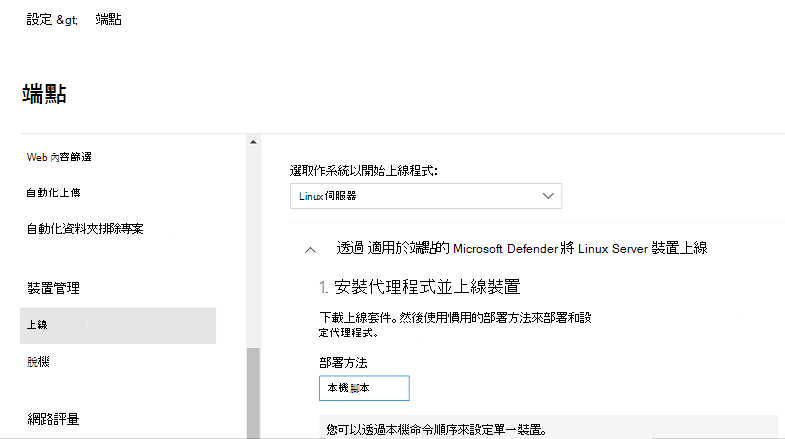
從命令提示字元擷取壓縮檔內容:
unzip WindowsDefenderATPOnboardingPackage.zipArchive: WindowsDefenderATPOnboardingPackage.zip inflating: MicrosoftDefenderATPOnboardingLinuxServer.py警告
重新打包 Defender for Endpoint 安裝套件並非支援的情境。 這樣做可能會對產品的完整性產生負面影響,導致不良後果,包括但不限於觸發竄改警示及更新未生效。
重要事項
若漏接此步驟,執行的任何指令都會顯示警告訊息,表示該產品未授權。 此外,mdatp health 命令傳回的值為 false。
下載我們公開 GitHub 倉庫提供的安裝程式 bash 腳本。
授予安裝程式腳本執行檔權限:
chmod +x mde_installer.sh執行安裝程式腳本,並提供導入套件作為參數,安裝代理程式並將裝置接入至 Defender 入口網站。
sudo ./mde_installer.sh --install --onboard ./MicrosoftDefenderATPOnboardingLinuxServer.py --channel prod --pre-req此指令會將最新的代理程式版本部署至生產通道,檢查最低系統需求 (記憶體、CPU、磁碟空間、支援的作業系統) ,並將裝置導入 Defender Portal。
此外,你也可以根據你的需求傳入更多參數,以調整安裝設定。 查看幫助以了解所有可用選項:
 ❯ ./mde_installer.sh --help
mde_installer.sh v0.7.0
usage: basename ./mde_installer.sh [OPTIONS]
Options:
-c|--channel              specify the channel (insiders-fast / insiders-slow / prod) from which to install. Default: prod
-i|--install              install the product
-r|--remove               uninstall the product
-u|--upgrade              upgrade the existing product to a newer version if available
-l|--downgrade            downgrade the existing product to an older version if available
-o|--onboard <script>     onboard MDE with the specified onboarding script
-f|--offboard <script>    offboard MDE with the specified offboarding script
-p|--passive-mode         set real-time protection to passive mode
-a|--rtp-mode             set real-time protection to active mode. Passive-mode and rtp-mode are mutually exclusive
-t|--tag                  set a tag by declaring <name> and <value>, e.g.: -t GROUP Coders
-q|--pre-req              check minimum system requirements for MDE (memory, CPU, disk space, supported OS) without installing
-x|--skip_conflict        skip conflicting application verification
-w|--clean                remove MDE repository from the package manager for the specified channel
-y|--yes                  assume yes for all mid-process prompts (default, deprecated)
-n|--no                   disable the default assume-yes behavior for prompts
-s|--verbose              enable verbose output
-v|--version              print the script version
-d|--debug                enable debug mode
--log-path <PATH>         also log output to PATH
--http-proxy <URL>        set http proxy
--https-proxy <URL>       set https proxy
--ftp-proxy <URL>         set ftp proxy
--mdatp <version>         install a specific version of MDE; uses the latest if not provided
--use-local-repo          skip MDE repository setup and use the locally configured repository
-b|--install-path <PATH>  specify the installation and configuration path for MDE. Default: /
-h|--help                 display help
| 情境 | 命令 |
|---|---|
| 安裝到自訂路徑位置 | sudo ./mde_installer.sh --install --onboard ./MicrosoftDefenderATPOnboardingLinuxServer.py --channel prod --pre-req --install-path /custom/path/location |
| 安裝特定的代理版本 | sudo ./mde_installer.sh --install --channel prod --onboard ./MicrosoftDefenderATPOnboardingLinuxServer.py --pre-req –-mdatp 101.24082.0004 |
| 升級至最新代理版本 | sudo ./mde_installer.sh --upgrade |
| 升級到特定代理版本 | sudo ./mde_installer.sh --upgrade –-mdatp 101.24082.0004 |
| 降級至特定代理版本 | sudo ./mde_installer.sh --downgrade –-mdatp 101.24082.0004 |
| 卸載代理 | sudo ./mde_installer.sh --remove |
| 只執行前置檢查 (不安裝) | sudo ./mde_installer.sh --pre-req |
關於如何安裝自訂路徑的詳細資訊,請參考:在 Linux 上安裝 Defender for Endpoint 以自訂路徑。
注意事項
- 在安裝產品後升級作業系統到新的主要版本時,必須重新安裝產品。 你需要先在 Linux 上卸載現有的 Defender for Endpoint,升級作業系統,然後在 Linux 上重新設定 Defender for Endpoint。
- 安裝 Defender for Endpoint 後,安裝路徑無法更改。 若要使用不同路徑,請先在新位置卸載並重新安裝產品。
確認部署狀態
在 Microsoft Defender 入口網站中,打開裝置清單。 裝置可能要等 5 到 20 分鐘才會出現在傳送門裡。
執行防毒軟體偵測測試,確認裝置已正確上線並回報給服務單位。 對新上線的裝置執行以下步驟:
確保已啟用即時保護(可透過執行下列命令後得到
true的結果來確認):mdatp health --field real_time_protection_enabled如果沒有啟用,請執行以下指令:
mdatp config real-time-protection --value enabled打開終端機視窗並執行以下指令以執行偵測測試:
curl -o /tmp/eicar.com.txt https://secure.eicar.org/eicar.com.txt你可以使用以下任一指令對壓縮檔執行更多偵測測試:
curl -o /tmp/eicar_com.zip https://secure.eicar.org/eicar_com.zip
curl -o /tmp/eicarcom2.zip https://secure.eicar.org/eicarcom2.zip
這些檔案應該會被 Defender for Endpoint 在 Linux 上隔離。 請使用以下指令列出所有偵測到的威脅:
mdatp threat list
執行 EDR 偵測測試並模擬偵測,以確認裝置已正確上線並向服務單位報告。 對新上線的裝置執行以下步驟:
下載並將 指令碼檔案 解壓縮至已上線的 Linux 伺服器。
授予腳本執行檔權限:
chmod +x mde_linux_edr_diy.sh執行下列命令:
./mde_linux_edr_diy.sh幾分鐘後,應該會在 Defender 入口網站中觸發偵測。
檢查警示細節、機器時間軸,並執行你平常的調查步驟。
適用於端點的 Microsoft Defender 套件的外部套件相依性
如果適用於端點的 Microsoft Defender 安裝因缺少相依性錯誤而失敗,您可以手動下載所需的相依性。
mdatp 套件具有下列外部套件相依性:
- 該
mdatp RPM套件需要——glibc >= 2.17 - 對於 DEBIAN 來說,該
mdatp套件需要libc6 >= 2.23 - 對於 Mariner,
mdatp套件需要attr、diffutils、libacl、libattr、libselinux-utils、selinux-policy、policycoreutils
注意事項
從版本 101.24082.0004開始,Linux 上的 Defender for Endpoint 不再支援事件Auditd提供者。 我們正全面轉向更有效率的 eBPF 技術。
如果您的機器不支援 eBPF,或因特定需求必須維持使用 Auditd,且您的機器使用的是 Linux 版 Defender for Endpoint 101.24072.0001 或更早版本,則 mdatp 對 auditd 套件仍有其他相依性。
對於早於 101.25032.0000 的版本:
- RPM 套件需求:
mde-netfilter,pcre - DEBIAN 套件需求:
mde-netfilter、libpcre3 - 該
mde-netfilter套件還有以下套件相依關係:- 對於 DEBIAN,mde-netfilter 套件需要libnetfilter-queue1和libglib2.0-0- 對於 RPM,mde-netfilter 套件需要libmnl、libnfnetlink、libnetfilter_queue,且glib2從版本101.25042.0003開始,uuid-runtime 不再需要作為外部依賴。
安裝問題的疑難排解
如果你遇到安裝問題,為了自我排查,請遵循以下步驟:
如需了解如何找到安裝發生錯誤時自動產生的記錄檔,請參閱 安裝記錄問題。
有關常見安裝問題的資訊,請參見 安裝問題。
如果裝置的健康狀況為
false,請參閱 Defender for Endpoint 代理程式健康狀況問題。關於產品效能問題,請參見 故障排除效能問題。
關於代理與連線問題,請參見 「排除雲端連線問題」。
要獲得 Microsoft 的支援,請開啟支援單,並提供使用 用戶端分析器建立的日誌檔案。
如何切換頻道
例如,要將頻道從 Insiders-Fast 切換到製作頻道,請執行以下操作:
在 Linux 上卸載
Insiders-Fast channelDefender for Endpoint 版本。sudo yum remove mdatp在Linux Insiders-Fast repo 上停用 Defender for Endpoint。
sudo yum repolist注意事項
輸出應該會顯示
packages-microsoft-com-fast-prod。sudo yum-config-manager --disable packages-microsoft-com-fast-prod在 Linux 上使用 Production 通道重新部署 適用於端點的 Microsoft Defender。
Defender for Endpoint on Linux 可從以下其中一個通道部署 (標記為 [通道]) :
insiders-fastinsiders-slowprod
這些頻道各自對應一個 Linux 軟體倉庫。 本文的說明說明如何設定您的裝置以使用這些儲存庫之一。
頻道的選擇決定了你裝置所提供的更新類型與頻率。 位於 insiders-fast 的裝置會最先收到更新和新功能,之後才輪到 insiders-slow,最後才是 prod。
為了預覽新功能並提供早期回饋,建議您在企業中設定部分裝置使用 insiders-fast 或 insiders-slow。
警告
初始安裝後切換通道需重新安裝產品。 切換產品通道:解除安裝現有套件,重新設定裝置使用新通道,並依照本文件步驟從新位置安裝套件。
如何在 Linux 上設定 Microsoft Defender 的政策
要設定防毒軟體與EDR設定,請參閱以下文章:
- Defender for Endpoint 安全性設定管理說明如何在 Microsoft Defender 入口網站中進行設定。 (此方法建議採用 )
- 在 Linux 上設定 Defender for Endpoint 的偏好設定,描述了你可以設定的設定。
相關內容
- Linux 上 適用於端點的 Microsoft Defender 的必要條件
- 使用 Ansible 在 Linux 上部署 Defender for Endpoint
- 使用 Chef 在 Linux 上部署適用於端點的 Microsoft Defender
- 在 Linux 上部署 Defender for Endpoint with Puppet
- 在 Linux 上使用 SaltStack 部署 Defender for Endpoint
- 手動在 Linux 上部署 Defender for Endpoint
- 使用 Defender for Endpoint 將您的非 Azure 機器連線到 適用於雲端的 Microsoft Defender(使用 適用於雲端的 Defender 直接上線)
- Defender for Endpoint 在 Linux for SAP 上的部署指引
- 在 Linux 上依自訂路徑安裝 Defender for Endpoint