JumpList 類別
定義
重要
部分資訊涉及發行前產品,在發行之前可能會有大幅修改。 Microsoft 對此處提供的資訊,不做任何明確或隱含的瑕疵擔保。
代表 Windows 7 工作列按鈕上的選單,顯示項目與任務清單。
public ref class JumpList sealed : System::ComponentModel::ISupportInitialize[System.Windows.Markup.ContentProperty("JumpItems")]
public sealed class JumpList : System.ComponentModel.ISupportInitialize[System.Windows.Markup.ContentProperty("JumpItems")]
[System.Security.SecurityCritical]
public sealed class JumpList : System.ComponentModel.ISupportInitialize[<System.Windows.Markup.ContentProperty("JumpItems")>]
type JumpList = class
interface ISupportInitialize[<System.Windows.Markup.ContentProperty("JumpItems")>]
[<System.Security.SecurityCritical>]
type JumpList = class
interface ISupportInitializePublic NotInheritable Class JumpList
Implements ISupportInitialize- 繼承
-
JumpList
- 屬性
- 實作
範例
以下範例展示了一個具有跳轉清單的應用程式。 該應用程式有三個按鈕,讓你可以將任務加入目前的跳躍清單、清除跳躍清單的內容,以及套用新的跳躍清單給應用程式。
以下範例說明如何宣告 JumpList a 在加標中。 包含 JumpList 兩個 JumpTask 連結和一個 JumpPath。 若應用程式未註冊處理 .txt 檔名副檔名,套用 Shell JumpPath 將失敗。
<Application x:Class="JumpListSample.App"
             xmlns="http://schemas.microsoft.com/winfx/2006/xaml/presentation"
             xmlns:x="http://schemas.microsoft.com/winfx/2006/xaml"
             StartupUri="MainWindow.xaml">
    <JumpList.JumpList>
        <JumpList ShowRecentCategory="True"
                  ShowFrequentCategory="True"
                  JumpItemsRejected="JumpList_JumpItemsRejected"
                  JumpItemsRemovedByUser="JumpList_JumpItemsRemovedByUser">
            <JumpTask Title="Notepad"
                      Description="Open Notepad."
                      ApplicationPath="C:\Windows\notepad.exe"
                      IconResourcePath="C:\Windows\notepad.exe"/>
            <JumpTask Title="Read Me"
                      Description="Open readme.txt in Notepad."
                      ApplicationPath="C:\Windows\notepad.exe"
                      IconResourcePath="C:\Windows\System32\imageres.dll"
                      IconResourceIndex="14"
                      WorkingDirectory="C:\Users\Public\Documents"
                      Arguments="readme.txt"/>
            <JumpPath Path="C:\Users\Public\Documents\readme.txt" />
        </JumpList>
    </JumpList.JumpList>
</Application>
以下範例展示了 的 App.xaml程式碼後盾頁面。 這段程式碼處理 JumpItemsRejected 和 JumpItemsRemovedByUser 事件。
using System.Text;
using System.Windows;
using System.Windows.Shell;

namespace JumpListSample
{
    /// <summary>
    /// Interaction logic for App.xaml
    /// </summary>
    public partial class App : Application
    {
        private void JumpList_JumpItemsRejected(object sender, System.Windows.Shell.JumpItemsRejectedEventArgs e)
        {
            StringBuilder sb = new StringBuilder();
            sb.AppendFormat("{0} Jump Items Rejected:\n", e.RejectionReasons.Count);
            for (int i = 0; i < e.RejectionReasons.Count; ++i)
            {
                if (e.RejectedItems[i].GetType() == typeof(JumpPath))
                    sb.AppendFormat("Reason: {0}\tItem: {1}\n", e.RejectionReasons[i], ((JumpPath)e.RejectedItems[i]).Path);
                else
                    sb.AppendFormat("Reason: {0}\tItem: {1}\n", e.RejectionReasons[i], ((JumpTask)e.RejectedItems[i]).ApplicationPath);
            }

            MessageBox.Show(sb.ToString());
        }

        private void JumpList_JumpItemsRemovedByUser(object sender, System.Windows.Shell.JumpItemsRemovedEventArgs e)
        {
            StringBuilder sb = new StringBuilder();
            sb.AppendFormat("{0} Jump Items Removed by the user:\n", e.RemovedItems.Count);
            for (int i = 0; i < e.RemovedItems.Count; ++i)
            {
                sb.AppendFormat("{0}\n", e.RemovedItems[i]);
            }

            MessageBox.Show(sb.ToString());
        }
    }
}
以下範例展示了用於建立應用程式使用者介面的標記。
<Window x:Class="JumpListSample.MainWindow"
        xmlns="http://schemas.microsoft.com/winfx/2006/xaml/presentation"
        xmlns:x="http://schemas.microsoft.com/winfx/2006/xaml"
        Title="Jump List Sample" Height="240" Width="500">
    <Window.Resources>
        <Style TargetType="Button">
            <Setter Property="Width" Value="200" />
            <Setter Property="Margin" Value="5" />
        </Style>
    </Window.Resources>
    <Grid>
        <StackPanel>
            <Button Content="Add Task to JumpList" Click="AddTask" />
            <Button Content="Clear Jump List" Click="ClearJumpList"/>
            <Button Content="Set New Jump List" Click="SetNewJumpList" />
        </StackPanel>
    </Grid>
</Window>
以下範例展示了 的 MainWindow.xaml程式碼後盾頁面。 此程式碼示範如何修改、清除並建立 JumpList 程序內程式碼。 對於新的跳躍清單,會呼叫靜態 SetJumpList 方法,將 JumpList 關聯到目前應用程式,並將 JumpList 套用到Windows殼層。
using System;
using System.IO;
using System.Windows;
using System.Windows.Shell;

namespace JumpListSample
{
    /// <summary>
    /// Interaction logic for MainWindow.xaml
    /// </summary>
    public partial class MainWindow : Window
    {
        public MainWindow()
        {
            InitializeComponent();
        }
        private void AddTask(object sender, RoutedEventArgs e)
        {
            // Configure a new JumpTask.
            JumpTask jumpTask1 = new JumpTask();
            // Get the path to Calculator and set the JumpTask properties.
            jumpTask1.ApplicationPath = Path.Combine(Environment.GetFolderPath(Environment.SpecialFolder.SystemX86), "calc.exe");
            jumpTask1.IconResourcePath = Path.Combine(Environment.GetFolderPath(Environment.SpecialFolder.SystemX86), "calc.exe");
            jumpTask1.Title = "Calculator";
            jumpTask1.Description = "Open Calculator.";
            jumpTask1.CustomCategory = "User Added Tasks";
            // Get the JumpList from the application and update it.
            JumpList jumpList1 = JumpList.GetJumpList(App.Current);
            jumpList1.JumpItems.Add(jumpTask1);
            JumpList.AddToRecentCategory(jumpTask1);
            jumpList1.Apply();
        }
        private void ClearJumpList(object sender, RoutedEventArgs e)
        {
            JumpList jumpList1 = JumpList.GetJumpList(App.Current);
            jumpList1.JumpItems.Clear();
            jumpList1.Apply();
        }
        private void SetNewJumpList(object sender, RoutedEventArgs e)
        {
            //Configure a new JumpTask
            JumpTask jumpTask1 = new JumpTask();
            // Get the path to WordPad and set the JumpTask properties.
            jumpTask1.ApplicationPath = Path.Combine(Environment.GetFolderPath(Environment.SpecialFolder.System), "write.exe");
            jumpTask1.IconResourcePath = Path.Combine(Environment.GetFolderPath(Environment.SpecialFolder.System), "write.exe");
            jumpTask1.Title = "WordPad";
            jumpTask1.Description = "Open WordPad.";
            jumpTask1.CustomCategory = "Jump List 2";
            // Create and set the new JumpList.
            JumpList jumpList2 = new JumpList();
            jumpList2.JumpItems.Add(jumpTask1);
            JumpList.SetJumpList(App.Current, jumpList2);
        }
    }
}
備註
Windows 7 工作列透過跳轉清單,提供更強的功能,讓程式能直接從工作列按鈕啟動程式。 跳轉清單也用於 Windows 7 的開始選單中。 你可以透過右鍵點擊工作列按鈕,或點擊開始選單中程式旁的箭頭來進入跳轉清單。 欲了解更多關於跳轉清單的資訊,請參閱Windows使用者體驗互動指引中的工作列章節。
JumpList 類別提供Windows 7工作列中跳轉清單功能的管理包裝器,並管理傳入 Windows shell 的資料。 JumpList 類別所暴露的功能,在Windows 7之前的版本中無法使用Windows。 使用 JumpList 類別的應用程式會在其他版本的 Windows 中執行,但跳轉清單將無法使用。 欲了解更多關於 Windows shell 與原生 Jump List API 的資訊,請參見 Taskbar Extensions。
下圖展示了Windows Media Player的跳躍清單,項目分類為Tasks及Frequent類別。
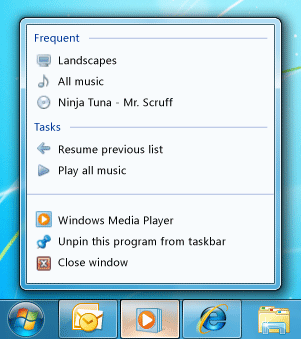 Windows Media Player 跳躍列表
配置跳躍清單
跳轉清單可以包含兩種項目,分別為 a JumpTask 和 JumpPath。 A JumpTask 是程式的連結,a JumpPath 是檔案的連結。 你可以透過建立 JumpTask 一個沒有 a Title 和 CustomCategory 指定的方式,視覺化地將跳清單中的項目分開。 這個空 JumpTask 位會在跳躍清單中以水平線顯示。
備註
若 a JumpPath 中指定的檔案類型未在您的應用程式中註冊,該檔案將不會出現在跳躍清單中。 例如,如果你新增指向 .txt 檔案的 a JumpPath ,你的應用程式必須註冊以處理 .txt 檔案。 欲了解更多資訊,請參閱 檔案關聯導論。
跳躍物品會被歸類於 JumpList。 預設情況下,a JumpItem 會顯示在 任務 類別中。 或者,你也可以指定 a CustomCategory 來表示 JumpItem。
你可以透過設定 和 屬性來指定標準JumpList和ShowRecentCategory是否會顯示在 中ShowFrequentCategory。 這些類別的內容由 Windows 殼層管理。 由於這些類別可能包含大量相同資料,通常會在 , 中顯示其中一種 JumpList,但不會同時顯示兩者。 Windows 會自動管理最近項目,無論是透過共用檔案對話框開啟,或是透過檔案類型關聯開啟應用程式。 當項目透過跳轉清單存取時,你可以呼叫 方法通知 Windows shell 將該項目加入 AddToRecentCategory 類別。
將跳轉清單套用到 Windows 殼層
你無法直接存取 shell 的跳躍清單,也無法將其內容讀入 JumpList 類別。 相反地,JumpList 類別提供了一個跳躍清單的表示,你可以操作並套用到Windows殼。 通常你會在應用程式第一次執行時建立 JumpList 並設定一次。 不過,你可以在執行時修改或更換它們 JumpList 。
當你設定好 JumpList 屬性後,必須先將 JumpList 套用到 Windows shell,才能讓其內容出現在工作列跳轉清單中。 當 首次 JumpList 附加到應用程式時,無論是在 XAML 中還是呼叫該 SetJumpList 方法時,這會自動完成。 如果您在執行時修改 JumpList 的內容,必須呼叫 Apply 方法將其目前內容套用到 Windows shell。
在 XAML 中設定跳轉清單
A JumpList 不會自動附加到物件 Application 上。 你要用附加的屬性語法把 a JumpList 附加到 Application XAML 的物件上。 該 JumpList 類別實 ISupportInitialize 作介面以支援 XAML 宣告 JumpList。 如果 JumpList 在 XAML 中宣告並附加到目前的 Application,當 JumpList 初始化時,該會自動套用到Windows殼上。
在程式碼中設定與修改跳轉列表
你在程式碼中透過呼叫靜態JumpList方法,將 a Application 附加到SetJumpList物件上。 這同時也將JumpList套用到Windows殼上。
要在執行時修改 , JumpList 你呼叫 GetJumpList 方法 來取得 JumpList 目前附加在 Application的 。 在修改 JumpList 的性質後,必須呼叫 Apply 方法來將變更套用到 Windows shell。
備註
通常你會建立一個JumpList,連接到Application並套用到Windows殼上。 不過,你可以建立多個 JumpList 物件。 一次只能對Windows殼套用一個JumpList,且一次只能對應一個JumpListApplication。 .NET 框架並不要求這些 JumpList 必須相同。
備註
此類別包含一個類別層級的連結需求,適用於所有成員。 當直接呼叫者沒有完全信任權限時,會拋出 A SecurityException 。 欲了解更多安全要求資訊,請參閱 連結需求。
建構函式
| 名稱 | Description |
|---|---|
| JumpList() |
初始化 JumpList 類別的新執行個體。 |
| JumpList(IEnumerable<JumpItem>, Boolean, Boolean) |
初始化一個新的類別實例 JumpList ,並以指定參數進行。 |
屬性
| 名稱 | Description |
|---|---|
| JumpItems |
取得顯示在跳躍清單中的物件集合 JumpItem 。 |
| ShowFrequentCategory |
取得或設定一個值,指示跳轉清單中是否顯示頻繁使用的項目。 |
| ShowRecentCategory |
取得或設定一個值,表示最近使用的項目是否顯示在跳轉清單中。 |
方法
| 名稱 | Description |
|---|---|
| AddToRecentCategory(JumpPath) |
將指定的跳躍路徑加入跳躍清單的 「最近」 類別。 |
| AddToRecentCategory(JumpTask) |
將指定的跳躍任務加入跳躍清單的 「近期 」類別。 |
| AddToRecentCategory(String) |
將指定的項目路徑加入跳轉清單的 「最近」 類別。 |
| Apply() |
將 JumpList 傳送到目前狀態的 Windows 殼體。 |
| BeginInit() |
表示初始化開始 JumpList 。 |
| EndInit() |
表示初始化結束 JumpList 。 |
| Equals(Object) |
判斷指定的 物件是否等於目前的物件。 (繼承來源 Object) |
| GetHashCode() |
做為預設雜湊函式。 (繼承來源 Object) |
| GetJumpList(Application) |
回傳 JumpList 與應用程式相關聯的物件。 |
| GetType() |
取得目前實例的 Type。 (繼承來源 Object) |
| MemberwiseClone() |
建立目前 Object的淺層複本。 (繼承來源 Object) |
| SetJumpList(Application, JumpList) |
設定 JumpList 與應用程式相關的物件。 |
| ToString() |
傳回表示目前 物件的字串。 (繼承來源 Object) |
事件
| 名稱 | Description |
|---|---|
| JumpItemsRejected |
當跳躍項目未被 Windows 殼層成功加入跳躍清單時發生。 |
| JumpItemsRemovedByUser |
當使用者從列表中移除之前在跳躍清單中的跳躍項目時,會發生這種情況。 |
