適用於:  外部租用戶 (深入瞭解)
在這個教學中,你將學習如何利用原生認證的 JavaScript SDK 在你的 Angular 單頁應用程式(SPA)中加入多重驗證(MFA)。
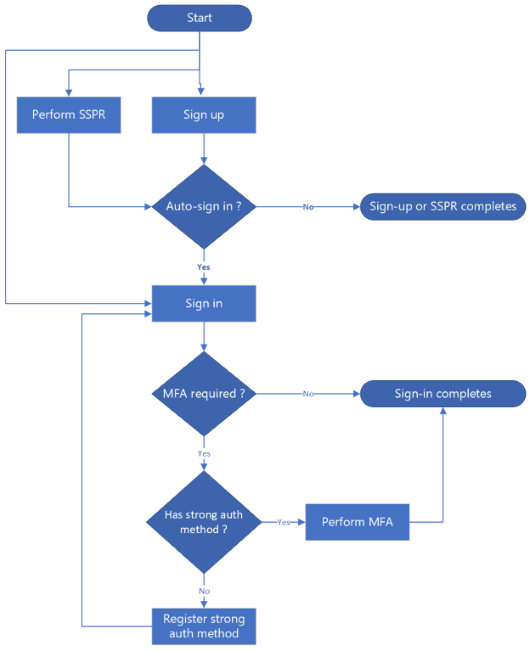
就像 強認證方法註冊一樣,MFA 流程發生在三種情境下:
- 登入時:使用者登入並註冊了強認證方法。
- 註冊後:用戶完成註冊後,便開始登入。 新用戶需要在進行多重驗證挑戰前 註冊強式驗證方法 。 由於強認證方式在註冊時也會被驗證,因此他們可能不會被要求進行額外的多重身份驗證(MFA)挑戰。
- 自助密碼重設(SSPR)後:使用者成功重設密碼並自動登入。 如果使用者註冊了強驗證方法,系統會提示他們完成多重驗證(MFA)挑戰。
當需要多重驗證時,使用者會從已註冊的方法列表中選擇一個多重認證挑戰方法。 可選擇電子郵件一次性密碼、簡訊一次性密碼,或兩者皆有,視用戶先前註冊的內容而定。
下方的流程圖說明了三種情境:
先決條件
- 完成 註冊、 登入、 重設密碼 及 註冊強認證方法 教學的步驟。
- Visual Studio Code或其他程式碼編輯器。
- Node.js。
- 為您的應用程式啟用多重驗證(MFA)。
啟用應用程式處理多重驗證
要在您的 Angular 應用程式中啟用多重認證(MFA),請更新應用程式設定,新增所需功能:
找到 src/app/config/auth-config.ts 檔案。
在物件中
customAuth新增或更新capabilities屬性,將該值納入mfa_required陣列,如下程式碼摘要所示:const customAuthConfig: CustomAuthConfiguration = { customAuth: { ... capabilities: ["mfa_required"], ... }, ... };
能力值mfa_required 告訴Microsoft Entra你的應用程式能處理多重因素分析流程。 了解更多關於 原生認證挑戰類型與功能。
建立UI元件
你需要在應用程式中加入表單組件來支援 MFA 流程,例如選擇 MFA 挑戰方法並提交 MFA 挑戰。
建立多重驗證方法選擇表單
在你的主控台中,前往 src/app/components/shared 資料夾,然後使用 Angular CLI 使用以下指令建立元件,例如 mfa-auth-method-selection-form :
ng generate component mfa-auth-method-selection-form此指令會在 src/app/components/shared/mfa-auth-method-selection-form/ 資料夾中產生 mfa-auth-method-selection-form.component.html 和 mfa-auth-method-selection-form.component.ts 檔案。
打開 mfa-auth-method-selection-form.component.ts 檔案,然後用 mfa-auth-method-selection-form.component.ts 中的內容替換。
打開 mfa-auth-method-selection-form.component.html 檔案,然後把內容加入 mfa-auth-method-selection-form.component.html。
建立多重驗證挑戰表單
在你的主控台裡,進入 src/app/components/shared 資料夾,然後用 Angular CLI 用以下指令建立像 mfa-challenge-form 這樣的元件:
ng generate component mfa-challenge-form此指令會在 src/app/components/shared/mfa-challenge-form/ 資料夾中產生mfa-challenge-form.component.ts與 mfa-challenge-form.component.html 檔案。
打開 mfa-challenge-form.component.ts 檔案,然後用 mfa-challenge-form.component.ts 中的內容替換。
打開 mfa-challenge-form.component.html 檔案,然後把內容加入 mfa-challenge-form.component.html。
登入時處理多重驗證
更新 src/app/components/sign-in/sign-in.component.ts 檔案,讓應用程式在登入時能處理多重身份驗證(MFA)流程。 完整代碼請見sign-in.component.ts:
匯入所需的類型與元件,如以下程式碼片段所示:
import {
    AuthenticationMethod,
    MfaAwaitingState,
    MfaVerificationRequiredState,
} from "@azure/msal-browser/custom-auth";
import { MfaAuthMethodSelectionFormComponent } from "../shared/mfa-auth-method-selection-form/mfa-auth-method-selection-form.component";
import { MfaChallengeFormComponent } from "../shared/mfa-challenge-form/mfa-challenge-form.component";

@Component({
    selector: "app-sign-in",
    templateUrl: "./sign-in.component.html",
    standalone: true,
    imports: [
        ...
        MfaAuthMethodSelectionFormComponent,
        MfaChallengeFormComponent,
        ...
    ],
})
新增多重因素驗證(MFA)狀態變數:
export default function SignIn() {
    ...
    // MFA states
const [mfaAuthMethods, setMfaAuthMethods] = useState<AuthenticationMethod[]>([]);
const [selectedMfaAuthMethod, setSelectedMfaAuthMethod] = useState<AuthenticationMethod | undefined>(undefined);
const [mfaChallenge, setMfaChallenge] = useState("");

    // ... initialization code
}
更新
startSignIn、handlePasswordSubmit和handleCodeSubmit函式以檢查是否需要多重身份驗證:async startSignIn() { const client = await this.auth.getClient(); const result: SignInResult = await client.signIn({ username: this.username }); ... if (result.isMfaRequired()) { this.showMfaAuthMethods = true; this.showPassword = false; this.showCode = false; this.showAuthMethodsForRegistration = false; this.showChallengeForRegistration = false; this.showMfaChallenge = false; this.mfaAuthMethods = result.state.getAuthMethods(); // Set default selection to the first MFA auth method this.selectedMfaAuthMethod = this.mfaAuthMethods.length > 0 ? this.mfaAuthMethods[0] : undefined; this.signInState = result.state; } ... } async submitPassword() { if (this.signInState instanceof SignInPasswordRequiredState) { const result = await this.signInState.submitPassword(this.password); ... if (result.isMfaRequired()) { this.showMfaAuthMethods = true; this.showPassword = false; this.showCode = false; this.showAuthMethodsForRegistration = false; this.showChallengeForRegistration = false; this.showMfaChallenge = false; this.mfaAuthMethods = result.state.getAuthMethods(); // Set default selection to the first MFA auth method this.selectedMfaAuthMethod = this.mfaAuthMethods.length > 0 ? this.mfaAuthMethods[0] : undefined; this.signInState = result.state; } ... } } async submitCode() { if (this.signInState instanceof SignInCodeRequiredState) { const result = await this.signInState.submitCode(this.code); ... if (result.isMfaRequired()) { this.showMfaAuthMethods = true; this.showPassword = false; this.showCode = false; this.showAuthMethodsForRegistration = false; this.showChallengeForRegistration = false; this.showMfaChallenge = false; this.mfaAuthMethods = result.state.getAuthMethods(); // Set default selection to the first MFA auth method this.selectedMfaAuthMethod = this.mfaAuthMethods.length > 0 ? this.mfaAuthMethods[0] : undefined; this.signInState = result.state; } } }在每個函式中,請注意我們會使用以下程式碼片段檢查是否需要多重驗證:
if (result.isMfaRequired()) {...}新增操作員以進行MFA挑戰選擇:
async submitMfaAuthMethod() {
    this.error = "";
    this.loading = true;

    if (!this.selectedMfaAuthMethod) {
        this.error = "Please select an authentication method.";
        this.loading = false;
        return;
    }

    if (this.signInState instanceof MfaAwaitingState) {
        const result = await this.signInState.requestChallenge(this.selectedMfaAuthMethod.id);

        if (result.isFailed()) {
            if (result.error?.isInvalidInput()) {
                this.error = "Incorrect verification contact.";
            } else {
                this.error =
                    result.error?.errorData?.errorDescription ||
                    "An error occurred while verifying the authentication method.";
            }
        }

        if (result.isVerificationRequired()) {
            this.showMfaAuthMethods = false;
            this.showMfaChallenge = true;
            this.signInState = result.state;
        }
    }
    this.loading = false;
}
新增處理程序以驗證 MFA 挑戰:
async submitMfaChallenge() {
    this.error = "";
    this.loading = true;

    if (!this.mfaChallenge) {
        this.error = "Please enter a code.";
        this.loading = false;
        return;
    }

    if (this.signInState instanceof MfaVerificationRequiredState) {
        const result = await this.signInState.submitChallenge(this.mfaChallenge);

        if (result.isFailed()) {
            if (result.error?.isIncorrectChallenge()) {
                this.error = "Incorrect code.";
            } else {
                this.error =
                    result.error?.errorData?.errorDescription ||
                    "An error occurred while verifying the challenge response.";
            }
        }

        if (result.isCompleted()) {
            this.isSignedIn = true;
            this.userData = result.data;
            this.showMfaChallenge = false;
            this.signInState = result.state;
        }
    }
    this.loading = false;
}
更新 /src/app/components/sign-in/sign-in.component.html 檔案,顯示正確的 MFA 挑戰表單(MFA 挑戰方法選擇或驗證 MFA 挑戰):
<!-- Use shared MFA auth method selection form -->
<app-mfa-auth-method-selection-form *ngIf="showMfaAuthMethods" [authMethods]="mfaAuthMethods"
    [selectedAuthMethod]="selectedMfaAuthMethod" [loading]="loading"
    (selectedAuthMethodChange)="selectedMfaAuthMethod = $event" (submitForm)="submitMfaAuthMethod()">
</app-mfa-auth-method-selection-form>

<!-- Use shared MFA challenge form -->
<app-mfa-challenge-form *ngIf="showMfaChallenge" [challenge]="mfaChallenge" [loading]="loading"
    (challengeChange)="mfaChallenge = $event" (submitForm)="submitMfaChallenge()">
</app-mfa-challenge-form>
註冊或重設密碼後處理多重驗證
註冊後的多重驗證流程以及密碼重設的多重驗證流程,與登入流程中的多重驗證運作方式相似。 成功註冊或重設密碼後,SDK 可自動繼續登入流程。 若使用者註冊了強認證方法,流程會轉為多重驗證挑戰驗證。
註冊後處理多重身份驗證
註冊後的 MFA 流程需要更新 /src/app/components/sign-up/sign-up.component.ts 檔案。 完整代碼請參見sign-up.component.ts:
確保你匯入所需的類型和元件。
處理多重身份驗證要求的狀態與登入流程相似;註冊成功完成後,請利用結果自動觸發登入流程,如以下程式碼片段所示:
// In your sign-up completion handler
if (this.signUpState instanceof SignUpCompletedState) {
    const result = await this.signUpState.signIn();

    ...

    if (result.isMfaRequired()) {
        this.showMfaAuthMethods = true;
        this.showPassword = false;
        this.showCode = false;
        this.showAuthMethodsForRegistration = false;
        this.showChallengeForRegistration = false;
        this.showMfaChallenge = false;
        this.mfaAuthMethods = result.state.getAuthMethods();
        // Set default selection to the first MFA auth method
        this.selectedMfaAuthMethod = this.mfaAuthMethods.length > 0 ? this.mfaAuthMethods[0] : undefined;
        this.signUpState = result.state;
    }

    ...
}
更新你的 /src/app/components/sign-up/sign-up.component.html 檔案,加入多重認證表單(MFA 方法選擇表單和多重認證挑戰表單)。 完整範例見 sign-up.component.html。
密碼重設後處理多重驗證
SSPR 之後的 MFA 流程中,你需要更新 /src/app/components/reset-password/reset-password.component.ts 檔案。 完整程式碼請參見reset-password.component.ts:
確保你匯入所需的類型和元件。
處理多重身份驗證要求的狀態與登入流程相似;註冊成功完成後,請利用結果自動觸發登入流程,如以下程式碼片段所示:
if (this.resetState instanceof ResetPasswordCompletedState) {
    const result = await this.resetState.signIn();

    ...

    if (result.isMfaRequired()) {
        this.showMfaAuthMethods = true;
        this.showCode = false;
        this.showNewPassword = false;
        this.showAuthMethodsForRegistration = false;
        this.showChallengeForRegistration = false;
        this.showMfaChallenge = false;
        this.isReset = false;
        this.mfaAuthMethods = result.state.getAuthMethods();
        // Set default selection to the first MFA auth method
        this.selectedMfaAuthMethod = this.mfaAuthMethods.length > 0 ? this.mfaAuthMethods[0] : undefined;
        this.resetState = result.state;
    }

    ...
}
更新你的 /src/app/components/reset-password/reset-password.component.html 檔案,新增多重認證表單(MFA 方法選擇表單和 MFA 挑戰驗證表單)。 完整範例見 reset-password.component.html。
執行及測試您的應用程式
在測試應用程式之前,請確保你的使用者帳號有註冊的強認證方式。 請使用 執行並測試你的應用程式 來執行應用程式,但這次要測試多重驗證流程。