Fabric Maps 由 public definition(map.json)定義,描述底圖、資料來源、圖層來源及渲染行為。
本教學示範一個使用儲存在 Lakehouse 中的檔案的 靜態資料情境 。 關於使用 Eventstream 和 Eventhouse 進行即時串流情境,請參見 使用 REST API 建立即時地圖及 Python。
自動化地圖建立最可靠的方法是將地圖定義內嵌提供,讓地圖在建立時已經完全配置並準備好渲染。
欲了解更多地圖定義結構,請參見 地圖項目定義。
使用 Fabric REST API,您可以:
- 使用 Fabric REST API 建立 Lakehouse
- 將 GeoJSON 檔案上傳到 OneLake
- 上傳自訂的 SVG 標記圖示到 OneLake
- 建立一個 map.json 定義,引用 Lakehouse 資料
- 請依照內嵌定義建立地圖
本教學遵循Fabric常見的自動化模式:建立基礎設施→上傳資料→定義視覺化→渲染地圖。
何時使用此方法
此圖案最適合:
- 靜態地理空間資料集
- 參考圖層(例如,興趣點、邊界)
- 歷史資料或批次處理資料
對於需要持續更新資料的情境(例如即時追蹤或遙測),請參見 使用 REST API 建立即時地圖及 Python。
先決條件
- Python 3.10 或更新版本
- Azure CLI
- Fabric 工作區 ID
- 呼叫 Fabric REST API 的權限,例如:
Item.ReadWrite.All
Note
委派範圍,例如 Item.ReadWrite.All 透過其 工作區角色授予登入身份。 在執行腳本前,確保你用 az login 時的身份在目標Fabric工作區被分配為 Contributor、Member,或 Admin 角色,然後再執行腳本。
Authentication
這個教學使用 DefaultAzureCredential,可以利用多個本地/開發憑證來源來驗證。 對於首次閱讀者,最簡單的方法是使用 Azure CLI 登入。
本地認證(建議首次使用)
- 開啟終端機。
- Run:
az login
DefaultAzureCredential 您可以使用您已登入的身份來取得以下存取權杖:
- Fabric REST API(資源:
https://api.fabric.microsoft.com/.default) - 可透過 ADLS Gen2 API 和 SDK 存取 OneLake,包括以 GUID 為基礎的工作區和項目定址。
提示
關於 https://api.fabric.microsoft.com/.default,此數值為 令牌請求範圍,而非可直接呼叫的 URL。 它告訴 Microsoft Entra,存取權杖應該是針對 Microsoft Fabric REST API 發出的,並且應包含 所有已授權 給已認證身份的 Fabric 權限(例如 Item.ReadWrite.All 或 Workspace.ReadWrite.All)。
該 .default 範圍僅在令牌取得時使用,且絕不會傳送至 Fabric REST API 端點。
欲了解更多關於 Microsoft 身份平台中範圍的運作方式 .default ,請參閱 Microsoft 身份平台的範圍與權限。
建議登入 Microsoft Fabric
在執行這個教學之前,我們建議至少登入一次 Microsoft Fabric:
https://app.fabric.microsoft.com
登入可確保您的 Fabric 身份、工作空間角色成員資格及容量分配都已完整配置,然後再以程式方式取得 Microsoft Entra 存取權杖。
此步驟在以下情況特別有幫助:
- 你是 Microsoft Fabric 的新手
- 這個工作空間是最近才建立的
- 你的角色分配是最近新增的
Note
本教學使用 Microsoft Entra ID 進行認證。DefaultAzureCredential Fabric REST API 不需要瀏覽器會話,但登入 Fabric 網頁體驗可避免因角色配置延遲而引發的首次執行授權問題。
建立 GeoJSON 檔案
本教學中的 GeoJSON 檔案作為地圖的資料層。 建立檔案後,更新 local_geojson_path 變數以反映正確的路徑。
將以下 GeoJSON 複製到一個空白文字檔,並儲存為 starbucks-seattle.geojson:
{
  "type": "FeatureCollection",
  "features": [
    {
      "type": "Feature",
      "properties": { "name": "Starbucks - 999 3rd Ave" },
      "geometry": { "type": "Point", "coordinates": [-122.334389, 47.605278] }
    },
    {
      "type": "Feature",
      "properties": { "name": "Starbucks - 1201 3rd Ave" },
      "geometry": { "type": "Point", "coordinates": [-122.335167, 47.608040] }
    },
    {
      "type": "Feature",
      "properties": { "name": "Starbucks - 221 Pike St" },
      "geometry": { "type": "Point", "coordinates": [-122.340057, 47.609450] }
    },
    {
      "type": "Feature",
      "properties": { "name": "Starbucks - 800 5th Ave" },
      "geometry": { "type": "Point", "coordinates": [-122.330048, 47.604550] }
    },
    {
      "type": "Feature",
      "properties": { "name": "Starbucks - 1420 5th Ave" },
      "geometry": { "type": "Point", "coordinates": [-122.334091, 47.610041] }
    },
    {
      "type": "Feature",
      "properties": { "name": "Starbucks - 1524 7th Ave" },
      "geometry": { "type": "Point", "coordinates": [-122.334915, 47.614498] }
    },
    {
      "type": "Feature",
      "properties": { "name": "Starbucks - 2011 7th Ave" },
      "geometry": { "type": "Point", "coordinates": [-122.338165, 47.616341] }
    },
    {
      "type": "Feature",
      "properties": { "name": "Starbucks - 2001 8th Ave" },
      "geometry": { "type": "Point", "coordinates": [-122.338806, 47.616848] }
    },
    {
      "type": "Feature",
      "properties": { "name": "Starbucks - 4147 University Way NE" },
      "geometry": { "type": "Point", "coordinates": [-122.313873, 47.658298] }
    },
    {
      "type": "Feature",
      "properties": { "name": "Starbucks - 2200 NW Market St" },
      "geometry": { "type": "Point", "coordinates": [-122.384056, 47.668581] }
    },
    {
      "type": "Feature",
      "properties": { "name": "Starbucks - 101 Broadway E" },
      "geometry": { "type": "Point", "coordinates": [-122.320457, 47.620480] }
    },
    {
      "type": "Feature",
      "properties": { "name": "Starbucks - 824 E Pike St" },
      "geometry": { "type": "Point", "coordinates": [-122.320282, 47.614212] }
    },
    {
      "type": "Feature",
      "properties": { "name": "Starbucks - 6501 California Ave SW" },
      "geometry": { "type": "Point", "coordinates": [-122.387016, 47.545376] }
    },
    {
      "type": "Feature",
      "properties": { "name": "Starbucks - 1501 4th Ave" },
      "geometry": { "type": "Point", "coordinates": [-122.336212, 47.610325] }
    },
    {
      "type": "Feature",
      "properties": { "name": "Starbucks - 701 5th Ave" },
      "geometry": { "type": "Point", "coordinates": [-122.330704, 47.604298] }
    },
    {
      "type": "Feature",
      "properties": { "name": "Starbucks - 2344 Eastlake Ave E" },
      "geometry": { "type": "Point", "coordinates": [-122.325874, 47.640884] }
    },
    {
      "type": "Feature",
      "properties": { "name": "Starbucks - 5221 15th Ave NW" },
      "geometry": { "type": "Point", "coordinates": [-122.376595, 47.668210] }
    },
    {
      "type": "Feature",
      "properties": { "name": "Starbucks - 4408 Fauntleroy Way SW" },
      "geometry": { "type": "Point", "coordinates": [-122.377693, 47.564991] }
    },
    {
      "type": "Feature",
      "properties": { "name": "Starbucks - 7303 35th Ave NE" },
      "geometry": { "type": "Point", "coordinates": [-122.290611, 47.682518] }
    },
    {
      "type": "Feature",
      "properties": { "name": "Starbucks - 2742 Alki Ave SW" },
      "geometry": { "type": "Point", "coordinates": [-122.408028, 47.579311] }
    }
  ]
}
Important
請確認 local_geojson_path 中使用的檔案路徑,與你在電腦上儲存該檔案的位置相符。
步驟 1—建立新的 Python 專案檔案
在這個步驟中,你會建立一個空白的 Python 檔案,然後逐節建立。
建立一個新檔案,名稱為:
create_map_from_geojson.py
在編輯器裡打開檔案。
步驟 2—安裝所需的函式庫並新增必要的匯入語句
在這個步驟中,安裝相依性並添加腳本所需的匯入。
安裝所需的函式庫
Run:
pip install httpx azure-identity azure-storage-file-datalake
每個圖書館的用途
- httpx:向 Fabric REST API 發送 HTTP 請求。
-
azure-identity:提供
DefaultAzureCredential用於Microsoft Entra認證。 - azure-storage-file-datalake:使用 ADLS Gen2 相容的 API 上傳檔案到 OneLake。
將匯入語句加入你的.py檔案
在 create_map_from_geojson.py頂部,補充:
import base64
import json
import os
import time
import uuid
from pathlib import Path

import httpx
from azure.identity import DefaultAzureCredential
from azure.storage.filedatalake import DataLakeServiceClient
步驟 3—新增配置區段
在此步驟中,你定義應用程式所使用的變數,包括工作區 ID、檔案路徑及功能切換。
將配置集中在單一 Config 類別中——而不是將硬編碼的值分散在函數中——會帶來三個具體的優勢:
- 環境可攜性:Workspace ID、檔案路徑和資源名稱集中於一處,因此你只需修改幾行(或環境變數)即可在不同工作區或機器上重執行腳本,而不必在程式碼中搜尋。
-
更乾淨的函式簽名:Step 函式接受單一
cfg物件而非冗長的參數列表,保持編排main()易於閱讀。 - 更安全的秘密處理:像工作區 ID 這類敏感值是從環境變數載入,因此不會與腳本同時提交。
請在 進口 語句下方補充以下內容:
# =========================================================
# Configuration (centralized)
# =========================================================

class Config:
    """
    Central configuration: workspace ID, file paths, resource names, and
    toggles for the optional custom SVG marker. A single instance is built
    in main() and passed to each step function.
    """
    def __init__(self):
        # Workspace
        self.workspace_id = os.environ.get("FABRIC_WORKSPACE_ID", "")
        if not self.workspace_id:
            raise RuntimeError("Set FABRIC_WORKSPACE_ID environment variable before running the script.")

        # Local file (source) and OneLake destination paths (inside Lakehouse Files/)
        self.local_geojson_path = Path(r"C:\tutorial\starbucks-seattle.geojson")
        self.geojson_relative_path = "Files/vector/starbucks-seattle.geojson"

        # Optional SVG marker settings
        self.svg_relative_path = "Files/icons/starbucks-marker.svg"
        self.use_custom_svg_marker = True
        self.builtin_icon_name_fallback = "BuildingShop"

        # SVG content (kept < 1 MB, scales cleanly)
        self.starbucks_marker_svg = """\
<svg xmlns="http://www.w3.org/2000/svg" width="64" height="64" viewBox="0 0 64 64">
  <path d="M32 2C20.4 2 11 11.4 11 23c0 15.6 18.7 36.6 19.5 37.5a2 2 0 0 0 3 0C34.3 59.6 53 38.6 53 23 53 11.4 43.6 2 32 2z"
        fill="#006241" stroke="#ffffff" stroke-width="2"/>
  <circle cx="32" cy="23" r="13" fill="#ffffff" opacity="0.95"/>
  <path d="M26 20h12v10c0 3-2.5 5-6 5s-6-2-6-5V20z" fill="#006241"/>
</svg>
"""

        # Resource display names / descriptions
        self.lakehouse_display_name = "lh_starbucks_seattle"
        self.lakehouse_description = "Stores Starbucks Seattle GeoJSON + marker icon for a Fabric Maps tutorial"

        self.map_display_name = "My Fabric Map"
        self.map_description = "Created using Fabric Maps REST API"
使用環境變數設定工作區 ID
這個教學不是直接在腳本裡硬編碼工作區 ID,而是從環境變數讀取。 這樣可以避免環境特定的數值出現在原始碼中,讓你能在不同工作區或機器間重複使用腳本,而不必編輯它。
在執行腳本前,建立一個名為 FABRIC_WORKSPACE_ID的環境變數。
Important
終端機設定的環境變數只存在 於該單一終端機會話中。 它不會與其他終端機視窗共享,也不會與不同 shell 類型或在該終端機外啟動的程序共享——包括從 VS Code 執行按鈕啟動的腳本,該按鈕通常會自動生成自己的終端機。 如果腳本找不到變數,則以 為失敗。Set FABRIC_WORKSPACE_ID environment variable before running the script
為了避免這種情況,你可以從你設定變數的 同終端機會話執行腳本,或者持續設定(詳見後面的 Windows 和 macOS/Linux 章節),讓每個新的終端機工作階段都能自動接收變數。
在 Windows 上設定環境變數
在 Windows 上,你可以在任何支援環境變數的終端機中設定此變數——包括 PowerShell、Windows PowerShell、Visual Studio 和 Visual Studio Code 內建的 PowerShell 或命令提示字元視窗、Windows 終端機,以及大多數其他 Shell。
請在 PowerShell 或 VS Code 整合終端機中執行以下操作:
$env:FABRIC_WORKSPACE_ID="<WORKSPACE_ID>"
為了確認變數的設定:
echo $env:FABRIC_WORKSPACE_ID
此變數僅設定當前終端會話的變數。
設定一個持久的環境變數(Windows)
若要讓變數在未來的會話中可用,請使用以下其中之一:
-
PowerShell(單行行):執行
setx FABRIC_WORKSPACE_ID "<WORKSPACE_ID>"。 該setx指令會寫入使用者環境,但不會更新目前的終端機——在執行腳本前,先關閉並重新開啟終端機(或開啟新的)。 -
圖形使用者介面:
- 開放 系統屬性。
- 選擇 進階系統設定。
- 選擇 環境變數。
- 在使用者變數中,選擇新。
- 輸入:
- 名稱:
FABRIC_WORKSPACE_ID - 值:你的工作區 ID
- 名稱:
- 選取 [確定] 以儲存。
- 在再次執行腳本前,請關閉並重新開啟終端機。
在 macOS 或 Linux 上設定環境變數
在 macOS 和 Linux 上,你可以從任何支援 export 的 shell 設定變數——包括 Bash、Zsh(現代 macOS 的預設)、Fish(語法略有不同),以及 Visual Studio Code 和其他編輯器中的整合終端機。
Run:
export FABRIC_WORKSPACE_ID="<WORKSPACE_ID>"
為了確認變數的設定:
echo $FABRIC_WORKSPACE_ID
這只設定當前 shell session 的變數。
設定一個持久環境變數(macOS 或 Linux)
為了讓變數在未來的會話中可用,請將這 export 行加入你的 shell 設定檔:
-
Zsh (macOS 預設):
~/.zshrc -
Bash:
~/.bashrc(Linux)或~/.bash_profile(macOS) -
Fish:執行
set -Ux FABRIC_WORKSPACE_ID "<WORKSPACE_ID>"而非編輯檔案
更新設定檔後,開啟新的終端機或執行 source ~/.zshrc (或相應的檔案)讓變更生效。
Note
geojson_relative_path和 svg_relative_path 值定義了 Lakehouse 檔案區域內的位置。 這些路徑相對於 Lakehouse 根來說,既用於上傳檔案,也用於地圖定義中引用。
步驟 4—新增輔助功能
在此階段,您將將跨領域關注事項——認證、標頭建構、長期操作輪詢及可重試的資料平面上傳——分解成一小組可重用的輔助工具,每個步驟函數都能呼叫。
將這些考量集中到輔助函式中——而不是在每個呼叫位置都直接寫入——可帶來三項具體優勢:
- 橫切關注事項的唯一可信來源:幾乎每個 API 呼叫都需要身分驗證、標頭,以及 LRO 輪詢。 集中化它們能讓每個步驟功能專注於自身資源,而不必重新實作代幣取得與重試邏輯。
- 無雜亂的韌性:輔助工具能吸收暫時性條件——非同步配置、後端傳播延遲、可重試的上傳失敗——因此步驟函式簡短且讀起來像清單。
- 教學與修改較容易:每位助手只介紹一次並重複使用。 如果 Fabric 變更了 LRO 模式或驗證範圍,你只需在單一處修改。
你在此步驟新增的幫手有:
- Auth helpers:為 Fabric REST API(及Power BI叢集 LRO 端點)建置標頭
- FabricClient:用於一致性 API 呼叫的輕量包裝器
-
LRO 處理常式:使用
Location/x-ms-operation-id/Retry-After輪詢長時間執行作業,包括200-with-Running回應、Power BI 叢集端點,以及僅含狀態的完成承載資料(透過displayName解析) -
定義酬載輔助程式:將
map.json以 Base64 編碼,供內嵌定義使用 - OneLake 上傳協助程式:可重試上傳 GeoJSON 和 SVG 檔案到 Lakehouse Files
Note
本教學涵蓋兩個層面:
- Control plane (Fabric REST API):建立 Lakehouse 與 Map 項目
- 資料平面 (OneLake DFS):將檔案上傳到 Lakehouse
這兩者都是完整設定地圖的必要條件。
建立認證輔助函式
本教學進行的每個 Fabric REST 呼叫都會在 Authorization 標頭中攜帶 Microsoft Entra 存取權杖(持有人權杖)。 此步驟不再臨時取得代幣,而是以 DefaultAzureCredential 小型 TokenProvider 包裝,為腳本呼叫的每個端點族群提供受眾專屬的標頭建置器。
將代幣取得與標頭建置集中於輔助服務中——而非在每個呼叫點都取得代幣——能帶來三個具體優勢:
-
Centralized credential:單一
DefaultAzureCredential封裝在TokenProvider中,並每次 API 呼叫重複使用,因此身份發現(Azure CLI、VS Code、管理身份等)只發生一次。 - 受眾感知令牌:Fabric REST API 及Power BI叢集 LRO 端點需要為不同受眾發放令牌。 每個受眾有一個獨立的標頭建構器,會在呼叫網站旁邊顯示正確的範圍,這樣就能清楚知道每個函式的目標端點。
-
每次請求都重新產生:標頭建構器會在需要時建構
Authorization標頭,而不是自行快取權杖。 底層憑證會透明更新,因此呼叫網站永遠不用擔心過期問題。
本教學會使用委派範圍(例如 Item.ReadWrite.All,或針對 Lakehouse 特定作業的 Lakehouse.ReadWrite.All)來呼叫 Fabric REST API。
在 Config 類別後加入以下內容:
# =========================================================
# Auth helpers
#
# Authentication utilities built on `DefaultAzureCredential` that acquire and
# construct Authorization headers for calling Fabric REST APIs.
# =========================================================

class TokenProvider:
    """
    Thin wrapper around `DefaultAzureCredential` that acquires Entra access
    tokens. `_fabric_headers()` and `_pbi_headers()` call `get()` per
    request so the Authorization header is always fresh; the underlying
    credential refreshes transparently.
    """
    def __init__(self):
        self._cred = DefaultAzureCredential()

    def get(self, scope: str) -> str:
        return self._cred.get_token(scope).token


_tokens = TokenProvider()


def _fabric_headers() -> dict[str, str]:
    """
    Build headers for Fabric REST API calls.

    This function is called each time we make a Fabric REST call so the token is fresh.
    """
    return {
        "Authorization": f"Bearer {_tokens.get('https://api.fabric.microsoft.com/.default')}",
        "Content-Type": "application/json"
    }


def _pbi_headers() -> dict[str, str]:
    """
    Build headers for polling Power BI cluster LRO endpoints
    (e.g., df-*.analysis.windows.net) that require a Power BI audience token.
    """
    return {
        "Authorization": f"Bearer {_tokens.get('https://analysis.windows.net/powerbi/api/.default')}",
        "Content-Type": "application/json"
    }
Note
部分 Fabric 長時間執行作業 (LRO) 是在 Power BI 叢集端點 (*.analysis.windows.net) 上執行,而不是在 api.fabric.microsoft.com 上執行。 這些端點需要 Power BI 適用對象權杖,因此當 LRO 助手偵測到該輪詢 URL 時,會自動切換為 _pbi_headers()。
建立 Fabric 用戶端包裝函式
本教學中大多數Fabric REST 呼叫都會傳送相同的 Authorization 和 Content-Type 標頭。 這個教學不會在每個呼叫位置都重複指定這些標頭,而是以一個小型的 FabricClient 包裝 httpx.Client,自動附加標頭,同時仍回傳原始的 httpx.Response,讓每個呼叫端都能檢查狀態碼(例如,用來區分 201 和 202)。
像這樣封裝 httpx.Client,而不是在每個呼叫處都傳入 headers=_fabric_headers(),會帶來兩個明確的優勢:
-
標頭集中在一處:每個呼叫站都會自動接收最新的
_fabric_headers()標頭,因此不會誤發新請求而沒有標Authorization頭。 -
狀態碼仍然可見:
request()會回傳原始的httpx.Response,而不是解碼後的 JSON,因此呼叫端仍可根據狀態碼(201與202)進行分支處理,並檢查像是Location或Retry-After這類標頭,以處理 LRO。
在認證輔助功能後新增以下內容:
# =========================================================
# FabricClient (minimal wrapper so call sites stay clean)
# =========================================================

class FabricClient:
    """
    Small wrapper around httpx.Client so we don't repeat headers everywhere.

    Keeps the tutorial behavior:
    - request() returns the raw httpx.Response so the caller can handle 201 vs 202.
    """
    def __init__(self, http_client: httpx.Client):
        self._http = http_client

    def request(self, method: str, url: str, *, json_body=None) -> httpx.Response:
        return self._http.request(method, url, headers=_fabric_headers(), json=json_body)
建立 LRO 輔助函式
本教學中使用的多個 Fabric REST API——例如 Create Lakehouse 和 Create Map——支援 長時間執行作業(LRO)。
這些 API 可以多種模式回傳回應:
-
201 Created具有內嵌的資源主體(同步) -
202 Accepted,其Location標頭指向作業狀態 URL(非同步) -
202 Accepted以x-ms-operation-id標頭取代Location(非同步,另有不同形式) -
200 OK與status: "Running"或status: "NotStarted"在輪詢時(仍在進行中) -
200 OK搭配status: "Succeeded",但本文中沒有資源 ID(已成功;可透過列出並比對displayName來解決)
為了一致處理這些,你建立一個單一的輔助函式,該函式:
- 如果初始回應已經包含資源 ID,則會立即回傳。
- 否則會使用
Retry-After輪詢該作業 URL(由Location或x-ms-operation-id建構而成)。 - 將具有
200 OK、status: "Running"/"NotStarted"的項目視為仍在進行中,並持續輪詢。 - 成功時,會從回應主體中傳回資源 ID;如果回應主體僅包含狀態資訊,則會改為列出資源,並依據
displayName進行比對(含重試)。 - 當輪詢 URL 位於 Power BI 叢集 (
*.analysis.windows.net) 時,使用_pbi_headers();否則使用 Fabric 標頭。
這個單一輔助函式省去了為每個資源各自提供「依名稱解析」輔助函式的需要——本教學中的每個 create_* 函式都會使用適當的 list_url 和 match_display_name 來呼叫 _handle_lro。
在 FabricClient 類別之後新增以下內容:
# =========================================================
# LRO handler
# =========================================================

def _handle_lro(
    client: httpx.Client,
    initial_response: httpx.Response,
    *,
    list_url: str | None = None,
    match_display_name: str | None = None,
    id_field: str = "id",
    max_attempts: int = 10,
    delay: int = 5,
) -> str:
    """
    Handle a Fabric long-running operation (LRO) and return the resource id.

    Supports the response patterns used by Fabric REST APIs:
    - 200/201 with the resource body inline (synchronous).
    - 202 with a `Location` header or `x-ms-operation-id` (asynchronous).
    - 200 with `status: "Running"` / `"NotStarted"` while polling.
    - 200 with `status: "Succeeded"` but no id (resolve by listing and matching `displayName`).

    Polling uses `Retry-After` and switches to a Power BI audience token when
    the operation URL is on `*.analysis.windows.net`.
    """
    # Sync 200/201 with body: return the id immediately.
    if initial_response.status_code in (200, 201):
        try:
            body = initial_response.json() if initial_response.content else {}
        except ValueError:
            body = {}
        if isinstance(body, dict) and body.get(id_field):
            return body[id_field]

    # Location header, with x-ms-operation-id fallback.
    op_url = initial_response.headers.get("Location")
    if not op_url:
        op_id = initial_response.headers.get("x-ms-operation-id")
        if op_id:
            op_url = f"https://api.fabric.microsoft.com/v1/operations/{op_id}"
        else:
            raise RuntimeError(
                f"Missing LRO Location/x-ms-operation-id. "
                f"status={initial_response.status_code} body={initial_response.text[:500]!r}"
            )

    # Audience-aware polling: Power BI cluster endpoints need a different token.
    poll_headers = _pbi_headers() if "analysis.windows.net" in op_url else _fabric_headers()
    retry_after = int(initial_response.headers.get("Retry-After", "5"))

    while True:
        time.sleep(retry_after)
        poll = client.get(op_url, headers=poll_headers)

        if poll.status_code == 202:
            retry_after = int(poll.headers.get("Retry-After", "5"))
            continue

        poll.raise_for_status()
        body = poll.json() if poll.content else {}
        status = body.get("status") if isinstance(body, dict) else None

        if status in ("Running", "NotStarted"):
            retry_after = int(poll.headers.get("Retry-After", "5"))
            continue
        if status == "Failed":
            raise RuntimeError(f"LRO failed. Body: {body}")

        if isinstance(body, dict) and body.get(id_field):
            return body[id_field]

        # Status-only success: list and match by displayName, with retries.
        if status == "Succeeded" and list_url and match_display_name:
            for attempt in range(max_attempts):
                r = client.get(list_url, headers=_fabric_headers())
                r.raise_for_status()
                match = next(
                    (i for i in r.json().get("value", []) if i.get("displayName") == match_display_name),
                    None,
                )
                if match and match.get(id_field):
                    return match[id_field]
                time.sleep(delay)
            raise RuntimeError(
                f"LRO succeeded but resource not visible after retries. "
                f"match_display_name={match_display_name!r}"
            )

        raise RuntimeError(f"LRO completed but no resource id was returned. Body: {body}")
Note
由於後端傳播延遲,呼叫清單 API 時,新建立的資源可能不會立即顯示。 輔助功能會自動重試,直到資源變得可見。
定義有效載荷輔助器
當你使用公開定義建立地圖時,建立地圖 REST API 要求 definition.parts 中的每個部分都帶有經過 base64 編碼的酬載,且附有 "payloadType": "InlineBase64"。
_json_to_b64 助手會將 Python dict(你的 map.json)編碼成該格式,讓 create_map 能直接放入請求主體。
在 _handle_lro 函式後加入以下內容:
# =========================================================
# Definition payload helper
#
# Encodes map.json as base64 for inline Create map payloads.
# =========================================================

def _json_to_b64(obj: dict) -> str:
    """
    Convert a Python dict to base64-encoded JSON text.

    Fabric Map "Create map with definition inline" requires:
    - definition.parts[].payloadType = InlineBase64
    - definition.parts[].payload     = base64(json(map_json))
    """
    return base64.b64encode(json.dumps(obj).encode("utf-8")).decode("utf-8")
OneLake 上傳輔助器
OneLake 支援 ADLS/Blob API,並允許基於 GUID 的工作區與項目位址:
https://onelake.dfs.fabric.microsoft.com/<workspaceGUID>/<itemGUID>/<path>/<fileName>
新增:
# ===============================================================================================
# ONE LAKE UPLOAD HELPERS
# OneLake supports GUID-based addressing:
#   https://onelake.dfs.fabric.microsoft.com/<workspaceGUID>/<itemGUID>/<path>/<fileName>
# We use the ADLS Gen2 SDK (DataLakeServiceClient) to upload files into the Lakehouse Files area.
# ===============================================================================================

def _onelake_client() -> DataLakeServiceClient:
    """
    Build a DataLakeServiceClient against the OneLake DFS endpoint,
    authenticated with `DefaultAzureCredential`. Used by `_upload_with_retry`
    to write files into the Lakehouse Files area.
    """
    return DataLakeServiceClient(
        account_url="https://onelake.dfs.fabric.microsoft.com",
        credential=DefaultAzureCredential()
    )


def _upload_with_retry(
    workspace_guid: str,
    item_guid: str,
    dest_relative_path: str,
    content: bytes,
    attempts: int = 6
) -> None:
    """
    Upload bytes into OneLake at `<workspace GUID>/<item GUID>/<relative path>`.
    Retries with linear backoff because a newly created Lakehouse can
    briefly return errors before its `Files/` area is provisioned.
    """
    service = _onelake_client()
    fs = service.get_file_system_client(file_system=workspace_guid)

    dest_path = f"{item_guid}/{dest_relative_path}".replace("\\", "/")

    last_exc = None
    for i in range(attempts):
        try:
            fs.get_file_client(dest_path).upload_data(content, overwrite=True)
            return
        except Exception as exc:
            last_exc = exc
            time.sleep(2 + i)

    raise RuntimeError(f"Upload failed after {attempts} attempts: {last_exc}")
提示
你可以透過瀏覽 Fabric 入口網站的 Lakehouse Files 區域來確認檔案是否成功上傳。
建立主要函數
接著,加入定義工作流程的主要功能。 這些都是從 main() 呼叫的。
- 建立 Lakehouse
- 將 GeoJSON 上傳到 Lakehouse
- 上傳自訂 SVG 標記器(可選)
- 建立映射定義 (
map.json) - 建立內嵌定義的映射
建立 Lakehouse
create_lakehouse 建立儲存 GeoJSON 檔案及地圖可選 SVG 標記的 Lakehouse。
此功能:
- 使用您設定中的
displayName和description,向 Lakehouse REST 端點傳送 POST 請求 - 將回應傳遞給
_handle_lro,由其以一致的方式處理同步(201)、非同步(202/LRO)及僅含狀態的回應 - 回傳 Lakehouse ID,供後續步驟使用
在 _upload_with_retry 函式後加入以下內容:
# =========================================================
# Step 1: Create a Lakehouse
# =========================================================

def create_lakehouse(client: httpx.Client, fabric: FabricClient, cfg: Config) -> str:
    """
    Create a Lakehouse and return its item ID.
    """
    lakehouse_url = f"https://api.fabric.microsoft.com/v1/workspaces/{cfg.workspace_id}/lakehouses"
    lakehouse_payload = {
        "displayName": cfg.lakehouse_display_name,
        "description": cfg.lakehouse_description
    }

    lh_resp = fabric.request("POST", lakehouse_url, json_body=lakehouse_payload)

    lakehouse_id = _handle_lro(
        client,
        lh_resp,
        list_url=lakehouse_url,
        match_display_name=cfg.lakehouse_display_name,
    )

    print("Lakehouse created. Lakehouse ID:", lakehouse_id)
    return lakehouse_id
將 GeoJSON 上傳到 Lakehouse
upload_geojson 將本地的 GeoJSON 檔案上傳到 Lakehouse Files 區域,成為地圖渲染時讀取的空間資料來源。
這是從 Fabric 控制平面(REST)跨越到 OneLake 資料平面(ADLS Gen2)的第一步。 該函式會將本地檔案讀入記憶體,並委派給 _upload_with_retry,執行分塊後的 DFS 上傳,並對暫態錯誤重試。
在 create_lakehouse 函式後加入以下內容:
# =========================================================
# Step 2: Upload GeoJSON to the Lakehouse
# =========================================================

def upload_geojson(cfg: Config, lakehouse_id: str) -> None:
    """
    Upload the local GeoJSON file to the Lakehouse Files area at
    `cfg.geojson_relative_path` using the OneLake DFS endpoint.
    """
    _upload_with_retry(
        workspace_guid=cfg.workspace_id,
        item_guid=lakehouse_id,
        dest_relative_path=cfg.geojson_relative_path,
        content=cfg.local_geojson_path.read_bytes()
    )
    print("Uploaded GeoJSON to:", cfg.geojson_relative_path)
上傳自訂的 SVG 標記
upload_svg_marker 會將自訂的 SVG 圖示上傳到同一個 Lakehouse,讓地圖能用該標記來渲染每個特徵,而不是內建的標記。 此步驟為選用,且受 cfg.use_custom_svg_marker 控制——當旗標為 False 時,函式會立即傳回,而地圖則會退回使用內建標記。
像 upload_geojson,這個函數會將實際上傳的任務委派給 _upload_with_retry。
在 upload_geojson 函式後加入以下內容:
# =========================================================
# Step 3: Upload a custom SVG marker (optional)
# =========================================================

def upload_svg_marker(cfg: Config, lakehouse_id: str) -> None:
    """
    Upload a custom SVG marker to the Lakehouse at
    `cfg.svg_relative_path` when `cfg.use_custom_svg_marker` is True;
    otherwise return without uploading.
    """
    if not cfg.use_custom_svg_marker:
        return

    _upload_with_retry(
        workspace_guid=cfg.workspace_id,
        item_guid=lakehouse_id,
        dest_relative_path=cfg.svg_relative_path,
        content=cfg.starbucks_marker_svg.encode("utf-8")
    )
    print("Uploaded custom SVG marker to:", cfg.svg_relative_path)
提示
SVG 標記在不同縮放層級和螢幕 DPI 下都能清晰縮放,因此很適合用作地圖圖示。
生成 map.json
build_map_json 建立並傳回定義 Fabric Map 內容的 map.json 承載資料。 有效載荷遵循地圖項目定義架構,由四個區塊組成: dataSources (資料來源)、 iconSources (可選自訂標記)、 layerSources (讀取內容及頻率)、以及 layerSettings (結果如何在地圖上呈現)。
在這個教學中,dataSources 指向先前建立的 Lakehouse(itemType: "Lakehouse"),而 layerSources 中唯一的項目是一個 GeoJSON 檔案圖層(type: "geojson"),用來讀取你透過 relativePath 上傳的檔案。
refreshIntervalMs 設定為 是 0 因為原始檔案是靜態的——映射只渲染一次檔案,不會輪詢變更。
匹配 layerSettings 條目會將每個特徵渲染為 a marker ,並在工具提示中呈現 GeoJSON name 屬性。 當 cfg.use_custom_svg_marker 是 True 時,系統會新增一筆參照你所上傳 SVG 的 iconSources 項目,而該圖層的 iconOptions.image 會使用複合鍵 <layerSettingId>:<iconId> 將標記綁定到該圖示。 當其為 False 時,該圖層會退回使用內建標記(cfg.builtin_icon_name_fallback),並採用星巴克綠色填滿樣式。
欲了解更多關於 map 定義 REST API 的資訊,請參見 Map 項目定義。 關於 的 map.json範例,請參見 MapDetails 範例。
在 upload_svg_marker 函式後加入以下內容:
# =========================================================
# Step 4: Build map.json
# =========================================================

def build_map_json(cfg: Config, lakehouse_id: str) -> dict:
    """
    Build and return the map.json payload for the Fabric Map.

    Wires `dataSources` to the Lakehouse created earlier, defines a
    single GeoJSON layer in `layerSources` that reads the uploaded file
    via `cfg.geojson_relative_path` with `refreshIntervalMs: 0` (the
    source is static), and configures `layerSettings` to render each
    feature as a marker. When `cfg.use_custom_svg_marker` is True, adds
    an `iconSources` entry for the uploaded SVG and binds the layer to
    it via a `<layerSettingId>:<iconId>` composite key; otherwise falls
    back to a built-in marker.
    """
    layer_source_id = str(uuid.uuid4())
    layer_setting_id = str(uuid.uuid4())
    icon_source_id = str(uuid.uuid4())

    custom_svg_marker = f"{layer_setting_id}:{icon_source_id}"
    icon_source_name = "Starbucks Marker"

    map_json = {
        "$schema": "https://developer.microsoft.com/json-schemas/fabric/item/map/definition/2.0.0/schema.json",
        "basemap": {},

        "dataSources": [
            {"itemType": "Lakehouse", "workspaceId": cfg.workspace_id, "itemId": lakehouse_id}
        ],

        "iconSources": (
            [
                {
                    "id": icon_source_id,
                    "name": icon_source_name,
                    "type": "svg",
                    "itemId": lakehouse_id,
                    "relativePath": cfg.svg_relative_path
                }
            ] if cfg.use_custom_svg_marker else []
        ),

        "layerSources": [
            {
                "id": layer_source_id,
                "name": "starbucks_seattle_geojson",
                "type": "geojson",
                "itemId": lakehouse_id,
                "relativePath": cfg.geojson_relative_path,
                "refreshIntervalMs": 0
            }
        ],

        "layerSettings": [
            {
                "id": layer_setting_id,
                "name": "Starbucks (Seattle)",
                "sourceId": layer_source_id,
                "options": {
                    "type": "vector",
                    "visible": True,
                    "tooltipKeys": ["name"],
                    "pointLayerType": "marker",

                    "markerOptions": (
                        {
                            "iconOptions": {
                                "image": custom_svg_marker,
                                "anchor": "bottom",
                                "opacity": 1.0,
                                "rotation": 0,
                                "allowOverlap": False,
                                "rotationAlignment": "viewport",
                                "pitchAlignment": "viewport"
                            },
                            "icon": icon_source_id
                        }
                        if cfg.use_custom_svg_marker
                        else
                        {
                            "size": 22,
                            "fillColor": "#006241",
                            "strokeColor": "#FFFFFF",
                            "strokeWidth": 2,
                            "icon": cfg.builtin_icon_name_fallback,
                            "iconOptions": {
                                "image": f"{layer_setting_id}:{cfg.builtin_icon_name_fallback}",
                                "anchor": "bottom",
                                "opacity": 1.0,
                                "rotation": 0,
                                "allowOverlap": False,
                                "rotationAlignment": "viewport",
                                "pitchAlignment": "viewport"
                            }
                        }
                    )
                }
            }
        ]
    }

    return map_json
提示
與地圖定義相關的建議:
- 此
image屬性使用格式<layerSettingId>:<iconId>中的複合鍵來參考圖層圖示。 這會將標記渲染配置與地圖定義中先前定義的圖示來源關聯起來。 - 設定
refreshIntervalMs為0關閉自動刷新。 這適用於儲存在 Lakehouse 中的靜態 GeoJSON 檔案。
建立帶有內嵌定義的地圖
create_map 透過 POST 你組合的內嵌定義來建立地圖,並回傳新地圖的項目 ID。 在本教學中,該請求攜帶一個經 base64 編碼的部分——map.json——,包裝為 payloadType: "InlineBase64",並透過 _json_to_b64 進行編碼。
map.json 承載資料已參照 Lakehouse 資料來源,並在有提供時參照由 relativePath 指定的 SVG 圖示,因此該圖層可透過 Create Map 呼叫完成連線設定,無需再進行後續的 updateDefinition 往返。 如果你想設定非預設的項目中繼資料,或固定一個支援 Git 的 logicalId,你可以在同一個 parts 陣列中加入一個 .platform 部分;當省略 .platform 時,Fabric 會套用預設的中繼資料,本教學就是這麼做的。
Create map REST API 可以回應 201 Created(同步,內嵌 ID)、202 Accepted(透過 Location 或 x-ms-operation-id 進行的非同步 LRO),或 200 OK,並附帶僅含狀態的完成酬載;由於後端傳播延遲,地圖可能尚未顯示在 List Maps 中。
_handle_lro 涵蓋了所有這些情況——包括依 displayName 列出和比對——因此此函式會在一次呼叫中將完整的回應處理委派給它。
欲了解更多資訊,請參閱 地圖項目定義。
在 build_map_json 函式後加入以下內容:
# =========================================================
# Step 5: Create a map with inline definition
# =========================================================

def create_map(client: httpx.Client, fabric: FabricClient, cfg: Config, map_json: dict) -> str:
    """
    Create the Fabric map with its definition inline and return its item ID.

    Sends a single Create map request whose `parts` array carries one
    base64-encoded payload, `map.json`. The map definition already
    references the Lakehouse data source (and, when present, the SVG
    icon) by `relativePath`, so the layer is wired by the Create Map
    call without a follow-up update. Delegates response handling to
    `_handle_lro`, which covers synchronous, asynchronous, and
    status-only completions.
    """
    create_map_url = f"https://api.fabric.microsoft.com/v1/workspaces/{cfg.workspace_id}/maps"

    create_map_payload = {
        "displayName": cfg.map_display_name,
        "description": cfg.map_description,
        "definition": {
            "parts": [
                {
                    "path": "map.json",
                    "payload": _json_to_b64(map_json),
                    "payloadType": "InlineBase64"
                }
            ]
        }
    }

    map_resp = fabric.request("POST", create_map_url, json_body=create_map_payload)

    return _handle_lro(
        client, map_resp,
        list_url=create_map_url,
        match_display_name=cfg.map_display_name,
    )
協調工作流程
main 是教學端到端運行的唯一入口。 它會具現化 Config、開啟一個在所有輔助程式之間重複使用的 httpx.Client、以 FabricClient 將其包裝,然後依相依性順序呼叫各步驟函式:create_lakehouse → upload_geojson(將 GeoJSON 寫入新 Lakehouse 之下的 OneLake)→ upload_svg_marker(可選;僅在設定 cfg.use_custom_svg_marker 時執行)→ build_map_json → create_map。
排序很重要,因為每個步驟都會使用先前步驟所建立的內容——upload_geojson 和 upload_svg_marker 都需要 Lakehouse 項目 ID,而 build_map_json 會參照由 relativePath 上傳的兩個檔案,讓 Create map 能在轉譯時解析它們。 最後一個print區塊會顯示 Lakehouse ID、地圖 ID 以及上傳資產的相對路徑,讓你能在 Fabric portal 中找到它們。
在 create_map 函式後加入以下內容:
# =========================================================
# main(): orchestrates the full workflow
# =========================================================

def main():
    """
    Orchestrate the tutorial workflow.

    1) Create a Lakehouse
    2) Upload GeoJSON to the Lakehouse
    3) Upload a custom SVG marker (optional)
    4) Build the map definition (map.json)
    5) Create the map with its definition inline
    """
    cfg = Config()

    print("Initializing clients...")
    with httpx.Client(timeout=60) as client:
        fabric = FabricClient(client)

        # Step 1
        lakehouse_id = create_lakehouse(client, fabric, cfg)

        # Step 2
        upload_geojson(cfg, lakehouse_id)

        # Step 3 (optional)
        upload_svg_marker(cfg, lakehouse_id)

        # Step 4
        map_json = build_map_json(cfg, lakehouse_id)

        # Step 5
        map_id = create_map(client, fabric, cfg, map_json)

        print("\nDONE")
        print("Lakehouse ID:", lakehouse_id)
        print("Map ID:", map_id)
        print("GeoJSON layer path:", cfg.geojson_relative_path)
        if cfg.use_custom_svg_marker:
            print("Custom SVG marker path:", cfg.svg_relative_path)


if __name__ == "__main__":
    main()
此時,所有設定與程式碼都已定義。
下一步,你執行腳本建立 Lakehouse,上傳資料並生成地圖。
執行應用程式
Note
Lakehouse 和 Map 的顯示名稱在同一工作區中必須是唯一的。 重新執行指令碼之前,請刪除 Fabric 工作區中前一次執行時建立的項目,或在 Config 中變更 lakehouse_display_name / map_display_name。 否則,create 呼叫會因 409 ItemDisplayNameAlreadyInUse 而失敗。
執行指令碼:
python create_map_from_geojson.py
如果腳本成功執行,你會看到類似的輸出:
DONE
Lakehouse ID: <Lakehouse ID>
Map ID: <Map ID>
GeoJSON layer path: Files/vector/starbucks-seattle.geojson
Custom SVG marker path: Files/icons/starbucks-marker.svg
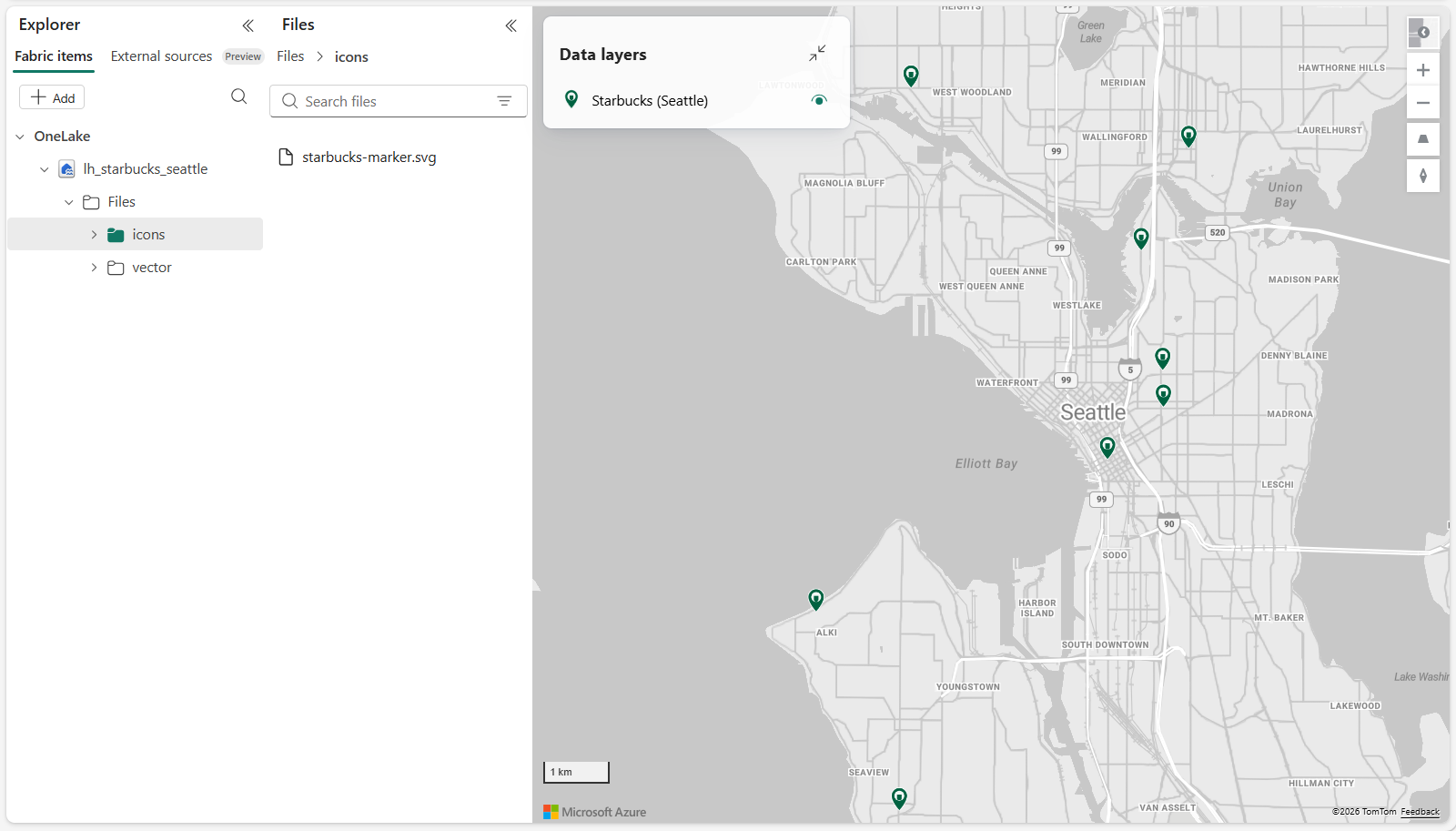
在 Microsoft Fabric 中,你的地圖應該看起來像這樣:
提示
如果地圖沒有立即顯示,請重新整理工作區,或等待幾秒鐘讓後端同步完成。
總結
在這個教學中,你利用 Microsoft Fabric 地圖和 Lakehouse 資料打造了一個自動化的地理空間解決方案。
你使用 Fabric REST API 和 Python 來配置和配置所有必要的資源,然後將儲存在 OneLake 的空間資料視覺化。
你完成了以下任務:
- 將空間資料上傳到 Lakehouse
- 配置了一個用於地理空間視覺化的資料集
- 建立了一個Fabric的地圖,並採用了內嵌定義
- 已將地圖連接到 Lakehouse 資料
- 配置地圖圖層以渲染空間特徵
此架構展示了 Fabric 中常見的批次與歷史空間分析模式:
- 資料儲存於 OneLake(Lakehouse)
- 地圖查詢與渲染空間資料集
- 圖層提供地理資料的視覺洞察
透過使用 Python 和 REST API 自動化資源建立,你現在擁有一種可重複的方法,可以基於靜態或歷史資料集建置地理空間應用程式。
下一步
現在你已經了解如何從 Lakehouse 視覺化空間資料,可以擴展這個解決方案:
- 結合多個資料集以提供更豐富的地理空間分析
- 運用造型與篩選來突顯趨勢與圖案
- 新增參考層,如邊界或路線
- 整合資料管線以自動刷新資料集
- 利用 Eventstream 與 Eventhouse 探索即時串流場景
欲了解更多關於在 Fabric 中操作空間資料與地圖的資訊,請參閱:
有關使用 REST API 製作即時地圖的教學,請參見: