注意
預覽功能不供生產時使用,而且可能功能受限。 這些功能是在正式發行前先行推出,讓客戶能夠搶先體驗並提供意見反應。
應用程式生命週期管理 (ALM) 是一種全面的方法,用於管理應用程式從初始概念到開發、測試、部署和持續維護的生命週期。 在以下 Power Platform情況下,將測試引擎的自動化測試納入您的 ALM 流程可確保應用程式在開發的每個階段都經過徹底測試,從而產生更高品質的版本。
瞭解 ALM 中的測試自動化
測試自動化通過以下方式在 ALM 流程中發揮著關鍵作用:
-
確保品質 - 在部署前驗證應用程式是否按預期運行
-
降低風險 - 在問題到達生產環境之前及早發現問題
-
實現持續集成 - 支援自動化構建驗證測試
-
促進受控部署 - 向發佈管道添加品質門控
借助 Power Apps 測試引擎,無論您使用哪種 CI/CD 工具,您都可以將自動化測試整合到現有 Power Platform 的 ALM 工作流程中。
測試自動化生命週期
測試引擎支援與 ALM 流程整合的完整測試生命週期:
-
開發 - 在應用程式開發期間在本地創建和運行測試
-
生成驗證 - 作為自動生成驗證的一部分執行測試
-
發佈入口 - 將測試結果用作受控部署的品質入口
-
生產驗證 - 驗證生產環境中的關鍵功能
ALM 中的測試自動化入門
要開始將測試引擎合併到 ALM 流程中,請執行以下作:
-
創建測試計劃 - 為解決方案 設計 YAML 測試計劃 Power Platform
-
在本地 運行測試 - 驗證測試在開發環境中的工作
-
設置身份驗證 - 為本地執行和管道環境配置 適當的身份驗證
-
與管道 集成 - 將測試引擎連接到現有 ALM 管道
-
實施品質門控 ——利用測試結果控制解決方案的推廣
提示
從關鍵使用者旅程開始,隨著您對測試引擎的熟悉程度越來越高,逐漸擴大自動化測試覆蓋範圍。
測試引擎來源碼版本 (選擇)
如果您使用的是測試引擎的原始程式碼版本,您還需要:
整合選項
測試引擎與各種 ALM 工具和流程無縫集成
您可以輕鬆地將 Test Engine 與 Power Platform其內置管道集成,以獲得本機整合體驗:
-
解決方案管道 - 將自動化測試添加到解決方案管道 中 ,以確保每個階段的品質
-
環境策略 - 在升級到生產環境之前,在開發和測試環境中 進行 測試
-
管道範本 - 使用管道範本 標準 化整個組織的測試
使用自訂管道主機 時,可以觸發自動測試的執行:
- 創建 Power Automate 基於管道事件觸發的雲端流
- 連接到 CI/CD 系統以運行測試
- 處理測試結果並更新管道狀態
下圖顯示了此整合模式的範例:
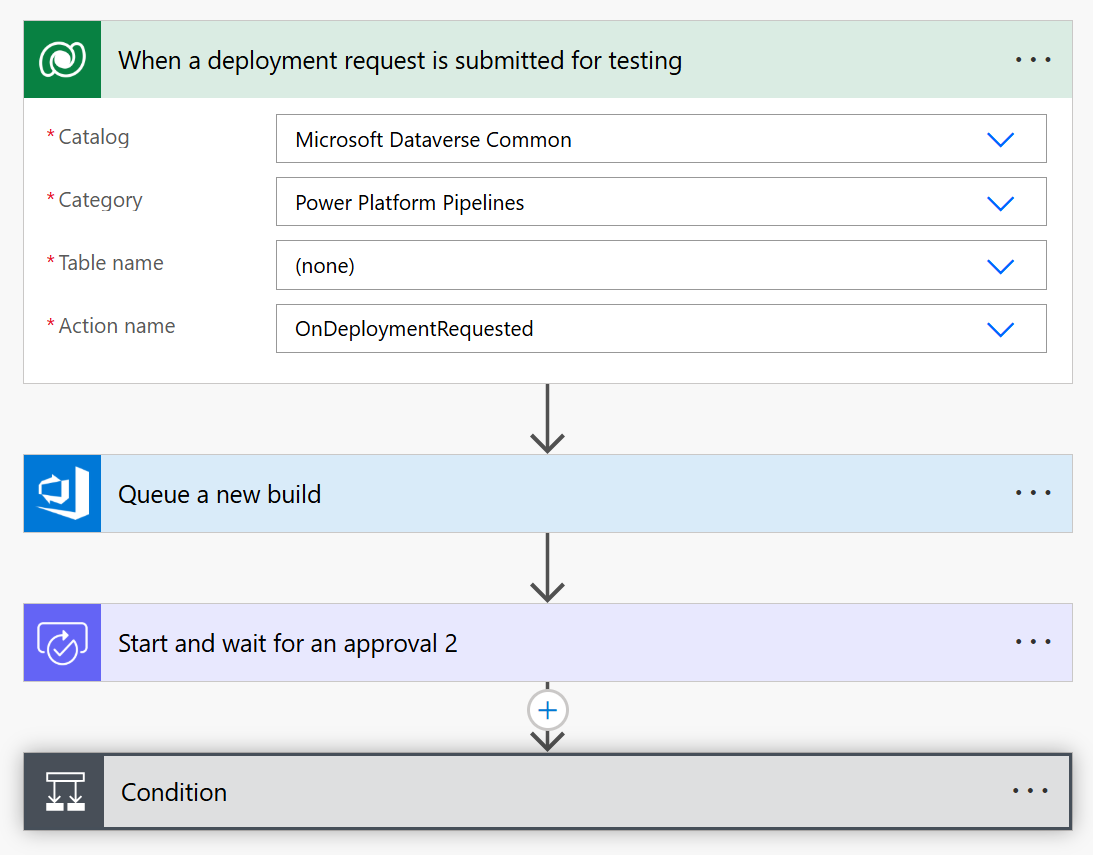
此流使用:
自定義 CI/CD 集成 Power Automate
對於具有現有 CI/CD 工具的組織,測試引擎通過使用 Power Automate 自定義主機 Power Platform 功能與 自定義管道集成。 使用自訂主機方法,您可以:
- 定義 執行自動化測試的自定義管道主機
- 創建 Power Automate 從部署事件自動觸發的雲端流
- 直接從雲端流執行
pac test run 命令,以運行存儲在原始程式碼管理中的測試
- 連線到您首選的 CI/CD 系統 (Azure DevOps、GitHub Actions 等)
- 根據測試結果實施審批工作流
- 根據測試結果更新部署狀態
通過這種集成,您可以維護現有的 CI/CD 投資,同時將 Test Engine 的功能添加到 ALM 流程中。 自定義主機充當本機 ALM 功能和外部測試基礎設施之間的 Power Platform橋樑。
您可以使用自定義主機 Power Platform 擴展 管道 ,或直接將 pac test run 命令集成 到執行構建腳本中。
下面是管道 YAML 檔的 Azure DevOps 範例,演示了如何設置和運行 Power Apps 測試引擎測試:
trigger:
- main

pool:
  vmImage: 'windows-latest'

variables:
  - group: PowerPlatformTestVariables # Create a variable group with these variables
  # Required variables in the variable group:
  # ClientId - Service Principal App ID
  # ClientSecret - Service Principal Secret (mark as secret)
  # TenantId - Microsoft Entra Tenant ID
  # EnvironmentUrl - Power Platform Environment URL
  # EnvironmentId - Power Platform Environment ID

steps:
# Download the test plan file from secure files
- task: DownloadSecureFile@1
  name: testPlan
  displayName: 'Download Test Plan File'
  inputs:
    secureFile: 'testplan.te.yaml' # Upload your test plan to Secure Files in Azure DevOps

# Install Power Platform CLI
- task: PowerShell@2
  displayName: 'Install Power Platform CLI'
  inputs:
    targetType: 'inline'
    script: |
      Write-Host "Installing Power Platform CLI..."
      $pacUrl = "https://aka.ms/PowerAppsCLI"
      $pacZip = "$env:TEMP\pac.zip"
      $pacDestination = "$env:TEMP\pac"

      # Create the destination folder if it doesn't exist
      if (-not (Test-Path $pacDestination)) {
          New-Item -ItemType Directory -Path $pacDestination -Force | Out-Null
      }

      # Download PAC CLI
      Invoke-WebRequest -Uri $pacUrl -OutFile $pacZip

      # Extract PAC CLI
      Expand-Archive -Path $pacZip -DestinationPath $pacDestination -Force

      # Add PAC CLI to PATH
      $env:PATH = "$pacDestination;$env:PATH"

      # Verify installation
      pac help

# Install Azure CLI and authenticate with service principal
- task: PowerShell@2
  displayName: 'Install Azure CLI and Authenticate'
  inputs:
    targetType: 'inline'
    script: |
      Write-Host "Installing Azure CLI..."
      $azureCliUrl = "https://aka.ms/installazurecliwindows"
      $azureCliInstaller = "$env:TEMP\AzureCLI.msi"

      # Download Azure CLI installer
      Invoke-WebRequest -Uri $azureCliUrl -OutFile $azureCliInstaller

      # Install Azure CLI silently
      Start-Process -FilePath msiexec.exe -Args "/i $azureCliInstaller /quiet /norestart" -Wait

      # Reload PATH to include Azure CLI
      $env:PATH = [System.Environment]::GetEnvironmentVariable("PATH", "Machine") + ";" + [System.Environment]::GetEnvironmentVariable("PATH", "User")

      # Authenticate with service principal
      Write-Host "Authenticating with Azure CLI..."
      az login --service-principal -u "$(ClientId)" -p "$(ClientSecret)" --tenant "$(TenantId)" --allow-no-subscriptions

# Authenticate PAC CLI with service principal
- task: PowerShell@2
  displayName: 'Authenticate PAC CLI'
  inputs:
    targetType: 'inline'
    script: |
      Write-Host "Authenticating PAC CLI..."

      # Create authentication profile
      pac auth create --name TestEngineAuth --url "$(EnvironmentUrl)" --applicationId "$(ClientId)" --clientSecret "$(ClientSecret)" --tenant "$(TenantId)"

      # Select the authentication profile
      pac auth select --name TestEngineAuth

# Run the tests
- task: PowerShell@2
  displayName: 'Execute Test Engine Tests'
  inputs:
    targetType: 'inline'
    script: |
      Write-Host "Running Test Engine tests..."

      # Create output directory
      $outputDir = "$(Build.ArtifactStagingDirectory)\TestResults"
      New-Item -ItemType Directory -Path $outputDir -Force | Out-Null

      # Run the tests
      pac test run `
        --test-plan-file "$(testPlan.secureFilePath)" `
        --environment-id "$(EnvironmentId)" `
        --tenant "$(TenantId)" `
        --logConsole info `
        --trx `
        --outputDirectory $outputDir

      if ($LASTEXITCODE -ne 0) {
          Write-Error "Test execution failed with exit code $LASTEXITCODE"
          exit $LASTEXITCODE
      }

# Publish test results
- task: PublishTestResults@2
  displayName: 'Publish Test Results'
  inputs:
    testResultsFormat: 'VSTest'
    testResultsFiles: '$(Build.ArtifactStagingDirectory)\TestResults\*.trx'
    mergeTestResults: true
    testRunTitle: 'Power Apps Test Engine Results'
  condition: always() # Ensure results are published even if tests fail

# Publish test artifacts
- task: PublishBuildArtifacts@1
  displayName: 'Publish Test Artifacts'
  inputs:
    PathtoPublish: '$(Build.ArtifactStagingDirectory)\TestResults'
    ArtifactName: 'TestArtifacts'
    publishLocation: 'Container'
  condition: always()
參考元件
在生成自動化測試管道時,以下參考元件可能很有用。
下面是執行相同測試執行過程的 GitHub Actions 工作流的範例:
name: Test Engine Execution

on:
  push:
    branches: [ main ]
  pull_request:
    branches: [ main ]
  workflow_dispatch:  # Allow manual triggering

jobs:
  test:
    runs-on: windows-latest

    env:
      TENANT_ID: ${{ secrets.TENANT_ID }}
      CLIENT_ID: ${{ secrets.CLIENT_ID }}
      CLIENT_SECRET: ${{ secrets.CLIENT_SECRET }}
      ENVIRONMENT_URL: ${{ secrets.ENVIRONMENT_URL }}
      ENVIRONMENT_ID: ${{ secrets.ENVIRONMENT_ID }}

    steps:
    - name: Checkout repository
      uses: actions/checkout@v3

    - name: Install Power Platform CLI
      run: |
        Write-Host "Installing Power Platform CLI..."
        $pacUrl = "https://aka.ms/PowerAppsCLI"
        $pacZip = "$env:TEMP\pac.zip"
        $pacDestination = "$env:TEMP\pac"

        # Create the destination folder if it doesn't exist
        if (-not (Test-Path $pacDestination)) {
            New-Item -ItemType Directory -Path $pacDestination -Force | Out-Null
        }

        # Download PAC CLI
        Invoke-WebRequest -Uri $pacUrl -OutFile $pacZip

        # Extract PAC CLI
        Expand-Archive -Path $pacZip -DestinationPath $pacDestination -Force

        # Add PAC CLI to PATH
        $env:PATH = "$pacDestination;$env:PATH"
        echo "$pacDestination" >> $env:GITHUB_PATH

        # Verify installation
        pac help

    - name: Install Azure CLI
      run: |
        Write-Host "Installing Azure CLI..."
        $ProgressPreference = 'SilentlyContinue'
        Invoke-WebRequest -Uri https://aka.ms/installazurecliwindows -OutFile .\AzureCLI.msi
        Start-Process msiexec.exe -Wait -ArgumentList '/I AzureCLI.msi /quiet'
        rm .\AzureCLI.msi

    - name: Azure CLI Authentication
      run: |
        Write-Host "Authenticating with Azure CLI..."
        az login --service-principal -u "$env:CLIENT_ID" -p "$env:CLIENT_SECRET" --tenant "$env:TENANT_ID" --allow-no-subscriptions

    - name: PAC CLI Authentication
      run: |
        Write-Host "Authenticating PAC CLI..."
        # Create authentication profile
        pac auth create --name TestEngineAuth --url "$env:ENVIRONMENT_URL" --applicationId "$env:CLIENT_ID" --clientSecret "$env:CLIENT_SECRET" --tenant "$env:TENANT_ID"

        # Select the authentication profile
        pac auth select --name TestEngineAuth

    - name: Run Test Engine tests
      run: |
        Write-Host "Running Test Engine tests..."

        # Create output directory
        $outputDir = "./TestResults"
        New-Item -ItemType Directory -Path $outputDir -Force | Out-Null

        # Run the tests
        pac test run `
          --test-plan-file "./TestPlan/testplan.te.yaml" `
          --environment-id "$env:ENVIRONMENT_ID" `
          --tenant "$env:TENANT_ID" `
          --logConsole info `
          --trx `
          --outputDirectory $outputDir

        if ($LASTEXITCODE -ne 0) {
            Write-Error "Test execution failed with exit code $LASTEXITCODE"
            exit $LASTEXITCODE
        }

    - name: Upload test results
      uses: actions/upload-artifact@v3
      if: always()
      with:
        name: test-results
        path: ./TestResults

    - name: Publish Test Results
      uses: EnricoMi/publish-unit-test-result-action@v2
      if: always()
      with:
        files: ./TestResults/**/*.trx
相關文章
了解測試引擎 YAML 語法
為測試設置身份驗證
測試畫布應用程式、 模型驅動應用程式或 Dataverse 擴展
瞭解 Power Platform ALM