你的應用程式可以直接連接到 SQL Server 資料庫,然後透過 Microsoft 的類別來儲存和檢索資料。Data.SqlClient 命名空間。
本教學旨在用於學習、原型開發,以及允許從用戶端直接存取資料庫的受控環境。 對於使用共享生產資料的企業業務應用,偏好擁有資料庫存取權並集中管理授權、驗證、稽核、版本管理及憑證保護的認證服務層。 欲了解更多資訊,請參閱 將 WinUI 應用程式連線到資料庫。
開始使用
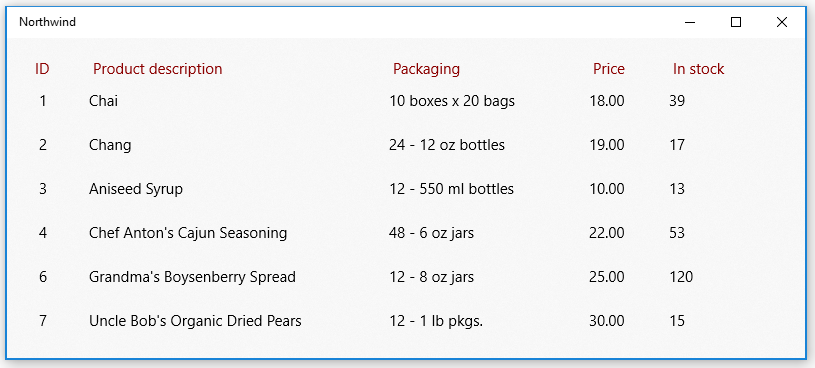
在本指南中,我們將展示一種在使用 Windows 應用程式 SDK 的應用程式中實現的方法。 如果你把 Northwind 樣本資料庫安裝到你的 SQL Server 實例,然後使用這些片段,你會得到一個基本的介面,顯示來自 Northwind 樣本資料庫的產品。
提示
你也可以取得腳本,從 SQL Server Samples GitHub repository 建立 Northwind 和 pubs 樣本資料庫。
本指南中出現的片段是基於這個 範例應用程式。
先設定解決方案
若要將應用程式直接連接到 SQL Server 資料庫,應用程式可以鎖定 Windows 應用程式 SDK 支援的任何最低版本 Windows。 您可以在專案的屬性頁面中找到該資訊。
- 在 manifest designer 中開啟你Windows 應用程式 SDK專案的 Package.appxmanifest 檔案。
- 安裝目前 .NET 專案範本的 SQL 用戶端套件。 在 封裝管理員 主控台中執行
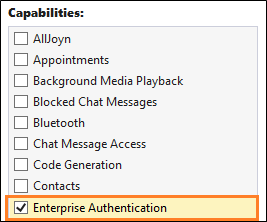
Install-Package Microsoft.Data.SqlClient。 - 在 Capabilities 標籤中,如果你使用 Windows 認證來驗證你的SQL Server,請勾選Enterprise Authentication勾選框。
重要
你還需要選擇 Internet(用戶端與;Server)、Internet(用戶端),以及 私有網路(用戶端與Server),不論你是否使用Windows認證。
在 SQL Server 資料庫中新增與檢索資料
本節中,我們會進行下列事項:
1️⃣ 新增一個 連接字串。
2️⃣ 建立類別來保存產品資料。
3️��� 從 SQL Server 資料庫檢索產品。
4️⃣ 新增基本使用者介面。
5️⃣ 在 UI 中顯示產品。
注意
本節會說明資料存取碼的組織方式。 這只是想舉例說明如何使用 Microsoft。Data.SqlClient 用來儲存和檢索 SQL Server 資料庫的資料。 可以採用最適合您應用程式設計的方式來組織程式碼。
新增一個連接字串
在 App.xaml.cs 檔案中,為 App 類別新增一個屬性,讓解決方案中的其他類別能存取該 連接字串。
我們的 連接字串 指向 SQL Server Express 實例中的 Northwind 資料庫。 這段摘要中的 連接字串 假設你安裝 SQL Server Express 時保留了預設實例名稱 SQLEXPRESS。 你可以修改 連接字串,以符合你的 SQL Server 實例、資料庫和認證方式。
sealed partial class App : Application
{
    // Connection string for using Windows Authentication.
    private string connectionString =
        @"Data Source=.\SQLEXPRESS;Initial Catalog=NORTHWIND;Integrated Security=SSPI;Encrypt=True;TrustServerCertificate=True";

    public string ConnectionString { get => connectionString; set => connectionString = value; }

    ...
}
重要
在生產環境中,連線資訊應安全地儲存在應用程式設定中(參見 使用 Visual Studio Connected Services 添加Azure 應用程式組態)。 連接字串和其他祕密絕不可以硬式編碼。
範例 連接字串 信任本地的 SQL Server Express 憑證以進行開發。 在生產環境中,安裝可驗證的伺服器憑證並設定 TrustServerCertificate=False。
建立類別來保留產品資料
我們會建立一個實作 INotifyPropertyChanged 事件的類別,這樣我們就能將 XAML UI 中的屬性綁定到這個類別的屬性。
public class Product : INotifyPropertyChanged
{
    public int ProductID { get; set; }
    public string ProductCode { get { return ProductID.ToString(); } }
    public string ProductName { get; set; }
    public string QuantityPerUnit { get; set; }
    public decimal UnitPrice { get; set; }
    public string UnitPriceString { get { return UnitPrice.ToString("######.00"); } }
    public int UnitsInStock { get; set; }
    public string UnitsInStockString { get { return UnitsInStock.ToString("#####0"); } }
    public int CategoryId { get; set; }

    public event PropertyChangedEventHandler PropertyChanged;
    private void NotifyPropertyChanged(string propertyName)
    {
        PropertyChanged?.Invoke(this, new PropertyChangedEventArgs(propertyName));
    }
}
從 SQL Server 資料庫檢索產品
在Windows 應用程式 SDK專案的 MainWindow.xaml.cs 檔案中,建立一個方法,從 Northwind 樣本資料庫取得產品,然後以 ObservableCollection 集合回傳 Product 實例。
using Microsoft.Data.SqlClient;

public ObservableCollection<Product> GetProducts(string connectionString)
{
    const string GetProductsQuery = "select ProductID, ProductName, QuantityPerUnit," +
       " UnitPrice, UnitsInStock, Products.CategoryID " +
       " from Products inner join Categories on Products.CategoryID = Categories.CategoryID " +
       " where Discontinued = 0";

    var products = new ObservableCollection<Product>();
    try
    {
        using (var conn = new SqlConnection(connectionString))
        {
            conn.Open();
            if (conn.State == System.Data.ConnectionState.Open)
            {
                using (SqlCommand cmd = conn.CreateCommand())
                {
                    cmd.CommandText = GetProductsQuery;
                    using (SqlDataReader reader = cmd.ExecuteReader())
                    {
                        while (reader.Read())
                        {
                            var product = new Product();
                            product.ProductID = reader.GetInt32(0);
                            product.ProductName = reader.GetString(1);
                            product.QuantityPerUnit = reader.GetString(2);
                            product.UnitPrice = reader.GetDecimal(3);
                            product.UnitsInStock = reader.GetInt16(4);
                            product.CategoryId = reader.GetInt32(5);
                            products.Add(product);
                        }
                    }
                }
            }
        }
        return products;
    }
    catch (Exception eSql)
    {
        Debug.WriteLine($"Exception: {eSql.Message}");
    }
    return null;
}
新增基本使用者介面
將以下 XAML 加入 Windows 應用程式 SDK 專案的 MainWindow.xaml 檔案。
這個 XAML 會建立一個 ListView ,顯示你在前一個片段中回傳的每個產品,並將 中 ListView 每一列的屬性綁定到我們在類別中 Product 定義的屬性。
<Grid Background="{ThemeResource SystemControlAcrylicWindowBrush}">
    <RelativePanel>
        <ListView Name="InventoryList"
                  SelectionMode="Single"
                  ScrollViewer.VerticalScrollBarVisibility="Auto"
                  ScrollViewer.IsVerticalRailEnabled="True"
                  ScrollViewer.VerticalScrollMode="Enabled"
                  ScrollViewer.HorizontalScrollMode="Enabled"
                  ScrollViewer.HorizontalScrollBarVisibility="Auto"
                  ScrollViewer.IsHorizontalRailEnabled="True"
                  Margin="20">
            <ListView.HeaderTemplate>
                <DataTemplate>
                    <StackPanel Orientation="Horizontal"  >
                        <TextBlock Text="ID" Margin="8,0" Width="50" Foreground="DarkRed" />
                        <TextBlock Text="Product description" Width="300" Foreground="DarkRed" />
                        <TextBlock Text="Packaging" Width="200" Foreground="DarkRed" />
                        <TextBlock Text="Price" Width="80" Foreground="DarkRed" />
                        <TextBlock Text="In stock" Width="80" Foreground="DarkRed" />
                    </StackPanel>
                </DataTemplate>
            </ListView.HeaderTemplate>
            <ListView.ItemTemplate>
                <DataTemplate x:DataType="local:Product">
                    <StackPanel Orientation="Horizontal" >
                        <TextBlock Name="ItemId"
                                    Text="{x:Bind ProductCode}"
                                    Width="50" />
                        <TextBlock Name="ItemName"
                                    Text="{x:Bind ProductName}"
                                    Width="300" />
                        <TextBlock Text="{x:Bind QuantityPerUnit}"
                                   Width="200" />
                        <TextBlock Text="{x:Bind UnitPriceString}"
                                   Width="80" />
                        <TextBlock Text="{x:Bind UnitsInStockString}"
                                   Width="80" />
                    </StackPanel>
                </DataTemplate>
            </ListView.ItemTemplate>
        </ListView>
    </RelativePanel>
</Grid>
在 ListView 中顯示產品
打開 MainWindow.xaml.cs 檔案,並在類別的MainWindow建構子中加入程式碼,將 ListView 的 ItemsSource 屬性設定為實例的 ProductObservableCollection。
public MainWindow()
{
    this.InitializeComponent();
    InventoryList.ItemsSource = GetProducts((App.Current as App).ConnectionString);
}
啟動專案,可在 UI 所顯示的 Northwind 範例資料庫中看到產品。
探索 Microsoft。Data.SqlClient 命名空間,看看你還能用 SQL Server 資料庫中的資料做什麼。
提示
試著問 Microsoft Copilot 幫忙解答你的 SQL 查詢。 Copilot 可以幫助你撰寫 SQL 查詢,並建議改進程式碼的方法。
無法連線到您的資料庫?
在大多數情況下,SQL Server 設定的某些部分需要更改。 如果你能從其他類型的桌面應用程式(如 Windows Forms 或 WPF 應用程式)連接到資料庫,請確保你已啟用 SQL Server 的 TCP/IP。 你可以在 電腦管理 控制台裡操作。 (更多資訊請參見 Windows 工具/管理工具。)
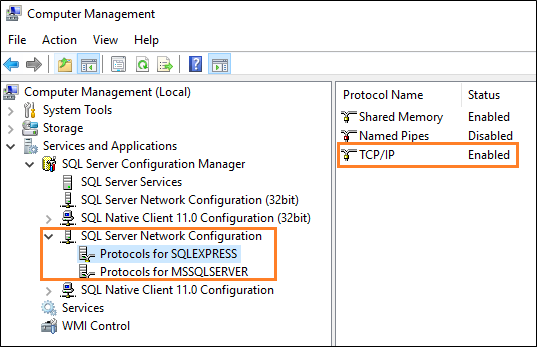
接著,確保你的 SQL Server 瀏覽器服務正在運行。

