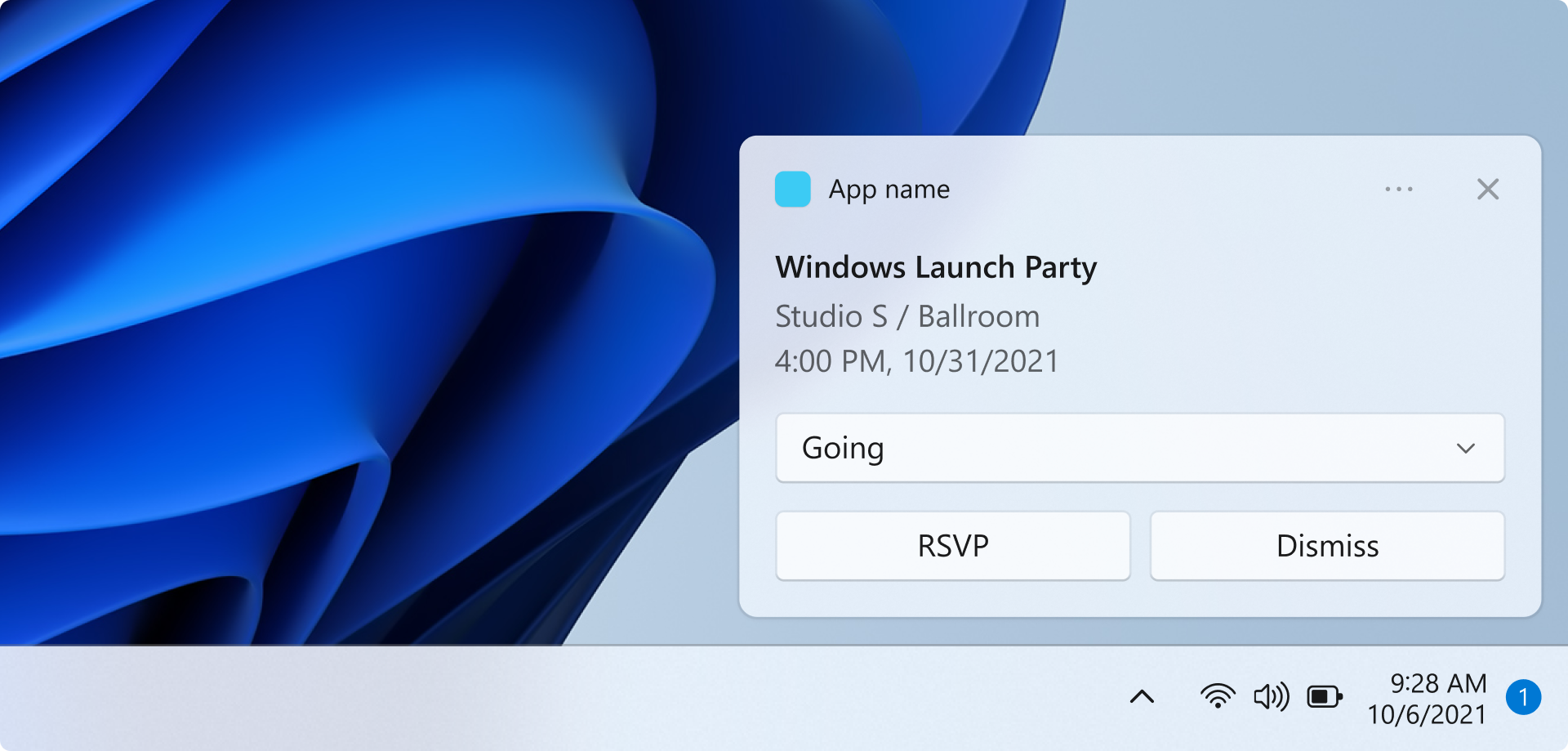
在這個快速入門中,你將建立一個 WinUI 應用程式,透過 Windows 應用程式 SDK 發送並回應本地應用程式通知。
欲了解完整的實作應用程式通知範例,請參閱GitHub上的
Important
提權(管理員)應用程式不支援應用程式通知。
Prerequisites
- 安裝 Visual Studio 2026
- C++ 可包含 C++ 工作負載,C# 開發則可包含 .NET 工作負載。
- 請確定在 .NET 桌面開發下選擇了 MSIX 封裝工具。
- 請確定選擇了 Windows 應用程式開發。
- 請確定選擇了 Windows UI 應用程式開發。
欲了解更多關於在Visual Studio中管理工作負載的資訊,請參見 Modify Visual Studio 工作負載、元件與語言包。 想了解更多關於如何使用 WinUI 的資訊,請參見 「建立並執行 WinUI 3 專案」。 若要將Windows 應用程式 SDK加入現有專案,請參見 在現有專案中使用Windows 應用程式 SDK。
在 Visual Studio 建立一個新的 WinUI 應用程式專案
- 在 Visual Studio 裡,建立一個新專案。
- 在 「建立新專案 」對話框中,將語言篩選器設為「C#」或「C++」,平台篩選器設為「WinUI」,然後選擇「空白應用程式,封裝(WinUI 3 in Desktop)」專案範本。
- 新專案名稱為「AppNotificationsExample」。
發送本地應用程式通知
在這個區塊中,你會在應用程式中新增一個按鈕,點擊後會發送本地應用程式通知。 通知內容將包含文字內容及應用程式標誌圖片。 你還會新增兩個唯讀文字框,當使用者點擊通知時會顯示啟用參數。
首先,在您的介面中新增一個按鈕控制項以及兩個文字框控制項MainWindow.xaml。
<!-- MainWindow.xaml -->
<Button x:Name="SendNotificationButton" Content="Send App Notification" Click="SendNotificationButton_Click"/>

<TextBlock Text="Activation arguments:" FontWeight="SemiBold" Margin="0,12,0,0"/>
<TextBox x:Name="ActionTextBox" Header="action" IsReadOnly="True" PlaceholderText="(none)"/>
<TextBox x:Name="ExampleEventIdTextBox" Header="exampleEventId" IsReadOnly="True" PlaceholderText="(none)"/>
應用程式通知 API 在 Microsoft.Windows。AppNotifications 以及 Microsoft.Windows。AppNotifications.Builder命名空間。 為您的專案加入以下參考資料:
// MainWindow.xaml.cs
using Microsoft.Windows.AppNotifications;
using Microsoft.Windows.AppNotifications.Builder;
現在,將以下程式碼加入你的按鈕點擊處理器。 此範例使用 AppNotificationBuilder 建構通知內容,包括使用者點擊通知時會回傳給應用程式的參數、應用程式標誌圖片及文字。 通知中還包含一個按鈕,示範在不啟動應用程式介面的情況下執行動作。 BuildNotification 方法會建立 AppNotification 物件,AppNotificationManager.Show 會顯示給使用者。
// MainWindow.xaml.cs
private void SendNotificationButton_Click(object sender, RoutedEventArgs e)
{
    var appNotification = new AppNotificationBuilder()
        .AddArgument("action", "NotificationClick")
        .AddArgument("exampleEventId", "1234")
        .SetAppLogoOverride(new System.Uri("ms-appx:///Assets/Square150x150Logo.png"), AppNotificationImageCrop.Circle)
        .AddText("This is text content for an app notification.")
        .AddButton(new AppNotificationButton("Perform action without launching app")
            .AddArgument("action", "BackgroundAction"))
        .BuildNotification();

    AppNotificationManager.Default.Show(appNotification);
}
此時,你可以自行建置並執行你的應用程式。 點擊 「發送應用程式通知 」按鈕即可顯示通知。 請注意,點擊通知還不會執行任何動作——在下一節,你會學習如何處理應用程式啟動,讓應用程式在用戶點擊通知時能做出回應。
Note
當你的應用程式以管理員權限(提升)執行時,應用程式通知不被支援。 節目 會靜默失敗,且不會顯示任何通知。 測試通知時,務必確保應用程式沒有設定 Elevation。
更新應用程式套件資訊清單檔案
該 Package.appmanifest 檔案提供應用程式 MSIX 套件的詳細資訊。 為了使應用程式在使用者與應用程式通知互動時啟動,您必須更新應用程式套件清單檔案,以將該應用程式註冊為系統中的應用程式通知啟動目標。 欲了解更多關於應用程式套件清單的資訊,請參閱 應用程式套件清單。
- 在方案總管中右鍵點擊該檔案並選擇查看代碼,即可編輯Package.appxmanifest檔案。
- 新增
xmlns:com="http://schemas.microsoft.com/appx/manifest/com/windows10"與xmlns:desktop="http://schemas.microsoft.com/appx/manifest/desktop/windows10"命名空間到<Package>。 - 在
<desktop:Extension>下加入一個<Extensions>元素。 將屬性Category設定為 ,"windows.toastNotificationActivation"宣告你的應用程式可以被應用程式通知激活。- 新增一個
<desktop:ToastNotificationActivation>子元素,並將 設定ToastActivatorCLSID為一個能唯一識別你的應用程式的 GUID。 - 你可以在 Visual Studio 中透過Tools > Create GUID來生成 GUID。
- 新增一個
- 在下方新增一個
<com:Extension>元素,並將屬性設<Extensions>為Category。"windows.comServer"下方所示的清單範例檔案展示了此元素的語法。- 將
Executable元素的<com:ExeServer>屬性更新為你的執行檔名稱。 在這個例子中,名稱為"AppNotificationsExample.exe"。 - 指定
Arguments="----AppNotificationActivated:",以確保Windows 應用程式 SDK能以 AppNotification 類型處理你的通知載荷。 - 將
Id元素的<com:Class>屬性設置為您用來設定ToastActivatorCLSID屬性的相同 GUID。
- 將
<!--package.appxmanifest-->

<Package
  xmlns:com="http://schemas.microsoft.com/appx/manifest/com/windows10"
  xmlns:desktop="http://schemas.microsoft.com/appx/manifest/desktop/windows10"
  ...
  <Applications>
    <Application>
      ...
      <Extensions>

        <!--Specify which CLSID to activate when notification is clicked-->
        <desktop:Extension Category="windows.toastNotificationActivation">
          <desktop:ToastNotificationActivation ToastActivatorCLSID="replaced-with-your-guid-C173E6ADF0C3" />
        </desktop:Extension>

        <!--Register COM CLSID-->
        <com:Extension Category="windows.comServer">
          <com:ComServer>
            <com:ExeServer Executable="SampleApp.exe" DisplayName="SampleApp" Arguments="----AppNotificationActivated:">
              <com:Class Id="replaced-with-your-guid-C173E6ADF0C3" />
            </com:ExeServer>
          </com:ComServer>
        </com:Extension>

      </Extensions>
    </Application>
  </Applications>
 </Package>
處理來自應用程式通知的啟動
當使用者點擊應用程式通知或通知中的按鈕時,應用程式需要適當回應。 有兩種常見的啟動情境:
- 搭配 UI 啟動 — 使用者點擊通知主體,應用程式就會啟動或出現在前景,顯示相關內容。
- 背景操作 — 使用者點擊通知中的按鈕,觸發動作(例如回覆),但不會顯示任何應用程式介面。
為了支援這兩種情況,你的應用程式啟動流程應該會建立主視窗, OnLaunched 但 不會 立即啟用。 相反地,請註冊 AppNotificationManager.NotificationInvoked 事件,呼叫 AppNotificationManager.Register,然後檢查 AppInstance.GetActivatedEventArgs ,判斷這是正常啟動還是應該等待 NotificationInvoked的 COM 啟用路徑。 你的程式碼可以決定是顯示視窗,還是靜默處理動作並退出。
事件 NotificationInvoked 處理的是應用程式已經運行時發生的點擊。 當應用程式未執行時,Windows 透過 COM 啟用啟動應用程式,啟用類型會顯示為 Launch,而非 AppNotification。 通知參數隨後會透過 NotificationInvoked 事件傳遞。
Important
你必須先呼叫 AppNotificationManager.Register ,才能呼叫 AppInstance.GetActivatedEventArgs。
Important
桌面應用程式會忽略通知 XML 承載中的 activationType="background" 設定。 你必須處理程式碼中的啟用參數,並決定是否顯示視窗。
// App.xaml.cs
using Microsoft.UI.Xaml;
using Microsoft.Windows.AppLifecycle;
using Microsoft.Windows.AppNotifications;

namespace AppNotificationsExample;

public partial class App : Application
{
    private Window? _window;

    public App()
    {
        InitializeComponent();
    }

    protected override void OnLaunched(Microsoft.UI.Xaml.LaunchActivatedEventArgs args)
    {
        _window = new MainWindow();

        AppNotificationManager.Default.NotificationInvoked += OnNotificationInvoked;
        AppNotificationManager.Default.Register();

        var activatedArgs = AppInstance.GetCurrent().GetActivatedEventArgs();

        if (activatedArgs.Kind == ExtendedActivationKind.AppNotification)
        {
            // App was launched by clicking a notification
            var notificationArgs = (AppNotificationActivatedEventArgs)activatedArgs.Data;
            HandleNotification(notificationArgs);
        }
        else
        {
            // Normal launch
            _window.Activate();
        }
    }

    private void OnNotificationInvoked(AppNotificationManager sender, AppNotificationActivatedEventArgs args)
    {
        // Notification clicked while app is already running
        HandleNotification(args);
    }

    private void HandleNotification(AppNotificationActivatedEventArgs args)
    {
        var action = args.Arguments.ContainsKey("action") ? args.Arguments["action"] : "(none)";
        var exampleEventId = args.Arguments.ContainsKey("exampleEventId") ? args.Arguments["exampleEventId"] : "(none)";

        _window!.DispatcherQueue.TryEnqueue(() =>
        {
            switch (action)
            {
                case "BackgroundAction":
                    // Handle the action without showing the app window.
                    // If the window was never shown, exit the app.
                    if (!_window.Visible)
                    {
                        Application.Current.Exit();
                    }
                    break;

                default:
                    // Bring the app to the foreground and display the notification arguments.
                    _window.Activate();
                    ((MainWindow)_window).UpdateNotificationUI(action, exampleEventId);
                    break;
            }
        });
    }
}
將 UpdateNotificationUI 方法新增到 MainWindow,以在先前新增的文字框中顯示通知參數。
// MainWindow.xaml.cs
public void UpdateNotificationUI(string action, string exampleEventId)
{
    DispatcherQueue.TryEnqueue(() =>
    {
        ActionTextBox.Text = action;
        ExampleEventIdTextBox.Text = exampleEventId;
    });
}
