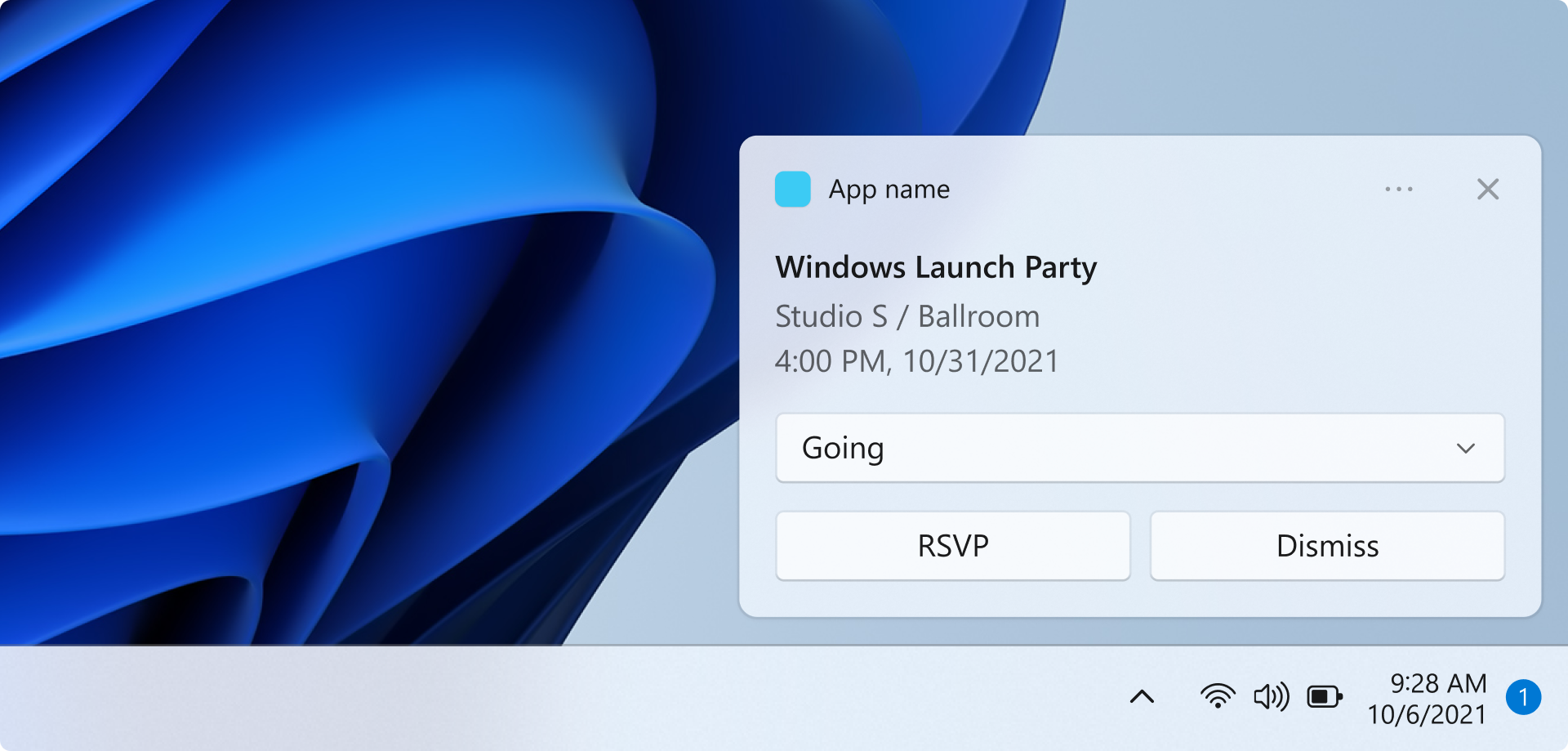
在這個快速入門中,你將建立一個 WinUI 應用程式,透過 Windows 應用程式 SDK 發送並回應本地應用程式通知。
欲了解完整的實作應用程式通知範例,請參閱GitHub上的
Important
提權(管理員)應用程式不支援應用程式通知。
Prerequisites
- 安裝 Visual Studio 2022 (v17.6+)
- C++ 可包含 C++ 工作負載,C# 開發則可包含 .NET 工作負載。
- 請確定在 .NET 桌面開發下選擇了 MSIX 封裝工具。
- 請確定選擇了 Windows 應用程式開發。
- 請確定選擇了 Windows UI 應用程式開發。
欲了解更多關於在Visual Studio中管理工作負載的資訊,請參見 Modify Visual Studio 工作負載、元件與語言包。 欲了解更多關於如何使用 WinUI,請參見 「開始使用 WinUI」。 若要將Windows 應用程式 SDK加入現有專案,請參見 在現有專案中使用Windows 應用程式 SDK。
在 Visual Studio 建立一個新的 WinUI 應用程式專案
- 在 Visual Studio 裡,建立一個新專案。
- 在 「建立新專案 」對話框中,將語言篩選器設為「C#」或「C++」,平台篩選器設為「WinUI」,然後選擇「空白應用程式,封裝(WinUI 3 in Desktop)」專案範本。
- 新專案名稱為「AppNotificationsExample」。
發送本地應用程式通知
在這個區塊中,你會在應用程式中新增一個按鈕,點擊後會發送本地應用程式通知。 通知內容將包含文字內容及應用程式標誌圖片。 你還會新增兩個唯讀文字框,當使用者點擊通知時會顯示啟用參數。
首先,在您的介面中新增一個按鈕控制項以及兩個文字框控制項MainWindow.xaml。
<!-- MainWindow.xaml -->
<Button x:Name="SendNotificationButton" Content="Send App Notification" Click="SendNotificationButton_Click"/>

<TextBlock Text="Activation arguments:" FontWeight="SemiBold" Margin="0,12,0,0"/>
<TextBox x:Name="ActionTextBox" Header="action" IsReadOnly="True" PlaceholderText="(none)"/>
<TextBox x:Name="ExampleEventIdTextBox" Header="exampleEventId" IsReadOnly="True" PlaceholderText="(none)"/>
應用程式通知 API 在 Microsoft.Windows。AppNotifications 以及 Microsoft.Windows。AppNotifications.Builder命名空間。 為您的專案加入以下參考資料:
// MainWindow.xaml.cs
using Microsoft.Windows.AppNotifications;
using Microsoft.Windows.AppNotifications.Builder;
現在,將以下程式碼加入你的按鈕點擊處理器。 此範例使用 AppNotificationBuilder 建構通知內容,包括使用者點擊通知時會回傳給應用程式的參數、應用程式標誌圖片及文字。 通知中還包含一個按鈕,示範在不啟動應用程式介面的情況下執行動作。 BuildNotification 方法會建立 AppNotification 物件,AppNotificationManager.Show 會顯示給使用者。
// MainWindow.xaml.cs
private void SendNotificationButton_Click(object sender, RoutedEventArgs e)
{
    var appNotification = new AppNotificationBuilder()
        .AddArgument("action", "NotificationClick")
        .AddArgument("exampleEventId", "1234")
        .SetAppLogoOverride(new System.Uri("ms-appx:///Assets/Square150x150Logo.png"), AppNotificationImageCrop.Circle)
        .AddText("This is text content for an app notification.")
        .AddButton(new AppNotificationButton("Perform action without launching app")
            .AddArgument("action", "BackgroundAction"))
        .BuildNotification();

    AppNotificationManager.Default.Show(appNotification);
}
此時,你可以自行建置並執行你的應用程式。 點擊 「發送應用程式通知 」按鈕即可顯示通知。 請注意,點擊通知還不會執行任何動作——在下一節,你會學習如何處理應用程式啟動,讓應用程式在用戶點擊通知時能做出回應。
Note
當你的應用程式以管理員權限(提升)執行時,應用程式通知不被支援。 節目 會靜默失敗,且不會顯示任何通知。 測試通知時,務必確保應用程式沒有設定 Elevation。
更新應用程式套件資訊清單檔案
該 Package.appmanifest 檔案提供應用程式 MSIX 套件的詳細資訊。 為了使應用程式在使用者與應用程式通知互動時啟動,您必須更新應用程式套件清單檔案,以將該應用程式註冊為系統中的應用程式通知啟動目標。 欲了解更多關於應用程式套件清單的資訊,請參閱 應用程式套件清單。
- 在方案總管中右鍵點擊該檔案並選擇查看代碼,即可編輯Package.appxmanifest檔案。
- 新增
xmlns:com="http://schemas.microsoft.com/appx/manifest/com/windows10"與xmlns:desktop="http://schemas.microsoft.com/appx/manifest/desktop/windows10"命名空間到<Package>。 - 在
<Extensions>下加入一個<desktop:Extension>元素。 將屬性Category設定為 ,"windows.toastNotificationActivation"宣告你的應用程式可以被應用程式通知激活。- 新增一個
<desktop:ToastNotificationActivation>子元素,並將 設定ToastActivatorCLSID為一個能唯一識別你的應用程式的 GUID。 - 你可以在 Visual Studio 中透過Tools > Create GUID來生成 GUID。
- 新增一個
- 在下方新增一個
<com:Extension>元素,並將屬性設<Extensions>為Category。"windows.comServer"下方所示的清單範例檔案展示了此元素的語法。- 將
Executable元素的<com:ExeServer>屬性更新為你的執行檔名稱。 在這個例子中,名稱為"AppNotificationsExample.exe"。 - 指定
Arguments="----AppNotificationActivated:",以確保Windows 應用程式 SDK能以 AppNotification 類型處理你的通知載荷。 - 將
<com:Class>元素的Id屬性設置為您用來設定ToastActivatorCLSID屬性的相同 GUID。
- 將
<!--package.appxmanifest-->

<Package
  xmlns:com="http://schemas.microsoft.com/appx/manifest/com/windows10"
  xmlns:desktop="http://schemas.microsoft.com/appx/manifest/desktop/windows10"
  ...
  <Applications>
    <Application>
      ...
      <Extensions>

        <!--Specify which CLSID to activate when notification is clicked-->
        <desktop:Extension Category="windows.toastNotificationActivation">
          <desktop:ToastNotificationActivation ToastActivatorCLSID="replaced-with-your-guid-C173E6ADF0C3" />
        </desktop:Extension>

        <!--Register COM CLSID-->
        <com:Extension Category="windows.comServer">
          <com:ComServer>
            <com:ExeServer Executable="SampleApp.exe" DisplayName="SampleApp" Arguments="----AppNotificationActivated:">
              <com:Class Id="replaced-with-your-guid-C173E6ADF0C3" />
            </com:ExeServer>
          </com:ComServer>
        </com:Extension>

      </Extensions>
    </Application>
  </Applications>
 </Package>
處理來自應用程式通知的啟動
當使用者點擊應用程式通知或通知中的按鈕時,應用程式需要適當回應。 有兩種常見的啟動情境:
- 搭配 UI 啟動 — 使用者點擊通知主體,應用程式就會啟動或出現在前景,顯示相關內容。
- 背景操作 — 使用者點擊通知中的按鈕,觸發動作(例如回覆),但不會顯示任何應用程式介面。
為了支援這兩種情況,你的應用程式啟動流程應該會建立主視窗, OnLaunched 但 不會 立即啟用。 相反地,請註冊 AppNotificationManager.NotificationInvoked 事件,呼叫 AppNotificationManager.Register,然後檢查 AppInstance.GetActivatedEventArgs ,以判斷該應用程式是從通知啟動還是正常啟動。 如果啟動是由通知觸發,你的程式碼可以檢查通知參數,決定是顯示視窗還是靜默處理該動作並退出。
事件 NotificationInvoked 處理的是應用程式已經運行時發生的點擊。 當應用程式未執行時,Windows 透過 COM 啟用啟動應用程式,啟用類型會顯示為 Launch,而非 AppNotification。 通知參數隨後會透過 NotificationInvoked 事件傳遞。
Important
你必須先呼叫 AppNotificationManager.Register ,才能呼叫 AppInstance.GetActivatedEventArgs。
Important
桌面應用程式會忽略通知 XML 承載中的 activationType="background" 設定。 你必須處理程式碼中的啟用參數,並決定是否顯示視窗。
// App.xaml.cs
using Microsoft.UI.Xaml;
using Microsoft.Windows.AppLifecycle;
using Microsoft.Windows.AppNotifications;

namespace AppNotificationsExample;

public partial class App : Application
{
    private Window? _window;

    public App()
    {
        InitializeComponent();
    }

    protected override void OnLaunched(Microsoft.UI.Xaml.LaunchActivatedEventArgs args)
    {
        _window = new MainWindow();

        AppNotificationManager.Default.NotificationInvoked += OnNotificationInvoked;
        AppNotificationManager.Default.Register();

        var activatedArgs = AppInstance.GetCurrent().GetActivatedEventArgs();

        if (activatedArgs.Kind == ExtendedActivationKind.AppNotification)
        {
            // App was launched by clicking a notification
            var notificationArgs = (AppNotificationActivatedEventArgs)activatedArgs.Data;
            HandleNotification(notificationArgs);
        }
        else
        {
            // Normal launch
            _window.Activate();
        }
    }

    private void OnNotificationInvoked(AppNotificationManager sender, AppNotificationActivatedEventArgs args)
    {
        // Notification clicked while app is already running
        HandleNotification(args);
    }

    private void HandleNotification(AppNotificationActivatedEventArgs args)
    {
        var action = args.Arguments.ContainsKey("action") ? args.Arguments["action"] : "(none)";
        var exampleEventId = args.Arguments.ContainsKey("exampleEventId") ? args.Arguments["exampleEventId"] : "(none)";

        _window!.DispatcherQueue.TryEnqueue(() =>
        {
            switch (action)
            {
                case "BackgroundAction":
                    // Handle the action without showing the app window.
                    // If the window was never shown, exit the app.
                    if (!_window.Visible)
                    {
                        Application.Current.Exit();
                    }
                    break;

                default:
                    // Bring the app to the foreground and display the notification arguments.
                    _window.Activate();
                    ((MainWindow)_window).UpdateNotificationUI(action, exampleEventId);
                    break;
            }
        });
    }
}
將 UpdateNotificationUI 方法新增到 MainWindow,以在先前新增的文字框中顯示通知參數。
// MainWindow.xaml.cs
public void UpdateNotificationUI(string action, string exampleEventId)
{
    DispatcherQueue.TryEnqueue(() =>
    {
        ActionTextBox.Text = action;
        ExampleEventIdTextBox.Text = exampleEventId;
    });
}
