在 Windows 應用程式中接收、處理並管理來自指向裝置(如觸控、滑鼠、觸控筆和觸控板)的輸入資料。
這很重要
只有在有明確且明確的需求,且平台控制所支援的互動不支援你的情境時,才應該建立自訂互動。
如果你在 Windows 應用程式中自訂互動體驗,使用者會期望它們保持一致、直覺且易於發現。 基於這些原因,我們建議你以 平台控制所支援的互動為範本,打造自訂互動。 平台控制提供完整的 Windows app 使用者互動體驗,包括標準互動、動畫物理效果、視覺回饋及無障礙功能。
重要 API
指針
大多數互動體驗通常由使用者透過觸控、滑鼠、觸控筆和觸控板等輸入裝置指向想要互動的物件來辨識。 由於這些輸入裝置提供的原始人機介面裝置(HID)資料包含許多共通特性,這些資料會被推廣並整合成統一的輸入堆疊,並以裝置無關的指標資料形式公開。 你的 Windows 應用程式就能在不擔心輸入裝置使用的情況下,直接使用這些資料。
備註
如果你的應用程式需要,裝置專屬資訊也會從原始 HID 資料中推廣。
輸入堆疊上的每個輸入點(或接觸點)由一個 指標 物件表示,該物件透過各種指標事件處理程序中的 PointerRoutedEventArgs 參數暴露。 在多筆或多點觸控輸入的情況下,每個接觸點都被視為唯一的輸入指標。
指標事件
指標事件會揭露基本資訊,例如輸入裝置類型與偵測狀態(在範圍內或接觸內),以及擴展資訊如位置、壓力和接觸幾何形狀。 此外,還提供特定裝置屬性,例如使用者按下的滑鼠按鈕或是否使用橡皮擦筆尖。 如果您的應用程式需要區分輸入裝置及其功能,請參閱 「識別輸入裝置」。
Windows 應用程式可以監聽以下指標事件:
備註
透過在指標事件處理程序中呼叫 CapturePointer 對該元素進行限制指標輸入。 當指標被元素捕獲時,只有該物件會接收指標輸入事件,即使指標移動到物件的邊界區域外。 IsInContact 必須為真(滑鼠按鍵按下、觸控或觸控筆接觸)才能讓 CapturePointer 成功。
| Event | Description |
|---|---|
| Pointer已取消 | 當平台取消指標時會發生。 這種情況可能發生在以下幾種情況下: • 當偵測到筆在輸入表面範圍內時,觸控指標會被取消。 • 活躍接觸未被偵測超過 100 毫秒。 • 當螢幕/顯示器的解析度、設定或多螢幕配置變更時。 • 桌面被鎖定或使用者登出。 • 同時接觸次數超過裝置所支援的數量。 |
| PointerCapture遺失 | 當其他 UI 元素擷取該指標、指標被釋放,或其他指標被程式擷取時,會發生這種情況。 註: 沒有對應的指標捕獲事件。 |
| 指針進入 | 當指標進入元素的邊界區域時,會發生這種情況。 這可能在觸控、觸控板、滑鼠與觸控筆的輸入上有稍有不同。 • 觸碰需要手指接觸才能觸發此事件,無論是直接觸碰元素,或是移動到元素的邊界區域。 • 滑鼠與觸控板皆有螢幕上游標,該游標始終可見,即使未按滑鼠或觸控板按鈕也會觸發此事件。 • 與觸控類似,筆在元素上直接按下或移動到元素邊界區域時會觸發此事件。 然而,筆也有懸浮狀態(IsInRange),當該狀態為真時,會觸發此事件。 |
| PointerExited | 當指標離開元素的邊界區域時,會發生這種情況。 這可能在觸控、觸控板、滑鼠與觸控筆的輸入上有稍有不同。 • 觸控需要手指接觸,當指標移出元素的邊界區域時觸發此事件。 • 滑鼠與觸控板皆有螢幕上游標,該游標始終可見,即使未按滑鼠或觸控板按鈕也會觸發此事件。 • 如同觸控,當數位筆移出元素邊界區域時會觸發此事件。 然而,Pen 也有懸停狀態(IsInRange),當狀態從真變假時會觸發此事件。 |
| 指標已移動 | 當指標在元素的包圍區域內改變座標、按鈕狀態、壓力、傾斜或接觸幾何(例如寬度與高度)時,會發生這種情況。 這可能在觸控、觸控板、滑鼠與觸控筆的輸入上有稍有不同。 • 觸覺需手指接觸,且僅在元素邊界內接觸時觸發此事件。 • 滑鼠與觸控板皆有螢幕上游標,該游標始終可見,即使未按滑鼠或觸控板按鈕也會觸發此事件。 • 與觸摸類似,當筆在元素的邊界區域內接觸時,會觸發此事件。 然而,筆還有一個懸停模式(IsInRange),當其為真且在元素的邊界範圍內時,會觸發此事件。 |
| 指針按下 | 當指標在元素邊界範圍內指示按壓動作(如觸控動作、滑鼠按鍵按下、手寫筆按下或觸控板按鍵按下)時發生。 CapturePointer 必須從此事件的處理器中被呼叫。 |
| 指標已釋放 | 當指標於元素的邊界區域內(或若指標被捕獲時,範圍外)發生釋放動作時(如手指抬起、滑鼠按鍵鬆開、手寫筆抬起或觸控板按鍵鬆開)。 |
| 指針滾輪變更 | 當滑鼠滾輪旋轉時會發生。 滑鼠輸入會與一個在首次偵測到滑鼠輸入時所指派的指標相關聯。 點擊滑鼠按鈕(左、滾輪或右)會透過 PointerMoved 事件,在指標與該按鈕之間建立次級關聯。 |
指標事件範例
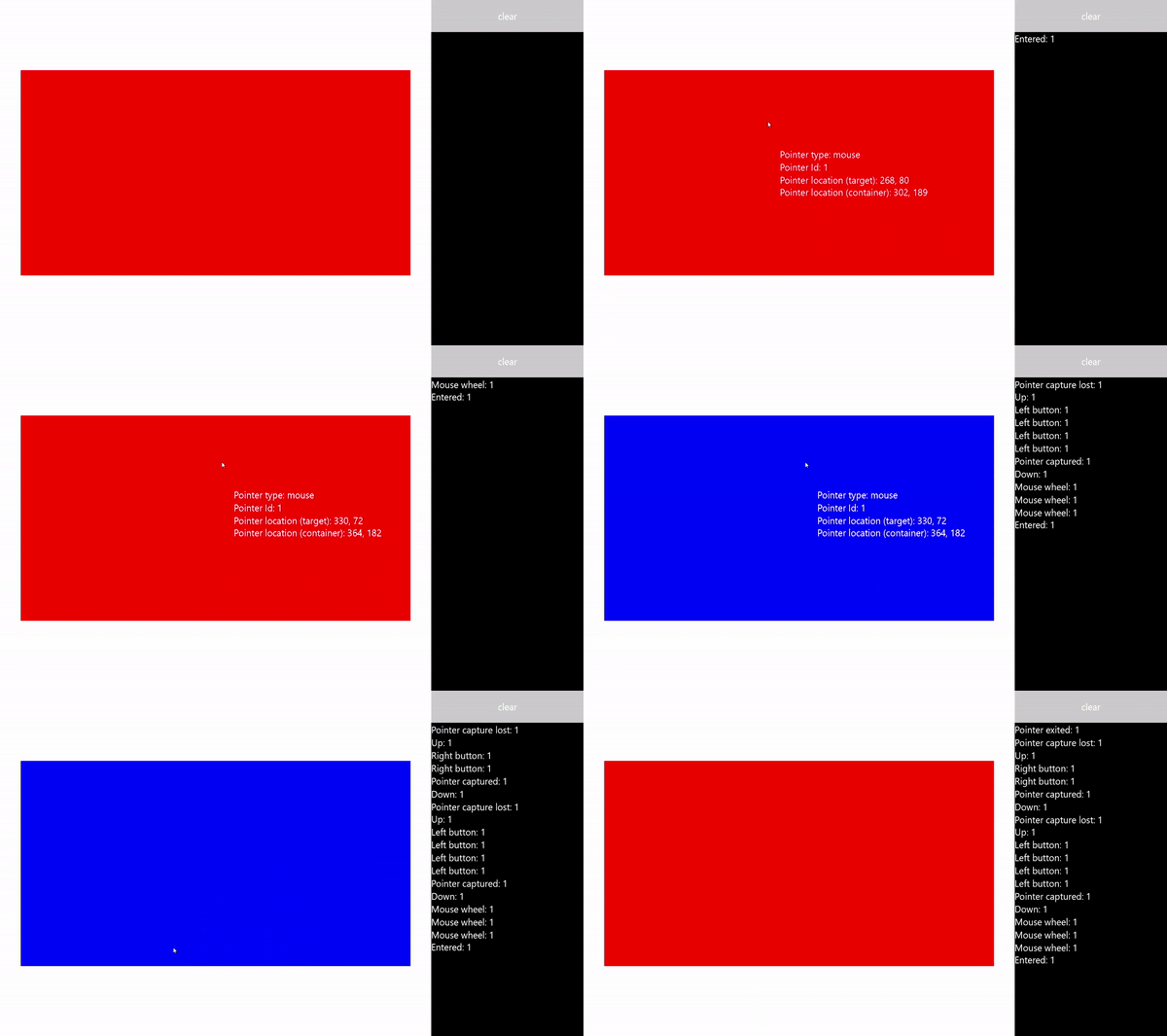
這裡有一些來自基本指標追蹤應用程式的程式碼片段,展示了如何監聽並處理多個指標的事件,並為相關指標取得各種屬性。
備註
此範例使用 UWP 專案結構。 指標事件 API(PointerPressed、PointerMoved 等)以及文中顯示的 PointerRoutedEventArgs 模式,在使用 Microsoft.UI.Xaml.Input 命名空間的 WinUI 3 桌面應用程式中,其運作方式相同。
建立 UI
在這個例子中,我們使用 Rectangle (Target) 作為接收指針輸入的物件。 當指標狀態改變時,目標的顏色也會改變。
每個指標的細節會以浮動 的文字區塊 形式顯示,隨著指標移動而跟隨。 指標事件本身會在矩形右側的 RichTextBlock 中報告。
這就是本範例中使用者介面的可擴充應用程式標記語言(XAML)。
<Grid Background="{ThemeResource ApplicationPageBackgroundThemeBrush}">
    <Grid.ColumnDefinitions>
        <ColumnDefinition Width="*" />
        <ColumnDefinition Width="250"/>
    </Grid.ColumnDefinitions>
    <Grid.RowDefinitions>
        <RowDefinition Height="*" />
        <RowDefinition Height="320" />
        <RowDefinition Height="*"/>
    </Grid.RowDefinitions>
    <Canvas Name="Container"
            Grid.Column="0"
            Grid.Row="1"
            HorizontalAlignment="Center"
            VerticalAlignment="Center"
            Margin="245,0"
            Height="320"  Width="640">
        <Rectangle Name="Target"
                    Fill="#FF0000"
                    Stroke="Black"
                    StrokeThickness="0"
                    Height="320" Width="640" />
    </Canvas>
    <Grid Grid.Column="1" Grid.Row="0" Grid.RowSpan="3">
        <Grid.RowDefinitions>
            <RowDefinition Height="50" />
            <RowDefinition Height="*" />
        </Grid.RowDefinitions>
        <Button Name="buttonClear"
                Grid.Row="0"
                Content="Clear"
                Foreground="White"
                HorizontalAlignment="Stretch"
                VerticalAlignment="Stretch">
        </Button>
        <ScrollViewer Name="eventLogScrollViewer" Grid.Row="1"
                        VerticalScrollMode="Auto"
                        Background="Black">
            <RichTextBlock Name="eventLog"
                        TextWrapping="Wrap"
                        Foreground="#FFFFFF"
                        ScrollViewer.VerticalScrollBarVisibility="Visible"
                        ScrollViewer.HorizontalScrollBarVisibility="Disabled"
                        Grid.ColumnSpan="2">
            </RichTextBlock>
        </ScrollViewer>
    </Grid>
</Grid>
聆聽指標事件
在大多數情況下,我們建議你透過事件處理程序的 PointerRoutedEventArgs 取得指標資訊。
如果事件參數沒有暴露所需的指標細節,你可以透過 GetCurrentPoint 和 GetIntermediatePoints 方法來獲取 PointerRoutedEventArgs 中暴露的擴展指標信息。
以下程式碼建立全域字典物件以追蹤每個活躍指標,並識別目標物件的各種指標事件監聽器。
// Dictionary to maintain information about each active pointer.
// An entry is added during PointerPressed/PointerEntered events and removed
// during PointerReleased/PointerCaptureLost/PointerCanceled/PointerExited events.
Dictionary<uint, Microsoft.UI.Xaml.Input.Pointer> pointers;

public MainPage()
{
    this.InitializeComponent();

    // Initialize the dictionary.
    pointers = new Dictionary<uint, Microsoft.UI.Xaml.Input.Pointer>();

    // Declare the pointer event handlers.
    Target.PointerPressed +=
        new PointerEventHandler(Target_PointerPressed);
    Target.PointerEntered +=
        new PointerEventHandler(Target_PointerEntered);
    Target.PointerReleased +=
        new PointerEventHandler(Target_PointerReleased);
    Target.PointerExited +=
        new PointerEventHandler(Target_PointerExited);
    Target.PointerCanceled +=
        new PointerEventHandler(Target_PointerCanceled);
    Target.PointerCaptureLost +=
        new PointerEventHandler(Target_PointerCaptureLost);
    Target.PointerMoved +=
        new PointerEventHandler(Target_PointerMoved);
    Target.PointerWheelChanged +=
        new PointerEventHandler(Target_PointerWheelChanged);

    buttonClear.Click +=
        new RoutedEventHandler(ButtonClear_Click);
}
處理指標事件
接著,我們利用 UI 回饋來展示基本的指標事件處理程序。
這個處理者負責管理 PointerPressed 事件。 我們將事件加入事件日誌,將指標加入活躍指標字典,並顯示指標細節。
備註
PointerPressed 和 PointerRelease 事件並不總是成對發生。 你的應用程式應該會監聽並處理任何可能結束指標的事件(例如 PointerExited、 PointerCanceled 和 PointerCaptureLost 等)。
/// <summary>
/// The pointer pressed event handler.
/// PointerPressed and PointerReleased don't always occur in pairs.
/// Your app should listen for and handle any event that can conclude
/// a pointer down (PointerExited, PointerCanceled, PointerCaptureLost).
/// </summary>
/// <param name="sender">Source of the pointer event.</param>
/// <param name="e">Event args for the pointer routed event.</param>
void Target_PointerPressed(object sender, PointerRoutedEventArgs e)
{
    // Prevent most handlers along the event route from handling the same event again.
    e.Handled = true;

    PointerPoint ptrPt = e.GetCurrentPoint(Target);

    // Update event log.
    UpdateEventLog("Down: " + ptrPt.PointerId);

    // Lock the pointer to the target.
    Target.CapturePointer(e.Pointer);

    // Update event log.
    UpdateEventLog("Pointer captured: " + ptrPt.PointerId);

    // Check if pointer exists in dictionary (ie, enter occurred prior to press).
    if (!pointers.ContainsKey(ptrPt.PointerId))
    {
        // Add contact to dictionary.
        pointers[ptrPt.PointerId] = e.Pointer;
    }

    // Change background color of target when pointer contact detected.
    Target.Fill = new SolidColorBrush(Microsoft.UI.Colors.Green);

    // Display pointer details.
    CreateInfoPop(ptrPt);
}
- 這個管理員負責管理 PointerEntered 事件。 我們將事件加入事件日誌,將指標加入指標集合,並顯示指標細節。
/// <summary>
/// The pointer entered event handler.
/// We do not capture the pointer on this event.
/// </summary>
/// <param name="sender">Source of the pointer event.</param>
/// <param name="e">Event args for the pointer routed event.</param>
private void Target_PointerEntered(object sender, PointerRoutedEventArgs e)
{
    // Prevent most handlers along the event route from handling the same event again.
    e.Handled = true;

    PointerPoint ptrPt = e.GetCurrentPoint(Target);

    // Update event log.
    UpdateEventLog("Entered: " + ptrPt.PointerId);

    // Check if pointer already exists (if enter occurred prior to down).
    if (!pointers.ContainsKey(ptrPt.PointerId))
    {
        // Add contact to dictionary.
        pointers[ptrPt.PointerId] = e.Pointer;
    }

    if (pointers.Count == 0)
    {
        // Change background color of target when pointer contact detected.
        Target.Fill = new SolidColorBrush(Microsoft.UI.Colors.Blue);
    }

    // Display pointer details.
    CreateInfoPop(ptrPt);
}
這位管理員負責管理 PointerMoved 事件。 我們將事件加入事件日誌並更新指標細節。
這很重要
滑鼠輸入會與一個在首次偵測到滑鼠輸入時所指派的指標相關聯。 點擊滑鼠按鍵(左、滾輪或右鍵)會透過 PointerPressed 事件,在指標與該按鈕之間建立次要關聯。 PointerReleases事件僅在放開同一個滑鼠按鈕時觸發(此事件完成前,指標不能有其他按鈕關聯)。 由於這種專屬關聯,其他滑鼠按鈕點擊會經過 PointerMoved 事件。
/// <summary>
/// The pointer moved event handler.
/// </summary>
/// <param name="sender">Source of the pointer event.</param>
/// <param name="e">Event args for the pointer routed event.</param>
private void Target_PointerMoved(object sender, PointerRoutedEventArgs e)
{
    // Prevent most handlers along the event route from handling the same event again.
    e.Handled = true;

    PointerPoint ptrPt = e.GetCurrentPoint(Target);

    // Multiple, simultaneous mouse button inputs are processed here.
    // Mouse input is associated with a single pointer assigned when
    // mouse input is first detected.
    // Clicking additional mouse buttons (left, wheel, or right) during
    // the interaction creates secondary associations between those buttons
    // and the pointer through the pointer pressed event.
    // The pointer released event is fired only when the last mouse button
    // associated with the interaction (not necessarily the initial button)
    // is released.
    // Because of this exclusive association, other mouse button clicks are
    // routed through the pointer move event.
    if (ptrPt.PointerDevice.PointerDeviceType == Windows.Devices.Input.PointerDeviceType.Mouse)
    {
        if (ptrPt.Properties.IsLeftButtonPressed)
        {
            UpdateEventLog("Left button: " + ptrPt.PointerId);
        }
        if (ptrPt.Properties.IsMiddleButtonPressed)
        {
            UpdateEventLog("Wheel button: " + ptrPt.PointerId);
        }
        if (ptrPt.Properties.IsRightButtonPressed)
        {
            UpdateEventLog("Right button: " + ptrPt.PointerId);
        }
    }

    // Display pointer details.
    UpdateInfoPop(ptrPt);
}
- 這個處理者管理 PointerWheelChanged 事件。 我們會將事件加入事件日誌,將指標加入指標陣列(如有需要),並顯示指標細節。
/// <summary>
/// The pointer wheel event handler.
/// </summary>
/// <param name="sender">Source of the pointer event.</param>
/// <param name="e">Event args for the pointer routed event.</param>
private void Target_PointerWheelChanged(object sender, PointerRoutedEventArgs e)
{
    // Prevent most handlers along the event route from handling the same event again.
    e.Handled = true;

    PointerPoint ptrPt = e.GetCurrentPoint(Target);

    // Update event log.
    UpdateEventLog("Mouse wheel: " + ptrPt.PointerId);

    // Check if pointer already exists (for example, enter occurred prior to wheel).
    if (!pointers.ContainsKey(ptrPt.PointerId))
    {
        // Add contact to dictionary.
        pointers[ptrPt.PointerId] = e.Pointer;
    }

    // Display pointer details.
    CreateInfoPop(ptrPt);
}
- 此處理器負責管理 PointerRelease 事件,終止與數位化器的接觸。 我們將事件加入事件日誌,從指標集合中移除指標,並更新指標細節。
/// <summary>
/// The pointer released event handler.
/// PointerPressed and PointerReleased don't always occur in pairs.
/// Your app should listen for and handle any event that can conclude
/// a pointer down (PointerExited, PointerCanceled, PointerCaptureLost).
/// </summary>
/// <param name="sender">Source of the pointer event.</param>
/// <param name="e">Event args for the pointer routed event.</param>
void Target_PointerReleased(object sender, PointerRoutedEventArgs e)
{
    // Prevent most handlers along the event route from handling the same event again.
    e.Handled = true;

    PointerPoint ptrPt = e.GetCurrentPoint(Target);

    // Update event log.
    UpdateEventLog("Up: " + ptrPt.PointerId);

    // If event source is mouse or touchpad and the pointer is still
    // over the target, retain pointer and pointer details.
    // Return without removing pointer from pointers dictionary.
    // For this example, we assume a maximum of one mouse pointer.
    if (ptrPt.PointerDevice.PointerDeviceType != Windows.Devices.Input.PointerDeviceType.Mouse)
    {
        // Update target UI.
        Target.Fill = new SolidColorBrush(Microsoft.UI.Colors.Red);

        DestroyInfoPop(ptrPt);

        // Remove contact from dictionary.
        if (pointers.ContainsKey(ptrPt.PointerId))
        {
            pointers[ptrPt.PointerId] = null;
            pointers.Remove(ptrPt.PointerId);
        }

        // Release the pointer from the target.
        Target.ReleasePointerCapture(e.Pointer);

        // Update event log.
        UpdateEventLog("Pointer released: " + ptrPt.PointerId);
    }
    else
    {
        Target.Fill = new SolidColorBrush(Microsoft.UI.Colors.Blue);
    }
}
- 此處理器管理 PointerExited 事件(當與數位化器保持聯繫時)。 我們將事件加入事件日誌,移除指標陣列中的指標,並更新指標細節。
/// <summary>
/// The pointer exited event handler.
/// </summary>
/// <param name="sender">Source of the pointer event.</param>
/// <param name="e">Event args for the pointer routed event.</param>
private void Target_PointerExited(object sender, PointerRoutedEventArgs e)
{
    // Prevent most handlers along the event route from handling the same event again.
    e.Handled = true;

    PointerPoint ptrPt = e.GetCurrentPoint(Target);

    // Update event log.
    UpdateEventLog("Pointer exited: " + ptrPt.PointerId);

    // Remove contact from dictionary.
    if (pointers.ContainsKey(ptrPt.PointerId))
    {
        pointers[ptrPt.PointerId] = null;
        pointers.Remove(ptrPt.PointerId);
    }

    if (pointers.Count == 0)
    {
        Target.Fill = new SolidColorBrush(Microsoft.UI.Colors.Red);
    }

    // Update the UI and pointer details.
    DestroyInfoPop(ptrPt);
}
- 此管理員管理 PointerCanceled 事件。 我們將事件加入事件日誌,移除指標陣列中的指標,並更新指標細節。
/// <summary>
/// The pointer canceled event handler.
/// Fires for various reasons, including:
///    - Touch contact canceled by pen coming into range of the surface.
///    - The device doesn't report an active contact for more than 100ms.
///    - The desktop is locked or the user logged off.
///    - The number of simultaneous contacts exceeded the number supported by the device.
/// </summary>
/// <param name="sender">Source of the pointer event.</param>
/// <param name="e">Event args for the pointer routed event.</param>
private void Target_PointerCanceled(object sender, PointerRoutedEventArgs e)
{
    // Prevent most handlers along the event route from handling the same event again.
    e.Handled = true;

    PointerPoint ptrPt = e.GetCurrentPoint(Target);

    // Update event log.
    UpdateEventLog("Pointer canceled: " + ptrPt.PointerId);

    // Remove contact from dictionary.
    if (pointers.ContainsKey(ptrPt.PointerId))
    {
        pointers[ptrPt.PointerId] = null;
        pointers.Remove(ptrPt.PointerId);
    }

    if (pointers.Count == 0)
    {
        Target.Fill = new SolidColorBrush(Microsoft.UI.Colors.Black);
    }

    DestroyInfoPop(ptrPt);
}
此處理器管理 PointerCaptureLost 事件。 我們將事件加入事件日誌,移除指標陣列中的指標,並更新指標細節。
備註
PointerCaptureLost 可以發生,取代 PointerReleased。 指標擷取可能因多種原因遺失,包括使用者互動、程式化擷取其他指標、呼叫 PointerReleased。
/// <summary>
/// The pointer capture lost event handler.
/// Fires for various reasons, including:
///    - User interactions
///    - Programmatic capture of another pointer
///    - Captured pointer was deliberately released
// PointerCaptureLost can fire instead of PointerReleased.
/// </summary>
/// <param name="sender">Source of the pointer event.</param>
/// <param name="e">Event args for the pointer routed event.</param>
private void Target_PointerCaptureLost(object sender, PointerRoutedEventArgs e)
{
    // Prevent most handlers along the event route from handling the same event again.
    e.Handled = true;

    PointerPoint ptrPt = e.GetCurrentPoint(Target);

    // Update event log.
    UpdateEventLog("Pointer capture lost: " + ptrPt.PointerId);

    if (pointers.Count == 0)
    {
        Target.Fill = new SolidColorBrush(Microsoft.UI.Colors.Black);
    }

    // Remove contact from dictionary.
    if (pointers.ContainsKey(ptrPt.PointerId))
    {
        pointers[ptrPt.PointerId] = null;
        pointers.Remove(ptrPt.PointerId);
    }

    DestroyInfoPop(ptrPt);
}
取得指針屬性
如先前所述,你必須從透過 PointerRoutedEventArgs 的 GetCurrentPoint 和 GetIntermediatePoints 方法取得的 Microsoft.UI.Input.PointerPoint 物件中,取得大部分延伸指標資訊。 以下程式碼片段展示了方法。
- 首先,我們為每個指標建立一個新的 TextBlock 。
/// <summary>
/// Create the pointer info popup.
/// </summary>
/// <param name="ptrPt">Reference to the input pointer.</param>
void CreateInfoPop(PointerPoint ptrPt)
{
    TextBlock pointerDetails = new TextBlock();
    pointerDetails.Name = ptrPt.PointerId.ToString();
    pointerDetails.Foreground = new SolidColorBrush(Microsoft.UI.Colors.White);
    pointerDetails.Text = QueryPointer(ptrPt);

    TranslateTransform x = new TranslateTransform();
    x.X = ptrPt.Position.X + 20;
    x.Y = ptrPt.Position.Y + 20;
    pointerDetails.RenderTransform = x;

    Container.Children.Add(pointerDetails);
}
- 接著,我們提供一種方法,更新與該指標相關的現有 TextBlock 中的指標資訊。
/// <summary>
/// Update the pointer info popup.
/// </summary>
/// <param name="ptrPt">Reference to the input pointer.</param>
void UpdateInfoPop(PointerPoint ptrPt)
{
    foreach (var pointerDetails in Container.Children)
    {
        if (pointerDetails.GetType().ToString() == "Microsoft.UI.Xaml.Controls.TextBlock")
        {
            TextBlock textBlock = (TextBlock)pointerDetails;
            if (textBlock.Name == ptrPt.PointerId.ToString())
            {
                // To get pointer location details, we need extended pointer info.
                // We get the pointer info through the getCurrentPoint method
                // of the event argument.
                TranslateTransform x = new TranslateTransform();
                x.X = ptrPt.Position.X + 20;
                x.Y = ptrPt.Position.Y + 20;
                pointerDetails.RenderTransform = x;
                textBlock.Text = QueryPointer(ptrPt);
            }
        }
    }
}
- 最後,我們查詢各種指標屬性。
/// <summary>
/// Get pointer details.
/// </summary>
/// <param name="ptrPt">Reference to the input pointer.</param>
/// <returns>A string composed of pointer details.</returns>
String QueryPointer(PointerPoint ptrPt)
{
    String details = "";

    switch (ptrPt.PointerDevice.PointerDeviceType)
    {
        case Windows.Devices.Input.PointerDeviceType.Mouse:
            details += "\nPointer type: mouse";
            break;
        case Windows.Devices.Input.PointerDeviceType.Pen:
            details += "\nPointer type: pen";
            if (ptrPt.IsInContact)
            {
                details += "\nPressure: " + ptrPt.Properties.Pressure;
                details += "\nrotation: " + ptrPt.Properties.Orientation;
                details += "\nTilt X: " + ptrPt.Properties.XTilt;
                details += "\nTilt Y: " + ptrPt.Properties.YTilt;
                details += "\nBarrel button pressed: " + ptrPt.Properties.IsBarrelButtonPressed;
            }
            break;
        case Windows.Devices.Input.PointerDeviceType.Touch:
            details += "\nPointer type: touch";
            details += "\nrotation: " + ptrPt.Properties.Orientation;
            details += "\nTilt X: " + ptrPt.Properties.XTilt;
            details += "\nTilt Y: " + ptrPt.Properties.YTilt;
            break;
        default:
            details += "\nPointer type: n/a";
            break;
    }

    GeneralTransform gt = Target.TransformToVisual(this);
    Point screenPoint;

    screenPoint = gt.TransformPoint(new Point(ptrPt.Position.X, ptrPt.Position.Y));
    details += "\nPointer Id: " + ptrPt.PointerId.ToString() +
        "\nPointer location (target): " + Math.Round(ptrPt.Position.X) + ", " + Math.Round(ptrPt.Position.Y) +
        "\nPointer location (container): " + Math.Round(screenPoint.X) + ", " + Math.Round(screenPoint.Y);

    return details;
}
主要指針
某些輸入裝置,如觸控觸控板或觸控板,支援的範圍超過滑鼠或筆的單一指標(大多數情況下,Surface Hub 支援兩個筆輸入)。
使用 PointerPointerProperties 類別的唯讀 IsPrimary 屬性來識別並區分單一主要指標(主要指標永遠是輸入序列中第一個偵測到的指標)。
透過識別主要指標,你可以用它來模擬滑鼠或筆的輸入、自訂互動,或提供其他特定功能或使用者介面。
備註
若在輸入序列中釋放、取消或遺失主要指標,則直到新的輸入序列被啟動(當所有指標被釋放、取消或遺失時,輸入序列結束)才會建立主要輸入指標。
主要指針動畫範例
這些程式碼片段展示了你如何提供特殊的視覺回饋,幫助使用者區分應用程式中的指標輸入。
這款應用程式同時使用顏色和動畫來標示主要指標。
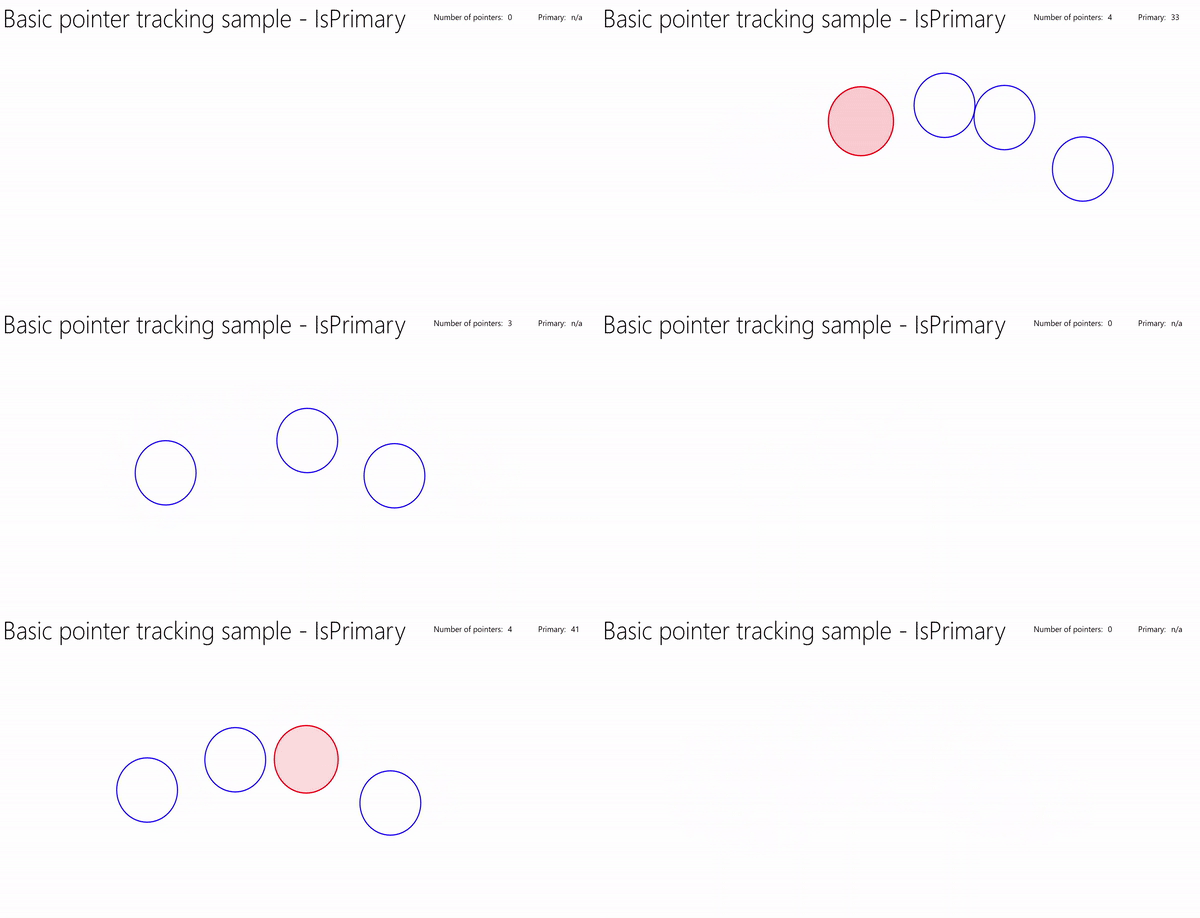
下載此範例:指針輸入範例(具有動畫的使用者控制項)
視覺回饋
我們定義了一個 UserControl,是基於 XAML 橢圓物件的,負責標示每個指標在畫布上的位置,並使用動畫板來動畫對應主要指標的橢圓。
這是XAML:
<UserControl
    x:Class="UWP_Pointers.PointerEllipse"
    xmlns="http://schemas.microsoft.com/winfx/2006/xaml/presentation"
    xmlns:x="http://schemas.microsoft.com/winfx/2006/xaml"
    xmlns:local="using:UWP_Pointers"
    xmlns:d="http://schemas.microsoft.com/expression/blend/2008"
    xmlns:mc="http://schemas.openxmlformats.org/markup-compatibility/2006"
    mc:Ignorable="d"
    d:DesignHeight="100"
    d:DesignWidth="100">

    <UserControl.Resources>
        <Style x:Key="EllipseStyle" TargetType="Ellipse">
            <Setter Property="Transitions">
                <Setter.Value>
                    <TransitionCollection>
                        <ContentThemeTransition/>
                    </TransitionCollection>
                </Setter.Value>
            </Setter>
        </Style>

        <Storyboard x:Name="myStoryboard">
            <!-- Animates the value of a Double property between
            two target values using linear interpolation over the
            specified Duration. -->
            <DoubleAnimation
              Storyboard.TargetName="ellipse"
              Storyboard.TargetProperty="(RenderTransform).(ScaleTransform.ScaleY)"
              Duration="0:0:1"
              AutoReverse="True"
              RepeatBehavior="Forever" From="1.0" To="1.4">
            </DoubleAnimation>

            <!-- Animates the value of a Double property between
            two target values using linear interpolation over the
            specified Duration. -->
            <DoubleAnimation
              Storyboard.TargetName="ellipse"
              Storyboard.TargetProperty="(RenderTransform).(ScaleTransform.ScaleX)"
              Duration="0:0:1"
              AutoReverse="True"
              RepeatBehavior="Forever" From="1.0" To="1.4">
            </DoubleAnimation>

            <!-- Animates the value of a Color property between
            two target values using linear interpolation over the
            specified Duration. -->
            <ColorAnimation
                Storyboard.TargetName="ellipse"
                EnableDependentAnimation="True"
                Storyboard.TargetProperty="(Fill).(SolidColorBrush.Color)"
                From="White" To="Red"  Duration="0:0:1"
                AutoReverse="True" RepeatBehavior="Forever"/>
        </Storyboard>
    </UserControl.Resources>

    <Grid x:Name="CompositionContainer">
        <Ellipse Name="ellipse"
        StrokeThickness="2"
        Width="{x:Bind Diameter}"
        Height="{x:Bind Diameter}"
        Style="{StaticResource EllipseStyle}" />
    </Grid>
</UserControl>
這是背後的程式碼:
using Windows.Foundation;
using Microsoft.UI.Xaml;
using Microsoft.UI.Xaml.Controls;
using Microsoft.UI.Xaml.Media;

// The User Control item template is documented at
// https://go.microsoft.com/fwlink/?LinkId=234236

namespace UWP_Pointers
{
    /// <summary>
    /// Pointer feedback object.
    /// </summary>
    public sealed partial class PointerEllipse : UserControl
    {
        // Reference to the application canvas.
        Canvas canvas;

        /// <summary>
        /// Ellipse UI for pointer feedback.
        /// </summary>
        /// <param name="c">The drawing canvas.</param>
        public PointerEllipse(Canvas c)
        {
            this.InitializeComponent();
            canvas = c;
        }

        /// <summary>
        /// Gets or sets the pointer Id to associate with the PointerEllipse object.
        /// </summary>
        public uint PointerId
        {
            get { return (uint)GetValue(PointerIdProperty); }
            set { SetValue(PointerIdProperty, value); }
        }
        // Using a DependencyProperty as the backing store for PointerId.
        // This enables animation, styling, binding, etc...
        public static readonly DependencyProperty PointerIdProperty =
            DependencyProperty.Register("PointerId", typeof(uint),
                typeof(PointerEllipse), new PropertyMetadata(null));


        /// <summary>
        /// Gets or sets whether the associated pointer is Primary.
        /// </summary>
        public bool PrimaryPointer
        {
            get { return (bool)GetValue(PrimaryPointerProperty); }
            set
            {
                SetValue(PrimaryPointerProperty, value);
            }
        }
        // Using a DependencyProperty as the backing store for PrimaryPointer.
        // This enables animation, styling, binding, etc...
        public static readonly DependencyProperty PrimaryPointerProperty =
            DependencyProperty.Register("PrimaryPointer", typeof(bool),
                typeof(PointerEllipse), new PropertyMetadata(false));


        /// <summary>
        /// Gets or sets the ellipse style based on whether the pointer is Primary.
        /// </summary>
        public bool PrimaryEllipse
        {
            get { return (bool)GetValue(PrimaryEllipseProperty); }
            set
            {
                SetValue(PrimaryEllipseProperty, value);
                if (value)
                {
                    SolidColorBrush fillBrush =
                        (SolidColorBrush)Application.Current.Resources["PrimaryFillBrush"];
                    SolidColorBrush strokeBrush =
                        (SolidColorBrush)Application.Current.Resources["PrimaryStrokeBrush"];

                    ellipse.Fill = fillBrush;
                    ellipse.Stroke = strokeBrush;
                    ellipse.RenderTransform = new CompositeTransform();
                    ellipse.RenderTransformOrigin = new Point(.5, .5);
                    myStoryboard.Begin();
                }
                else
                {
                    SolidColorBrush fillBrush =
                        (SolidColorBrush)Application.Current.Resources["SecondaryFillBrush"];
                    SolidColorBrush strokeBrush =
                        (SolidColorBrush)Application.Current.Resources["SecondaryStrokeBrush"];
                    ellipse.Fill = fillBrush;
                    ellipse.Stroke = strokeBrush;
                }
            }
        }
        // Using a DependencyProperty as the backing store for PrimaryEllipse.
        // This enables animation, styling, binding, etc...
        public static readonly DependencyProperty PrimaryEllipseProperty =
            DependencyProperty.Register("PrimaryEllipse",
                typeof(bool), typeof(PointerEllipse), new PropertyMetadata(false));


        /// <summary>
        /// Gets or sets the diameter of the PointerEllipse object.
        /// </summary>
        public int Diameter
        {
            get { return (int)GetValue(DiameterProperty); }
            set { SetValue(DiameterProperty, value); }
        }
        // Using a DependencyProperty as the backing store for Diameter.  This enables animation, styling, binding, etc...
        public static readonly DependencyProperty DiameterProperty =
            DependencyProperty.Register("Diameter", typeof(int),
                typeof(PointerEllipse), new PropertyMetadata(120));
    }
}
建立 UI
此範例中的使用者介面僅限於輸入 畫布 ,我們會追蹤指標並渲染指標指示器和主要指標動畫(如適用),還有一個包含指標計數器和主要指標識別碼的標頭列。
這是MainPage.xaml:
<Grid Background="{ThemeResource ApplicationPageBackgroundThemeBrush}">
    <Grid.RowDefinitions>
        <RowDefinition Height="Auto"/>
        <RowDefinition Height="*"/>
    </Grid.RowDefinitions>
    <StackPanel x:Name="HeaderPanel"
                Orientation="Horizontal"
                Grid.Row="0">
        <StackPanel.Transitions>
            <TransitionCollection>
                <AddDeleteThemeTransition/>
            </TransitionCollection>
        </StackPanel.Transitions>
        <TextBlock x:Name="Header"
                    Text="Basic pointer tracking sample - IsPrimary"
                    Style="{ThemeResource HeaderTextBlockStyle}"
                    Margin="10,0,0,0" />
        <TextBlock x:Name="PointerCounterLabel"
                    VerticalAlignment="Center"
                    Style="{ThemeResource BodyTextBlockStyle}"
                    Text="Number of pointers: "
                    Margin="50,0,0,0"/>
        <TextBlock x:Name="PointerCounter"
                    VerticalAlignment="Center"
                    Style="{ThemeResource BodyTextBlockStyle}"
                    Text="0"
                    Margin="10,0,0,0"/>
        <TextBlock x:Name="PointerPrimaryLabel"
                    VerticalAlignment="Center"
                    Style="{ThemeResource BodyTextBlockStyle}"
                    Text="Primary: "
                    Margin="50,0,0,0"/>
        <TextBlock x:Name="PointerPrimary"
                    VerticalAlignment="Center"
                    Style="{ThemeResource BodyTextBlockStyle}"
                    Text="n/a"
                    Margin="10,0,0,0"/>
    </StackPanel>

    <Grid Grid.Row="1">
        <!--The canvas where we render the pointer UI.-->
        <Canvas x:Name="pointerCanvas"/>
    </Grid>
</Grid>
處理指標事件
最後,我們在MainPage.xaml.cs程式碼背後定義基本指標事件處理程序。 我們不會在這裡重現程式碼,因為基礎已經在前一個範例中涵蓋,但你可以從 Pointer 輸入範例(UserControl with animation) 下載工作範例。
