Poznámka:
Přístup k této stránce vyžaduje autorizaci. Můžete se zkusit přihlásit nebo změnit adresáře.
Přístup k této stránce vyžaduje autorizaci. Můžete zkusit změnit adresáře.
Toto je druhá část kompletního návodu, jak používat Windows Hello jako alternativu k tradičním systémům ověřování uživatelských jmen a hesel v zabalených aplikacích pro Windows. V tomto článku se dozvíte, kde část 1, Windows Hello přihlašovací aplikace, skončila a rozšiřuje funkce, které ukazují, jak můžete integrovat Windows Hello do stávající aplikace.
K sestavení tohoto project budete potřebovat zkušenosti s jazykem C# a XAML. Budete také muset používat Visual Studio 2026 na počítači s Windows 10 nebo Windows 11. Úplné pokyny k nastavení vývojového prostředí najdete v tématu Vytvoření a spuštění projektu WinUI 3 .
Cvičení 1: Logika na straně serveru
V tomto cvičení začnete s Windows Hello aplikací integrovanou v prvním testovacím prostředí a vytvoříte místní napodobení serveru a databáze. Tato praktická cvičení je navržená tak, aby učila, jak lze integrovat Windows Hello do stávajícího systému. Pomocí napodobení serveru a napodobení databáze se eliminuje spousta nesouvisejících nastavení. Ve vlastních aplikacích budete muset nahradit napodobené objekty skutečnými službami a databázemi.
Začněte tím, že otevřete řešení WindowsHelloLogin od prvního Windows Hello Hands On Lab.
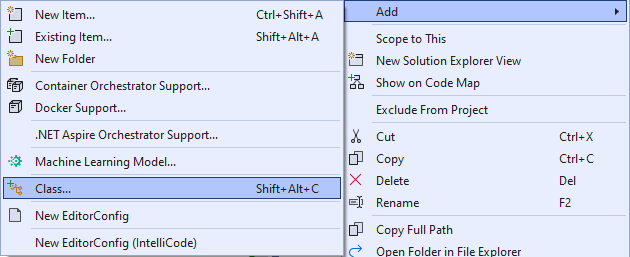
Začnete implementací napodobení serveru a napodobení databáze. Vytvořte novou složku s názvem AuthService. V Průzkumník řešení klikněte pravým tlačítkem na WindowsHelloLogin project a vyberte Add>Nová složka.
Vytvořte třídy UserAccount a WindowsHelloDevices , které budou fungovat jako modely pro ukládání dat do napodobené databáze. UserAccount bude podobný uživatelskému modelu implementovanému na tradičním ověřovacím serveru. Klikněte pravým tlačítkem na složku AuthService a přidejte novou třídu s názvem UserAccount.
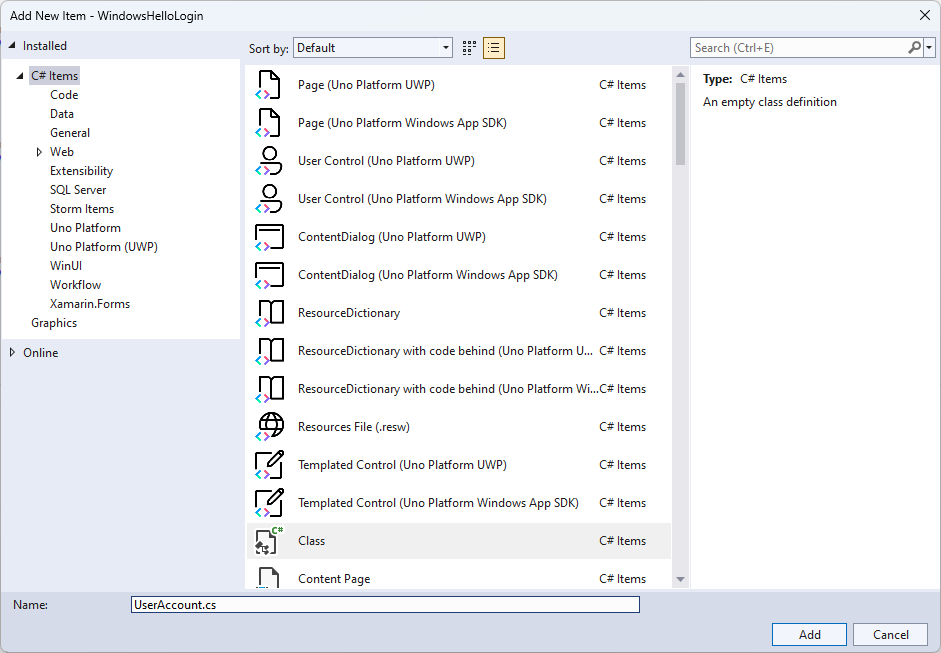
Změňte obor třídy tak, aby byl veřejný, a přidejte následující veřejné vlastnosti pro třídu UserAccount . Musíte do oboru názvů
System.ComponentModel.DataAnnotationspřidat příkaz using.using System; using System.ComponentModel.DataAnnotations; namespace WindowsHelloLogin.AuthService { public class UserAccount { [Key, Required] public Guid UserId { get; set; } [Required] public string Username { get; set; } public string Password { get; set; } // public List<WindowsHelloDevice> WindowsHelloDevices = new(); } }Možná jste si všimli zakomentovaného seznamu WindowsHelloDevices. Jedná se o změnu, kterou budete muset provést v existujícím uživatelském modelu v aktuální implementaci. Seznam WindowsHelloDevices bude obsahovat deviceID, veřejný klíč vytvořený z Windows Hello a KeyCredentialAttestationResult. V tomto cvičení budete muset implementovat keyAttestationResult, jelikož Windows Hello poskytuje tento prvek pouze na zařízeních s čipem TPM (Trusted Platform Modules). KeyCredentialAttestationResult je kombinací více vlastností a je potřeba je rozdělit, aby bylo možné je uložit a načíst do databáze.
Ve složce AuthService vytvořte novou třídu s názvem "WindowsHelloDevice.cs". Toto je model pro zařízení Windows Hello, jak je popsáno výše. Změňte obor třídy tak, aby byl veřejný, a přidejte následující vlastnosti.
using System;

namespace WindowsHelloLogin.AuthService
{
    public class WindowsHelloDevice
    {
        // These are the new variables that will need to be added to the existing UserAccount in the Database
        // The DeviceName is used to support multiple devices for the one user.
        // This way the correct public key is easier to find as a new public key is made for each device.
        // The KeyAttestationResult is only used if the User device has a TPM (Trusted Platform Module) chip,
        // in most cases it will not. So will be left out for this hands on lab.
        public Guid DeviceId { get; set; }
        public byte[] PublicKey { get; set; }
        // public KeyCredentialAttestationResult KeyAttestationResult { get; set; }
    }
}
Vraťte se do UserAccount.cs a odkomentujte seznam Windows Hello zařízení.
using System.Collections.Generic;

namespace WindowsHelloLogin.AuthService
{
    public class UserAccount
    {
        [Key, Required]
        public Guid UserId { get; set; }
        [Required]
        public string Username { get; set; }
        public string Password { get; set; }
        public List<WindowsHelloDevice> WindowsHelloDevices = new();
    }
}
Po vytvoření modelů pro UserAccount a WindowsHelloDevice musíte ve složce AuthService vytvořit další novou třídu, která bude fungovat jako mock databáze, odkud budete ukládat a načítat místně seznam uživatelských účtů. Ve skutečném světě by to byla vaše implementace databáze. Ve složce AuthService vytvořte novou třídu s názvem "MockStore.cs". Změňte obor třídy na veřejný.
Vzhledem k tomu, že úložiště napodobení uloží a načte seznam uživatelských účtů místně, můžete implementovat logiku pro uložení a načtení tohoto seznamu pomocí XmlSerializeru. Budete si také muset zapamatovat název souboru a uložit umístění. V MockStore.cs implementovat následující:
using System.Collections.Generic;
using System;
using System.IO;
using System.Linq;
using System.Text;
using System.Threading.Tasks;
using System.Xml.Serialization;
using Windows.Storage;

namespace WindowsHelloLogin.AuthService
{
    public class MockStore
    {
        private const string USER_ACCOUNT_LIST_FILE_NAME = "userAccountsList.txt";
        // This cannot be a const because the LocalFolder is accessed at runtime
        private string _userAccountListPath = Path.Combine(
            ApplicationData.Current.LocalFolder.Path, USER_ACCOUNT_LIST_FILE_NAME);
        private List<UserAccount> _mockDatabaseUserAccountsList;

#region Save and Load Helpers
        /// <summary>
        /// Create and save a useraccount list file. (Replacing the old one)
        /// </summary>
        private async Task SaveAccountListAsync()
        {
            string accountsXml = SerializeAccountListToXml();

            if (File.Exists(_userAccountListPath))
            {
                StorageFile accountsFile = await StorageFile.GetFileFromPathAsync(_userAccountListPath);
                await FileIO.WriteTextAsync(accountsFile, accountsXml);
            }
            else
            {
                StorageFile accountsFile = await ApplicationData.Current.LocalFolder.CreateFileAsync(USER_ACCOUNT_LIST_FILE_NAME);
                await FileIO.WriteTextAsync(accountsFile, accountsXml);
            }
        }

        /// <summary>
        /// Gets the useraccount list file and deserializes it from XML to a list of useraccount objects.
        /// </summary>
        /// <returns>List of useraccount objects</returns>
        private async Task LoadAccountListAsync()
        {
            if (File.Exists(_userAccountListPath))
            {
                StorageFile accountsFile = await StorageFile.GetFileFromPathAsync(_userAccountListPath);

                string accountsXml = await FileIO.ReadTextAsync(accountsFile);
                DeserializeXmlToAccountList(accountsXml);
            }

            // If the UserAccountList does not contain the sampleUser Initialize the sample users
            // This is only needed as it in a Hand on Lab to demonstrate a user being migrated.
            // In the real world, user accounts would just be in a database.
            if (!_mockDatabaseUserAccountsList.Any(f => f.Username.Equals("sampleUsername")))
            {
                //If the list is empty, call InitializeSampleAccounts and return the list
                //await InitializeSampleUserAccountsAsync();
            }
        }

        /// <summary>
        /// Uses the local list of accounts and returns an XML formatted string representing the list
        /// </summary>
        /// <returns>XML formatted list of accounts</returns>
        private string SerializeAccountListToXml()
        {
            var xmlizer = new XmlSerializer(typeof(List<UserAccount>));
            var writer = new StringWriter();
            xmlizer.Serialize(writer, _mockDatabaseUserAccountsList);
            return writer.ToString();
        }

        /// <summary>
        /// Takes an XML formatted string representing a list of accounts and returns a list object of accounts
        /// </summary>
        /// <param name="listAsXml">XML formatted list of accounts</param>
        /// <returns>List object of accounts</returns>
        private List<UserAccount> DeserializeXmlToAccountList(string listAsXml)
        {
            var xmlizer = new XmlSerializer(typeof(List<UserAccount>));
            TextReader textreader = new StreamReader(new MemoryStream(Encoding.UTF8.GetBytes(listAsXml)));
            return _mockDatabaseUserAccountsList = (xmlizer.Deserialize(textreader)) as List<UserAccount>;
        }
#endregion
    }
}
V Metodě LoadAccountListAsync jste si možná všimli, že metoda InitializeSampleUserAccountsAsync byla okomentována. Tuto metodu budete muset vytvořit v MockStore.cs. Tato metoda naplní seznam uživatelských účtů, aby se mohl provést přihlášení. Ve skutečném světě by se uživatelská databáze už naplnila. V tomto kroku také vytvoříte konstruktor, který inicializuje seznam uživatelů a zavolá LoadAccountListAsync.
namespace WindowsHelloLogin.AuthService
{
    public class MockStore
    {
        private const string USER_ACCOUNT_LIST_FILE_NAME = "userAccountsList.txt";
        // This cannot be a const because the LocalFolder is accessed at runtime
        private string _userAccountListPath = Path.Combine(
            ApplicationData.Current.LocalFolder.Path, USER_ACCOUNT_LIST_FILE_NAME);
        private List<UserAccount> _mockDatabaseUserAccountsList;

        public MockStore()
        {
            _mockDatabaseUserAccountsList = new List<UserAccount>();
            _ = LoadAccountListAsync();
        }

        private async Task InitializeSampleUserAccountsAsync()
        {
            // Create a sample Traditional User Account that only has a Username and Password
            // This will be used initially to demonstrate how to migrate to use Windows Hello

            var sampleUserAccount = new UserAccount()
            {
                UserId = Guid.NewGuid(),
                Username = "sampleUsername",
                Password = "samplePassword",
            };

            // Add the sampleUserAccount to the _mockDatabase
            _mockDatabaseUserAccountsList.Add(sampleUserAccount);
            await SaveAccountListAsync();
        }
    }
}
Nyní, když metoda InitializeSampleUserAccountsAsync existuje, odkomentujte volání metody v metodě LoadAccountListAsync.
private async Task LoadAccountListAsync()
{
    if (File.Exists(_userAccountListPath))
    {
        StorageFile accountsFile = await StorageFile.GetFileFromPathAsync(_userAccountListPath);

        string accountsXml = await FileIO.ReadTextAsync(accountsFile);
        DeserializeXmlToAccountList(accountsXml);
    }

    // If the UserAccountList does not contain the sampleUser Initialize the sample users
    // This is only needed as it in a Hand on Lab to demonstrate a user migrating
    // In the real world user accounts would just be in a database
    if (!_mockDatabaseUserAccountsList.Any(f => f.Username.Equals("sampleUsername")))
            {
        //If the list is empty InitializeSampleUserAccountsAsync and return the list
        await InitializeSampleUserAccountsAsync();
    }
}
Seznam uživatelských účtů ve fiktivním obchodě lze nyní uložit a načíst. Další části aplikace budou muset mít k tomuto seznamu access, takže k načtení těchto dat bude potřeba použít některé metody. Pod metodu InitializeSampleUserAccountsAsync přidejte následující metody pro získání dat. Umožní vám získat ID uživatele, jednoho uživatele, seznam uživatelů pro konkrétní Windows Hello zařízení a také získat veřejný klíč uživatele na konkrétním zařízení.
public Guid GetUserId(string username)
{
    if (_mockDatabaseUserAccountsList.Any())
    {
        UserAccount account = _mockDatabaseUserAccountsList.FirstOrDefault(f => f.Username.Equals(username));
        if (account != null)
        {
            return account.UserId;
        }
    }
    return Guid.Empty;
}

public UserAccount GetUserAccount(Guid userId)
{
    return _mockDatabaseUserAccountsList.FirstOrDefault(f => f.UserId.Equals(userId));
}

public List<UserAccount> GetUserAccountsForDevice(Guid deviceId)
{
    var usersForDevice = new List<UserAccount>();

    foreach (UserAccount account in _mockDatabaseUserAccountsList)
    {
        if (account.WindowsHelloDevices.Any(f => f.DeviceId.Equals(deviceId)))
        {
            usersForDevice.Add(account);
        }
    }

    return usersForDevice;
}

public byte[] GetPublicKey(Guid userId, Guid deviceId)
{
    UserAccount account = _mockDatabaseUserAccountsList.FirstOrDefault(f => f.UserId.Equals(userId));
    if (account != null)
    {
        if (account.WindowsHelloDevices.Any())
        {
            return account.WindowsHelloDevices.FirstOrDefault(p => p.DeviceId.Equals(deviceId)).PublicKey;
        }
    }
    return null;
}
Další metody implementace zpracují jednoduché operace pro přidání účtu, odebrání účtu a také odebrání zařízení. Odebrání zařízení je potřeba, protože Windows Hello je specifické pro zařízení. Pro každé zařízení, ke kterému se přihlašujete, vytvoří Windows Hello nový pár veřejného a privátního klíče. Je to jako mít jiné heslo pro každé zařízení, na které se přihlašujete, jediný rozdíl je, že si nemusíte pamatovat všechna tato hesla; to za vás zařídí server. Do MockStore.cs přidejte následující metody.
public async Task<UserAccount> AddAccountAsync(string username)
{
    UserAccount newAccount = null;
    try
    {
        newAccount = new UserAccount()
        {
            UserId = Guid.NewGuid(),
            Username = username,
        };

        _mockDatabaseUserAccountsList.Add(newAccount);
        await SaveAccountListAsync();
    }
    catch (Exception)
    {
        throw;
    }
    return newAccount;
}

public async Task<bool> RemoveAccountAsync(Guid userId)
{
    UserAccount userAccount = GetUserAccount(userId);
    if (userAccount != null)
    {
        _mockDatabaseUserAccountsList.Remove(userAccount);
        await SaveAccountListAsync();
        return true;
    }
    return false;
}

public async Task<bool> RemoveDeviceAsync(Guid userId, Guid deviceId)
{
    UserAccount userAccount = GetUserAccount(userId);
    WindowsHelloDevice deviceToRemove = null;
    if (userAccount != null)
    {
        foreach (WindowsHelloDevice device in userAccount.WindowsHelloDevices)
        {
            if (device.DeviceId.Equals(deviceId))
            {
                deviceToRemove = device;
                break;
            }
        }
    }

    if (deviceToRemove != null)
    {
        //Remove the WindowsHelloDevice
        userAccount.WindowsHelloDevices.Remove(deviceToRemove);
        await SaveAccountListAsync();
    }

    return true;
}
Ve třídě MockStore přidejte metodu, která přidá Windows Hello související informace do existujícího UserAccount. Tato metoda se bude jmenovat "WindowsHelloUpdateDetailsAsync" a vezme parametry k identifikaci uživatele a Windows Hello podrobnosti. KeyAttestationResult byl zakomentován při vytváření WindowsHelloDevice, v reálné aplikaci by to bylo potřeba.
using System.Threading.Tasks;
using Windows.Security.Credentials;

public async Task WindowsHelloUpdateDetailsAsync(Guid userId, Guid deviceId, byte[] publicKey,
    KeyCredentialAttestationResult keyAttestationResult)
{
    UserAccount existingUserAccount = GetUserAccount(userId);
    if (existingUserAccount != null)
    {
        if (!existingUserAccount.WindowsHelloDevices.Any(f => f.DeviceId.Equals(deviceId)))
        {
            existingUserAccount.WindowsHelloDevices.Add(new WindowsHelloDevice()
            {
                DeviceId = deviceId,
                PublicKey = publicKey,
                // KeyAttestationResult = keyAttestationResult
            });
        }
    }
    await SaveAccountListAsync();
}
Třída MockStore je nyní dokončena, protože představuje databázi, která by měla být považována za soukromou. Aby bylo možné přistupovat k MockStore, je potřeba použít třídu AuthService pro manipulaci s daty z databáze. Ve složce AuthService vytvořte novou třídu s názvem "AuthService.cs". Změňte obor třídy na veřejný a přidejte vzor instance s jednou instancí, abyste měli jistotu, že je vždy vytvořena pouze jedna instance.
namespace WindowsHelloLogin.AuthService
{
    public class AuthService
    {
        // Singleton instance of the AuthService
        // The AuthService is a mock of what a real world server and service implementation would be
        private static AuthService _instance;
        public static AuthService Instance
        {
            get
            {
                if (null == _instance)
                {
                    _instance = new AuthService();
                }
                return _instance;
            }
        }

        private AuthService()
        { }
    }
}
Třída AuthService musí vytvořit instanci třídy MockStore a poskytnout access vlastnostem objektu MockStore.
namespace WindowsHelloLogin.AuthService
{
    public class AuthService
    {
        //Singleton instance of the AuthService
        //The AuthService is a mock of what a real world server and database implementation would be
        private static AuthService _instance;
        public static AuthService Instance
        {
            get
            {
                if (null == _instance)
                {
                    _instance = new AuthService();
                }
                return _instance;
            }
        }

        private AuthService()
        { }

        private MockStore _mockStore = new();

        public Guid GetUserId(string username)
        {
            return _mockStore.GetUserId(username);
        }

        public UserAccount GetUserAccount(Guid userId)
        {
            return _mockStore.GetUserAccount(userId);
        }

        public List<UserAccount> GetUserAccountsForDevice(Guid deviceId)
        {
            return _mockStore.GetUserAccountsForDevice(deviceId);
        }
    }
}
Potřebujete metody ve třídě AuthService pro přístup k přidání, odebrání a aktualizaci podrobností Windows Hello v objektu MockStore. Na konec definice třídy AuthService přidejte následující metody.
using System.Threading.Tasks;
using Windows.Security.Credentials;

public async Task RegisterAsync(string username)
{
    await _mockStore.AddAccountAsync(username);
}

public async Task<bool> WindowsHelloRemoveUserAsync(Guid userId)
{
    return await _mockStore.RemoveAccountAsync(userId);
}

public async Task<bool> WindowsHelloRemoveDeviceAsync(Guid userId, Guid deviceId)
{
    return await _mockStore.RemoveDeviceAsync(userId, deviceId);
}

public async Task WindowsHelloUpdateDetailsAsync(Guid userId, Guid deviceId, byte[] publicKey,
    KeyCredentialAttestationResult keyAttestationResult)
{
    await _mockStore.WindowsHelloUpdateDetailsAsync(userId, deviceId, publicKey, keyAttestationResult);
}
Třída AuthService musí poskytnout metodu pro ověření přihlašovacích údajů. Tato metoda použije uživatelské jméno a heslo a ověří, že účet existuje a heslo je platné. Existující systém by měl ekvivalentní metodu, která kontroluje, jestli je uživatel autorizovaný. Do souboru AuthService.cs přidejte následující metodu ValidateCredentials .
public bool ValidateCredentials(string username, string password)
{
    if (!string.IsNullOrEmpty(username) && !string.IsNullOrEmpty(password))
    {
        // This would be used for existing accounts migrating to use Windows Hello
        Guid userId = GetUserId(username);
        if (userId != Guid.Empty)
        {
            UserAccount account = GetUserAccount(userId);
            if (account != null)
            {
                if (string.Equals(password, account.Password))
                {
                    return true;
                }
            }
        }
    }
    return false;
}
Třída AuthService potřebuje metodu výzvy požadavku, která klientovi vrací výzvu pro ověření, zda je uživatel tím, za koho se vydává. Pak je v třídě AuthService potřeba další metoda, která obdrží podepsanou výzvu zpět od klienta. V tomto praktickém cvičení byla metoda, jak zjistit, jestli byla podepsaná výzva dokončena, ponechána nedokončena. Každá implementace Windows Hello do existujícího ověřovacího systému se bude mírně lišit. Veřejný klíč uložený na serveru se musí shodovat s výsledkem, který klient vrátil na server. Přidejte tyto dvě metody do AuthService.cs.
using Windows.Security.Cryptography;
using Windows.Storage.Streams;

public IBuffer WindowsHelloRequestChallenge()
{
    return CryptographicBuffer.ConvertStringToBinary("ServerChallenge", BinaryStringEncoding.Utf8);
}

public bool SendServerSignedChallenge(Guid userId, Guid deviceId, byte[] signedChallenge)
{
    // Depending on your company polices and procedures this step will be different
    // It is at this point you will need to validate the signedChallenge that is sent back from the client.
    // Validation is used to ensure the correct user is trying to access this account.
    // The validation process will use the signedChallenge and the stored PublicKey
    // for the username and the specific device signin is called from.
    // Based on the validation result you will return a bool value to allow access to continue or to block the account.

    // For this sample validation will not happen as a best practice solution does not apply and will need to
       // be configured for each company.
    // Simply just return true.

    // You could get the User's Public Key with something similar to the following:
    byte[] userPublicKey = _mockStore.GetPublicKey(userId, deviceId);
    return true;
}
Cvičení 2: Logika na straně klienta
V tomto cvičení změníte zobrazení na straně klienta a pomocné třídy z prvního testovacího prostředí tak, aby používaly třídu AuthService . Ve skutečném světě by AuthService byl ověřovací server a k odesílání a přijímání dat ze serveru byste museli použít webové rozhraní API. Pro účely tohoto praktického cvičení jsou klient i server místní, aby byly věci jednoduché. Cílem je naučit se používat Windows Hello rozhraní API.
V MainPage.xaml.cs můžete odebrat volání metody AccountHelper.LoadAccountListAsync v načtené metodě, protože třída AuthService vytvoří instanci MockStore pro načtení seznamu účtů. Metoda
Loadedby teď měla vypadat jako následující fragment kódu. Všimněte si, že definice asynchronní metody je odebrána, protože nic není očekáváno.private void MainPage_Loaded(object sender, RoutedEventArgs e) { Frame.Navigate(typeof(UserSelection)); }Aktualizujte rozhraní přihlašovací stránky tak, aby vyžadovalo zadání hesla. V tomto praktickém cvičení se dozvíte, jak je možné migrovat existující systém tak, aby používal Windows Hello a existující účty budou mít uživatelské jméno a heslo. Také aktualizujte vysvětlení v dolní části XAML tak, aby obsahovalo výchozí heslo. V souboru Login.xaml aktualizujte následující kód XAML.
<Grid>
  <StackPanel>
    <TextBlock Text="Login" FontSize="36" Margin="4" TextAlignment="Center"/>

    <TextBlock x:Name="ErrorMessage" Text="" FontSize="20" Margin="4" Foreground="Red" TextAlignment="Center"/>

    <TextBlock Text="Enter your credentials below" Margin="0,0,0,20"
               TextWrapping="Wrap" Width="300"
               TextAlignment="Center" VerticalAlignment="Center" FontSize="16"/>

    <StackPanel Orientation="Horizontal" HorizontalAlignment="Center">
      <!-- Username Input -->
      <TextBlock x:Name="UserNameTextBlock" Text="Username: "
                 FontSize="20" Margin="4" Width="100"/>
      <TextBox x:Name="UsernameTextBox" PlaceholderText="sampleUsername" Width="200" Margin="4"/>
    </StackPanel>

    <StackPanel Orientation="Horizontal" HorizontalAlignment="Center">
      <!-- Password Input -->
      <TextBlock x:Name="PasswordTextBlock" Text="Password: "
                 FontSize="20" Margin="4" Width="100"/>
      <PasswordBox x:Name="PasswordBox" PlaceholderText="samplePassword" Width="200" Margin="4"/>
    </StackPanel>

    <Button x:Name="LoginButton" Content="Login" Background="DodgerBlue" Foreground="White"
            Click="LoginButton_Click" Width="80" HorizontalAlignment="Center" Margin="0,20"/>

    <TextBlock Text="Don't have an account?"
               TextAlignment="Center" VerticalAlignment="Center" FontSize="16"/>
    <TextBlock x:Name="RegisterButtonTextBlock" Text="Register now"
               PointerPressed="RegisterButtonTextBlock_OnPointerPressed"
               Foreground="DodgerBlue"
               TextAlignment="Center" VerticalAlignment="Center" FontSize="16"/>

    <Border x:Name="WindowsHelloStatus" Background="#22B14C"
            Margin="0,20" Height="100">
      <TextBlock x:Name="WindowsHelloStatusText" Text="Windows Hello is ready to use!"
                 Margin="4" TextAlignment="Center" VerticalAlignment="Center" FontSize="20"/>
    </Border>

    <TextBlock x:Name="LoginExplanation" FontSize="24" TextAlignment="Center" TextWrapping="Wrap"
               Text="Please Note: To demonstrate a login, validation will only occur using the default username 'sampleUsername' and default password 'samplePassword'"/>
  </StackPanel>
</Grid>
V souboru kódu třídy Login budete muset změnit privátní proměnnou na začátku třídy na
Account. Změňte událostOnNavigateTo, aby se typ přetypoval naUserAccount. Budete potřebovat také následující příkaz using.using WindowsHelloLogin.AuthService; namespace WindowsHelloLogin.Views { public sealed partial class Login : Page { private UserAccount _account; private bool _isExistingAccount; public Login() { this.InitializeComponent(); } protected override async void OnNavigatedTo(NavigationEventArgs e) { //Check Windows Hello is setup and available on this machine if (await WindowsHelloHelper.WindowsHelloAvailableCheckAsync()) { if (e.Parameter != null) { _isExistingAccount = true; //Set the account to the existing account being passed in _account = (UserAccount)e.Parameter; UsernameTextBox.Text = _account.Username; await SignInWindowsHelloAsync(); } } } private async void LoginButton_Click(object sender, RoutedEventArgs e) { ErrorMessage.Text = ""; await SignInWindowsHelloAsync(); } } }Vzhledem k tomu, že přihlašovací stránka používá
UserAccountobjekt místo předchozíhoAccountobjektu, bude nutné aktualizovat WindowsHelloHelper.cs, aby některé metody používalyUserAccountjako typ parametru. Pro metody CreateWindowsHelloKeyAsync, RemoveWindowsHelloAccountAsync a GetWindowsHelloAuthenticationMessageAsync budete muset změnit následující parametry. Vzhledem k tomu, žeUserAccounttřída máGuidpro UserId, začnete Id používat na více místech, abyste byli přesnější.public static async Task<bool> CreateWindowsHelloKeyAsync(Guid userId, string username) { KeyCredentialRetrievalResult keyCreationResult = await KeyCredentialManager.RequestCreateAsync(username, KeyCredentialCreationOption.ReplaceExisting); return true; } public static async Task RemoveWindowsHelloAccountAsync(UserAccount account) { } public static async Task<bool> GetWindowsHelloAuthenticationMessageAsync(UserAccount account) { KeyCredentialRetrievalResult openKeyResult = await KeyCredentialManager.OpenAsync(account.Username); //Calling OpenAsync will allow the user access to what is available in the app and will not require user credentials again. //If you wanted to force the user to sign in again you can use the following: //var consentResult = await Windows.Security.Credentials.UI.UserConsentVerifier.RequestVerificationAsync(account.Username); //This will ask for the either the password of the currently signed in Microsoft Account or the PIN used for Windows Hello. if (openKeyResult.Status == KeyCredentialStatus.Success) { //If OpenAsync has succeeded, the next thing to think about is whether the client application requires access to backend services. //If it does here you would Request a challenge from the Server. The client would sign this challenge and the server //would check the signed challenge. If it is correct it would allow the user access to the backend. //You would likely make a new method called RequestSignAsync to handle all this //for example, RequestSignAsync(openKeyResult); //Refer to the second Windows Hello sample for information on how to do this. //For this sample there is not concept of a server implemented so just return true. return true; } else if (openKeyResult.Status == KeyCredentialStatus.NotFound) { //If the _account is not found at this stage. It could be one of two errors. //1. Windows Hello has been disabled //2. Windows Hello has been disabled and re-enabled cause the Windows Hello Key to change. //Calling CreateWindowsHelloKeyAsync and passing through the account will attempt to replace the existing Windows Hello Key for that account. //If the error really is that Windows Hello is disabled then the CreateWindowsHelloKeyAsync method will output that error. if (await CreateWindowsHelloKeyAsync(account.UserId, account.Username)) { //If the Windows Hello Key was again successfully created, Windows Hello has just been reset. //Now that the Windows Hello Key has been reset for the account retry sign in. return await GetWindowsHelloAuthenticationMessageAsync(account); } } // Can't use Windows Hello right now, try again later return false; }Metoda SignInWindowsHelloAsync v souboru Login.xaml.cs bude potřeba aktualizovat tak, aby místo AccountHelper používala službu AuthService. Ověření přihlašovacích údajů proběhne prostřednictvím služby AuthService. Pro účely tohoto praktického cvičení je jediným nakonfigurovaným účtem sampleUsername. Tento účet se vytvoří v metodě InitializeSampleUserAccountsAsync v MockStore.cs. Aktualizujte metodu SignInWindowsHelloAsync v Login.xaml.cs nyní tak, aby odrážela fragment kódu níže.
private async Task SignInWindowsHelloAsync()
{
    if (_isExistingAccount)
    {
        if (await WindowsHelloHelper.GetWindowsHelloAuthenticationMessageAsync(_account))
        {
            Frame.Navigate(typeof(Welcome), _account);
        }
    }
    else if (AuthService.AuthService.Instance.ValidateCredentials(UsernameTextBox.Text, PasswordBox.Password))
    {
        Guid userId = AuthService.AuthService.Instance.GetUserId(UsernameTextBox.Text);

        if (userId != Guid.Empty)
        {
            //Now that the account exists on server try and create the necessary details and add them to the account
            if (await WindowsHelloHelper.CreateWindowsHelloKeyAsync(userId, UsernameTextBox.Text))
            {
                Debug.WriteLine("Successfully signed in with Windows Hello!");
                //Navigate to the Welcome Screen.
                _account = AuthService.AuthService.Instance.GetUserAccount(userId);
                Frame.Navigate(typeof(Welcome), _account);
            }
            else
            {
                //The Windows Hello account creation failed.
                //Remove the account from the server as the details were not configured
                await AuthService.AuthService.Instance.WindowsHelloRemoveUserAsync(userId);

                ErrorMessage.Text = "Account Creation Failed";
            }
        }
    }
    else
    {
        ErrorMessage.Text = "Invalid Credentials";
    }
}
Protože Windows Hello vytvoří pro každý účet na každém zařízení jinou dvojici veřejného a soukromého klíče, bude potřeba, aby stránka Welcome zobrazila seznam registrovaných zařízení pro přihlášený účet a umožnila zapomenutí každého z nich. V souboru Welcome.xaml přidejte následující XAML pod
ForgetButton. Tím se implementuje tlačítko zapomenutí zařízení, textová oblast chyby a seznam pro zobrazení všech zařízení.<Grid> <StackPanel> <TextBlock x:Name="Title" Text="Welcome" FontSize="40" TextAlignment="Center"/> <TextBlock x:Name="UserNameText" FontSize="28" TextAlignment="Center"/> <Button x:Name="BackToUserListButton" Content="Back to User List" Click="Button_Restart_Click" HorizontalAlignment="Center" Margin="0,20" Foreground="White" Background="DodgerBlue"/> <Button x:Name="ForgetButton" Content="Forget Me" Click="Button_Forget_User_Click" Foreground="White" Background="Gray" HorizontalAlignment="Center"/> <Button x:Name="ForgetDeviceButton" Content="Forget Device" Click="Button_Forget_Device_Click" Foreground="White" Background="Gray" Margin="0,40,0,20" HorizontalAlignment="Center"/> <TextBlock x:Name="ForgetDeviceErrorTextBlock" Text="Select a device first" TextWrapping="Wrap" Width="300" Foreground="Red" TextAlignment="Center" VerticalAlignment="Center" FontSize="16" Visibility="Collapsed"/> <ListView x:Name="UserListView" MaxHeight="500" MinWidth="350" Width="350" HorizontalAlignment="Center"> <ListView.ItemTemplate> <DataTemplate> <Grid Background="Gray" Height="50" Width="350" HorizontalAlignment="Center" VerticalAlignment="Stretch" > <TextBlock Text="{Binding DeviceId}" HorizontalAlignment="Center" TextAlignment="Center" VerticalAlignment="Center" Foreground="White"/> </Grid> </DataTemplate> </ListView.ItemTemplate> </ListView> </StackPanel> </Grid>V souboru Welcome.xaml.cs musíte změnit privátní
Accountproměnnou v horní části třídy na soukromouUserAccountproměnnou. Pak aktualizujte metoduOnNavigatedTotak, aby používala službu AuthService a načetla informace pro aktuální účet. Pokud máte informace o účtu, můžete nastavitItemsSourceseznam tak, aby zobrazoval zařízení. Budete muset přidat odkaz na obor názvů AuthService .using WindowsHelloLogin.AuthService; namespace WindowsHelloLogin.Views { public sealed partial class Welcome : Page { private UserAccount _activeAccount; public Welcome() { InitializeComponent(); } protected override void OnNavigatedTo(NavigationEventArgs e) { _activeAccount = (UserAccount)e.Parameter; if (_activeAccount != null) { UserAccount account = AuthService.AuthService.Instance.GetUserAccount(_activeAccount.UserId); if (account != null) { UserListView.ItemsSource = account.WindowsHelloDevices; UserNameText.Text = account.Username; } } } } }Protože budete používat AuthService při odebírání účtu, reference na AccountHelper v
Button_Forget_User_Clickmetodě lze odstranit. Metoda by teď měla vypadat následovně.private async void Button_Forget_User_Click(object sender, RoutedEventArgs e) { //Remove it from Windows Hello await WindowsHelloHelper.RemoveWindowsHelloAccountAsync(_activeAccount); Debug.WriteLine($"User {_activeAccount.Username} deleted."); //Navigate back to UserSelection page. Frame.Navigate(typeof(UserSelection)); }Metoda WindowsHelloHelper nepoužívá AuthService k odebrání účtu. Musíte volat AuthService a předat ID uživatele.
public static async Task RemoveWindowsHelloAccountAsync(UserAccount account)
{
    //Open the account with Windows Hello
    KeyCredentialRetrievalResult keyOpenResult = await KeyCredentialManager.OpenAsync(account.Username);

    if (keyOpenResult.Status == KeyCredentialStatus.Success)
    {
        // In the real world you would send key information to server to unregister
        await AuthService.AuthService.Instance.WindowsHelloRemoveUserAsync(account.UserId);
    }

    //Then delete the account from the machines list of Windows Hello Accounts
    await KeyCredentialManager.DeleteAsync(account.Username);
}
Než dokončíte implementaci úvodní stránky, musíte v WindowsHelloHelper.cs vytvořit metodu, která umožní odebrání zařízení. Vytvořte novou metodu, která bude volat WindowsHelloRemoveDeviceAsync v AuthService.
public static async Task RemoveWindowsHelloDeviceAsync(UserAccount account, Guid deviceId)
{
    await AuthService.AuthService.Instance.WindowsHelloRemoveDeviceAsync(account.UserId, deviceId);
}
Implementujte obslužnou rutinu události Button_Forget_Device_Click pro Welcome.xaml.cs. Tímto se použije vybrané zařízení ze seznamu zařízení a využije se Windows Hello pro volání funkce odebrání zařízení. Nezapomeňte nastavit asynchronní obslužnou rutinu události.
private async void Button_Forget_Device_Click(object sender, RoutedEventArgs e)
{
    WindowsHelloDevice selectedDevice = UserListView.SelectedItem as WindowsHelloDevice;
    if (selectedDevice != null)
    {
        //Remove it from Windows Hello
        await WindowsHelloHelper.RemoveWindowsHelloDeviceAsync(_activeAccount, selectedDevice.DeviceId);

        Debug.WriteLine($"User {_activeAccount.Username} deleted.");

        if (!UserListView.Items.Any())
        {
            //Navigate back to UserSelection page.
            Frame.Navigate(typeof(UserSelection));
        }
    }
    else
    {
        ForgetDeviceErrorTextBlock.Visibility = Visibility.Visible;
    }
}
Další stránkou, kterou aktualizujete, je stránka UserSelection . Stránka UserSelection bude muset použít AuthService k načtení všech uživatelských účtů pro aktuální zařízení. V současné době neexistuje způsob, jakým získat ID zařízení pro předání do AuthService, aby mohla vracet uživatelské účty pro toto zařízení. Ve složce Utils vytvořte novou třídu s názvem "Helpers.cs". Změňte obor třídy tak, aby byl veřejný statický, a pak přidejte následující metodu, která vám umožní načíst aktuální ID zařízení.
using System;
using Windows.Security.ExchangeActiveSyncProvisioning;

namespace WindowsHelloLogin.Utils
{
    public static class Helpers
    {
        public static Guid GetDeviceId()
        {
            //Get the Device ID to pass to the server
            var deviceInformation = new EasClientDeviceInformation();
            return deviceInformation.Id;
        }
    }
}
Ve třídě stránky UserSelection se musí změnit pouze kód, nikoli uživatelské rozhraní. V UserSelection.xaml.cs aktualizujte metodu UserSelection_Loaded a metodu UserSelectionChanged tak, aby používaly
UserAccounttřídu místoAccounttřídy. Budete také muset získat všechny uživatele pro toto zařízení prostřednictvím služby AuthService.using System.Linq; using WindowsHelloLogin.AuthService; namespace WindowsHelloLogin.Views { public sealed partial class UserSelection : Page { public UserSelection() { InitializeComponent(); Loaded += UserSelection_Loaded; } private void UserSelection_Loaded(object sender, RoutedEventArgs e) { List<UserAccount> accounts = AuthService.AuthService.Instance.GetUserAccountsForDevice(Helpers.GetDeviceId()); if (accounts.Any()) { UserListView.ItemsSource = accounts; UserListView.SelectionChanged += UserSelectionChanged; } else { //If there are no accounts navigate to the Login page Frame.Navigate(typeof(Login)); } } /// <summary> /// Function called when an account is selected in the list of accounts /// Navigates to the Login page and passes the chosen account /// </summary> private void UserSelectionChanged(object sender, RoutedEventArgs e) { if (((ListView)sender).SelectedValue != null) { UserAccount account = (UserAccount)((ListView)sender).SelectedValue; if (account != null) { Debug.WriteLine($"Account {account.Username} selected!"); } Frame.Navigate(typeof(Login), account); } } } }Stránka WindowsHelloRegister musí mít aktualizován soubor code-behind. Uživatelské rozhraní nepotřebuje žádné změny. V WindowsHelloRegister.xaml.cs odeberte privátní
Accountproměnnou v horní části třídy, protože už ji nepotřebujete. Aktualizujte obslužnou rutinu události RegisterButton_Click_Async tak, aby používala službu AuthService. Tato metoda vytvoří nový userAccount a pak zkusí a aktualizuje podrobnosti účtu. Pokud Windows Hello se nepodaří vytvořit klíč, účet se odebere, protože proces registrace selhal.private async void RegisterButton_Click_Async(object sender, RoutedEventArgs e) { ErrorMessage.Text = ""; //Validate entered credentials are acceptable if (!string.IsNullOrEmpty(UsernameTextBox.Text)) { //Register an Account on the AuthService so that we can get back a userId await AuthService.AuthService.Instance.RegisterAsync(UsernameTextBox.Text); Guid userId = AuthService.AuthService.Instance.GetUserId(UsernameTextBox.Text); if (userId != Guid.Empty) { //Now that the account exists on server try and create the necessary details and add them to the account if (await WindowsHelloHelper.CreateWindowsHelloKeyAsync(userId, UsernameTextBox.Text)) { //Navigate to the Welcome Screen. Frame.Navigate(typeof(Welcome), AuthService.AuthService.Instance.GetUserAccount(userId)); } else { //The Windows Hello account creation failed. //Remove the account from the server as the details were not configured await AuthService.AuthService.Instance.WindowsHelloRemoveUserAsync(userId); ErrorMessage.Text = "Account Creation Failed"; } } } else { ErrorMessage.Text = "Please enter a username"; } }Sestavte a spusťte aplikaci. Přihlaste se k ukázkovém uživatelskému účtu pomocí přihlašovacích údajů sampleUsername a samplePassword. Na úvodní obrazovce si můžete všimnout, že se zobrazuje tlačítko Zapomenout na zařízení, ale neexistují žádná zařízení. Když vytváříte nebo migrujete uživatele pro použití s Windows Hello, informace o účtu není přenášena do služby AuthService.
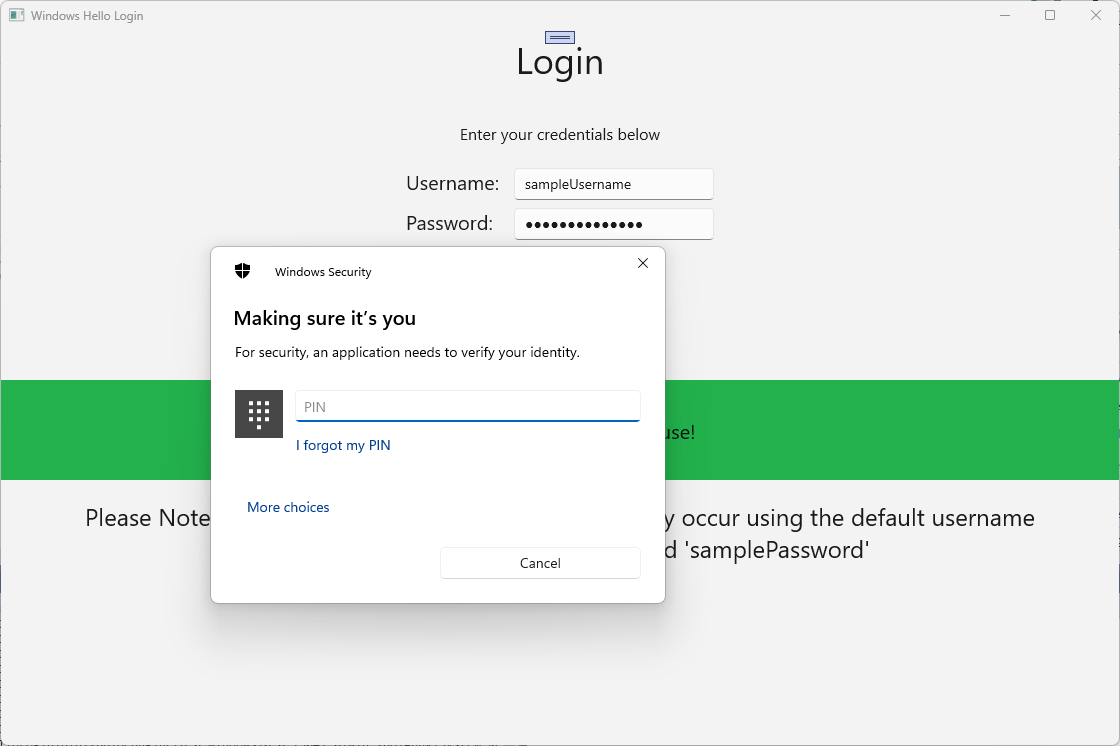
snímek obrazovky úspěšně dokončeného přihlášení pomocí Windows Hello
Pokud chcete získat informace o účtu Windows Hello na AuthService, bude potřeba aktualizovat WindowsHelloHelper.cs. V metodě CreateWindowsHelloKeyAsync místo toho, abyste pouze při úspěchu vraceli
true, budete muset zavolat novou metodu, která se pokusí získat KeyAttestation. I když toto praktické cvičení nezaznamenává tyto informace do služby AuthService, dozvíte se, jak byste tyto informace získali na straně klienta. Následujícím způsobem aktualizujte metodu CreateWindowsHelloKeyAsync :public static async Task<bool> CreateWindowsHelloKeyAsync(Guid userId, string username) { KeyCredentialRetrievalResult keyCreationResult = await KeyCredentialManager.RequestCreateAsync(username, KeyCredentialCreationOption.ReplaceExisting); switch (keyCreationResult.Status) { case KeyCredentialStatus.Success: Debug.WriteLine("Successfully made key"); await GetKeyAttestationAsync(userId, keyCreationResult); return true; case KeyCredentialStatus.UserCanceled: Debug.WriteLine("User cancelled sign-in process."); break; case KeyCredentialStatus.NotFound: // User needs to setup Windows Hello Debug.WriteLine($"Windows Hello is not set up!{Environment.NewLine}Please go to Windows Settings and set up a PIN to use it."); break; default: break; } return false; }V WindowsHelloHelper.cs vytvořte metodu GetKeyAttestationAsync . Tato metoda předvede, jak získat všechny potřebné informace, které mohou být poskytnuty Windows Hello pro každý účet na konkrétním zařízení.
using Windows.Storage.Streams;

private static async Task GetKeyAttestationAsync(Guid userId, KeyCredentialRetrievalResult keyCreationResult)
{
    KeyCredential userKey = keyCreationResult.Credential;
    IBuffer publicKey = userKey.RetrievePublicKey();
    KeyCredentialAttestationResult keyAttestationResult = await userKey.GetAttestationAsync();
    IBuffer keyAttestation = null;
    IBuffer certificateChain = null;
    bool keyAttestationIncluded = false;
    bool keyAttestationCanBeRetrievedLater = false;
    KeyCredentialAttestationStatus keyAttestationRetryType = 0;

    if (keyAttestationResult.Status == KeyCredentialAttestationStatus.Success)
    {
        keyAttestationIncluded = true;
        keyAttestation = keyAttestationResult.AttestationBuffer;
        certificateChain = keyAttestationResult.CertificateChainBuffer;
        Debug.WriteLine("Successfully made key and attestation");
    }
    else if (keyAttestationResult.Status == KeyCredentialAttestationStatus.TemporaryFailure)
    {
        keyAttestationRetryType = KeyCredentialAttestationStatus.TemporaryFailure;
        keyAttestationCanBeRetrievedLater = true;
        Debug.WriteLine("Successfully made key but not attestation");
    }
    else if (keyAttestationResult.Status == KeyCredentialAttestationStatus.NotSupported)
    {
        keyAttestationRetryType = KeyCredentialAttestationStatus.NotSupported;
        keyAttestationCanBeRetrievedLater = false;
        Debug.WriteLine("Key created, but key attestation not supported");
    }

    Guid deviceId = Helpers.GetDeviceId();

    //Update the Windows Hello details with the information we have just fetched above.
    //await UpdateWindowsHelloDetailsAsync(userId, deviceId, publicKey.ToArray(), keyAttestationResult);
}
Možná jste si všimli v metodě GetKeyAttestationAsync, kterou jste právě přidali, poslední řádek byl okomentován. Posledním řádkem bude nová metoda, kterou vytvoříte, která odešle všechny Windows Hello informace do AuthService. Ve skutečném světě byste to museli odeslat na skutečný server prostřednictvím webového rozhraní API.
using System.Runtime.InteropServices.WindowsRuntime;
using System.Threading.Tasks;

public static async Task<bool> UpdateWindowsHelloDetailsAsync(Guid userId, Guid deviceId, byte[] publicKey, KeyCredentialAttestationResult keyAttestationResult)
{
    //In the real world, you would use an API to add Windows Hello signing info to server for the signed in account.
    //For this tutorial, we do not implement a Web API for our server and simply mock the server locally.
    //The CreateWindowsHelloKey method handles adding the Windows Hello account locally to the device using the KeyCredential Manager

    //Using the userId the existing account should be found and updated.
    await AuthService.AuthService.Instance.WindowsHelloUpdateDetailsAsync(userId, deviceId, publicKey, keyAttestationResult);
    return true;
}
Odkomentujte poslední řádek v metodě GetKeyAttestationAsync tak, aby se informace o Windows Hello odesílaly do AuthService.
Sestavte a spusťte aplikaci a přihlaste se pomocí výchozích přihlašovacích údajů jako předtím. Na úvodní stránce se teď zobrazí ID zařízení. Pokud jste se přihlásili na jiném zařízení, které by se zde zobrazilo také (pokud máte službu ověřování hostovanou v cloudu). V tomto praktickém laboratorním cvičení se zobrazuje skutečné ID zařízení. V reálné implementaci byste chtěli zobrazit popisné jméno, kterému by osoba mohla rozumět a používat k identifikaci jednotlivých zařízení.
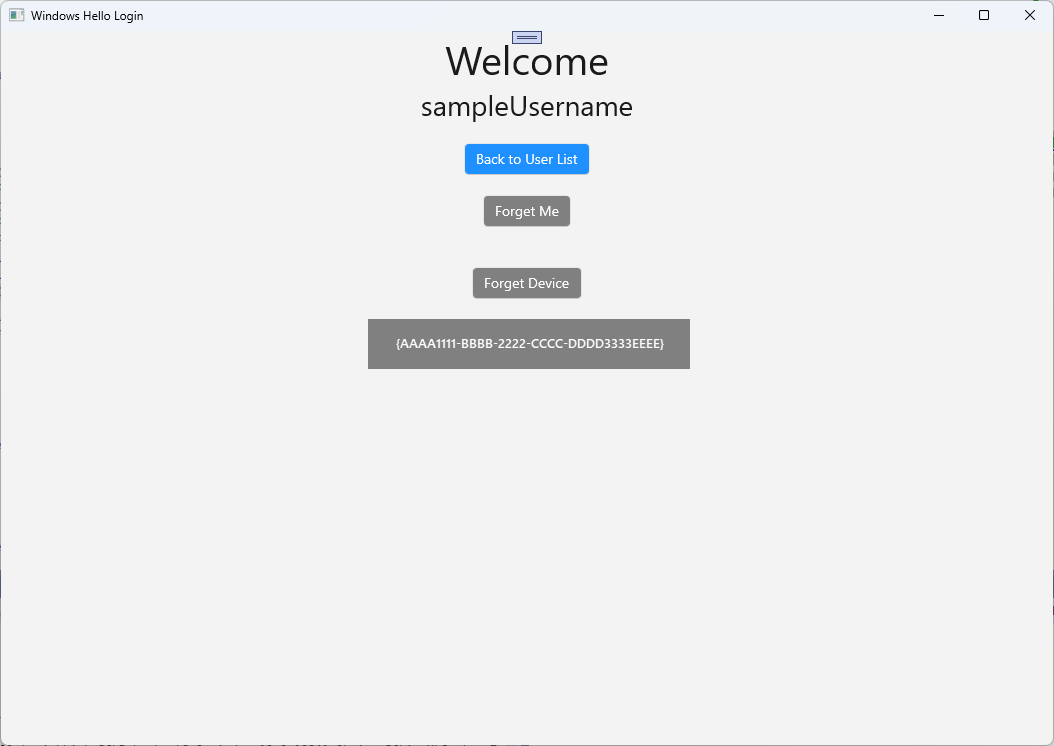
K dokončení tohoto praktického cvičení je potřeba, aby uživatel obdržel požadavek a výzvu poté, co vybere ze stránky pro výběr uživatele a znovu se přihlásí. Služba AuthService má dvě metody, které jste vytvořili k vyžádání výzvy, jednu, která používá podepsanou výzvu. V WindowsHelloHelper.cs vytvořte novou metodu s názvem RequestSignAsync. Tím si vyžádáte výzvu z AuthService, místně podepište tuto výzvu pomocí rozhraní API Windows Hello a odešlete podepsanou výzvu do služby AuthService. V tomto praktickém cvičení obdrží služba AuthService podepsanou výzvu a vrátí
true. Ve skutečné implementaci byste museli implementovat ověřovací mechanismus, abyste zjistili, jestli byl výzva podepsána správným uživatelem na správném zařízení. Do WindowsHelloHelper.cs přidejte následující metodu.private static async Task<bool> RequestSignAsync(Guid userId, KeyCredentialRetrievalResult openKeyResult) { // Calling userKey.RequestSignAsync() prompts the uses to enter the PIN or use Biometrics (Windows Hello). // The app would use the private key from the user account to sign the sign-in request (challenge) // The client would then send it back to the server and await the servers response. IBuffer challengeMessage = AuthService.AuthService.Instance.WindowsHelloRequestChallenge(); KeyCredential userKey = openKeyResult.Credential; KeyCredentialOperationResult signResult = await userKey.RequestSignAsync(challengeMessage); if (signResult.Status == KeyCredentialStatus.Success) { // If the challenge from the server is signed successfully // send the signed challenge back to the server and await the servers response return AuthService.AuthService.Instance.SendServerSignedChallenge( userId, Helpers.GetDeviceId(), signResult.Result.ToArray()); } else if (signResult.Status == KeyCredentialStatus.UserCanceled) { // User cancelled the Windows Hello PIN entry. } else if (signResult.Status == KeyCredentialStatus.NotFound) { // Must recreate Windows Hello key } else if (signResult.Status == KeyCredentialStatus.SecurityDeviceLocked) { // Can't use Windows Hello right now, remember that hardware failed and suggest restart } else if (signResult.Status == KeyCredentialStatus.UnknownError) { // Can't use Windows Hello right now, try again later } return false; }Ve třídě WindowsHelloHelper zavolejte metodu RequestSignAsync z metody GetWindowsHelloAuthenticationMessageAsync.
public static async Task<bool> GetWindowsHelloAuthenticationMessageAsync(UserAccount account)
{
    KeyCredentialRetrievalResult openKeyResult = await KeyCredentialManager.OpenAsync(account.Username);
    // Calling OpenAsync will allow the user access to what is available in the app and will not require user credentials again.
    // If you wanted to force the user to sign in again you can use the following:
    // var consentResult = await Windows.Security.Credentials.UI.UserConsentVerifier.RequestVerificationAsync(account.Username);
    // This will ask for the either the password of the currently signed in Microsoft Account or the PIN used for Windows Hello.

    if (openKeyResult.Status == KeyCredentialStatus.Success)
    {
        //If OpenAsync has succeeded, the next thing to think about is whether the client application requires access to backend services.
        //If it does here you would Request a challenge from the Server. The client would sign this challenge and the server
        //would check the signed challenge. If it is correct it would allow the user access to the backend.
        //You would likely make a new method called RequestSignAsync to handle all this
        //for example, RequestSignAsync(openKeyResult);
        //Refer to the second Windows Hello sample for information on how to do this.

        return await RequestSignAsync(account.UserId, openKeyResult);
    }
    else if (openKeyResult.Status == KeyCredentialStatus.NotFound)
    {
        //If the _account is not found at this stage. It could be one of two errors.
        //1. Windows Hello has been disabled
        //2. Windows Hello has been disabled and re-enabled cause the Windows Hello Key to change.
        //Calling CreateWindowsHelloKeyAsync and passing through the account will attempt to replace the existing Windows Hello Key for that account.
        //If the error really is that Windows Hello is disabled then the CreateWindowsHelloKeyAsync method will output that error.
        if (await CreateWindowsHelloKeyAsync(account.UserId, account.Username))
        {
            //If the Windows Hello Key was again successfully created, Windows Hello has just been reset.
            //Now that the Windows Hello Key has been reset for the _account retry sign in.
            return await GetWindowsHelloAuthenticationMessageAsync(account);
        }
    }

    // Can't use Windows Hello right now, try again later
    return false;
}
V tomto cvičení jste aktualizovali aplikaci na straně klienta tak, aby používala službu AuthService. Tímto způsobem jste byli schopni eliminovat potřebu třídy Account a AccountHelper třídy. Odstraňte třídu Account , složku Models a třídu AccountHelper ve složce Utils . Před úspěšným sestavením řešení budete muset v celé aplikaci odebrat všechny odkazy na
WindowsHelloLogin.Modelsobor názvů.Sestavte a spusťte aplikaci a užijte si používání Windows Hello s maketovou službou a databází.
V tomto praktickém cvičení jste se naučili, jak pomocí rozhraní API Windows Hello nahradit potřebu hesel při použití ověřování z počítače s Windows. Když zvážíte, kolik energie lidé vynaloží na správu hesel a na řešení problémů se ztracenými hesly v existujících systémech, měli byste vidět výhodu přechodu na nový systém ověřování Windows Hello.
Nechali jsme pro vás jako cvičení podrobnosti o tom, jak implementujete ověřování na straně služby a serveru. Očekává se, že většina vývojářů bude mít existující systémy, které bude potřeba migrovat, aby mohli začít pracovat s Windows Hello. Podrobnosti o každém z těchto systémů se budou lišit.
Související témata
Spolupracujte s námi na GitHubu
Zdroj tohoto obsahu najdete na GitHubu, kde můžete také vytvářet a kontrolovat problémy a žádosti o přijetí změn. Další informace najdete v našem průvodci pro přispěvatele.

Windows developer