Bemærk
Adgang til denne side kræver godkendelse. Du kan prøve at logge på eller ændre mapper.
Adgang til denne side kræver godkendelse. Du kan prøve at ændre mapper.
The objective of this article is to demonstrate the steps to be performed in Robin and Microsoft Entra ID to configure Microsoft Entra ID to automatically provision and de-provision users and/or groups to Robin.
Note
This article describes a connector built on top of the Microsoft Entra user provisioning service. For important details on what this service does, how it works, and frequently asked questions, see Automate user provisioning and deprovisioning to SaaS applications with Microsoft Entra ID.
Prerequisites
The scenario outlined in this article assumes that you already have the following prerequisites:
- A Microsoft Entra user account with an active subscription. If you don't already have one, you can Create an account for free.
- One of the following roles:
- A Robin tenant.
- A user account in Robin with Admin permissions.
Assigning users to Robin
Microsoft Entra ID uses a concept called assignments to determine which users should receive access to selected apps. In the context of automatic user provisioning, only the users and/or groups that have been assigned to an application in Microsoft Entra ID are synchronized.
Before configuring and enabling automatic user provisioning, you should decide which users and/or groups in Microsoft Entra ID need access to Robin. Once decided, you can assign these users and/or groups to Robin by following the instructions here:
Important tips for assigning users to Robin
It's recommended that a single Microsoft Entra user is assigned to Robin to test the automatic user provisioning configuration. Additional users and/or groups may be assigned later.
When assigning a user to Robin, you must select any valid application-specific role (if available) in the assignment dialog. Users with the Default Access role are excluded from provisioning.
Set up Robin for provisioning
Sign in to your Robin Admin Console. Navigate to Manage > Integrations > SCIM > Manage.
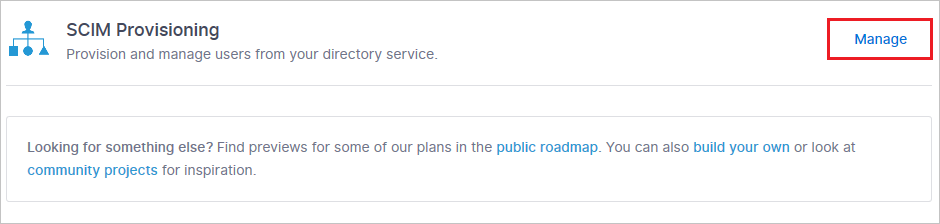
Generate a new organization token. If you lose this token, you can always make a new one without affecting existing users.
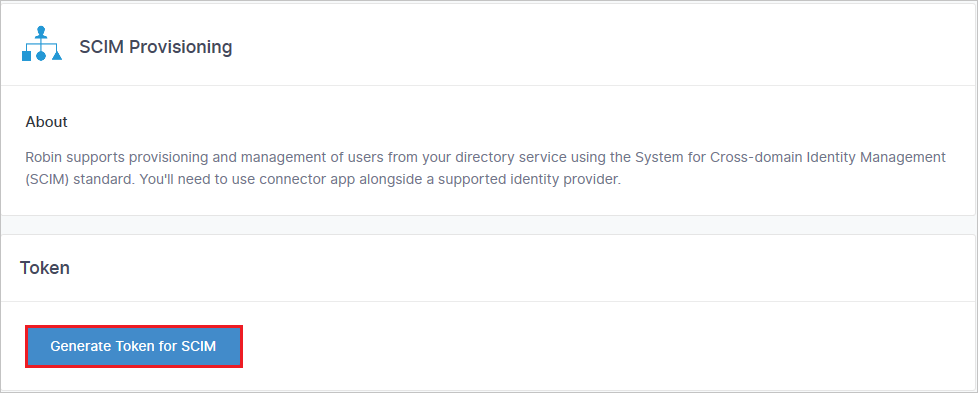
Copy the SCIM Authentication Token. This value is entered in the Secret Token field in the Provisioning tab of your Robin application.
Add Robin from the gallery
Before configuring Robin for automatic user provisioning with Microsoft Entra ID, you need to add Robin from the Microsoft Entra application gallery to your list of managed SaaS applications.
To add Robin from the Microsoft Entra application gallery, perform the following steps:
Sign in to the Microsoft Entra admin center as at least a Cloud Application Administrator.
Browse to Entra ID > Enterprise apps > New application.
In the Add from the gallery section, type Robin, select Robin in the search box.
Select Robin from results panel and then add the app. Wait a few seconds while the app is added to your tenant.
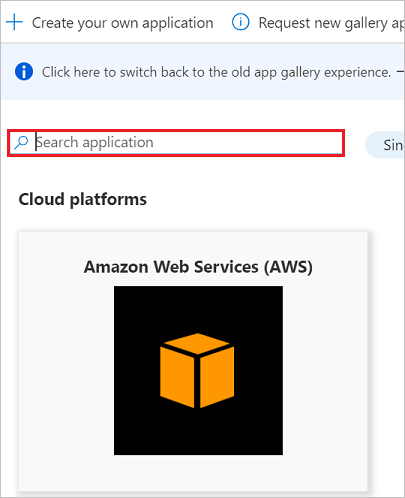
Configuring automatic user provisioning to Robin
This section guides you through the steps to configure the Microsoft Entra provisioning service to create, update, and disable users and/or groups in Robin based on user and/or group assignments in Microsoft Entra ID.
Tip
You may also choose to enable SAML-based single sign-on for Robin, following the instructions provided in the Robin Single sign-on article. Single sign-on can be configured independently of automatic user provisioning, though these two features complement each other
To configure automatic user provisioning for Robin in Microsoft Entra ID:
Sign in to the Microsoft Entra admin center as at least a Cloud Application Administrator.
Browse to Entra ID > Enterprise apps
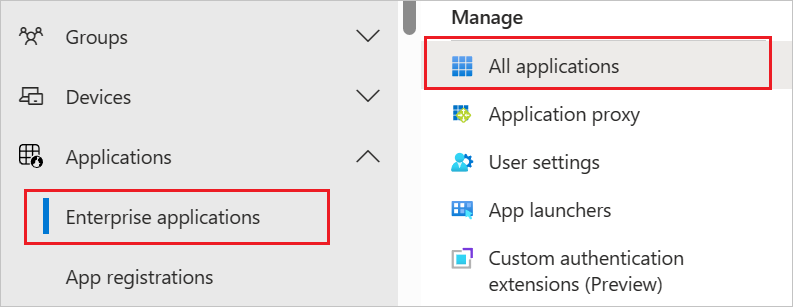
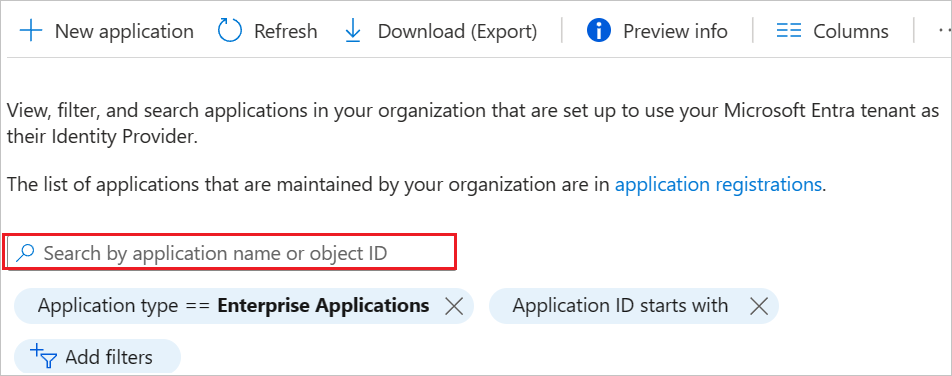
In the applications list, select Robin.
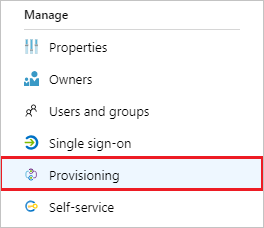
Select the Provisioning tab.
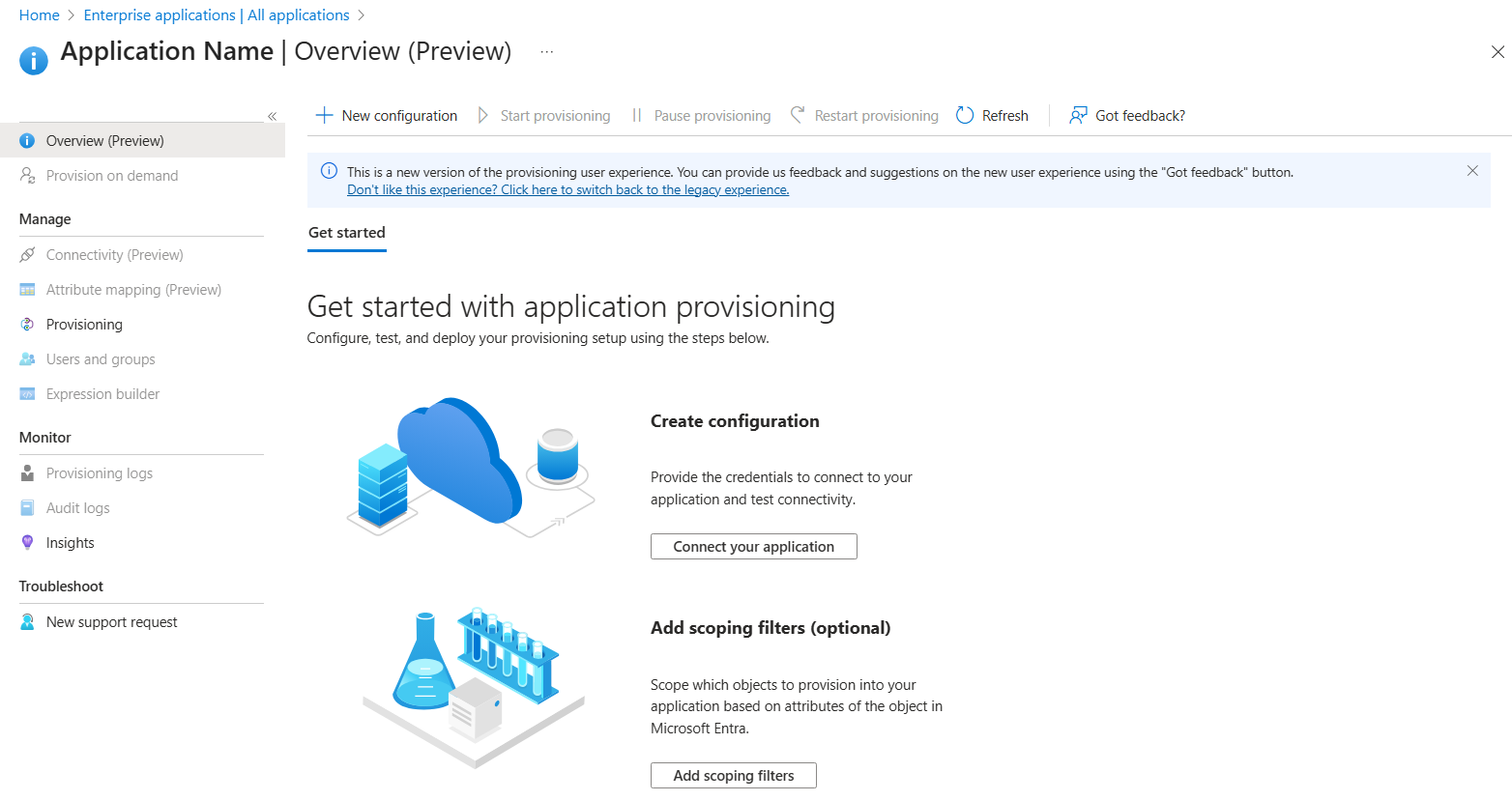
Select + New configuration.
In the Tenant URL field, enter your Robin Tenant URL and Secret Token. Select Test Connection to ensure Microsoft Entra ID can connect to Robin. If the connection fails, ensure your Robin account has the required admin permissions and try again.
Note
Enter
https://api.robinpowered.com/v1.0/scim-2in the Tenant URL.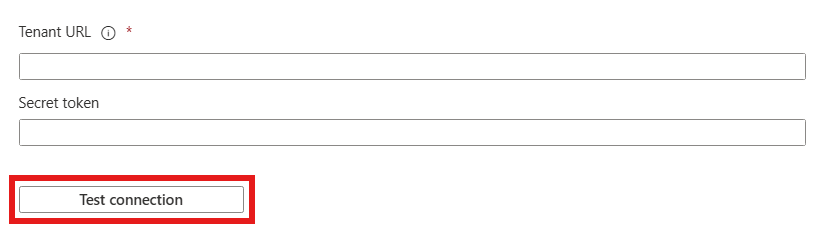
Select Create to create your configuration.
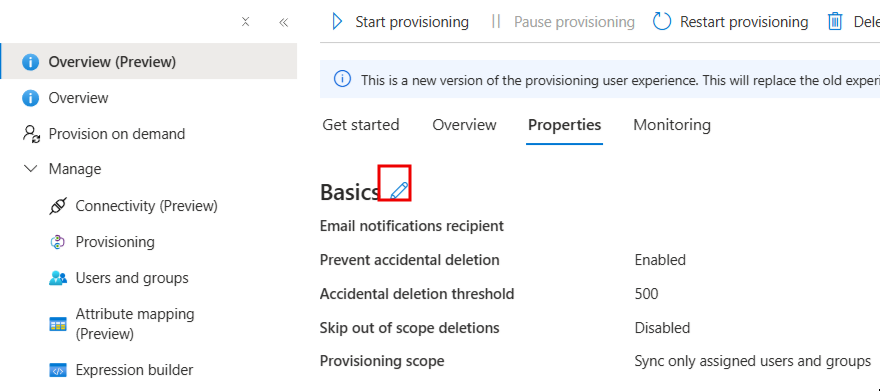
Select Properties on the Overview page.
In the Notification Email field, enter the email address of a person who should receive the provisioning error notifications and select the Send an email notification when a failure occurs check box.
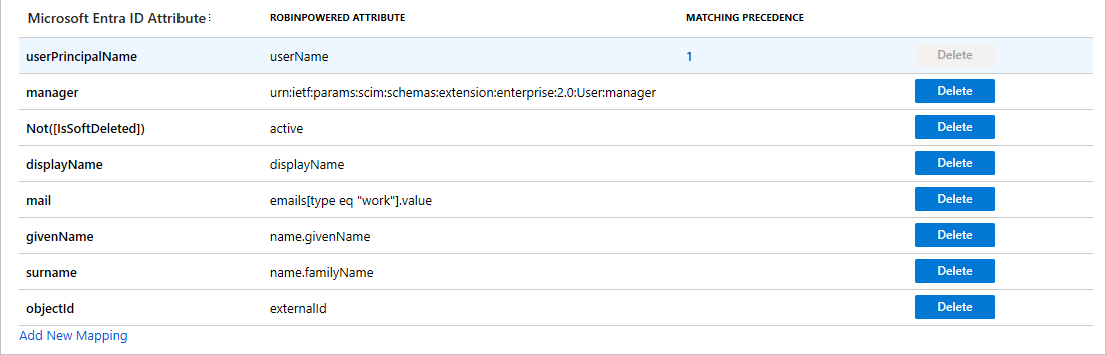
Select Attribute Mapping in the left panel and select users.
Review the user attributes that are synchronized from Microsoft Entra ID to Robin in the Attribute-Mapping section. The attributes selected as Matching properties are used to match the user accounts in Robin for update operations. If you choose to change the matching target attribute, you need to ensure that the Robin API supports filtering users based on that attribute. Select the Save button to commit any changes.
Review the group attributes that are synchronized from Microsoft Entra ID to Robin in the Attribute Mapping section. The attributes selected as Matching properties are used to match the groups in Robin for update operations. Select the Save button to commit any changes.

To configure scoping filters, refer to the instructions provided in the Scoping filter article.
Use on-demand provisioning to validate sync with a small number of users before deploying more broadly in your organization.
When you're ready to provision, select Start Provisioning from the Overview page.
Additional resources
- Managing user account provisioning for Enterprise Apps
- What is application access and single sign-on with Microsoft Entra ID?