Σημείωση
Η πρόσβαση σε αυτή τη σελίδα απαιτεί εξουσιοδότηση. Μπορείτε να δοκιμάσετε να συνδεθείτε ή να αλλάξετε καταλόγους.
Η πρόσβαση σε αυτή τη σελίδα απαιτεί εξουσιοδότηση. Μπορείτε να δοκιμάσετε να αλλάξετε καταλόγους.
Note
Community interest groups have now moved from Yammer to Microsoft Viva Engage. To join a Viva Engage community and take part in the latest discussions, fill out the Request access to Finance and Operations Viva Engage Community form and choose the community you want to join.
[This article is prerelease documentation and is subject to change.]
The agent deployment wizard in Copilot Hub provides a centralized experience for deploying Dynamics 365 agents to your business applications. It guides administrators through a secure, validated process that deploys Microsoft‑provided agents into environments such as Dataverse, Power Platform, and Microsoft finance and operations apps.
Important
- This is a preview feature.
- Preview features aren’t meant for production use and might have restricted functionality. These features are subject to supplemental terms of use, and are available before an official release so that customers can get early access and provide feedback.
The agent deployment wizard provides a consistent deployment experience across all Dynamics 365 agents. Each agent offers its own specific configuration and setup guidance.
Note
To run the agent deployment wizard, go to the Power Platform admin center.
A separate public preview experience in Power Platform admin center provides early access to upcoming enhancements for the agent deployment wizard.
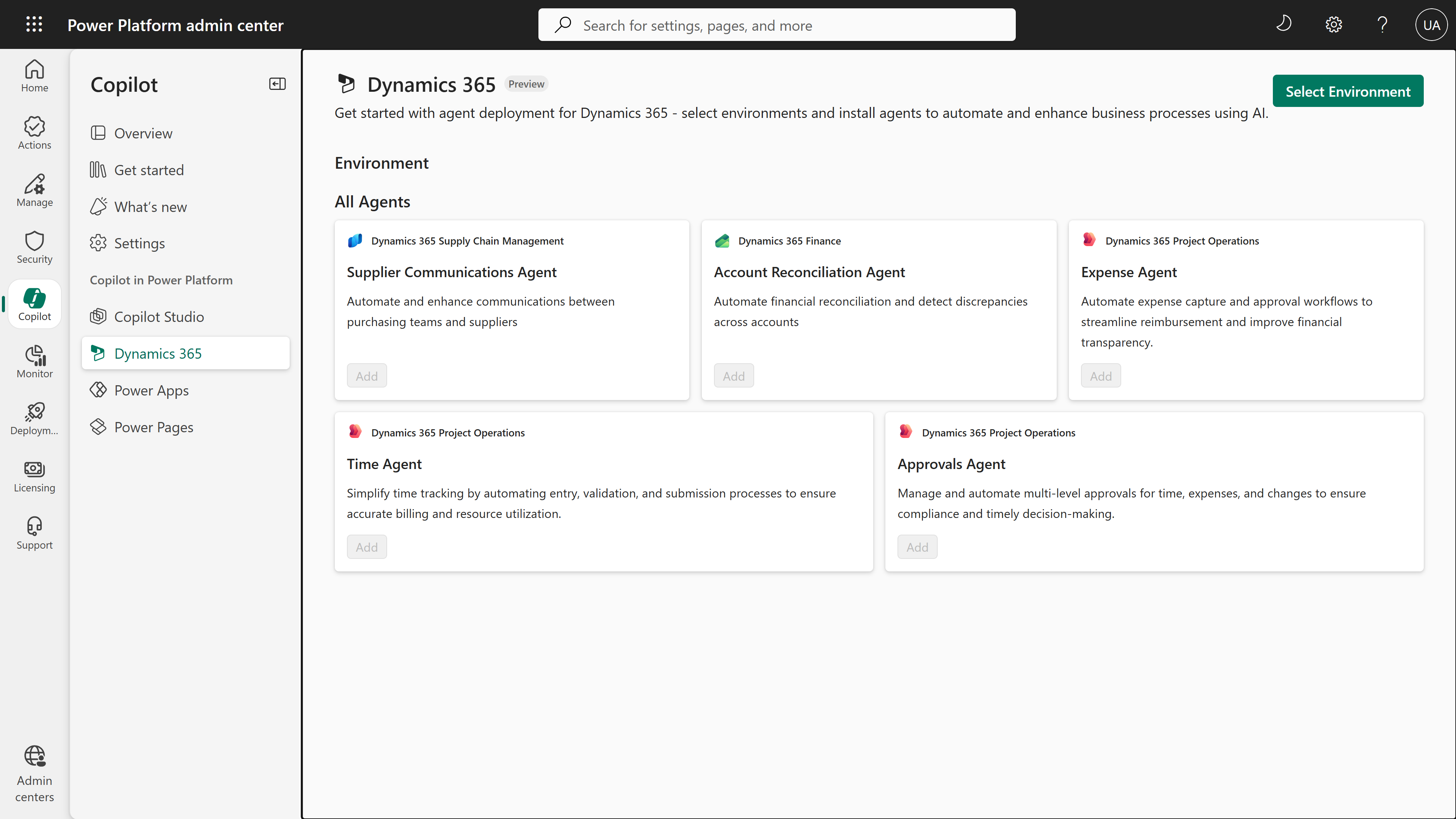
The following image shows the Dynamics 365 agent deployment wizard landing page in Power Platform admin center.
Purpose of the agent deployment wizard
Microsoft ships Dynamics 365 agents as managed solutions that depend on platform features, security roles, and environment configuration.
The agent deployment wizard helps you:
- Discover all Dynamics 365 agents available for deployment
- Validate that a target environment is ready
- Apply required environment‑level configuration
- Deploy agents safely and consistently
- Monitor deployment status and troubleshoot failures
The wizard provides a one-stop guidance and deployment tool and ensures deployments comply with Power Platform governance, security, and lifecycle best practices.
What the agent deployment wizard deploys
The agent deployment wizard is designed specifically for Microsoft‑provided Dynamics 365 agents, including:
Each agent has its own deployment and post‑deployment guidance that explains functional setup, permissions, and usage. This article focuses only on the common deployment experience.
Who should use the agent deployment wizard
Use the agent deployment wizard if you are:
- An IT team member responsible for environment readiness and rollout
- A Power Platform administrator
- An agent administrator
- A Microsoft finance and operations apps administrator
Access the agent deployment wizard
To access the agent deployment wizard, follow these steps:
- Open Copilot Hub in Power Platform admin center and select Dynamics 365.
- Select the target environment.
- Choose a Dynamics 365 agent.
- Select Add to launch the agent deployment wizard for the selected agent.
Common deployment steps for Dynamics 365 agents
The agent deployment wizard guides you through a consistent set of administrative tasks each time you run it. Each specific agent requires additional, agent‑specific configuration, but the steps outlined in the following subsections describe the common deployment flow that you follow for every agent. You typically complete these steps once per agent per environment.
Step 1: Check prerequisites
The wizard checks that the target environment meets all required prerequisites for the selected agent. It makes sure that the required applications and Dataverse packages for Copilot and agent assets are installed. Often, the deployment process automatically installs the required packages when needed.
Other prerequisite validations include:
- Confirm that Copilot is enabled and all generative AI features are set up correctly.
- Confirm message consumption settings for Copilot. You can manage these settings on the Licenses page in Power Platform admin center.
- Check data loss prevention (DLP) policies.
- Check advanced connector policies, if applicable.
- Refresh virtual entities when required by the agent.
The wizard clearly surfaces any missing, misconfigured, or blocked prerequisites. It provides guidance on how to resolve these issues before proceeding.
Step 2: Set up the agent identity
Each agent runs under a dedicated agent user identity. In this step, you select or create this identity. Typical tasks include:
- Identify the agent user account.
- Create the agent identity in the Microsoft 365 admin center if it doesn't exist already.
- Assign the required product licenses to the agent user.
- Add the agent user to the Dataverse environment.
- Assign the required Dataverse security roles.
Agents used in Microsoft finance and operations apps require a few extra steps, including:
- Add the agent user to the finance and operations apps environment.
- Assign the relevant security roles.
These steps ensure that the agent has the correct permissions to access data and perform its intended actions.
Step 3: Connect the agent
The wizard guides the administrator through the settings needed to let the agent connect with Dataverse and other services. In this step, the wizard typically performs the following actions:
- Create the required Dataverse connections using the agent identity.
- Add these connections to the agent's connection references.
- Verify that all required connectors are approved under existing governance policies.
- Activate all Power Automate flows used by the agent.
When you finish these steps, the agent is fully connected to the services it needs.
Step 4: Configure mailboxes (if applicable)
Some agents rely on mailboxes to send or receive messages. For such agents, the wizard includes a step to configure the mailboxes, which helps you perform the following actions:
- Set up server-side synchronization for the required mailboxes.
- Configure mailbox-related environment variables, if needed.
This step only appears for agents that require mailbox integration.
Step 5: Enable the agent
The final step makes the agent available for use. This step typically includes the following actions:
- Publish the agent bot in Copilot Studio.
- Verify that the agent is enabled and available in the target environment.
For agents used in Microsoft finance and operations apps, this step also does the following action:
- Enable the required features in Feature management.
Once enabled, the agent is active and ready for use.
Next steps
After completing the common deployment steps, the wizard provides agent‑specific deployment guidance for how to configure business logic and bring the agent into service. You complete these steps by using agent management in your business application.
Support and feedback
This feature is currently in preview. Microsoft welcomes your feedback and uses it to improve the agent deployment wizard. Report any issues or suggestions by using the standard Dynamics 365 support channels.