Note
Access to this page requires authorization. You can try signing in or changing directories.
Access to this page requires authorization. You can try changing directories.
Important
Teams Phone Agent is now generally available.
Interested in learning more? Submit a brief Teams Phone & Voice AI Customer Opportunity intake form to explore Teams Phone Agent capabilities, assess organizational fit, and receive guidance on deployment, setup, and configuration.
We want your feedback
Help us improve Teams Phone Agent. Share your feedback on our planning and setup documentation, the Teams admin center experience, Teams Phone Agent features, or tell us about features and improvements you’d like to see.
Caution
Daylight Savings Time changes – Manual changes to auto attendant time zones required by some customers.
On November 1, 2026, Daylight Savings Time will end in North America.
In Canada, the provinces of Alberta, British Columbia, and Manitoba will remain on Daylight Savings Time and will not move the clocks back one hour.
Customers with Teams Phone Agents serving these provinces that have time zone configurations that reference (UTC-7:00) Mountain Time (US & Canada), (UTC-8:00) Pacific Time (US & Canada), or (UTC-05:00) Eastern Time (US & Canada) must be updated as follows:
Alberta: Permanently moves to UTC-6:00.
- Change the auto attendant time zone selection from (UTC-7:00) Mountain Time (US & Canada) to (UTC-6:00) Saskatchewan as DST is not observed in Saskatchewan.
British Columbia: Permanently moves to UTC-7:00.
- Change the auto attendant time zone selection from (UTC-8:00) Pacific Time (US & Canada) to (UTC-7:00) Arizona as DST is not observed in Arizona.
Manitoba: Permanently moves to UTC-5:00.
- Change the auto attendant time zone selection from (UTC-05:00) Eastern Time (US & Canada) to (UTC-05:00) Bogota, Lima, Quito, Rio Branco or (UTC-05:00) Chetumal as DST is not observed in these areas.
In Ontario, the following communities and areas will not turn clocks back and will remain on Central Daylight Time year‑round:
- Kenora
- Dryden
- Fort Frances
- Sioux Lookout
- Red Lake
- Rainy River
- Other communities west of the 90th meridian that currently follow Central Time and change clocks seasonally
Customers with Teams Phone Agents serving these areas that have time zone configurations that reference (UTC-05:00) Eastern Time (US & Canada) should change the time zone selection to (UTC-05:00) Bogota, Lima, Quito, Rio Branco or (UTC-05:00) Chetumal as DST is not observed in these areas.
This article is for IT pros and Teams administrators who want to create Appointment tools for use with Teams Phone Agent.
Planning and licensing review
Planning
Licensing
Known issues
None.
What's new in Teams Phone Agent (last six months)
- October 21, 2026
- Spam detection can be configured in Teams admin center.
- October 19, 2026
- Copilot Credit Estimator now supports Teams Phone Agent.
- October 14, 2026
- Teams Phone Agent now supports 42 voices, including 33 new ones.
- September 30, 2026
- Teams Phone Agent is now generally available to all customers.
- Appointments integration with Microsoft Bookings can be configured in Teams admin center.
- Automatic Recording for Teams Phone Agent can be configured in Teams admin center.
- Maximum call length with configurable disconnect message can be configured in Teams admin center.
- Question and Answers URLs are refreshed daily.
- September 29, 2026
- Historical reporting for Teams Phone Agent updated.
- September 1, 2026
- Appointments integration with Microsoft Bookings can be configured via PowerShell.
- August 31, 2026
- AI disclaimer can be configured in Teams admin center.
- Maximum call length can be configured in Teams admin center.
- August 17, 2026
- Automatic Recording for Teams Phone Agent can be configured via PowerShell.
- August 12, 2026
- Spam detection can be configured via PowerShell.
- AI disclaimer customization can be configured via PowerShell.
- Maximum call length can be configured in PowerShell.
- July 20, 2026
- Historical reporting for Teams Phone Agent is now available.
- June 15, 2026
- Entered Frontier Public Preview
Steps to create an Appointment tool with Microsoft Bookings for Teams Phone Agent
Create a shared booking page
To create a shared booking page in Microsoft Bookings:
- Select + Create a booking page.
- Select + Create from scratch
- Step 1:
- Enter a Name for the booking page.
- Optionally Add a logo.
- Select a Business type.
- Change the Business hours if needed.
- Select Next.
- Step 2:
- Invite staff to the booking page.
- Select Next.
- Step 3:
- Select Next to accept the default service.
- Step 4:
- Select Anyone to allow callers to book an appointment.
- Select Create.
Wait for the booking page to be created.
Create an Appointment tool for Teams Phone Agent
To create an Appointment tool in the Teams admin center:
Expand Voice.
Select Templates and resources.
Select Tools.
Select Add.
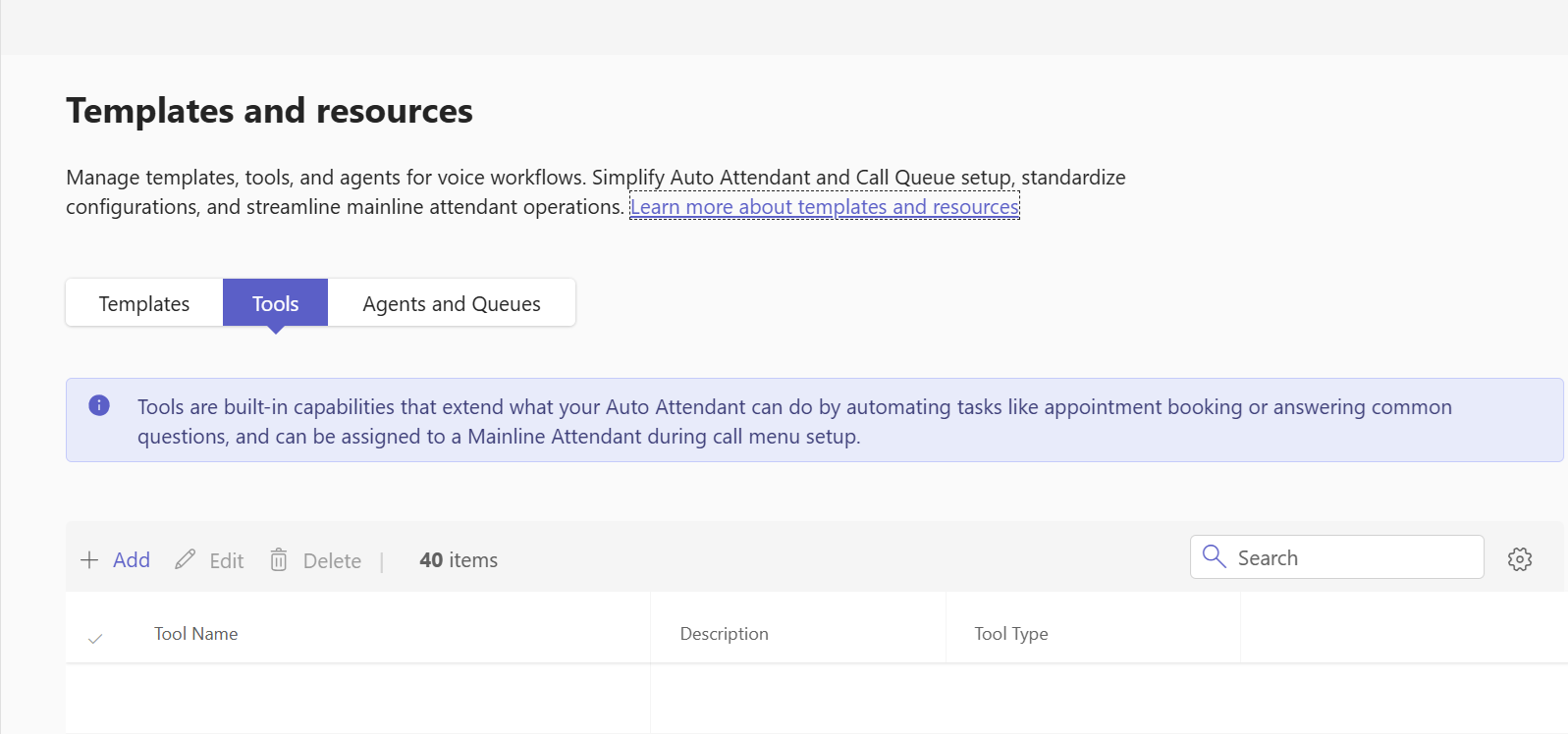
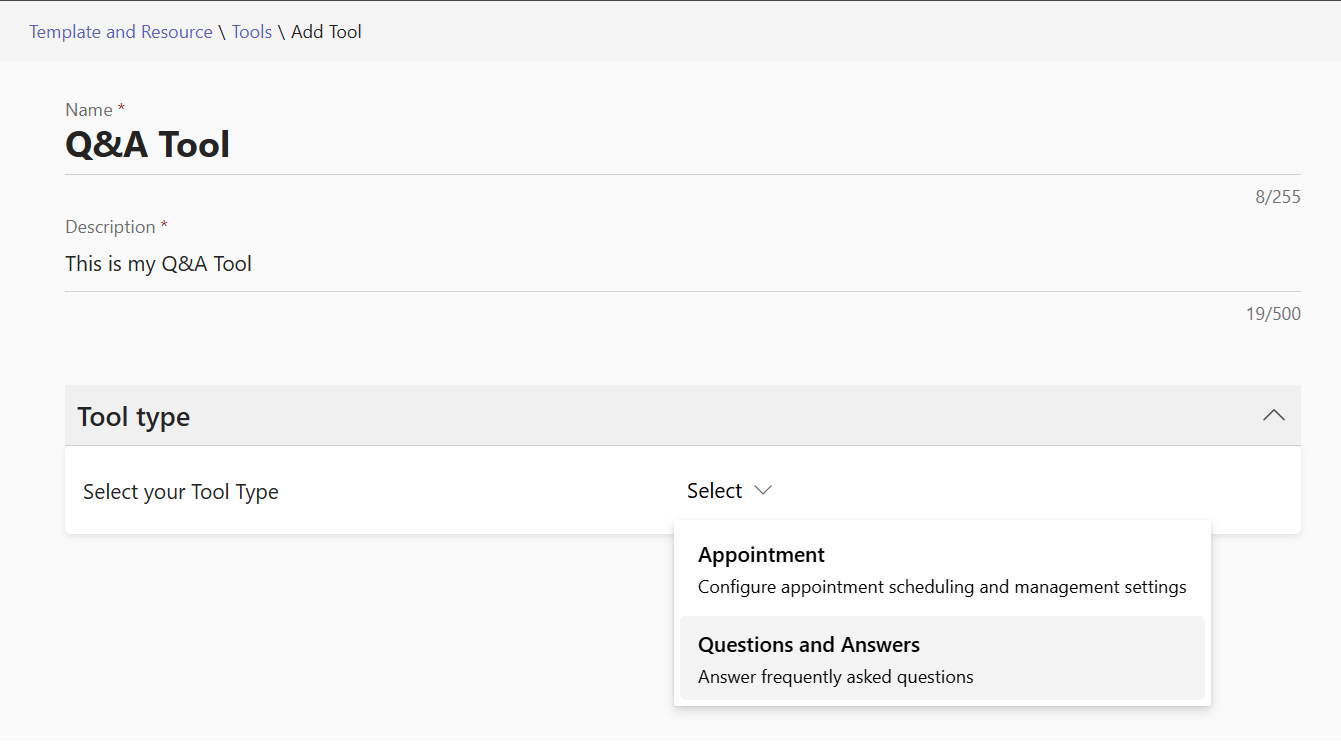
Enter a Name and Description for the tool.
Select Appointment as the tool type.
Select Microsoft shared booking
Select the Booking link for the booking page from the drop-down list.
Select Save
The Appointment tool is now ready to be added to Teams Phone Agent.
Important
Make sure the time zone setting on the shared booking page is the same as the time zone setting in Teams Phone Agent.
Steps to create a custom Appointment tool for Teams Phone Agent
To create an Appointment tool in the Teams admin center:
Expand Voice.
Select Templates and resources.
Select Add.
Enter a Name and Description for the tool.
Select Appointment as the tool type.
Select the Caller authentication method. This controls how the caller is verified.
- SMS - a code is sent via SMS.
- Email - a code is sent via email.
- User Details - the caller is requested to provide their details on the call.
Select the API authentication type. This controls how Teams Phone Agent authenticates with the booking system endpoints.
- Basic (Static) - no authentication is used.
- API Key (Static)
- Bearer Token (Static)
- Bearer Token (Dynamic)
Configure the required call flows.
Call flows are the independent steps required to authenticate callers for access to the booking system, retrieve available time slots, and book, retrieve, update, and delete appointments.
Based on the Caller authentication method, the following call flows are required.
System authentication
SMS / Email User details Generate auth token Generate auth token This call flow is only required if the API authentication type is set to Bearer Token (Dynamic).
Caller authentication
SMS / Email User details Initiate caller authentication Authenticate caller Authenticate caller The Initiate caller authentication step requests that the booking system send an email or SMS to the caller. The message should contain a one-time numeric code that the caller provides to Teams Phone Agent.
Book appointment
SMS / Email User details Get available appointment time slots Get available appointment time slots Book appointment Book appointment Manage appointments
SMS / Email User details Get upcoming appointments Get upcoming appointments Update appointment Update appointment Delete appointment Delete appointment Select Save to save your changes.
The Appointment tool is now ready to be added to Teams Phone Agent.
Related Teams Phone Agent setup and configuration articles
PowerShell
For instructions on creating an Appointment tool using PowerShell, see Set up Teams Phone Agent with PowerShell.