Note
Access to this page requires authorization. You can try signing in or changing directories.
Access to this page requires authorization. You can try changing directories.
If you're reading this document, you're aware of the significance of security. You likely already carry the responsibility for securing your organization. If you need to convince others of the importance of security, send them to read the latest Microsoft Digital Defense Report.
This document helps you get a more secure posture through the capabilities of Microsoft Entra ID and a five-step checklist to improve your organization's protection against cyberattacks.
This checklist helps you quickly deploy critical recommended actions to protect your organization immediately by explaining how to:
- Strengthen your credentials.
- Reduce your attack surface area.
- Automate threat response.
- Use cloud intelligence.
- Enable end-user self-service.
Note
Many recommendations in this document apply only to applications that use Microsoft Entra ID as their identity provider. Configuring apps for single sign-on assures that credential policies, threat detection, auditing, logging, and other features add benefits to those applications. Microsoft Entra Application Management is the foundation on which all these recommendations are based.
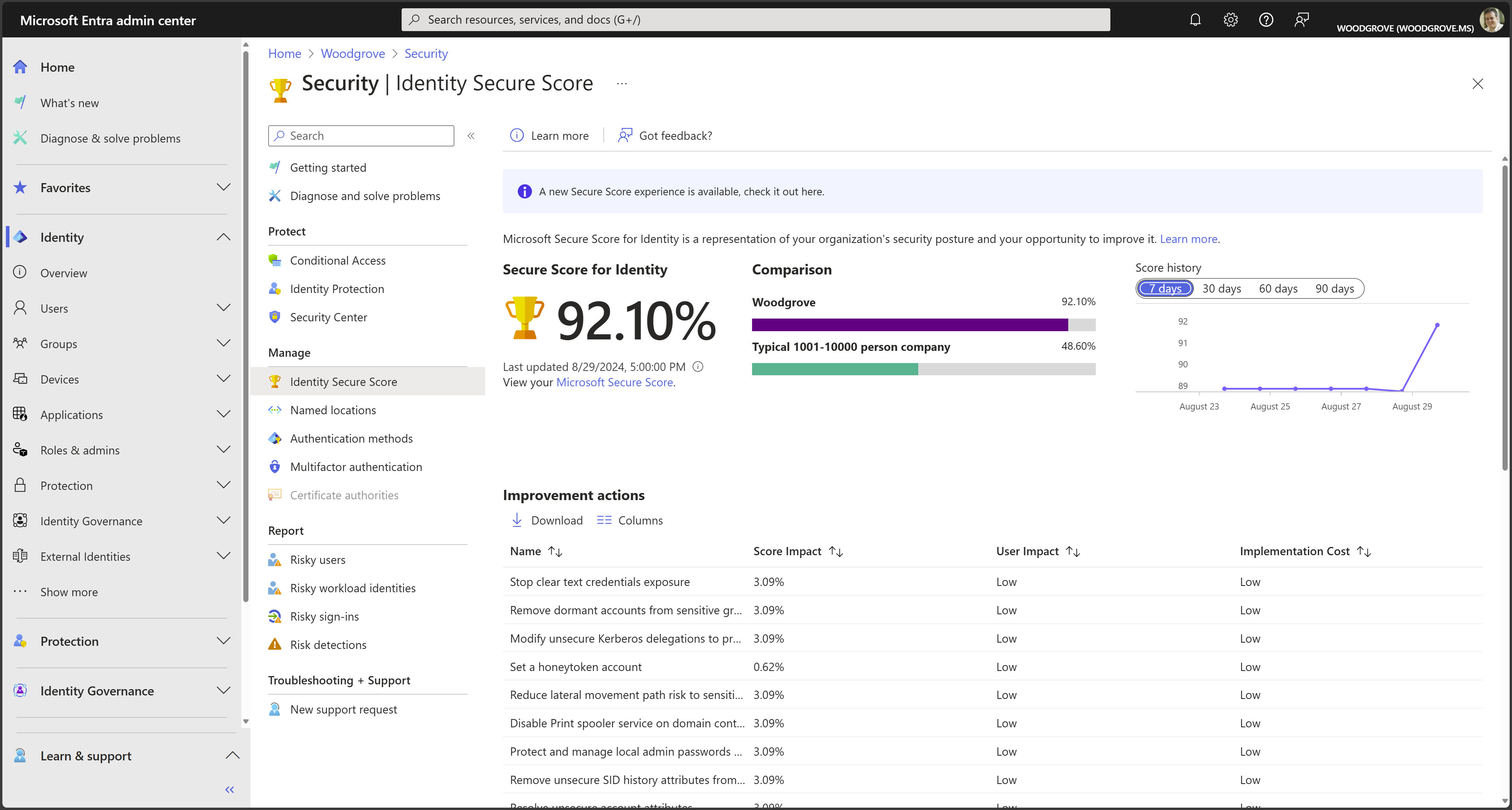
The recommendations in this document align with the Identity Secure Score, an automated assessment of your Microsoft Entra tenant’s identity security configuration. Organizations can use the Identity Secure Score page in the Microsoft Entra admin center to find gaps in their current security configuration to ensure they follow current Microsoft best practices for security. Implementing each recommendation in the Secure Score page increases your score, allows you to track your progress, and helps you compare your implementation against other similar-size organizations.
Note
Some of the functionality recommended here is available to all customers, while others require a Microsoft Entra ID P1 or P2 subscription. For more information, see Microsoft Entra pricing and Microsoft Entra deployment checklist.
Before you begin: Protect privileged accounts with MFA
Before you begin this checklist, make sure your account isn't compromised while you're reading this checklist. Microsoft observes more than 600 million identity attacks daily, and password attacks make up 99% of all identity attacks. In Microsoft Entra ID, users who have privileged roles, such as administrators, are the root of trust to build and manage the rest of the environment. Implement the following practices to minimize the effects of a compromise.
Attackers who get control of privileged accounts can do tremendous damage, so it's critical to protect these accounts before proceeding. Enable and require Microsoft Entra multifactor authentication (MFA) for all administrators in your organization by using Microsoft Entra Security Defaults or Conditional Access. It's critical.
All set? Start the checklist.
Step 1: Strengthen your credentials
Although other types of attacks are emerging, including consent phishing and attacks on nonhuman identities, password-based attacks on user identities are still the most prevalent vector of identity compromise. Well-established spear phishing and password spray campaigns by adversaries continue to be successful against organizations that don't implement multifactor authentication (MFA) or other protections against this common tactic.
As an organization, you need to make sure that your identities are validated and secured by using MFA everywhere. The Federal Bureau of Investigation (FBI) Internet Crime Complaint Center (IC3) 2024 Internet Crime Report identified phishing and spoofing as the most reported internet crime type, with 193,407 complaints. Phishing poses a significant threat to both businesses and individuals, and attackers use credential phishing in many damaging attacks. Microsoft Entra multifactor authentication (MFA) helps safeguard access to data and applications, providing another layer of security by using a second form of authentication. Organizations can enable multifactor authentication by using Conditional Access to make the solution fit their specific needs. For more information, see Plan, implement, and roll out Microsoft Entra multifactor authentication.
Make sure your organization uses strong authentication
To easily enable the basic level of identity security, you can use one-select enablement in Microsoft Entra security defaults. Security defaults enforce Microsoft Entra multifactor authentication for all users in a tenant and block sign-ins from legacy protocols tenant-wide.
If your organization has Microsoft Entra ID P1 or P2 licenses, you can also use the Conditional Access insights and reporting workbook to help you discover gaps in your configuration and coverage. From these recommendations, you can easily close this gap through the new Conditional Access templates experience. Conditional Access templates provide an easy method to deploy new policies that align with Microsoft-recommended best practices. These templates make it easy to deploy common policies to protect your identities and devices.
Start banning commonly attacked passwords and turn off traditional complexity and expiration rules
Many organizations use traditional complexity and password expiration rules. Microsoft's research shows, and National Institute of Standards and Technology (NIST) Special Publication 800-63B Digital Identity Guidelines state, that these policies cause users to choose passwords that are easier to guess. Use Microsoft Entra password protection, a dynamic banned password feature that uses current attacker behavior to prevent users from setting passwords that attackers can easily guess. This capability is always on when users are created in the cloud, but is now also available for hybrid organizations when they deploy Microsoft Entra password protection for Windows Server Active Directory. In addition, remove expiration policies. Password changes offer no containment benefits because cybercriminals almost always use credentials as soon as they compromise them. For more information, see Set the password expiration policy for your organization.
Protect against leaked credentials and add resilience against outages
The simplest and recommended method for enabling cloud authentication for on-premises directory objects in Microsoft Entra ID is to enable password hash synchronization (PHS). If your organization uses a hybrid identity solution with pass-through authentication or federation, you should enable password hash sync for the following two reasons:
- The Users with leaked credentials report in Microsoft Entra ID warns of publicly exposed username and password pairs. An incredible volume of passwords is leaked through phishing, malware, and password reuse on third-party sites that are later breached. Microsoft finds many of these leaked credentials and tells you, in this report, if they match credentials in your organization – but only if you enable password hash sync or have cloud-only identities.
- If an on-premises outage happens, such as a ransomware attack, you can switch over to cloud authentication by using password hash sync. This backup authentication method allows you to continue accessing apps configured for authentication with Microsoft Entra ID, including Microsoft 365. In this case, IT staff doesn't need to resort to shadow IT or personal email accounts to share data until the on-premises outage is resolved.
Microsoft Entra ID never stores passwords in clear text or encrypts them with a reversible algorithm. For more information about the actual process of password hash synchronization, see Detailed description of how password hash synchronization works.
Implement AD FS extranet smart lockout
Smart lockout helps lock out attackers who try to guess your users' passwords or use brute-force methods to get in. Smart lockout can recognize sign-ins that come from valid users and treat them differently than ones of attackers and other unknown sources. Attackers get locked out, while your users continue to access their accounts and be productive. Organizations that configure applications to authenticate directly to Microsoft Entra ID benefit from Microsoft Entra smart lockout. Federated deployments that use AD FS 2016 and AD FS 2019 can enable similar benefits by using AD FS Extranet Lockout and Extranet Smart Lockout.
Step 2: Reduce your attack surface area
Given the pervasiveness of password compromise, minimizing the attack surface in your organization is critical. Disable the use of older, less secure protocols, limit access entry points, move to cloud authentication, exercise more significant control of administrative access to resources, and embrace Zero Trust security principles.
Use cloud authentication
Credentials are a primary attack vector. The practices in this article can reduce the attack surface by using cloud authentication, deploying MFA, and using passwordless authentication methods. You can deploy passwordless methods such as Windows Hello for Business, Phone Sign-in with the Microsoft Authenticator App or FIDO.
Block legacy authentication
Apps that use their own legacy methods to authenticate with Microsoft Entra ID and access company data pose another risk for organizations. Examples of apps that use legacy authentication include POP3, IMAP4, or SMTP clients. Legacy authentication apps authenticate on behalf of the user and prevent Microsoft Entra ID from doing advanced security evaluations. The alternative, modern authentication, reduces your security risk, because it supports multifactor authentication and Conditional Access.
Microsoft recommends the following actions:
- Discover legacy authentication in your organization by using Microsoft Entra sign-in logs and Log Analytics workbooks.
- Set up SharePoint Online and Exchange Online to use modern authentication.
- If you have Microsoft Entra ID P1 or P2 licenses, use Conditional Access policies to block legacy authentication. For Microsoft Entra ID Free tier, use Microsoft Entra Security Defaults.
- Block legacy authentication if you use AD FS.
- Block legacy authentication by using Exchange Server 2019.
- Disable legacy authentication in Exchange Online.
For more information, see Blocking legacy authentication protocols in Microsoft Entra ID.
Block invalid authentication entry points
By using the verify explicitly principle, you should reduce the impact of compromised user credentials when they happen. For each app in your environment, consider the valid use cases: which groups, which networks, which devices, and which other elements are authorized. Block the rest. By using Microsoft Entra Conditional Access, you can control how authorized users access their apps and resources based on specific conditions you define.
For more information, see Conditional Access cloud apps, actions, and authentication context.
Review and govern admin roles
Another Zero Trust pillar requires minimizing the likelihood that a compromised account can operate with a privileged role. You can accomplish this control by assigning the least amount of privilege to an identity. If you’re new to Microsoft Entra roles, this article helps you understand Microsoft Entra roles.
Use cloud-only accounts for privileged roles in Microsoft Entra ID to isolate them from any on-premises environments. Don't use on-premises password vaults to store the credentials.
Implement Privileged Identity Management
Privileged Identity Management (PIM) provides a time-based and approval-based role activation to mitigate the risks of excessive, unnecessary, or misused access permissions to important resources. These resources include resources in Microsoft Entra ID, Azure, and other Microsoft Online Services such as Microsoft 365 or Microsoft Intune.
Microsoft Entra Privileged Identity Management (PIM) helps you minimize account privileges by helping you:
- Identify and manage users assigned to administrative roles.
- Understand unused or excessive privilege roles you should remove.
- Establish rules to make sure privileged roles are protected by multifactor authentication.
- Establish rules to make sure privileged roles are granted only long enough to accomplish the privileged task.
Enable Microsoft Entra PIM, view the users who are assigned administrative roles, and remove unnecessary accounts in those roles. For remaining privileged users, move them from permanent to eligible. Finally, establish appropriate policies to make sure when users need to gain access to those privileged roles, they can do so securely, with the necessary change control.
Microsoft Entra built-in and custom roles operate on concepts similar to roles found in the role-based access control system for Azure resources (Azure roles). The difference between these two role-based access control systems is:
- Microsoft Entra roles control access to Microsoft Entra resources such as users, groups, and applications by using the Microsoft Graph API.
- Azure roles control access to Azure resources such as virtual machines or storage by using Azure Resource Management.
Both systems contain similarly used role definitions and role assignments. However, Microsoft Entra role permissions can't be used in Azure custom roles and vice versa. As part of deploying your privileged account process, follow the best practice to create at least two emergency accounts to make sure you still have access to Microsoft Entra ID if you lock yourself out.
For more information, see Plan a Privileged Identity Management deployment and Securing privileged access for hybrid and cloud deployments in Microsoft Entra ID.
Restrict user consent operations
It’s important to understand the various Microsoft Entra application consent experiences, the types of permissions and consent, and their implications on your organization’s security posture. While allowing users to consent by themselves does allow users to easily acquire useful applications that integrate with Microsoft 365, Azure, and other services, it can represent a risk if not used and monitored carefully.
Microsoft recommends restricting user consent to allow end-user consent only for apps from verified publishers and only for permissions you select. If end-user consent is restricted, previous consent grants will still be honored but administrators must perform all future consent operations. For restricted cases, users can request admin consent through an integrated admin consent request workflow or through your own support processes. Before restricting end-user consent, use Microsoft recommendations to plan this change in your organization. For applications that you want to allow all users to access, consider granting consent on behalf of all users, to make sure users who didn't yet individually consent can access the app. If you don’t want these applications to be available to all users in all scenarios, use application assignment and Conditional Access to restrict user access to specific apps.
Make sure users can request admin approval for new applications to reduce user friction, minimize support volume, and prevent users from signing up for applications using non-Microsoft Entra credentials. After you regulate your consent operations, administrators should audit app and consent permissions regularly.
For more information, see Microsoft Entra consent framework.
Step 3: Automate threat response
Microsoft Entra ID includes many capabilities that automatically intercept attacks and reduce latency between detection and response. You can reduce costs and risks by reducing the time criminals use to embed themselves into your environment.
For more information, see How To: Configure and enable risk policies.
Implement sign-in risk policy
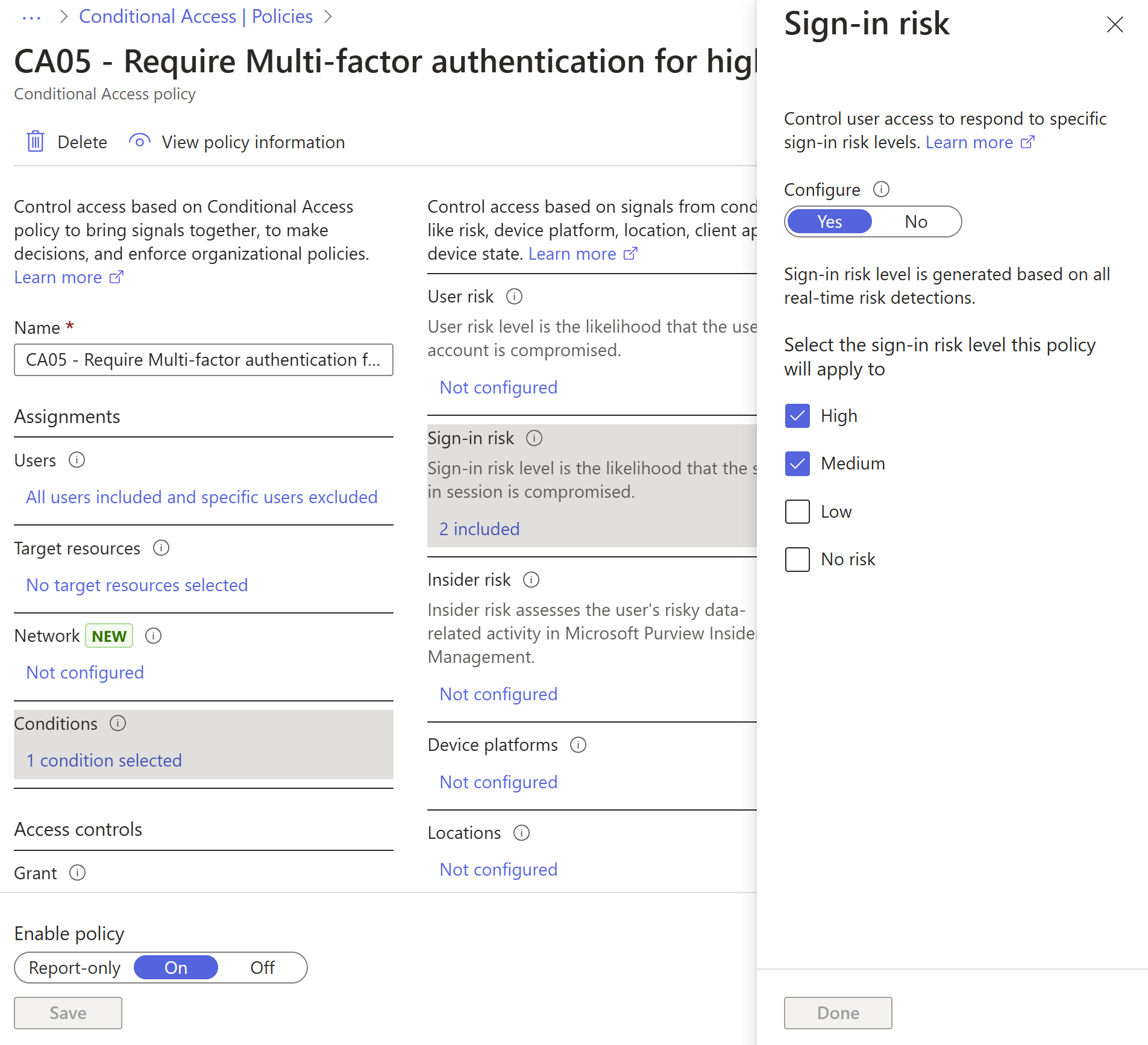
A sign-in risk represents the probability that the identity owner didn't authorize the authentication request. You can implement a sign-in risk-based policy by adding a sign-in risk condition to your Conditional Access policies that evaluates the risk level for a specific user or group. Based on risk levels such as high, medium, or low, a policy can block access or force multifactor authentication. Microsoft recommends that you force multifactor authentication on medium or above risky sign-ins.
Implement user risk security policy
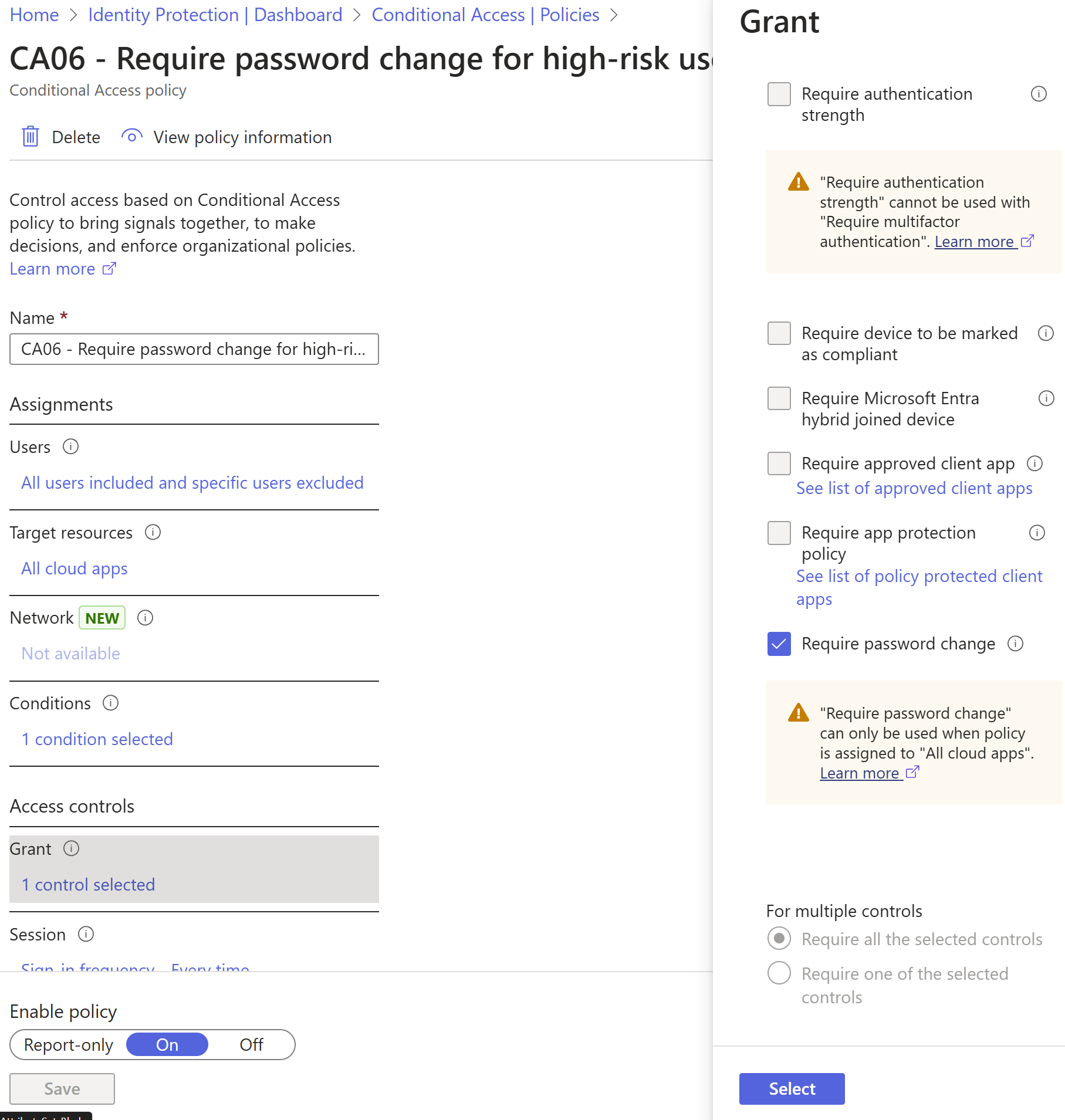
User risk indicates the likelihood of user identity compromise, and Identity Protection calculates it based on the user risk detections that are associated with a user's identity. You can implement a user risk-based policy by adding a user risk condition to your Conditional Access policies that evaluates the risk level for a specific user. Based on a low, medium, or high risk level, a policy can block access or require a secure password change by using multifactor authentication. Microsoft recommends requiring a secure password change for users at high risk.
User risk detection includes a check for whether the user's credentials match credentials leaked by cybercriminals. To function optimally, it’s important to implement password hash synchronization by using Microsoft Entra Connect Sync.
Integrate Microsoft Defender XDR with Microsoft Entra ID Protection
For Identity Protection to perform the best possible risk detection, it needs as many signals as possible. It's important to integrate the complete suite of Microsoft Defender XDR services:
- Microsoft Defender for Endpoint.
- Microsoft Defender for Office 365.
- Microsoft Defender for Identity.
- Microsoft Defender for Cloud Apps.
Learn more about Microsoft Defender XDR and the importance of integrating different domains in the following short video.
Set up monitoring and alerting
It's important to monitor and audit your logs to detect suspicious behavior. The Azure portal has several ways to integrate Microsoft Entra logs with other tools, such as Microsoft Sentinel, Azure Monitor, and other SIEM tools. For more information, see the Microsoft Entra security operations guide.
Step 4: Use cloud intelligence
Auditing and logging security-related events and related alerts are essential components of an efficient protection strategy. Security logs and reports provide you with an electronic record of suspicious activities and help you detect patterns that might indicate attempted or successful external penetration of the network, and internal attacks. You can use auditing to monitor user activity, document regulatory compliance, do forensic analysis, and more. Alerts provide notifications of security events. Make sure you have a log retention policy in place for both your sign-in logs and audit logs for Microsoft Entra ID by exporting them to Azure Monitor or a SIEM tool.
Monitor Microsoft Entra ID
Microsoft Azure services and features provide configurable security auditing and logging options to help you identify gaps in your security policies and mechanisms and address those gaps to help prevent breaches. Use Azure Logging and Auditing and Audit activity reports in the Microsoft Entra admin center. For more information, see the Microsoft Entra Security Operations guide on monitoring user accounts, privileged accounts, apps, and devices.
Monitor Microsoft Entra Connect Health in hybrid environments
Monitoring AD FS with Microsoft Entra Connect Health provides greater insight into potential issues and visibility of attacks on your AD FS infrastructure. You can now view AD FS sign-ins to give greater depth for your monitoring. Microsoft Entra Connect Health delivers alerts that include details, resolution steps, and links to related documentation; usage analytics for several metrics related to authentication traffic; performance monitoring; and reports. Use the Risky IP workbook for AD FS to help identify the norm for your environment and alert when there’s a change. Monitor all hybrid infrastructure as a Tier 0 asset. For detailed monitoring guidance for these assets, see the Security Operations guide for Infrastructure.
Monitor Microsoft Entra ID Protection events
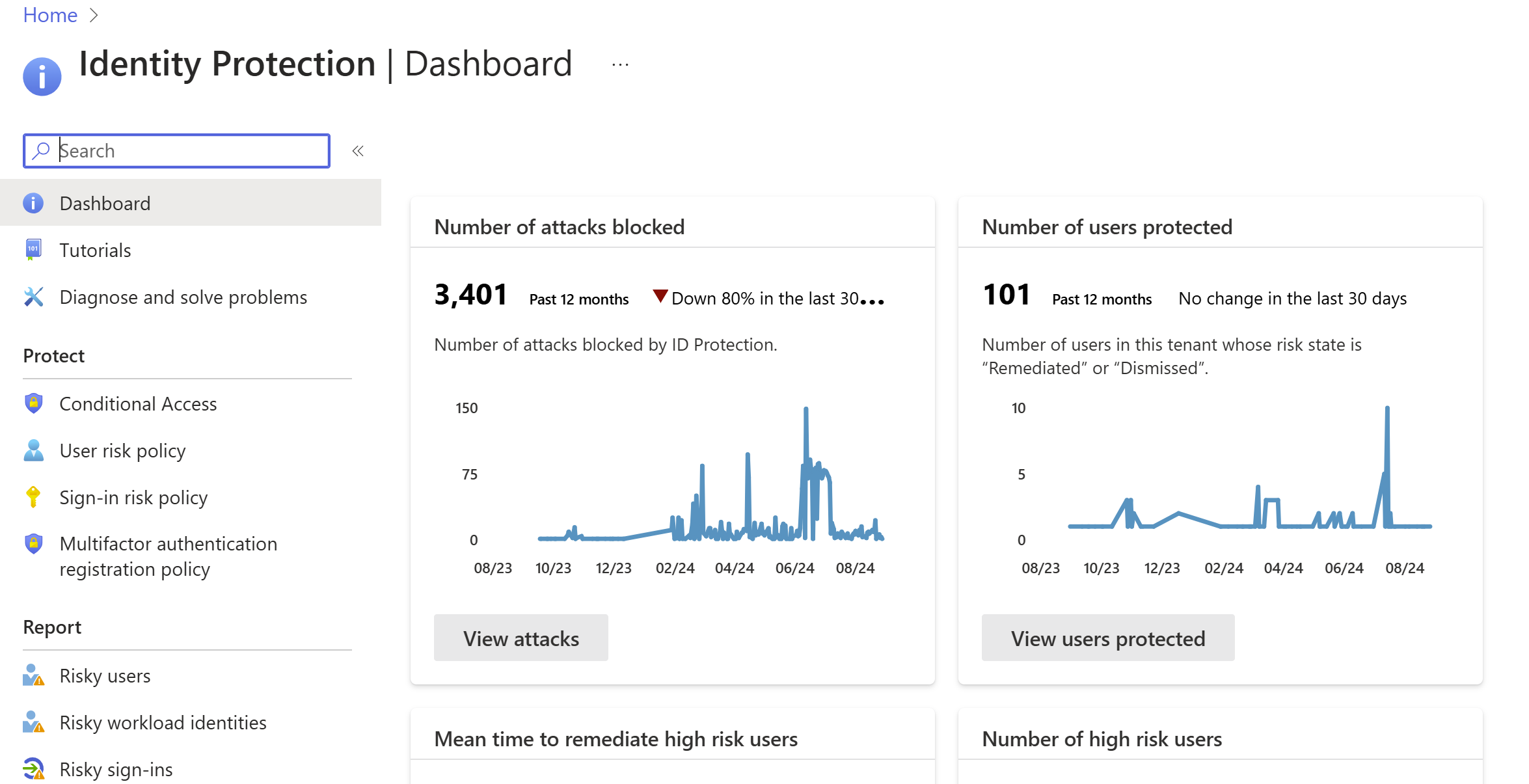
Microsoft Entra ID Protection provides two important reports you should monitor daily:
- Risky sign-in reports surface user sign-in activities that you should investigate to determine whether the legitimate owner performed the sign-in.
- Risky user reports surface user accounts that might be compromised, such as when a leaked credential is detected or when the user signs in from different locations, causing an impossible travel event.
Audit apps and consented permissions
Attackers can trick users into navigating to a compromised website or apps that gain access to their profile information and user data, such as their email. A malicious actor can use the consented permissions that they receive to encrypt mailbox content and demand a ransom to restore your mailbox data. Administrators should review and audit the permissions that users grant. In addition to auditing the permissions that users grant, you can locate risky or unwanted OAuth applications in premium environments.
Step 5: Enable end-user self-service
As much as possible, you want to balance security with productivity. When you approach your journey with the mindset that you're setting a foundation for security, you can remove friction from your organization by empowering your users while remaining vigilant and reducing your operational overheads.
Implement self-service password reset
Microsoft Entra ID's self-service password reset (SSPR) offers a simple means for IT administrators to allow users to reset or unlock their passwords or accounts without helpdesk or administrator intervention. The system includes detailed reporting that tracks when users reset their passwords, along with notifications to alert you to misuse or abuse.
Implement self-service group and application access
Microsoft Entra ID can allow nonadministrators to manage access to resources by using security groups, Microsoft 365 groups, application roles, and access package catalogs. Self-service group management enables group owners to manage their own groups, without being assigned an administrative role. Users can also create and manage Microsoft 365 groups without relying on administrators to handle their requests, and unused groups expire automatically. Microsoft Entra entitlement management further enables delegation and visibility, with comprehensive access request workflows and automatic expiration. You can delegate to nonadministrators the ability to configure their own access packages for groups, Teams, applications, and SharePoint Online sites that they own. Use custom policies for who is required to approve access, such as employees' managers and business partner sponsors.
Implement Microsoft Entra access reviews
With Microsoft Entra access reviews, you can manage access package and group memberships, access to enterprise applications, and privileged role assignments to make sure you maintain a security standard. Regular oversight by the users themselves, resource owners, and other reviewers ensure that users don't retain access for extended periods of time when they no longer need it.
Implement automatic user provisioning
Provisioning and deprovisioning are the processes that ensure consistency of digital identities across multiple systems. These processes are typically applied as part of identity lifecycle management.
Provisioning is the process of creating an identity in a target system based on certain conditions. Deprovisioning is the process of removing the identity from the target system when conditions are no longer met. Synchronization is the process of keeping the provisioned object up to date, so that the source object and target object are consistent.
Microsoft Entra ID currently provides three areas of automated provisioning:
- Provisioning from an external nondirectory authoritative system of record to Microsoft Entra ID through HR-driven provisioning.
- Provisioning from Microsoft Entra ID to applications through App provisioning.
- Provisioning between Microsoft Entra ID and Active Directory Domain Services through inter-directory provisioning.
For more information, see What is provisioning?.
Summary
A secure identity infrastructure has many aspects, but this five-step checklist helps you quickly accomplish a safer, more secure identity infrastructure:
- Strengthen your credentials.
- Reduce your attack surface area.
- Automate threat response.
- Use cloud intelligence.
- Enable end-user self-service.
Thank you for taking security seriously. This document can serve as a useful roadmap to a more secure posture for your organization.
Next steps
For assistance with planning and deploying the recommendations, see the Microsoft Entra ID project deployment plans.
If you're confident all these steps are complete, use Microsoft’s Identity Secure Score, which keeps you up to date with the latest best practices and security threats.