Note
Access to this page requires authorization. You can try signing in or changing directories.
Access to this page requires authorization. You can try changing directories.
Applies to:
- iOS
- Windows
Use groups to manage users and devices with similar management needs. Groups help you manage and apply changes to many devices and users at once, so you spend less time managing them individually.
Default groups
Intune for Education includes default groups for managing:
- All devices
- All users
If you use School Data Sync to import your school records, two more default groups are created:
- All teachers
- All students
These default groups represent the broadest categories of users and devices in your school. You can't change or remove them.
Custom groups
Apply specific or scenario-based configurations to custom-created groups. If your school has both Windows and iOS devices, create groups such as all iPads and all Windows 11 PCs. By doing this, you can more easily recognize groups and distribute settings.
You can also assign apps and settings to specific groups of students. For example, an eighth grade curriculum might require different apps than a sixth grade curriculum. You can create two grade-specific groups and assign apps and settings that are appropriate for each set of students.
Plan your groups
Before you create groups, plan out the settings and apps required for your school district, students, teachers, and devices.
For example:
- For all devices, block apps from using location services.
- For AP computer science, assign students apps to edit code.
- For 12th grade history students, enable web browsing so they can access academic articles.
- For photography students, enable device camera.
Group types
There are two types of groups that you can use to organize users and devices in Intune for Education: assigned groups and dynamic groups.
Assigned groups
Use assigned groups when you want to manually add users or devices to a group. Think of it like putting a filing system together: you file specific papers into a specific folder using your own logic or method of grouping. When you need those papers, you know the exact folder to go to.
Similarly, you can create folders within folders, or subgroups, to further organize a larger group into a manageable size.
For information about how to manually assign or remove members, see Edit groups.
Dynamic groups
Dynamic groups use rules that you define to assign students or devices to groups. You specify the rules during initial group creation, and you can edit them after creating the group.
For example, you can create a group specific to students graduating from Contoso High at the end of the 2026 school year. Rather than go through and assign each student manually, Intune for Education filters the students into the group based on school and graduation date.
If a student within the group transfers out of Contoso High and into another school in your district, you can't manually remove them from a dynamic group. Instead, you must update the student's school name. This action informs Intune that they no longer meet the group rules for membership.
Since dynamic groups can only contain what their rules define, you can't create subgroups under them.
For information about how to edit group rules, see Edit groups.
Tip
Use the dynamic rules to filter through groups of similarly named or recently onboarded groups of devices, such as DeviceType_School_Grade_0001. Dynamic groups are ideal for managing large groups of devices or users in large school districts. They reduce the time and costs required to manually go through a school's inventory or headcount.
Create a group
Create groups one at a time. During setup, create a group for either users or devices.
Sign in to Intune for Education and go to Groups > Create group.
Enter a descriptive group name.
Select a group type. For more information, see Group types.
Assigned: Add and remove members manually. Continue to step 4.
Dynamic: Add and remove members automatically based on rules you define. When you select Dynamic, a Rules section appears.
- Under Rules, select what you want to manage:
I want to manage Devices: Under Where, select a condition such as Device name starts with and enter the matching text. A preview of matching devices appears as you type.
I want to manage Students: Under Where, select the school and optionally group students by grade or graduation year. A preview of matching students appears once you enter your criteria.
Note
To create student groups, you must first configure School Data Sync to import your school's roster data. For more information, see What is School Data Sync?.
- Under Rules, select what you want to manage:
Select Create group.
Create a subgroup
Groups are set up in Intune for Education as hierarchies. The parent group sits at the top of the hierarchy, and the subgroup inherits the settings you apply to the parent group. Settings inheritance makes it easier to apply settings to a large group of users and devices.
You can only create subgroups under assigned groups.
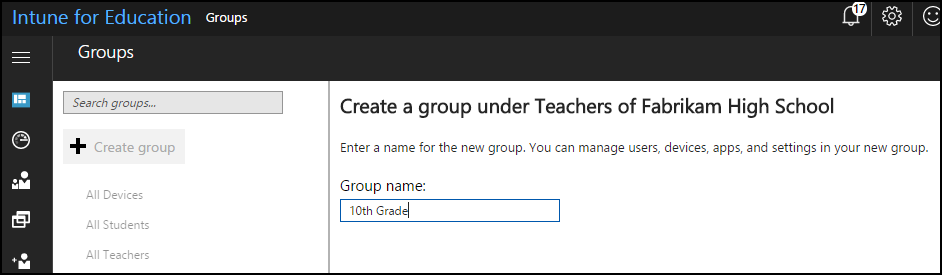
Go to Groups.
Find the group you want to manage. This group is the parent to your subgroup. Don't select the group. Instead, select its menu (...), and then select Create sub group.
Enter the Group name.
Select your group type. For more details about group types, see the steps for Create a group.
Select Create group.
Next steps
Delegate permission to allow admin groups to manage parent level groups and subgroups.