Note
Access to this page requires authorization. You can try signing in or changing directories.
Access to this page requires authorization. You can try changing directories.
APPLIES TO:  Meetings Events
 Some features described in this article require Teams Premium.
In meetings and events hosted by your organization, anonymous users are users whose identities aren't verified. These users can include:
Users who aren't signed in to Teams with a work or school account.
Users from non-trusted organizations (as configured in external access) and from organizations that you trust but which don't trust your organization. When defining trusted organizations for external meetings and chat, ensure both organizations allow each other's domains. Meeting organizers and participants should have user policies that allow external access. These settings prevent attendees from being considered anonymous due to external access settings.
For details, see IT Admins - Manage external meetings and chat with people and organizations using Microsoft identities
As an admin, you have the following options to manage anonymous meeting join for your organization:
- The organization-wide Anonymous users can join a meeting setting.
- The per-organizer Anonymous users can join a meeting unverified policy setting.
- Teams Premium: The per-organizer Anonymous users can join a meeting after verifying meeting policy setting that allows anonymous users to join meetings after verifying through a one-time passcode. Only organizers with a Teams Premium license can use this feature.
You also have the following option to manage anonymous event join for your organization:
- The per-organizer Who can attend webinars and Who can attend town halls policy setting.
Your organizers have the following setting in their Meeting options to manage anonymous meeting join for their meetings:
- Require unverified participants to verify their info before joining
For events, organizers can configure the Who can attend? section to manage anonymous event join or registration for their events.
When anonymous users join a meeting unverified, Unverified appears next to their name. If anonymous users join a meeting verified through a one-time passcode, Email Verified appears next to their name. When a user signs in to their Microsoft account, External appears next to their name.
Important
The Anonymous users can join a meeting organization-wide setting is going away. We recommend leaving this setting On and using the Anonymous users can join a meeting unverified per-organizer meeting policy to manage anonymous meeting join instead.
When anonymous meeting join is turned on, lobby policies affect how anonymous participants join meetings. For details, see Control who can bypass the meeting lobby in Microsoft Teams.
Anonymous users can join a meeting
You can control whether anonymous users can join meetings for your entire organization or for specific organizers and groups.
Organization-wide
To allow everyone in your organization to create meetings that allow anonymous users, you must turn on this organization-wide setting. When this setting is turned off, anonymous users can't attend meetings hosted by anyone in your organization.
To manage anonymous meeting join for your entire organization, follow these steps:
- In the left navigation of the Teams admin center, go to Meetings > Meeting settings.
- Under Participants, turn the Anonymous users can join a meeting toggle On or Off.
- Select Save.
Per-organizer
To control which users or groups can host meetings that allow anonymous participants, assign a per-organizer meeting policy to each organizer or group. If the organization-wide Anonymous users can join a meeting unverified setting is on, you can turn off this policy to prevent specific organizers from creating meetings that allow anonymous users to join.
To manage anonymous meeting join for specific meeting organizers, follow these steps:
- In the left navigation of the Teams admin center, go to Meetings > Meeting policies.
- Select an existing policy or create a new one.
- Under Meeting join & lobby, turn the Anonymous users can join a meeting unverified toggle Off.
- Select Save.
Changes to meeting policies might take up to 24 hours to take effect.
Organizer control
When you turn on the organization-wide Anonymous users can join a meeting or per-organizer Anonymous users can join a meeting unverified setting, your organizers see the Require unverified participants to verify their info before joining setting in their Meeting options. This setting is off by default, allowing unverified participants to join meetings. However, organizers can choose to turn on this setting for specific meetings to restrict access.
If you turn off the organization-wide Anonymous users can join a meeting or per-organizer Anonymous users can join a meeting unverified policy setting, organizers can't configure this meeting option.
Anonymous users can join a meeting after verifying with an email code (Teams Premium)
Note
This feature requires organizers to have a Teams Premium license.
This feature isn't supported for events.
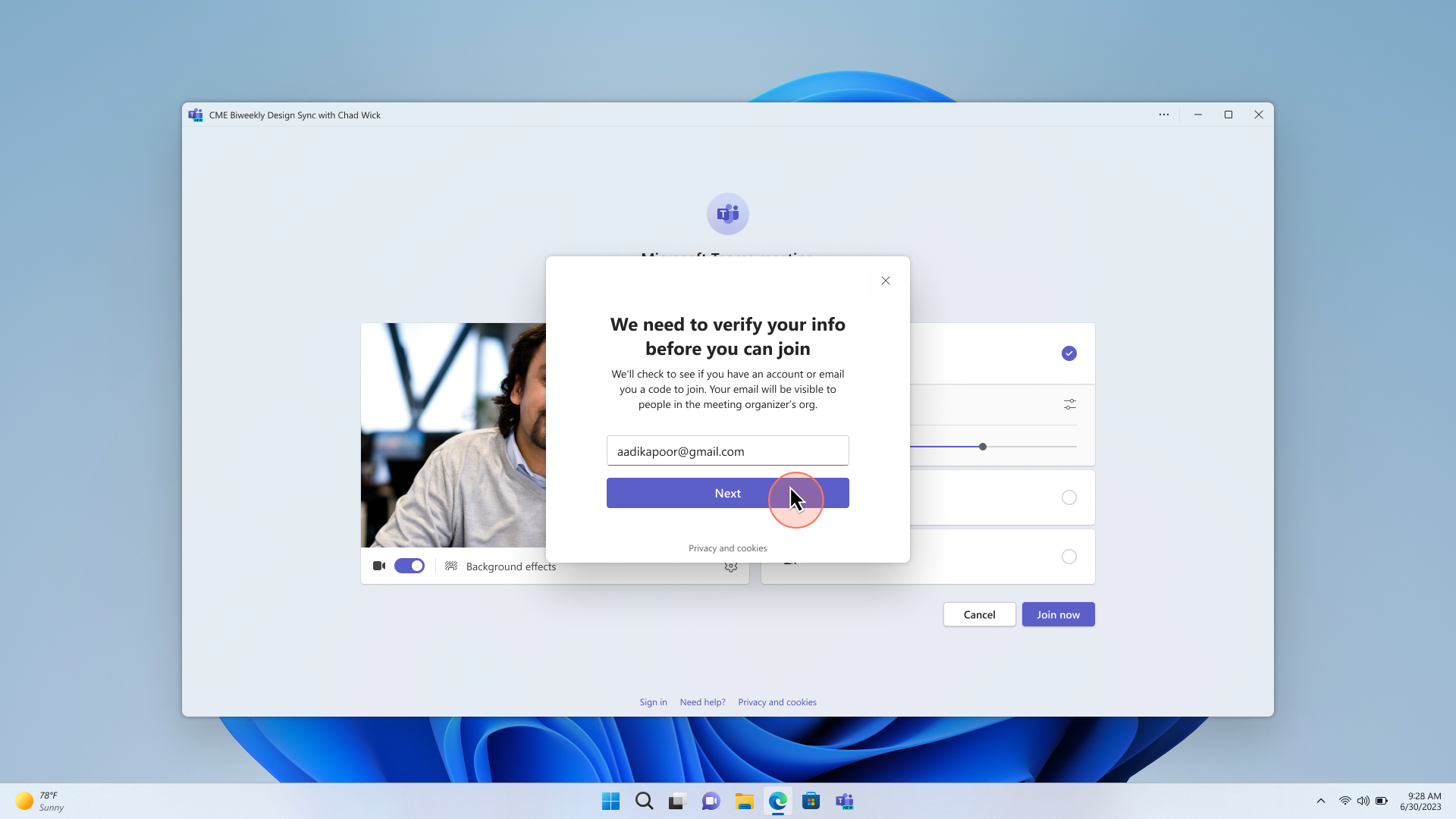
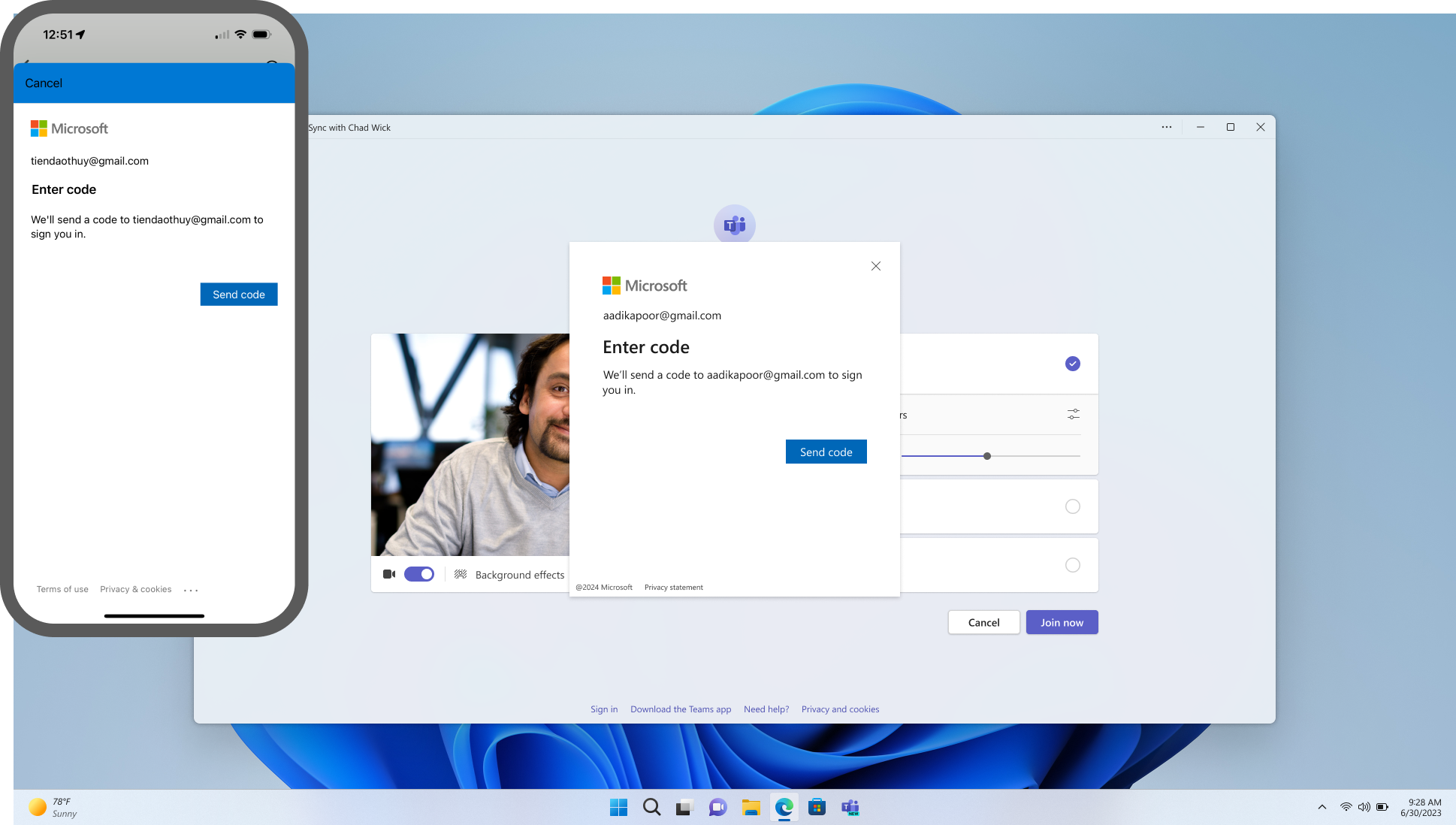
You can require anonymous users to verify their identities to join meetings in your organization.
When you turn on this per-organizer policy setting, meeting organizers with a Teams Premium license see the Require unverified participants to verify their info before joining setting in their Meeting options. When organizers turn this setting On, unverified anonymous users are required to enter a one-time passcode sent to their email in order to join the meeting.
If you turn off the organization-wide Anonymous users can join a meeting setting and Anonymous users can join a meeting after verifying is set to No, anonymous users can't join meetings in your organization.
Prerequisites
- To use this policy, you must first set Anonymous users can join a meeting after verifying to By email code.
Manage anonymous user verification for your users
This is a per-organizer policy setting. To manage whether unverified anonymous attendees can verify themselves with a one-time passcode to join meetings, follow these steps:
- In the left navigation of the Teams admin center, go to Meetings > Meeting policies.
- Under Meeting join & lobby, in the Anonymous users can join a meeting after verifying dropdown list, select By email code or No.
- Select Save.
Anonymous users can join events
You can control whether anonymous users can join events for your entire organization or for specific organizers and groups.
Organization-wide
To allow everyone in your organization to create events that allow anonymous users, the events policy setting for Who can attend webinars and Who can attend town halls must be set to Everyone. When this setting is changed to anything other than Everyone, anonymous users can't register or attend events hosted by anyone in your organization.
Note that the Who can attend town halls setting affects all events in which Optimize for large audience is turned on. Otherwise, the Who can attend webinars setting takes effect.
To manage anonymous event join for your entire organization, follow these steps:
- In the left navigation of the Teams admin center, go to Meetings > Events policies.
- In the Who can attend webinars dropdown list, change the value to Everyone.
- In the Who can attend town halls dropdown list, change the value to Everyone.
- Select Save.
Per-organizer
To control which users or groups can host events that allow anonymous participants, assign a per-organizer events policy to each organizer or group. If the organization-wide Who can attend webinars or Who can attend town halls setting is on, you can turn off this policy to prevent specific organizers from creating events that allow anonymous users to join or register.
To manage anonymous event join or registration for specific event organizers, follow these steps:
- In the left navigation of the Teams admin center, go to Meetings > Events policies.
- Select an existing policy or create a new one.
- In the Who can attend webinars dropdown list, change the value to Everyone in my organization excluding guests.
- In the Who can attend town halls dropdown list, change the value to Everyone in my organization including guests.
- Select Save.
Changes to events policies might take up to 24 hours to take effect.
Manage anonymous meeting join using PowerShell
Manage whether anonymous participants can join meetings
The -DisableAnonymousJoin parameter controls whether anonymous users can join meetings for your organization, while the -AllowAnonymousUsersToJoinMeeting parameter controls this setting at the user or group level. You can use these parameters together to manage how anonymous users join meetings in your organization. For example, when you set -DisableAnonymousJoin to false for the organization, anonymous users can join meetings in your organization. If you also set -AllowAnonymousUsersToJoinMeeting to false for a specific user, that user can't create meetings that anonymous users can attend, even though the organization-wide setting allows it.
For your organization
We recommend leaving -DisableAnonymousJoin set to False and using the -AllowAnonymousUsersToJoinMeeting parameter within the PowerShell CsTeamsMeetingPolicy cmdlet to manage anonymous meeting join at the user or group level.
To allow anonymous participants to join meetings in your organization, use this script:
Set-CsTeamsMeetingConfiguration -Identity <policy name> -DisableAnonymousJoin $false
To prevent anonymous participants from joining meetings in your organization, use this script:
Set-CsTeamsMeetingConfiguration -Identity <policy name> -DisableAnonymousJoin $true
For specific organizers
To allow anonymous participants to join meetings organized by users or groups with this policy, use this script:
Set-CsTeamsMeetingPolicy -Identity <policy name> -AllowAnonymousUsersToJoinMeeting $true
To prevent anonymous participants from joining meetings organized by users or groups with this policy, use this script:
Set-CsTeamsMeetingPolicy -Identity <policy name> -AllowAnonymousUsersToJoinMeeting $false
Allow anonymous users to join a meeting after verifying an email code
To allow unverified anonymous attendees to verify themselves with a one-time passcode to join meetings (default value), use the following script:
Set-CsTeamsMeetingPolicy -Identity <policy name> -AnonymousUserAuthenticationMethod OneTimePasscode
To prevent unverified anonymous attendees from verifying their identity to join meetings, use the following script:
Set-CsTeamsMeetingPolicy -Identity <policy name> -AnonymousUserAuthenticationMethod None
Block anonymous meeting join for specific client types
When anonymous participants are allowed to join meetings, they can use either the Teams client or a custom client built using Azure Communication Services.
Admins can block either of these client types by using the -BlockedAnonymousJoinClientTypes parameter. To learn more, see Set-CsTeamsMeetingPolicy.
Manage anonymous event join using PowerShell
Manage whether anonymous participants can register for or join events
The –EventAccessType parameter controls who can join or register for events up to 1,000 attendees in your organization. The –TownhallEventAttendeeAccess parameter controls who can join or register for events optimized for large audiences. You can use these parameters together to manage how anonymous users join events in your organization.
To allow anonymous participants to join or register for events up to 1,000 attendees in your organization, use this script:
Set-CsTeamsEventsPolicy -Identity <policy name> -EventAccessType Everyone
To allow anonymous participants to join or register for events optimized for large audiences, use this script:
Set-CsTeamsEventsPolicy -Identity <policy name> -TownhallEventAttendeeAccess Everyone
To prevent anonymous participants from joining or registering for events up to 1,000 attendees in your organization, use this script:
Set-CsTeamsEventsPolicy -Identity <policy name> -EventAccessType EveryoneInCompanyExcludingGuests
To prevent anonymous participants from joining or registering for events optimized for large audiences in your organization, use this script:
Set-CsTeamsEventsPolicy -Identity <policy name> -TownhallEventAttendeeAccess EveryoneInOrganizationAndGuests
Anonymous participants' meeting experience
Anonymous participants don't have all the same capabilities as other meeting participants. For example, anonymous participants:
- Don't have access to meeting chat before and after the meeting
- Don't have access to profile cards
- Don't have access to collaborative meeting notes.
How anonymous participants interact with apps in meetings
By default, the setting to allow anonymous participants to interact with apps in meetings is enabled. Anonymous participants inherit the Global (Org-wide default) Teams apps permission policy. Anonymous participants can interact with apps in Teams meetings as long as the app is turned on in that policy and Anonymous users can interact with apps in meetings is On.
Anonymous participants can only interact with apps that are already available in a meeting and can't add or manage these apps.
To manage app access for anonymous meeting participants, follow these steps:
- In the left navigation of the Teams admin center, go to Meetings > Meeting settings.
- Under Participants, turn the Anonymous users can interact with apps in meetings toggle On or Off.
- Select Save.
PowerShell
To allow anonymous participants to interact with apps in meetings, use this script:
Set-CsTeamsMeetingConfiguration -Identity <policy name> -DisableAppInteractionForAnonymousUsers $false
To prevent anonymous participants from interacting with apps in meetings, use this script:
Set-CsTeamsMeetingConfiguration -Identity <policy name> -DisableAppInteractionForAnonymousUsers $true
Related articles
- Plan for meetings with external participants in Microsoft Teams
- Join a meeting without a Teams account
- Control who can bypass the meeting lobby in Microsoft Teams
- Using the Microsoft Teams admin center to configure organization-wide policy
- External participants receive "Sign in to Teams to join, or contact the meeting organizer"
- Assign policies in Teams – getting started