Note
Access to this page requires authorization. You can try signing in or changing directories.
Access to this page requires authorization. You can try changing directories.
A Fabric data agent answers questions about data stored in Microsoft Fabric OneLake. An agent built in Microsoft Foundry can call a Fabric data agent when it needs answers based on enterprise data in OneLake.
This article shows you how to add a Fabric data agent to a Foundry agent by using the Fabric IQ (OneLake Catalog) tool. Every step happens in the Microsoft Foundry portal. You can also do the same thing in code, as described in Add a data agent by using code later in this article.
Important
When a Foundry agent calls a Fabric data agent, the responses that the data agent returns can be sent outside the Fabric compliance boundary or geographic region. Those responses are then processed and stored according to the terms and data handling policies of Microsoft Foundry.
What this integration gives you
Fabric IQ is the part of Microsoft Fabric that makes your data available to agents and applications. A published Fabric data agent is one of the items that Fabric IQ exposes, and you add it to a Foundry agent through the OneLake Catalog.
This method differs from the earlier one in three ways:
- You pick data agents from a list. In the Foundry portal, the OneLake Catalog shows the published data agents that you have access to, by name. You don't need to look up a workspace ID or an artifact ID first.
- You can add more than one data agent. A single Foundry agent can call several data agents, so it can draw on more than one area of your business data. The earlier method allowed only one.
- Each data agent is exposed as a Model Context Protocol endpoint. Model Context Protocol is an open standard for how an agent calls a tool. Your Fabric data agents appear to the Foundry agent as tools it can call, in the same way it calls any other tool.
For the earlier method, which connects a single data agent by workspace ID and artifact ID, see Consume a data agent in Microsoft Foundry.
Prerequisites
- A paid F2 or higher Fabric capacity, or a Power BI Premium per capacity (P1 or higher) capacity with Microsoft Fabric enabled.
- A workspace in a region that supports the full Fabric stack. Fabric IQ isn't available in regions where Power BI is the only Fabric workload. For more information, see Fabric region availability.
- Cross-geo processing and cross-geo storing for AI turned on, based on the requirements explained in Fabric data agent tenant settings.
- At least one of these data sources, with data: a warehouse, a lakehouse, a Power BI semantic model, a KQL database, or a mirrored database. You must have read access to the data source.
- A Foundry project with a model already deployed. To create one, see Create a project.
Before you begin
Check the following items before you add a Fabric data agent to a Foundry agent:
- The data agent works. Confirm that the data agent answers questions as expected in Fabric.
- The data agent is published. Only published Fabric data agents appear in the OneLake Catalog. To create and publish one, see Create a Fabric data agent.
- Both agents are in the same tenant. The Fabric data agent and the Foundry agent must be in the same tenant.
- You use the same account. Sign in to Microsoft Fabric and Microsoft Foundry with the same account.
- You have the right permissions. You need at least read access to the Fabric data agent, read access to its underlying data sources, and permission to create and modify agents in your Foundry project. For more information about data agent permissions, see Fabric data agent sharing and permission management.
Roles in Microsoft Foundry
Microsoft Foundry uses role-based access control. The following table shows the role you need for each task. For more information, see Role-based access control for Microsoft Foundry.
| What you want to do | Role you need |
|---|---|
| Create a Foundry project | Foundry Account Owner or Foundry Owner, or the Azure Owner or Contributor role |
| Build and test an agent in a project | Foundry User |
| Create the connection to Fabric IQ | Foundry Project Manager |
Note
If your project already exists, Foundry User is enough to build and test an agent in it. Assign Foundry User to your own account, to the agent's runtime identity, and to any user identity that takes part in a sign-in flow.
How it works
- A user asks your Foundry agent a question.
- The Foundry agent decides whether one of its Fabric data agents can answer that question. The instructions you write guide this decision.
- The Foundry agent calls the Fabric data agent.
- The data agent queries its data sources in Fabric OneLake and returns an answer.
- The Foundry agent uses that answer to reply to the user.
Requests run under the identity configured for the connection. For a Fabric data agent, that connection uses delegated user authentication, so the request runs as the signed-in user and Fabric applies that user's permissions. A user only receives results from data that the user has access to.
Note
The model you select for your Foundry agent is used to orchestrate the Foundry agent and write its replies. It doesn't change the model that the Fabric data agent uses internally.
Step 1: Create a Foundry agent
If you already have an agent, open it and go to Step 2.
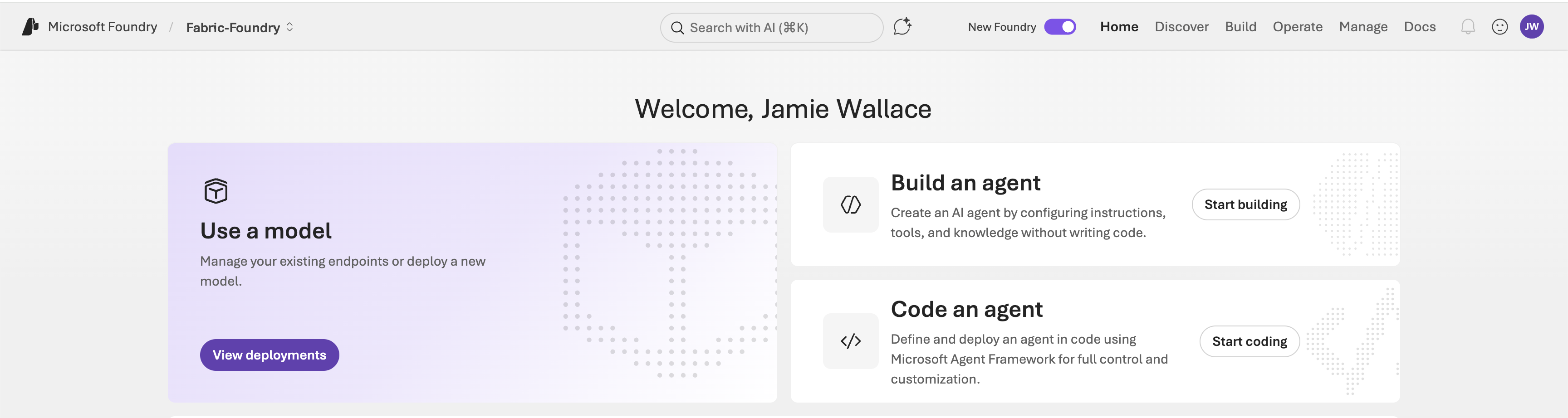
Sign in to the Microsoft Foundry portal and select your project. You land on the Home page.
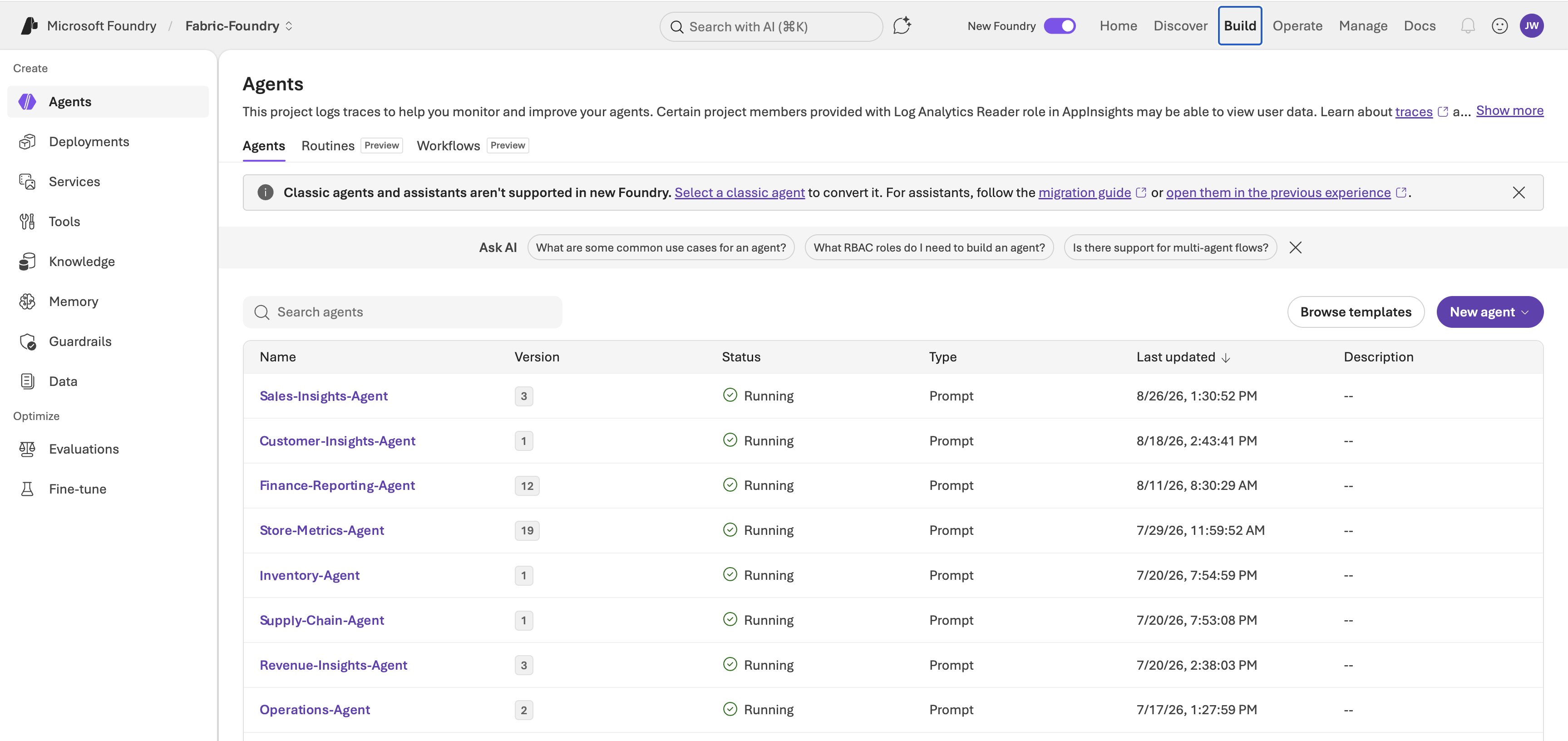
In the top navigation, select Build, which lists all the agents in your project.
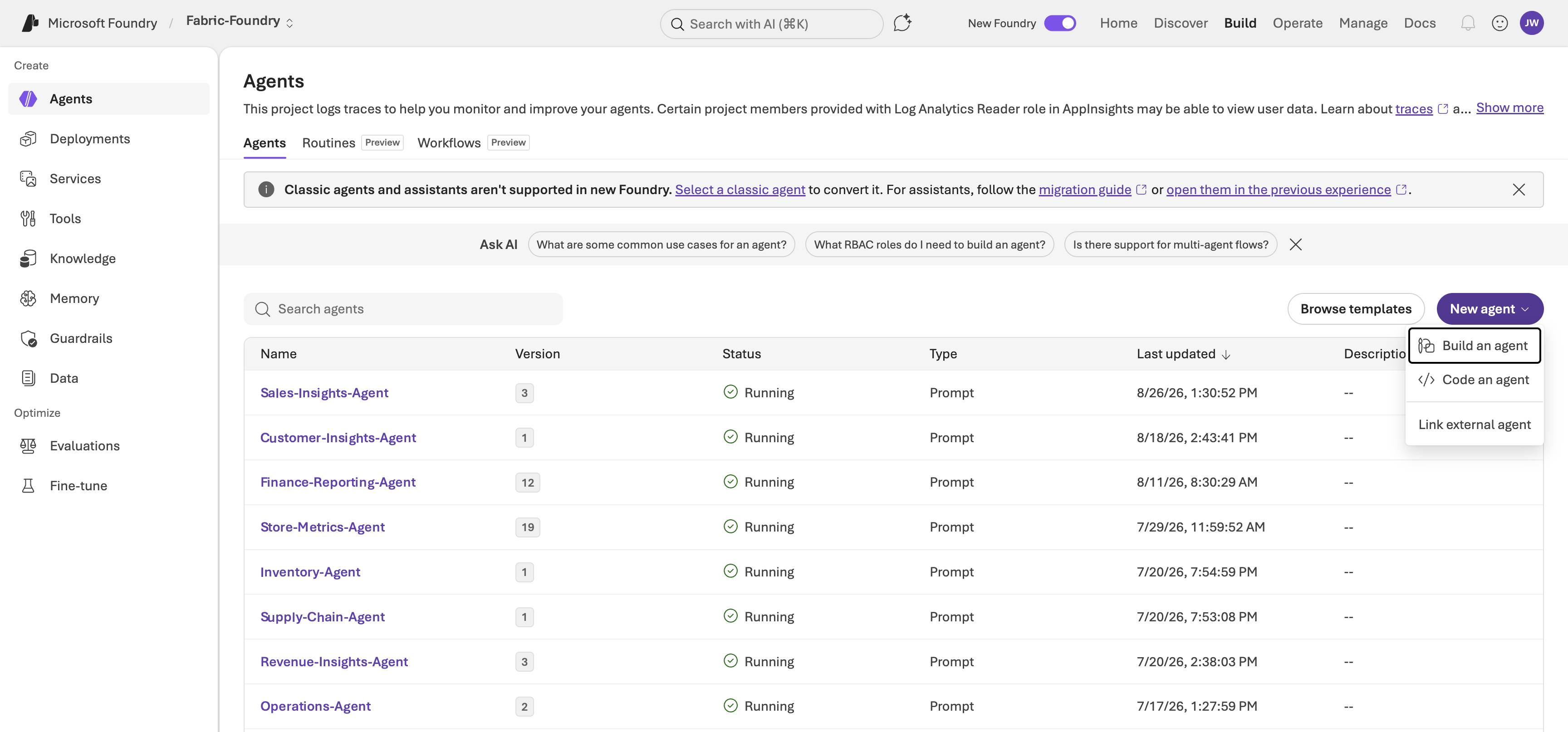
Select the arrow next to New agent, and then select Build an agent.
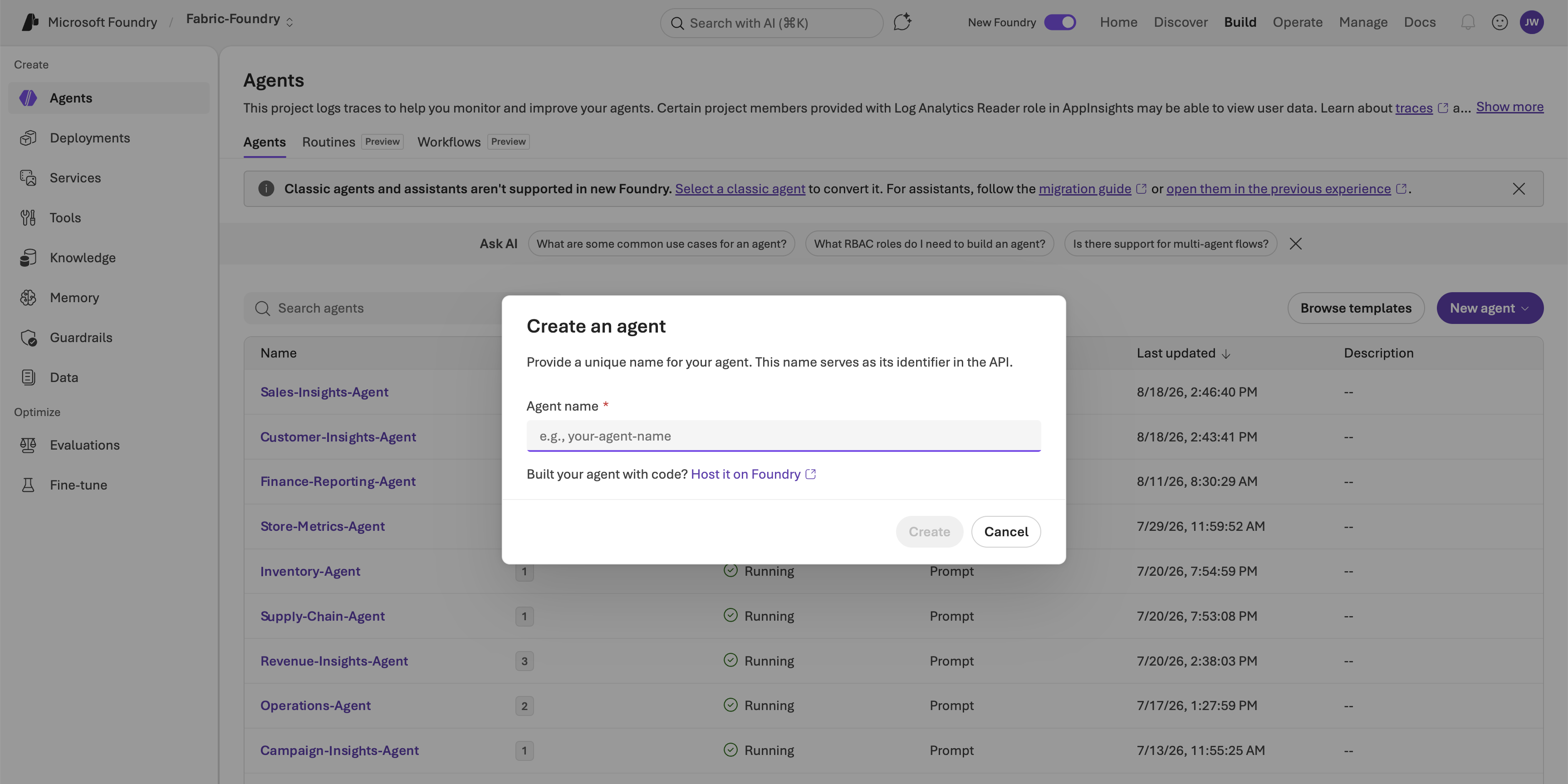
In the Create an agent dialog, enter an Agent name that describes what the agent does, and then select Create.
Tip
You can also start from the Build an agent card on the Home page. Select Start building to go to the same place.
Your new agent opens on the Playground tab. The pane on the left is where you configure the agent, with sections for Model, Instructions, Tools, Knowledge, and more. The pane on the right is the chat where you test it. The rest of the steps in this article take place on this tab.
Step 2: Add the Fabric IQ (OneLake Catalog) tool
- In the Tools section, select Add, and then select Browse all tools.
- In the Select a tool dialog, on the Configured tab, select Fabric IQ (OneLake Catalog).
- Select Add tool.
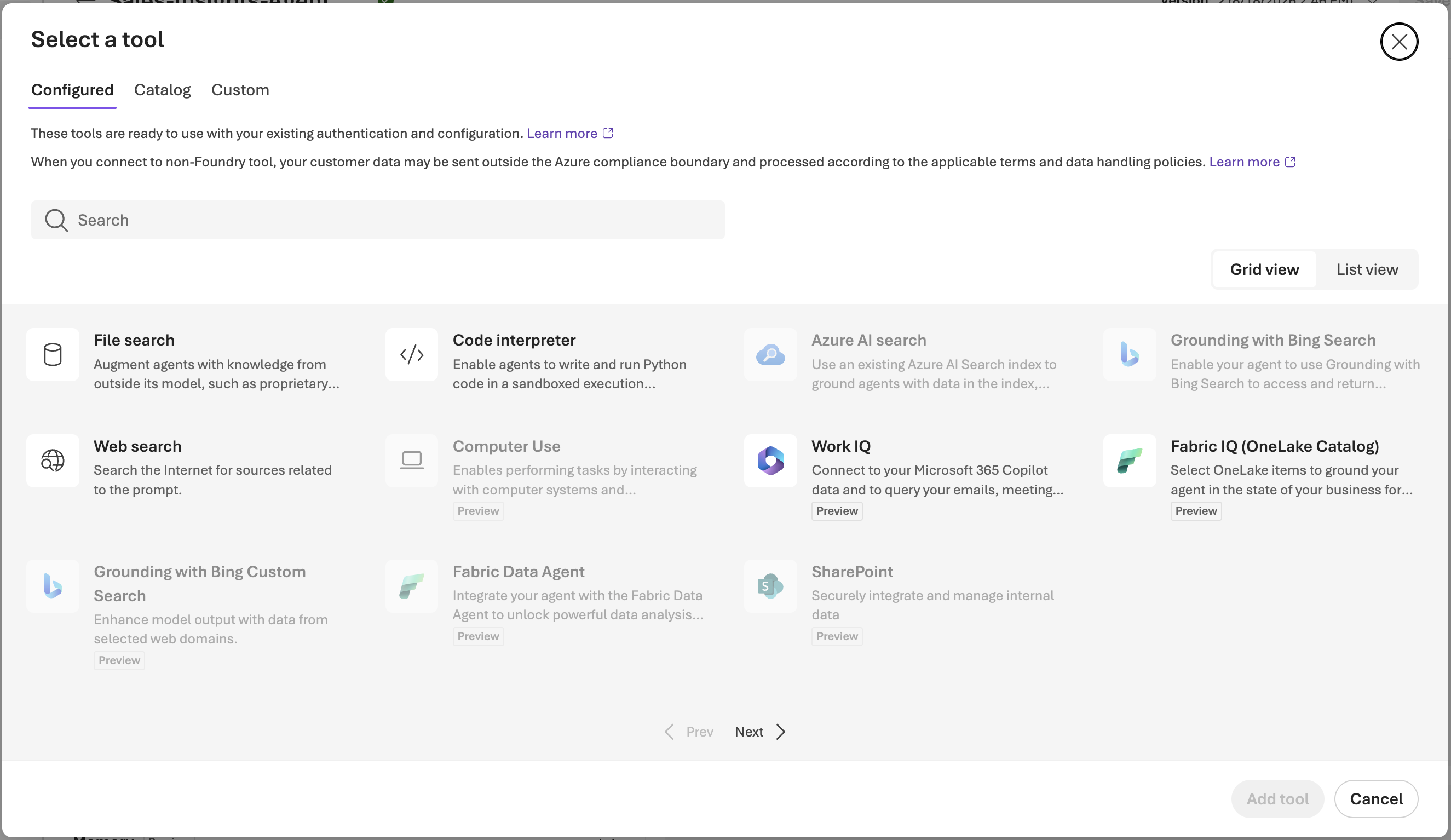
The OneLake Catalog opens.
Step 3: Filter the catalog for data agents
The OneLake Catalog lists several kinds of Fabric items, so narrow it down first.
- Select Filter.
- Under Type, select Data agent.
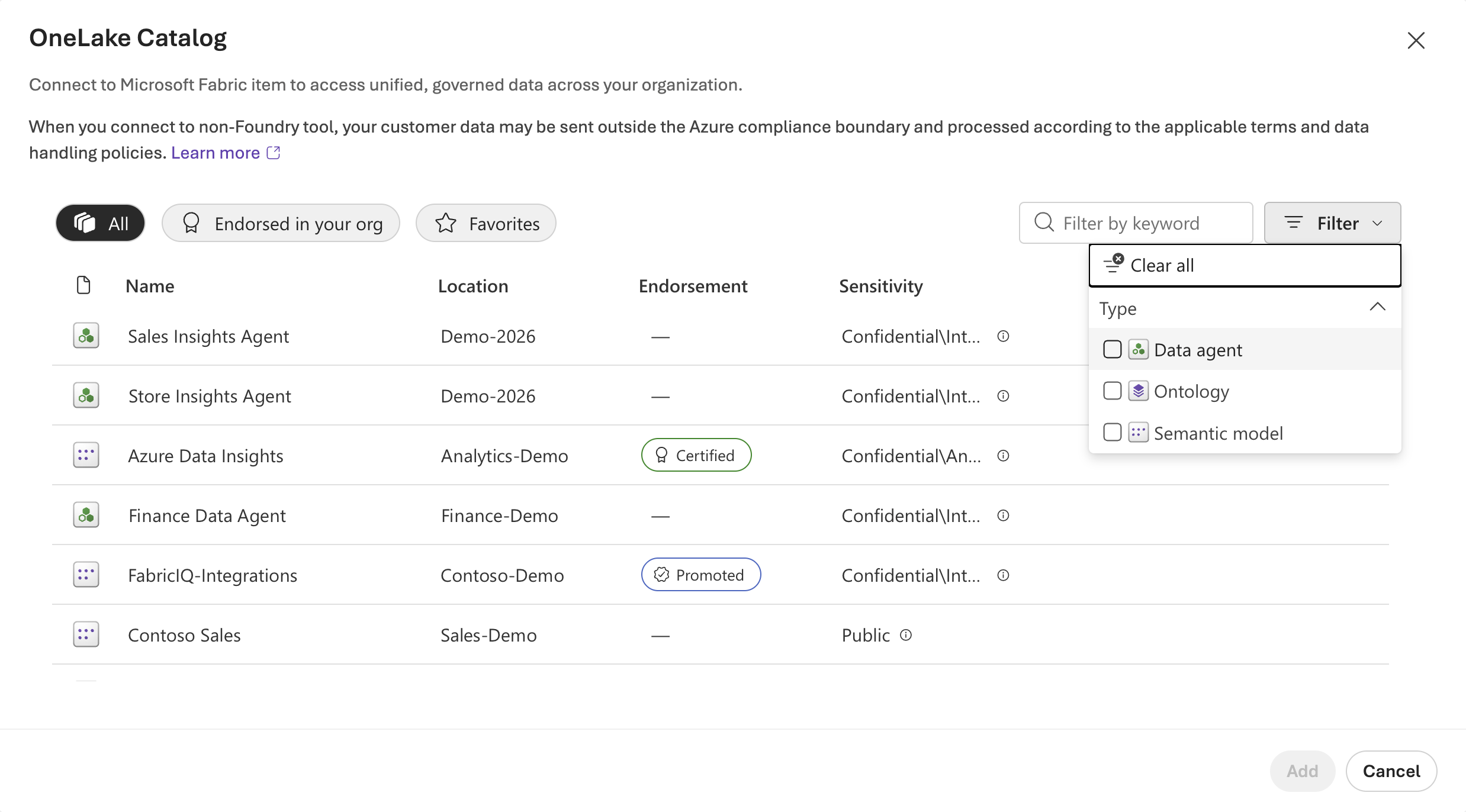
The list now shows only published Fabric data agents. For each one, you see its Name, its Location (the workspace that holds it), its Endorsement, and its Sensitivity label. To narrow the list further, enter part of a name in Filter by keyword.
Two rules decide what you see in this list:
- The data agent must be published. Data agents that are still in draft don't appear.
- You must have access to the data agent. If a colleague built one and didn't share it with you, it isn't in your list.
Step 4: Add a data agent
- In the filtered list, select the Fabric data agent that you want your Foundry agent to use.
- Select Add.
The data agent now appears in the Tools section of your Foundry agent, listed as Fabric IQ with the name of the data agent in parentheses.
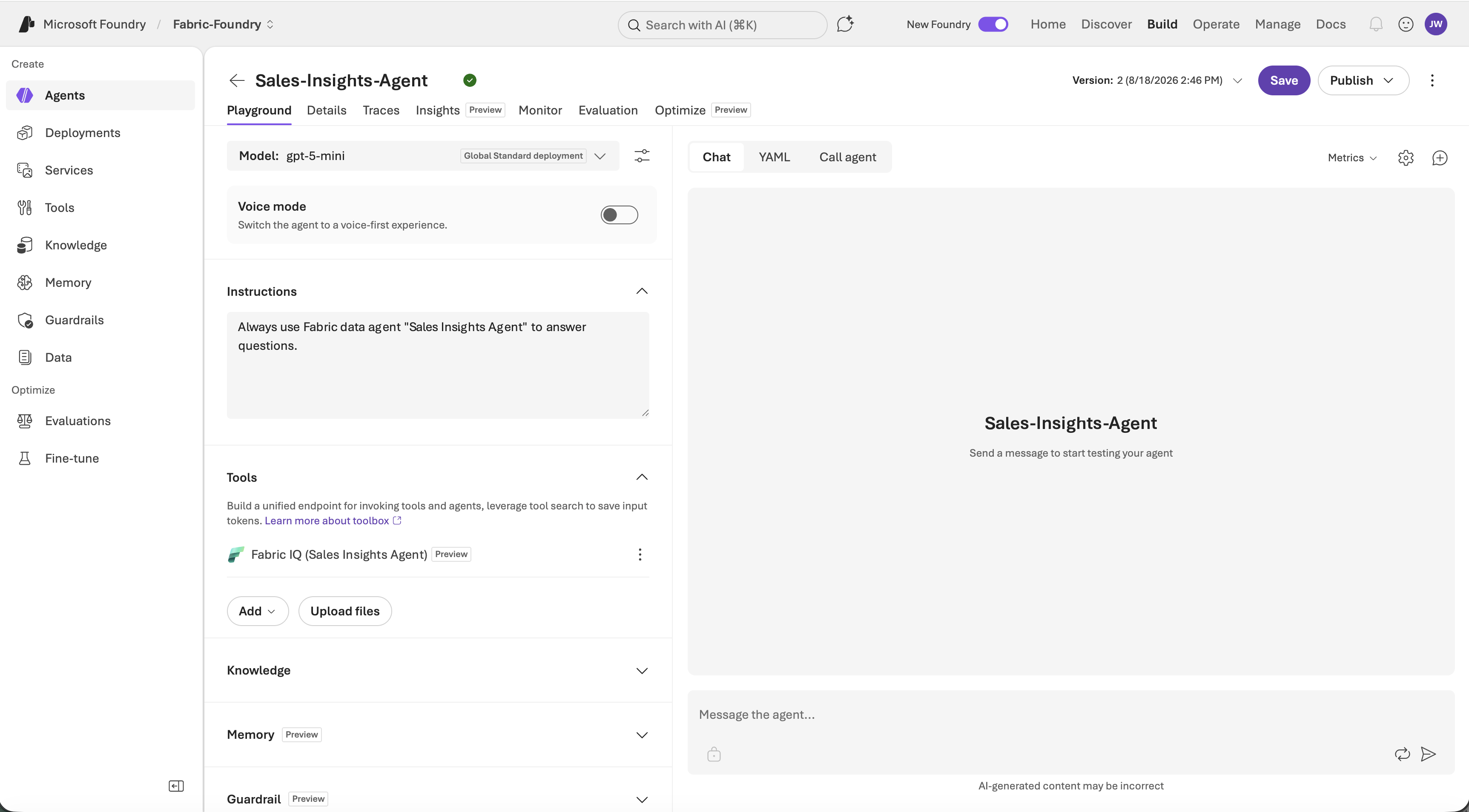
Step 5: Add more data agents
You add data agents one at a time. To add another one, repeat Step 2 through Step 4. Open the OneLake Catalog again from the Tools section and select the next data agent. Each one appears as a separate entry in the list of tools.
Add a data agent for each area of your business that the Foundry agent needs to cover. For example, one agent can hold sales data, another can hold supply chain data, and a third can hold customer support data. Your Foundry agent then chooses the right one for each question.
Step 6: Write instructions for your agent
Your Foundry agent needs to know when to use each data agent. Write that guidance in the Instructions section.
Be specific. Name each data agent and say what kinds of questions it should handle. For example:
Use the Contoso Sales data agent for questions about revenue, orders, and products. Use the Contoso Support data agent for questions about support tickets and customer complaints. If a question needs both, call both and combine the results.
Without clear instructions, the agent might not call a data agent at all, or it might call the wrong one.
Step 7: Add other tools and knowledge sources
This step is optional. Alongside your Fabric data agents, you can add other tools in the Tools section and knowledge sources in the Knowledge section of the same agent. Add whatever else the agent needs to do its job.
Step 8: Save your agent
Select Save in the upper right corner.
Important
You must save your agent. Until you save, Foundry doesn't keep the data agents you added, the instructions you wrote, or any other change you made in the previous steps.
Step 9: Test your agent
Use the chat pane on the right side of the Playground tab to test the agent.
- Send a question that one of your data agents should answer, such as What was our top selling product last month?
- Check the reply. Confirm that it uses the data you expect, and that it came from the data agent you intended.
Test each data agent you added with at least one question, and test a question that needs more than one of them. If the agent doesn't call a data agent, revise the instructions you wrote in Step 6, save, and test again.
To see what the data agent did on each request, including which data sources it queried and how long each step took, see Observability for Fabric data agents in Microsoft Foundry.
Long-running questions
Some questions take a data agent longer to answer than a standard tool call allows. To let those calls finish:
- In the Model list, select a model that supports background mode, such as
gpt-5.4orgpt-5.5. - Select the parameters icon next to the model, and turn on Background mode.
The agent then shows its progress while the data agent works, and returns the answer when the run finishes.
Add a data agent by using code
The steps in this article use the Foundry portal. You can do the same thing in code with the Python, C#, or JavaScript SDK, or with the REST API. The Java SDK doesn't support Fabric IQ.
Two things work differently in code:
You supply the endpoint yourself. There's no catalog to browse, so you pass the data agent's Model Context Protocol endpoint as
server_url, in this form:https://{host}/v1/mcp/workspaces/{workspaceId}/dataagents/{dataAgentId}/agentHere,
{host}is the Fabric API host, usuallyapi.fabric.microsoft.com. Find{workspaceId}and{dataAgentId}in the Microsoft Fabric portal: open the workspace, select the data agent, and copy the two IDs from the browser address bar.You reference a project connection. You pass the resource ID of the Fabric IQ project connection as
project_connection_id. Create that connection in the Foundry portal first.
For code samples in each language, see Connect agents to Microsoft Fabric with Fabric IQ.