Note
Access to this page requires authorization. You can try signing in or changing directories.
Access to this page requires authorization. You can try changing directories.
Important
Items marked (preview) in this article are currently in public preview. This preview is provided without a service-level agreement, and we don't recommend it for production workloads. Certain features might not be supported or might have constrained capabilities. For more information, see Supplemental Terms of Use for Microsoft Azure Previews.
Warning
When you connect to Fabric IQ, you may incur costs and data may be sent outside the Azure compliance boundary and processed according to the applicable service terms and data handling policies. It is your responsibility to manage whether your data will flow outside of your organization's compliance and geographic boundaries and any related implications, and that appropriate permissions, boundaries, and approvals are provisioned.
You're responsible for carefully reviewing and testing applications you build in the context of your specific use cases and making all appropriate decisions and customizations. This includes implementing your own responsible AI mitigations, such as metaprompts, content filters, or other safety systems, and ensuring your applications meet appropriate quality, reliability, security, and trustworthiness standards. See the Foundry Agent Service transparency note.
Note
For information on optimizing tool usage, see best practices.
Fabric IQ (preview) is a Microsoft Fabric workload that unifies data across OneLake and organizes it according to the language of your business. It exposes that data to analytics, AI agents, and applications with consistent semantic meaning through its core items: the ontology (preview), which defines your enterprise vocabulary as entity types (such as Customer, Order, and Product), their properties, relationships, and data bindings to OneLake sources (lakehouses, eventhouses, and Power BI semantic models); the Fabric data agent, which enables conversational Q&A over ontology-grounded data; Power BI semantic models, which provide curated analytics with measures and hierarchies. The ontology includes a Natural Language to Ontology (NL2Ontology) layer that converts natural-language questions into structured queries, so agents can ask questions using business terms instead of table names or query syntax.
When you connect your Foundry agent to Fabric IQ by registering it as a server-side tool, your agent can delegate natural-language tasks to the Fabric IQ workload—for example, "Which customers placed orders above $10,000 last quarter?" Fabric IQ handles data retrieval, ontology-grounded reasoning, and response synthesis, then returns the result to your agent. All requests run in the context of the signed-in user, honor Fabric permissions and governance policies, and remain within the Microsoft Fabric trust boundary.
Usage support
| Microsoft Foundry support | Python SDK | C# SDK | JavaScript SDK | Java SDK | REST API | Basic agent setup | Standard agent setup |
|---|---|---|---|---|---|---|---|
| Fabric IQ | ✔️ | — | — | — | ✔️ | ✔️ | ✔️ |
Prerequisites
Note
Virtual network (VNet) integration is not supported. Your Foundry project must not use a VNet-restricted endpoint.
Before you begin, make sure you have:
- A Microsoft Fabric license that grants access to the Fabric items your agent queries. Users who invoke Fabric IQ through your agent must also have this license.
- An active Microsoft Foundry project with a deployed model.
- Azure RBAC roles:
- Foundry User role on the Foundry project for the developer identity, the agent's runtime identity, and any user identity involved in OAuth flows.
- Foundry Project Manager role on the Foundry project for creating a Foundry connection to the Fabric IQ endpoint.
How it works
- Your agent dispatches a tool call — When the agent model identifies a task that requires Fabric data, it emits a tool call to the
fabric_iq_previewtool. - Fabric IQ processes the request — Fabric IQ receives the natural-language query and routes it based on the target item type:
- Ontology — The Natural Language to Ontology (NL2Ontology) layer converts the query into a structured ontology query against your enterprise entities, relationships, and data bindings.
- Fabric data agent — The query goes directly to the data agent for conversational Q&A over ontology-grounded data.
- Power BI semantic models — Fabric IQ queries the semantic model's measures and hierarchies to return analytics results.
- The result is returned to your agent — Fabric IQ returns the synthesized response. Your agent incorporates it into its reply to the user. All requests run in the context of the signed-in user and honor Fabric permissions and governance policies.
Connect to Fabric IQ
Find your Fabric IQ server details
Fabric IQ exposes different MCP endpoint URLs depending on the type of Fabric item you're connecting to. The value you supply as server_url follows one of these patterns:
| Fabric item type | server_url pattern |
Supported authentication |
|---|---|---|
| Power BI semantic model | https://{host}/v1/mcp/fabricaihub/integrations/m365 |
BYO Entra app, managed OAuth |
| Ontology | https://{host}/v1/mcp/dataPlane/workspaces/{workspaceId}/items/{itemId}/ontologyEndpoint |
BYO Entra app |
| Data agent | https://{host}/v1/mcp/workspaces/{workspaceId}/dataagents/{dataAgentId}/agent |
BYO Entra app, managed OAuth |
Replace the placeholders as follows:
{host}— The Fabric API host, typicallyapi.fabric.microsoft.com{workspaceId}— The GUID of your Microsoft Fabric workspace{itemId}/{dataAgentId}— The GUID of the specific Fabric item
You can find the workspace and item GUIDs in the Microsoft Fabric portal: open your workspace, select the item, and copy the IDs from the browser URL.
Tip
For Power BI semantic models, we highly recommend using the latest models such as gpt-5.4 or opus 4.7. Semantic model queries involve complex measure and hierarchy reasoning that benefits significantly from the improved reasoning capability of newer models.
For server_label, use any short lowercase identifier with hyphens, for example fabriciq-ontology. This label appears in approval prompts when the model calls the tool.
Add the Fabric IQ tool to your agent
import os
from azure.identity import DefaultAzureCredential
from azure.ai.projects import AIProjectClient
PROJECT_ENDPOINT = os.environ["FOUNDRY_PROJECT_ENDPOINT"]
MODEL_DEPLOYMENT = os.environ.get("FOUNDRY_MODEL_DEPLOYMENT_NAME", "gpt-4o-mini")
FABRICIQ_CONNECTION_NAME = "fabriciq-conn"
FABRICIQ_SERVER_LABEL = os.environ["FABRICIQ_SERVER_LABEL"]
FABRICIQ_SERVER_URL = os.environ["FABRICIQ_SERVER_URL"]
AGENT_NAME = "fabriciq-agent"

project = AIProjectClient(
    endpoint=PROJECT_ENDPOINT,
    credential=DefaultAzureCredential(),
)
openai = project.get_openai_client()

# Retrieve the Fabric IQ connection
fabriciq_conn = project.connections.get(FABRICIQ_CONNECTION_NAME)

# Create an agent with the Fabric IQ tool
agent = project.agents.create_version(
    agent_name=AGENT_NAME,
    definition={
        "model": MODEL_DEPLOYMENT,
        "instructions": (
            "You are a helpful assistant with access to your organization's "
            "Microsoft Fabric data through Fabric IQ. "
            "Use Fabric IQ to answer questions about business entities, "
            "relationships, and data in the ontology—such as customers, orders, products, and pipelines."
        ),
        "tools": [
            {
                "type": "fabric_iq_preview",
                "project_connection_id": fabriciq_conn.name,
                "server_label": FABRICIQ_SERVER_LABEL,
                "server_url": FABRICIQ_SERVER_URL,
            }
        ],
    },
)
print(f"Agent created (id: {agent.id}, name: {agent.name}, version: {agent.version})")

# Invoke the agent
user_input = "Which customers placed orders above $10,000 last quarter?"
stream_response = openai.responses.create(
    stream=True,
    input=user_input,
    extra_body={"agent_reference": {"name": agent.name, "type": "agent_reference"}},
)

for event in stream_response:
    if event.type == "response.output_text.delta":
        print(event.delta, end="", flush=True)
    elif event.type == "response.completed":
        print(f"\n\nCompleted. Full response: {event.response.output_text}")

# Clean up
project.agents.delete_version(agent_name=agent.name, agent_version=agent.version)
Expected output: The agent calls Fabric IQ with the user's query. Fabric IQ queries the ontology-grounded data using your business terms, synthesizes results from bound OneLake sources, and returns the answer as streamed text.
Step 1: Create the agent with the Fabric IQ tool:
POST {project_endpoint}/agents/{agent_name}/versions?api-version=v1
Authorization: Bearer {token}
Content-Type: application/json

{
  "definition": {
    "kind": "prompt",
    "model": "gpt-4o-mini",
    "instructions": "You are a helpful assistant with access to your organization's Microsoft Fabric data through Fabric IQ. Use Fabric IQ to answer questions about business entities, relationships, and data in the ontology—such as customers, orders, products, and pipelines.",
    "tools": [
      {
        "type": "fabric_iq_preview",
        "project_connection_id": "{connection-name}",
        "server_label": "{fabric-iq-server-label}",
        "server_url": "{fabric-iq-server-url}"
      }
    ]
  }
}
Step 2: Create a conversation session:
POST {project_endpoint}/openai/v1/conversations
Authorization: Bearer {token}
Content-Type: application/json

{}
The response includes an id field. Use it in the next step.
Step 3: Send a request to the agent:
POST {project_endpoint}/openai/v1/responses
Authorization: Bearer {token}
Content-Type: application/json

{
  "conversation": "{conversation_id}",
  "input": "Which customers placed orders above $10,000 last quarter?",
  "agent_reference": {
    "type": "agent_reference",
    "name": "{agent_name}"
  }
}
The response includes metadata about the agent execution and a text field in content with the synthesized answer.
Note
Use token scope https://ai.azure.com/.default when getting the bearer token.
Authentication and security
Fabric IQ uses Microsoft Entra ID delegated authentication (On-Behalf-Of, OBO). All requests run in the context of the signed-in user. Application-only (app-only) authentication isn't supported. Microsoft Fabric permissions and data governance policies are enforced automatically — Fabric IQ can never surface data that the signed-in user isn't already permitted to see.
The authentication method available depends on the Fabric item type:
- Ontology — BYO Entra app only. You must register a dedicated Entra application with Power BI delegated permissions.
- Data agent — BYO Entra app (with data agent scopes) or managed OAuth.
- Power BI semantic model — BYO Entra app or managed OAuth.
Set up your Entra app for ontology (one-time, per organization)
An Entra admin must complete the following steps before you can create a Fabric IQ connection for an ontology item in Foundry.
Create the app registration
Go to the Microsoft Entra admin center. In the left navigation, select Entra ID > App registrations.
Select New registration. Give the app a descriptive name and set Supported account types to Accounts in this organizational directory only. Select Register.
Copy the Application (client) ID. You need this value when creating the Foundry connection.
Select API permissions > Add a permission > Microsoft APIs. Find and select Power BI Service, select Delegated permissions, and add the following permissions:
Item.Execute.AllItem.Read.All
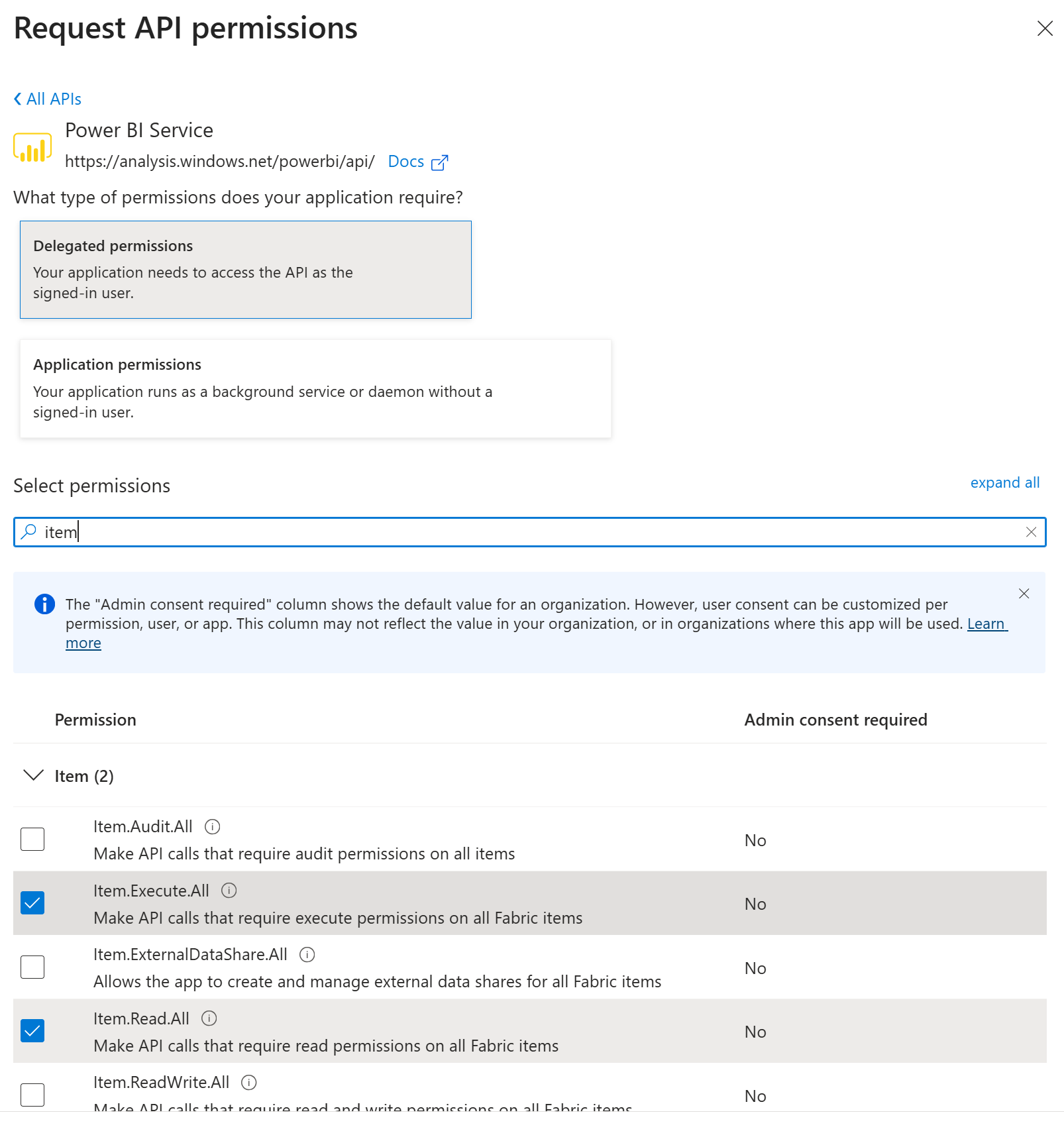
Select Add permissions.
Select Grant admin consent for {your-organization} in the Configured permissions panel. A Global Administrator must approve. This step allows users in your organization to authenticate through the Fabric IQ connection.
Select Certificates & secrets > New client secret. Add a description and expiration. Select Add, then immediately copy the secret Value — it's only shown once.
Copy your Directory (tenant) ID from the Microsoft Entra ID overview page.
Fill in the Foundry connection values
In Microsoft Foundry, open your project and go to Settings > Connections > New connection > Fabric IQ. Fill in the following fields:
| Field | Value |
|---|---|
| Client ID | Application (client) ID from step 3 |
| Client secret | Client secret value from step 6 |
| Authorization URL | https://login.microsoftonline.com/{tenant-id}/oauth2/v2.0/authorize |
| Token URL | https://login.microsoftonline.com/{tenant-id}/oauth2/v2.0/token |
| Refresh URL | https://login.microsoftonline.com/{tenant-id}/oauth2/v2.0/token |
| Scopes | https://analysis.windows.net/powerbi/api/Item.Execute.All,https://analysis.windows.net/powerbi/api/Item.Read.All,offline_access |
Replace {tenant-id} with your Directory (tenant) ID from step 7. Select Save to create the connection.
Note
For data agent connections using BYO Entra, use the DataAgent.Execute.All delegated permission instead of the Power BI scopes listed above. Add https://analysis.windows.net/powerbi/api/DataAgent.Execute.All as the scope in the Foundry connection, and grant admin consent for that permission in your app registration.
Add the redirect URI to your app registration
After Foundry creates the connection, it displays an OAuth redirect URL. Add this URL to your app registration:
- In the Microsoft Entra admin center, go to Entra ID > App registrations and select your app.
- Select Authentication > Add a platform > Web.
- Under Redirect URIs, paste the OAuth redirect URL from Foundry.
- Select Configure.
Data governance and compliance
Fabric IQ processes requests within the Microsoft Fabric compliance boundary for your workspace's region. The following commitments apply when you route agent queries through Fabric IQ.
Data residency
Fabric IQ retrieves and processes data within the region where your Microsoft Fabric workspace resides. Data doesn't cross regional boundaries during query execution. The applicable region and its compliance scope are determined by your workspace location — see Microsoft Fabric region availability for the list of supported regions and the compliance frameworks each region satisfies.
Note
If your Foundry project is in a different Azure region than your Fabric workspace, query results are returned cross-region. Review Microsoft Fabric region availability and your organization's data residency requirements before connecting a Fabric workspace in a different region.
Compliance certifications
Fabric IQ inherits Microsoft Fabric's compliance certifications for the workspace region. For compliance documentation, audit reports, and the frameworks applicable to each region, see Microsoft Fabric region availability.
Admin management
Grant admin consent
A Global Administrator must grant tenant-wide admin consent for the Entra app registration before users can authenticate with the Fabric IQ connection:
- In the Microsoft Entra admin center, go to Entra ID > App registrations and select your app.
- Select API permissions.
- Select Grant admin consent for {your-organization} and approve. Each listed permission shows a green checkmark when consent is granted.
Note
DataAgent.Execute.All also requires admin consent. If you use this permission for data agent connections, follow the same process.
Restrict network access
To restrict agent traffic to your private network, configure Foundry Agent Service with a virtual network. See Private networking for agents for setup instructions.
Publish Fabric items before use
A Fabric admin must publish each Fabric item — ontology, data agent, or Power BI semantic model — before it can be consumed through Fabric IQ. Unpublished items aren't reachable at the MCP endpoint, and requests against them fail. Confirm that the item is published in the Microsoft Fabric portal before configuring the Foundry connection.
Troubleshoot
| Symptom | Likely cause | Fix |
|---|---|---|
404 or Not Found error when connecting |
The server_url is incorrect or the Fabric item isn't published. |
Verify the workspace and item GUIDs in the Fabric portal URL. Confirm the item is published. |
| 401 Unauthorized | Admin consent hasn't been granted or the Entra app is misconfigured. | Verify admin consent was granted for all required API permissions. Check that the client ID, secret, and scopes match what you configured in Foundry. |
CONSENT_REQUIRED error at runtime |
The signed-in user hasn't completed the OAuth flow for the connection. | Open the consent URL returned in the error, complete the OAuth flow in a browser, then retry. |
| Empty or incorrect results from ontology queries | Ontology entities, properties, or data bindings are incomplete. | Verify the ontology item is published and that entity types, properties, and data bindings are fully configured in Fabric IQ. |
| Poor-quality answers from Power BI semantic models | The model doesn't have strong enough reasoning for complex measure queries. | Use a latest-generation model such as gpt-5.4 or opus 4.7. These models handle semantic model complexity significantly better than older models. |
| Agent never calls the Fabric IQ tool | The model doesn't recognize when to delegate to Fabric IQ. | Add guidance in the system prompt, for example: "Use the Fabric IQ tool for any question about business data, entities, metrics, or organizational knowledge." |