Note
Access to this page requires authorization. You can try signing in or changing directories.
Access to this page requires authorization. You can try changing directories.
Appropriate roles: Global Admin, Compliance Admin, Account Admin (MAICPP-specific), Manager or Owner for Developer (for example, Microsoft Marketplace; Windows and Xbox; Microsoft 365 and Copilot)
Learn how to submit an appeal if your verification isn't approved, including who can submit an appeal, when appeals are available, and what happens after you submit.
A user with one of the following roles must submit appeals:
Global admin
Compliance admin
Account admin (MAICPP-specific)
Manager or Owner for Developer (for example, Microsoft Marketplace; Windows and Xbox; Microsoft 365 and Copilot)
If you do not already have one of the above roles, a Global Admin, Account Admin, or User Management Admin from your tenant can assign you the appropriate role in Account Settings > User Management. Once assigned, notify the user to start an appeal by navigating to Verification Summary on the Legal info page.
Verification appeals
Appeals are available when the Verification Summary shows a Resolve or User Action Needed button. Select Resolve or User Action Needed to start your appeal.
You can submit up to three appeals.
During your appeal, upload supporting documents that match your Partner Center account information exactly (for example, legal name, business address, domain).
Examples of acceptable verification documents
Business verification: Articles or certificate of incorporation, business license, registration, or certificate showing dates and business information
Domain verification: Business name, address, domains, and dates (purchase and expiration) from an authorized registrar
Not accepted: Self-written documents, screenshots, or unofficial materials.
Your documents should directly address the issue identified during verification, such as correcting mismatched details or supplying a missing document. Make sure each document is legible and clearly shows the required information, such as your business name, address, and dates. Documents that are hard to read or missing required details can delay the review or require you to submit more information.
Submit an appeal in the legacy experience
To submit an appeal in Partner Center:
Sign in to Partner Center.
Select Settings (gear icon), and then choose Account settings.
Select Legal info.
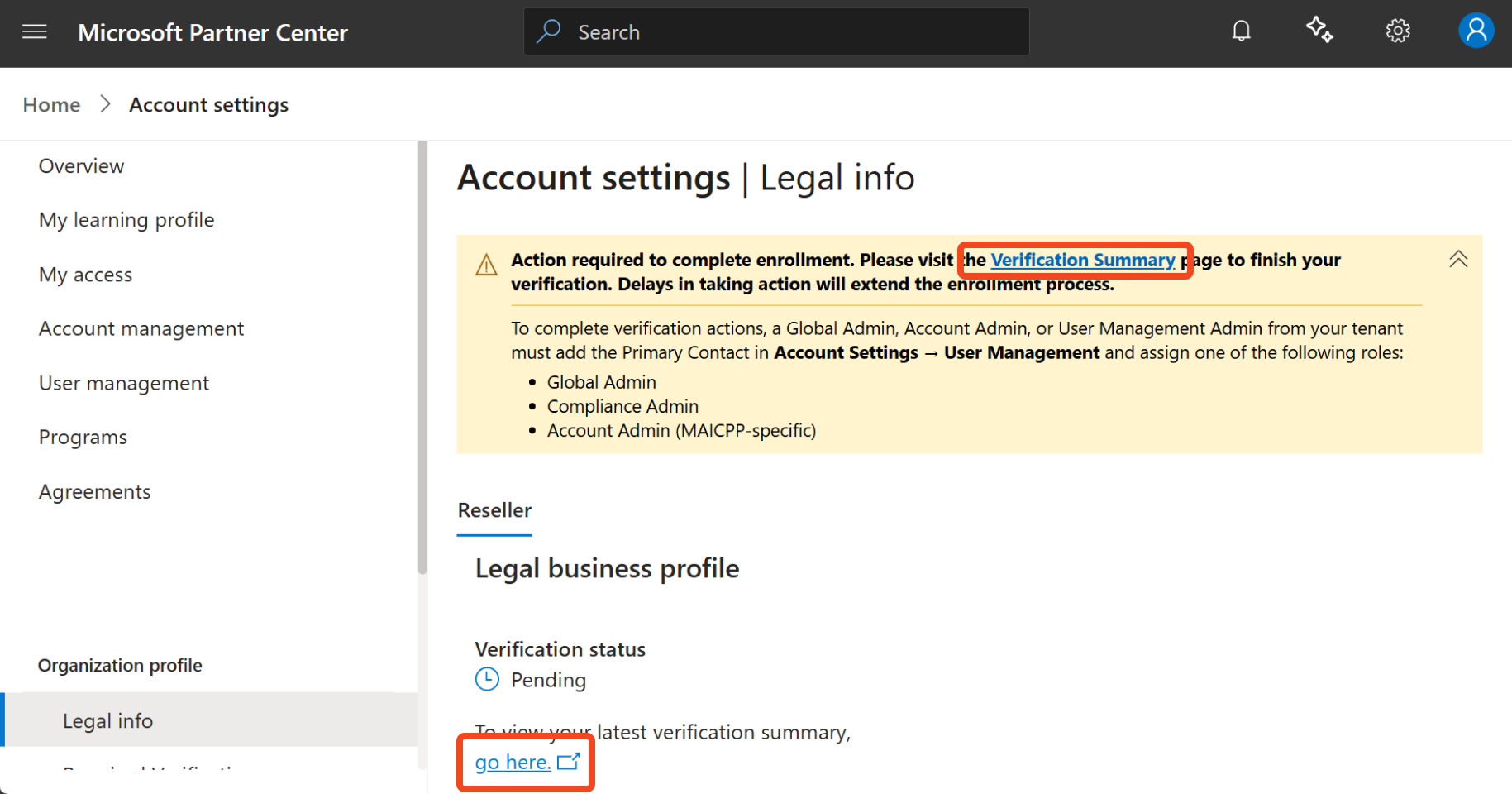
Under verification status, select go here to go to Verification Summary.
On Verification summary, select Resolve.
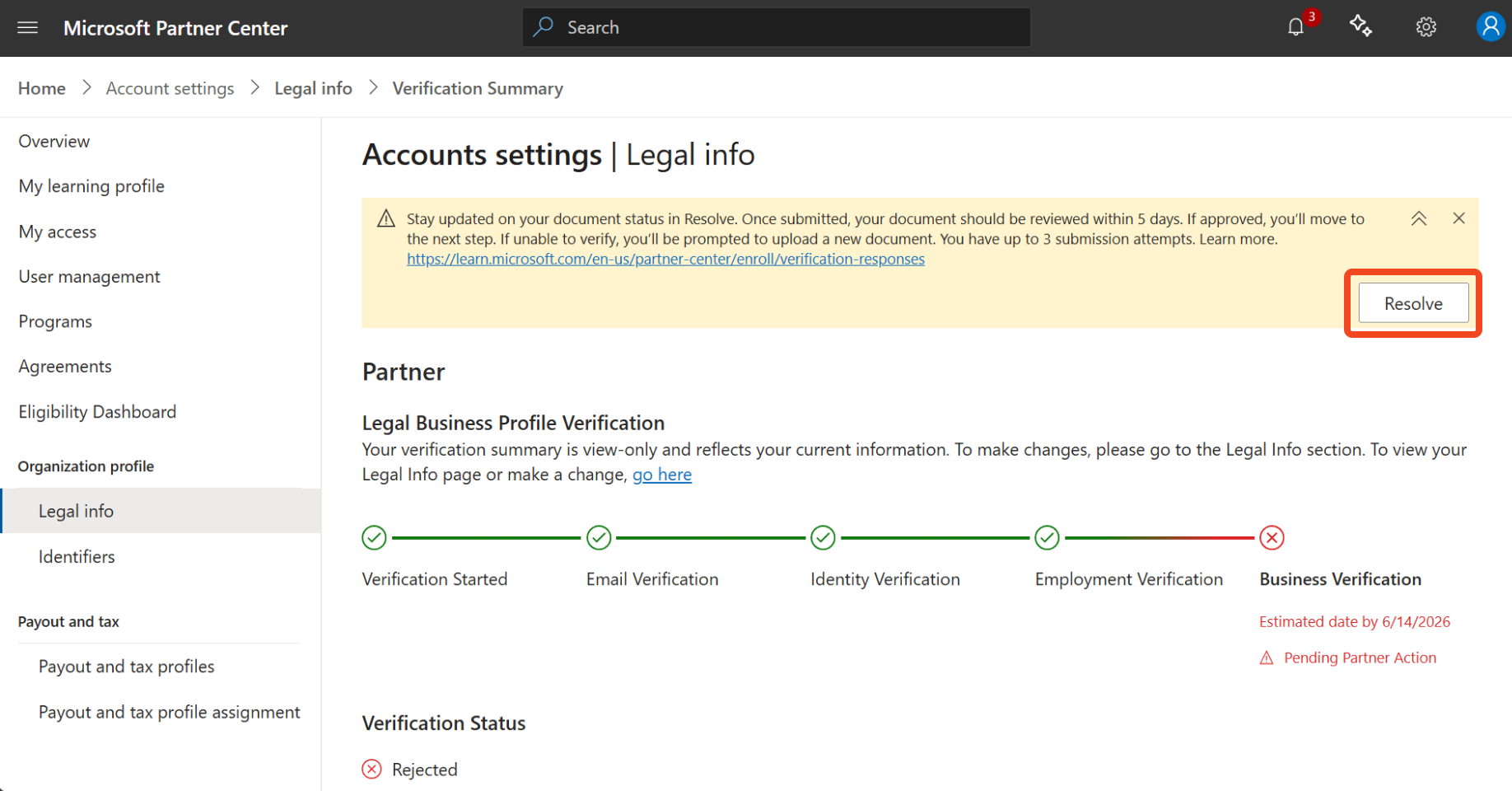
After you select Resolve, follow the instructions to choose the document type to upload and continue the appeal process.
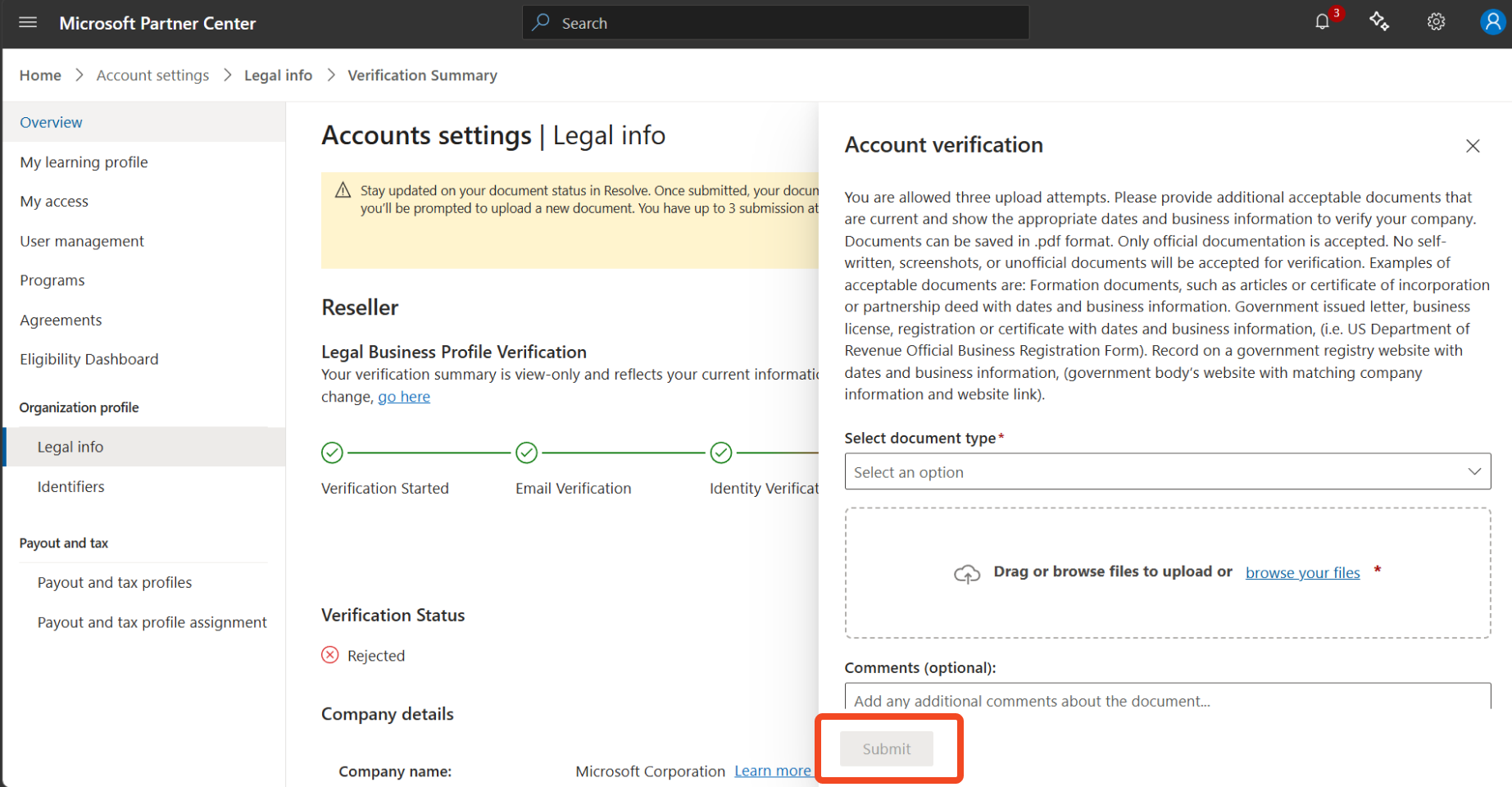
Select Submit.
Submit an appeal in the updated experience
To submit an appeal in Partner Center:
Sign in to Partner Center.
Select Settings (gear icon), and then choose Account Settings.
Select Legal info.
Select the Verification Summary link in the banner, or click go here under Verification status.
Review your Verification status.
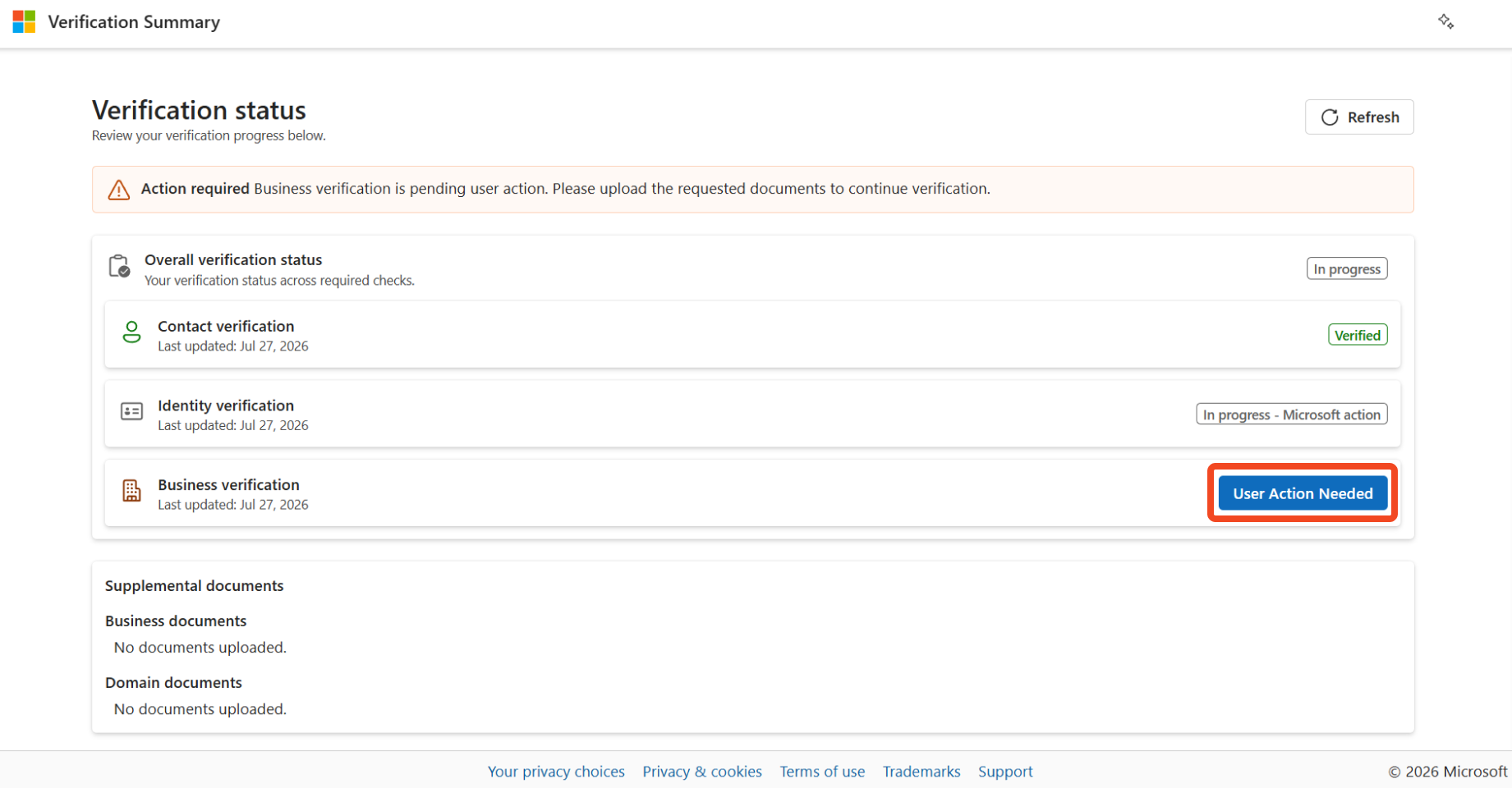
If the verification process requires more information, an Action required banner appears on the Verification Summary page. Select the User Action Needed button to view the issue and continue with the appeal process.
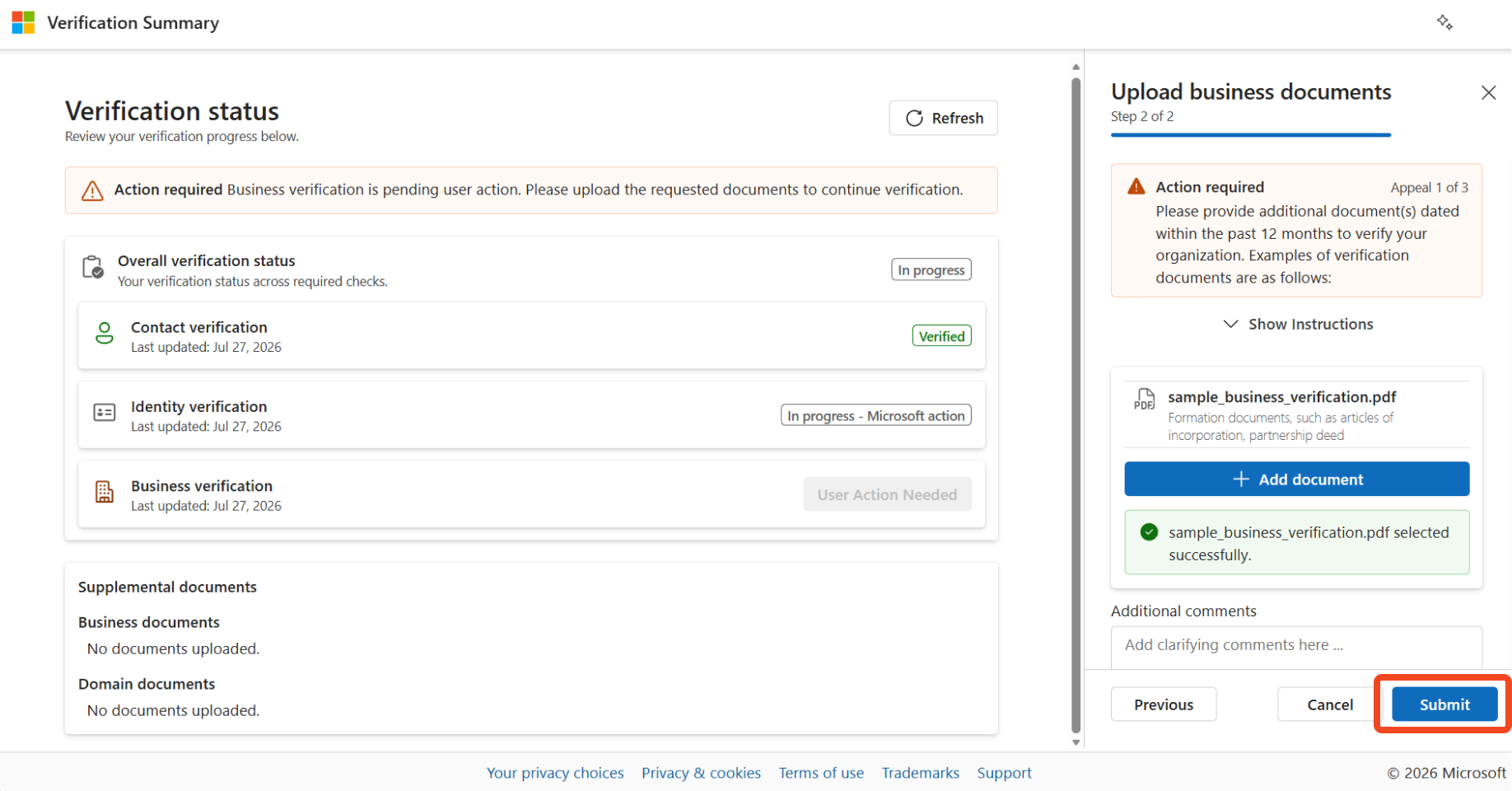
Note
The available actions and messaging depend on the outcome of the verification step. Follow the instructions shown on the page to provide updated information or documentation.
What happens next
The time it takes to review an appeal varies. You can return to Account settings > Legal info in Partner Center to check the verification status at any time.
After you submit your appeal:
Your verification status updates to show that the review is in progress.
Microsoft reviews the updated information and any submitted documentation.
Depending on the outcome, you might need to complete extra verification steps.
Microsoft might notify you when verification action is required or when your verification status changes. Make sure your primary contact information is current.
Partner Center, specifically Account settings > Legal info, is the authoritative source for verification status and required actions. You might also receive communications from Microsoft regarding any actions needed. You can review banner notifications or select Verification summary to see your overall verification status and any actions needed.