Note
Access to this page requires authorization. You can try signing in or changing directories.
Access to this page requires authorization. You can try changing directories.
Appropriate roles: Global Admin, Compliance Admin, Account Admin (MAICPP-specific), Manager or Owner for Developer (for example, Microsoft Marketplace; Windows and Xbox; Microsoft 365 and Copilot)
Verification overview
Verification helps confirm that:
Your business is legally registered with an active registration at the stated address
Your account information is accurate
This process protects you and the Microsoft partner ecosystem by ensuring that only trusted businesses can access the Partner Center environment.
When verification happens
Microsoft needs to verify your business information. Verification happens in two main scenarios:
During enrollment:
When your business enrolls in Microsoft AI Cloud Partner Program (MAICPP) or completes additional enrollments.
During account updates:
When you update your business information in Partner Center, such as:
Legal business name
Business address
Primary contact details
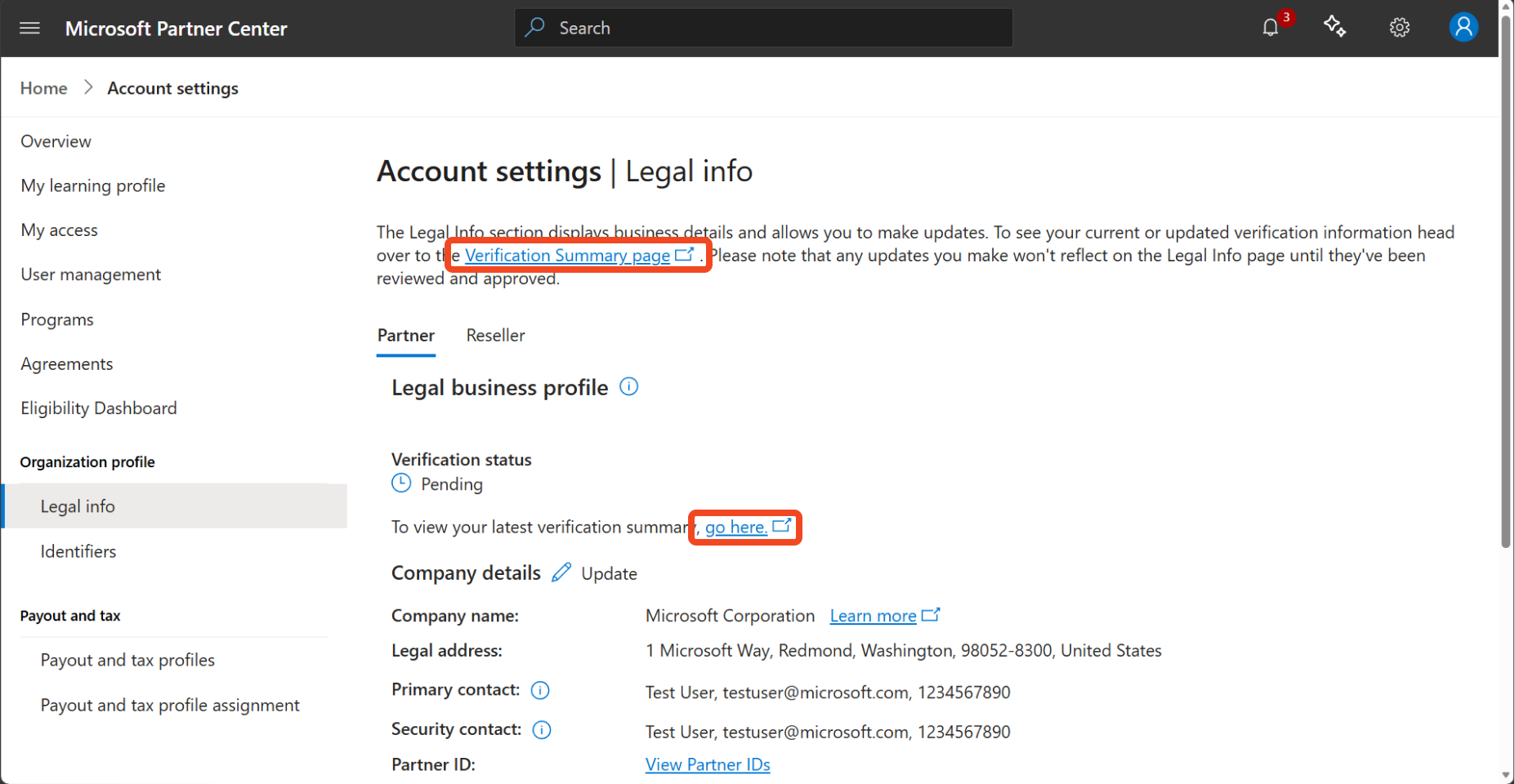
Manage your verification in Partner Center under Account settings. Go to Legal info to view or update your business information. To complete verification or monitor progress, go to Verification Summary.
Who can perform verification
Global Admins can start enrollment. Once started, the following roles can complete verification:
Global admin
Compliance admin
Account admin (MAICPP-specific)
Manager or Owner for Developer (for example, Microsoft Marketplace; Windows and Xbox; Microsoft 365 and Copilot) can start and complete verification.
If you do not already have one of the above roles, a Global Admin, Account Admin, or User Management Admin from your tenant can assign you the appropriate role in Account Settings > User Management. Once assigned, notify the user to continue verification by navigating to Verification Summary on the Legal info page.
What Microsoft verifies
Verification is made up of several independent checks. Each check confirms a different part of your account, and your account isn't fully verified until all required checks pass.
| Verification type | What is verified | Recommendations and next steps |
|---|---|---|
| Email verification | Confirms the primary contact's business email is active and can receive emails. This check ensures Microsoft communicates with a verified business contact. | Use only an employee business email address during email verification, not a personal or free email account. Add microsoft.com as a safe sender and check your junk or spam folder for a verification email. If you didn't receive a verification email from Microsoft, confirm your email address is correct. You can resend the verification email by selecting the resend code button on the Contact Info page in Verification Summary. If resend functionality isn't available, click here to learn more about creating support tickets. |
| Identity verification | Confirms the identity of at least one user on the account. | Ensure the user's name on the account matches the name on the government-issued document provided during identity verification. A verified credential is a method of confirming a user's identity. Learn more about identity verification here. |
| Employment verification | Confirms the primary contact is an employee of the business. | During enrollment, provide current domain documentation for your business. The documentation must match your partner account and include business name, address, domains, and dates (purchase and expiration) and be from an authorized registrar. Updated experience: Upload Domain documents on the Business Information page in Verification Summary. For appeal steps, see Submit a verification appeal in Partner Center. |
| Business verification | Confirms your business is legally registered with the appropriate authority in its region and exists as a legitimate business at the stated address. | Ensure your business name and address match official registration records exactly, without spelling errors or abbreviations. During enrollment, provide supporting documentation such as formation documents (for example, articles or certificate of incorporation, business license, registration, or certificate showing dates and business information). It must match your partner account. Updated experience: Upload the business documents on the Business Information page in Verification Summary. For appeal steps, see Submit a verification appeal in Partner Center. |
| Additional verification | Confirms the trustworthiness of your business, which helps protect you and the partner ecosystem. | Microsoft runs on trust. To ensure trustworthiness in its partner ecosystem, Microsoft might conduct additional verification on your business. If your business is selected, your profile page displays the status accordingly. If any concerns arise during this additional verification, you might be asked to complete a questionnaire, respond to the concerns identified, or take certain mitigating steps. |
What to expect during verification
Verification requirements and timelines can vary depending on your scenario. In most cases, the process takes three to five business days to complete. However, some checks might take longer if they require additional review or information.
The Verification Summary might show a specific ETA alongside the status for individual checks.
During verification, Microsoft might request more information before the process can continue. When Microsoft requests more information, the primary contact receives an email prompting them to take action. Responding promptly to these requests helps avoid delays.
Microsoft sends verification emails and status updates to the primary contact, the person whose contact information is verified for your account. Other users with a required role can complete verification steps, but only the primary contact receives these notifications.
Examples of what the primary contact might receive:
Requests for additional information
Status updates or follow-up actions needed to complete verification
Until verification is complete, some Partner Center capabilities are limited. For example, your business might not be able to purchase certain offers, publish content, or manage key account settings until the process is complete.
Verification status in Partner Center
Partner Center provides visibility into both your overall verification status and the status of individual verification steps.
Overall verification status
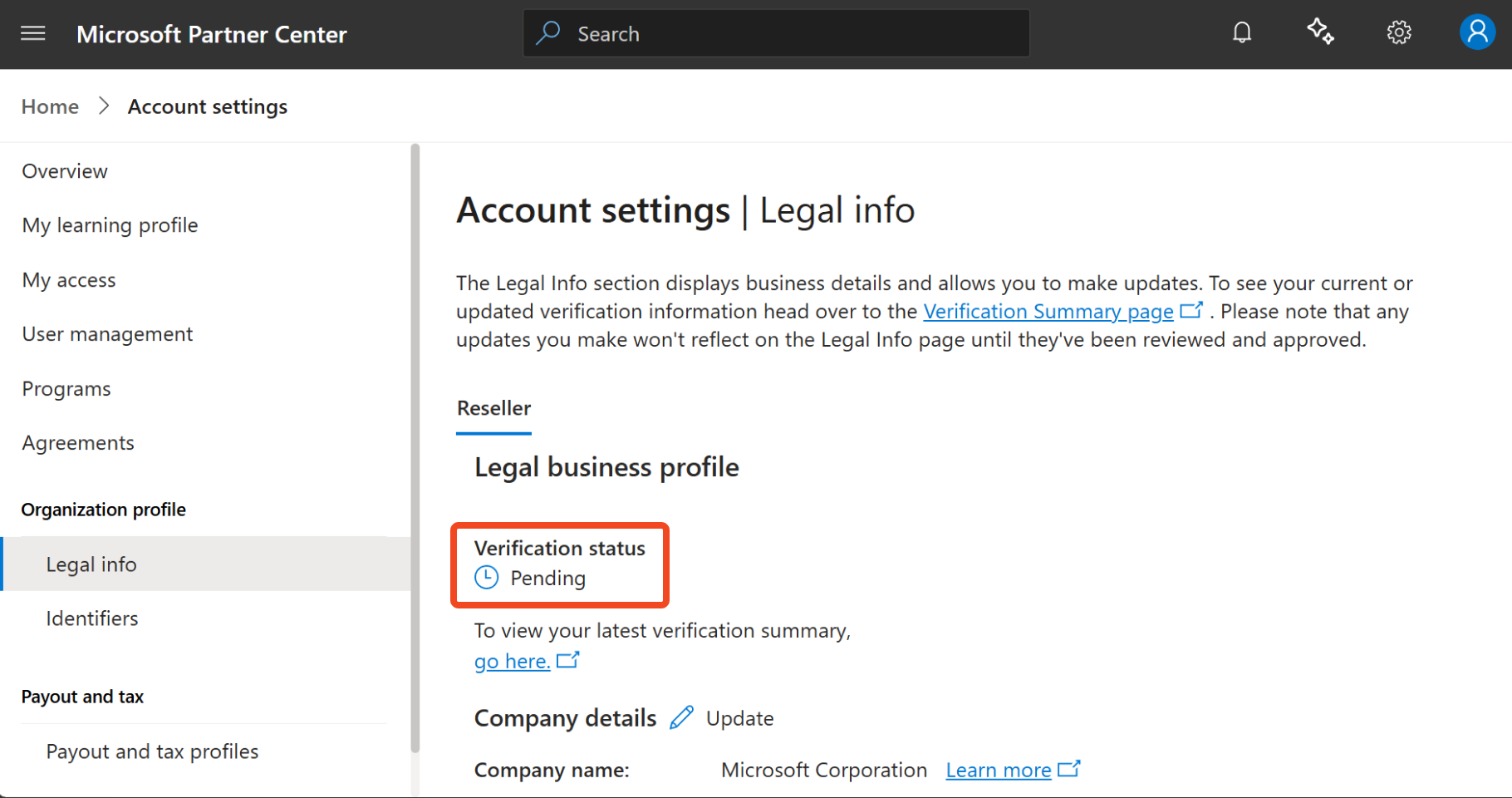
You can view your overall verification status on the Account settings > Legal info page.
| Overall Verification Status | Description |
|---|---|
| Authorized | All required verification checks are complete. No further action is needed. |
| Pending | Verification is still in progress. |
| Rejected | Verification couldn't be completed successfully. If available, you can submit a verification appeal. |
Detailed verification status
Legacy experience
For detailed verification statuses, click the Verification Summary link or go here under verification status on the Legal info page.
Note
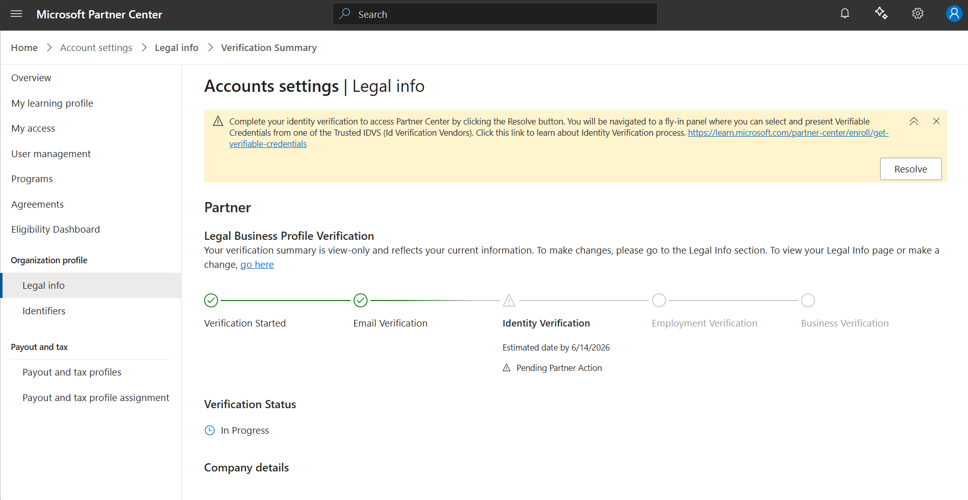
If your Verification Summary page shows the verification steps in a horizontal row (as shown in the following image), you're in the legacy experience.
| Detailed Verification Status | Description |
|---|---|
| Complete | The check is completed successfully as shown by green check mark. |
| In Progress | Microsoft is reviewing your information; no action needed from you. |
| Pending Partner Action | More information is required from you. |
| Rejected | The check couldn't be completed successfully. If available, you can submit an appeal. |
Updated experience
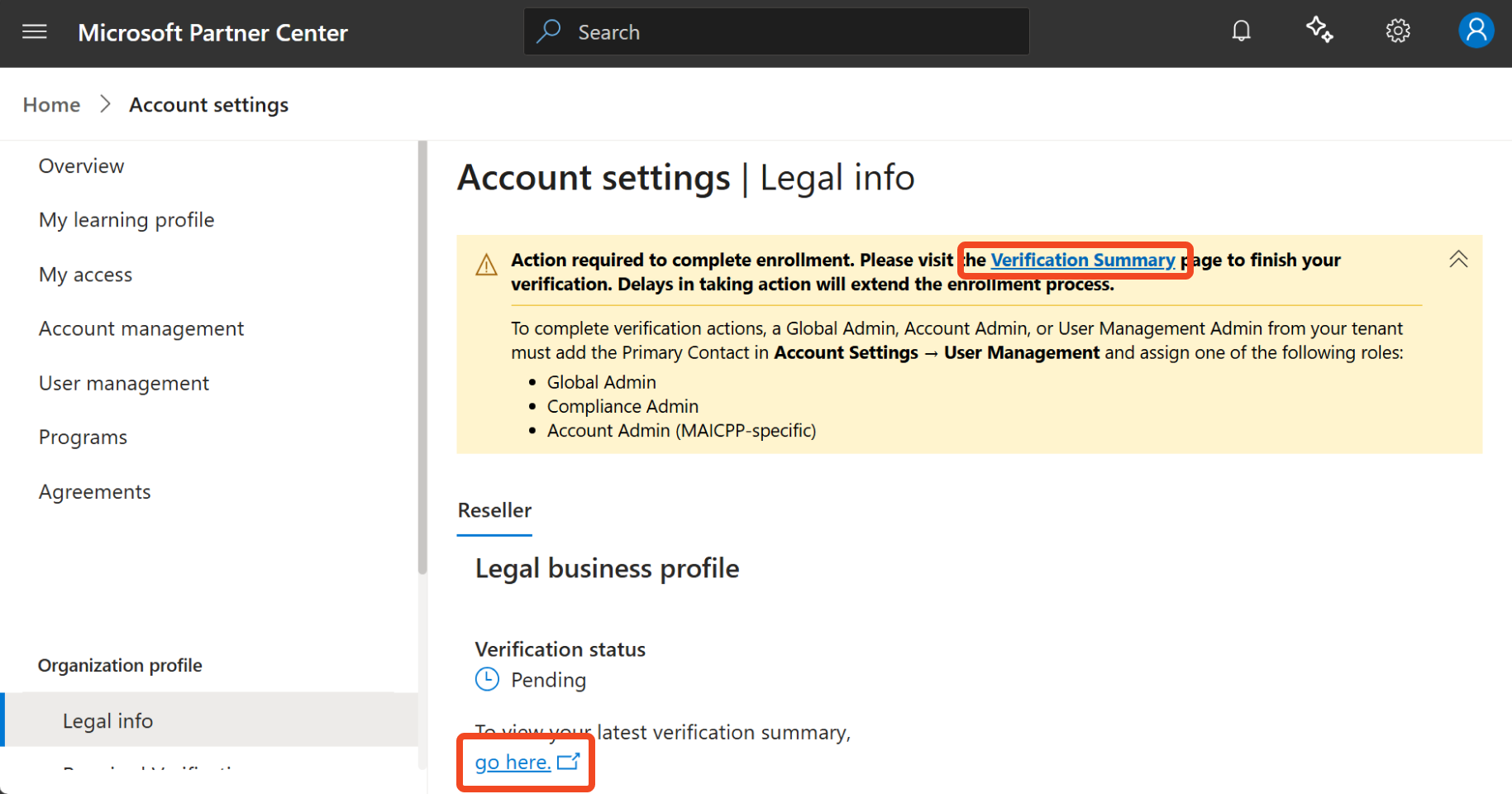
For detailed verification statuses, click the Verification Summary link or go here under verification status on the Legal info page.
Note
If your Verification Summary page shows the verification steps stacked vertically (as shown in the following section), you're in the updated experience.
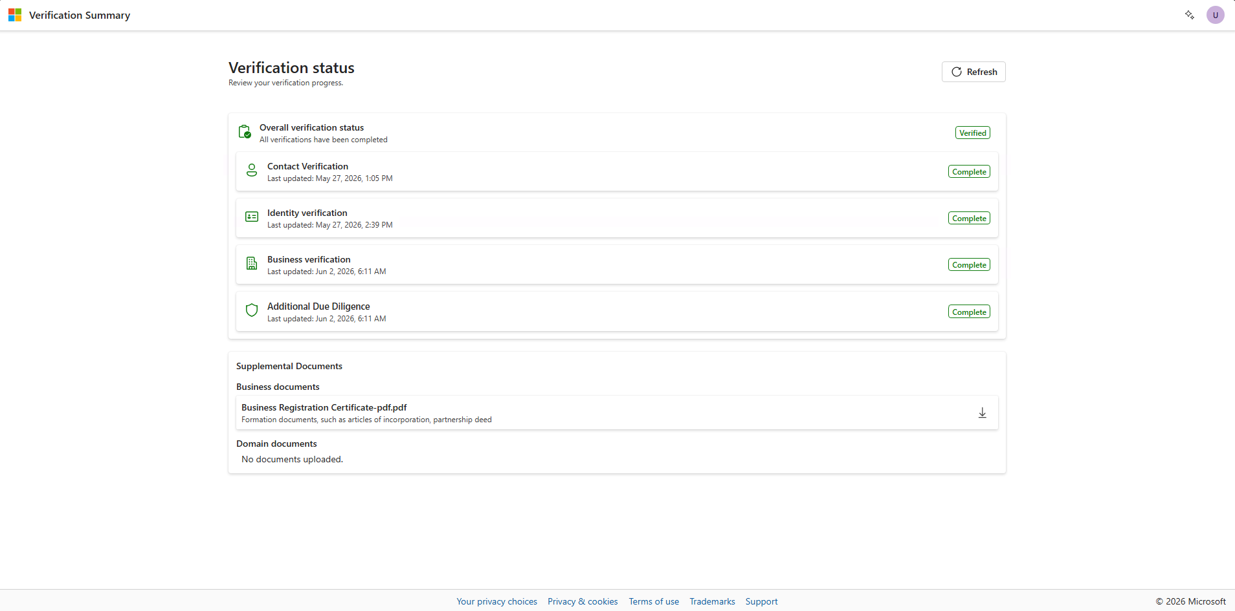
Important
If you do not see the verification status page above, your application has not been submitted. Complete the required verification steps, and once submitted, you will see a status page with a list of checks in progress.
| Detailed Verification Status | Description |
|---|---|
| Verified | The check is completed successfully. |
| In Progress – Microsoft Action | Microsoft is reviewing your information; no action needed from you. |
| User Action Needed | More information is required from you. |
| Not Verified | The check couldn't be completed successfully. |
Changes in status might take some time to reflect across all areas of Partner Center. If your status recently changed, allow time for updates before taking further action.
After verification is complete
After all verification steps are complete, continue with any remaining enrollment actions in Partner Center. At that time, you can access Partner Center capabilities, benefits, offerings, and incentives.
Related content
Note
Microsoft AI Cloud Partner Program was formerly known as Microsoft Partner Network (MPN).