Note
Access to this page requires authorization. You can try signing in or changing directories.
Access to this page requires authorization. You can try changing directories.
To use Copilot in Power BI Desktop, you need admin, member, or contributor access to at least one workspace that's assigned to a paid Fabric capacity (F2 or higher) or Power BI Premium capacity (P1 or higher) that has Copilot enabled. For information about enabling Copilot for your organization, see Enable Fabric Copilot for Power BI.
Important
In addition to capacity-level enablement, Copilot in Power BI Desktop requires that the tenant-level Fabric Copilot setting is enabled. If the tenant-level setting is off, the Copilot button appears in the ribbon but remains disabled. This behavior differs from Power BI service, which checks Copilot availability at the workspace level.
Start Copilot in Power BI Desktop for the first time
Note
The Copilot button in Desktop always appears in the ribbon. To use Copilot, you must be signed in and have access to a workspace that's in Premium or Fabric capacity.
When you use Copilot in Power BI Desktop for the first time and select the Copilot button in the ribbon, Copilot prompts you to pick a Copilot-compatible workspace. The workspace you select doesn't need to be the same as the workspace where you plan to publish your report.
Open a Power BI report and select Copilot in the ribbon. The Copilot pane appears and prompts you to select a workspace.
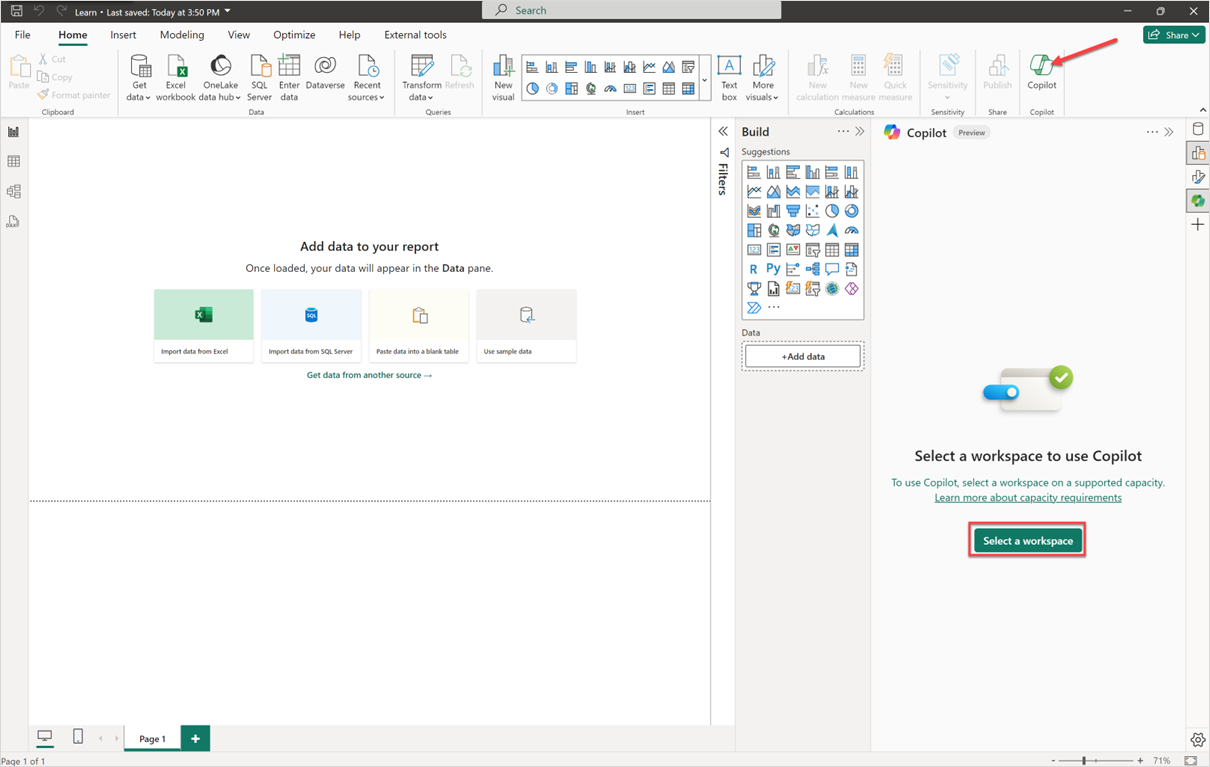
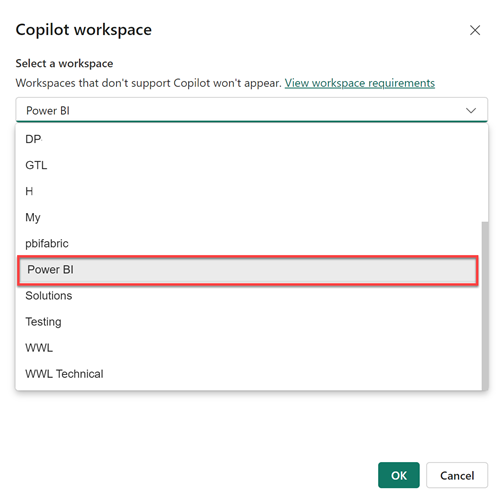
Select the workspace to associate this report with for Copilot use. Only workspaces that support Copilot appear.
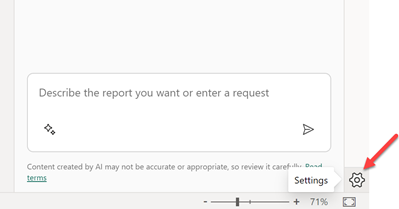
Use the Settings gear in the bottom-right corner of Power BI to switch the associated workspace or check your report's associated workspace.
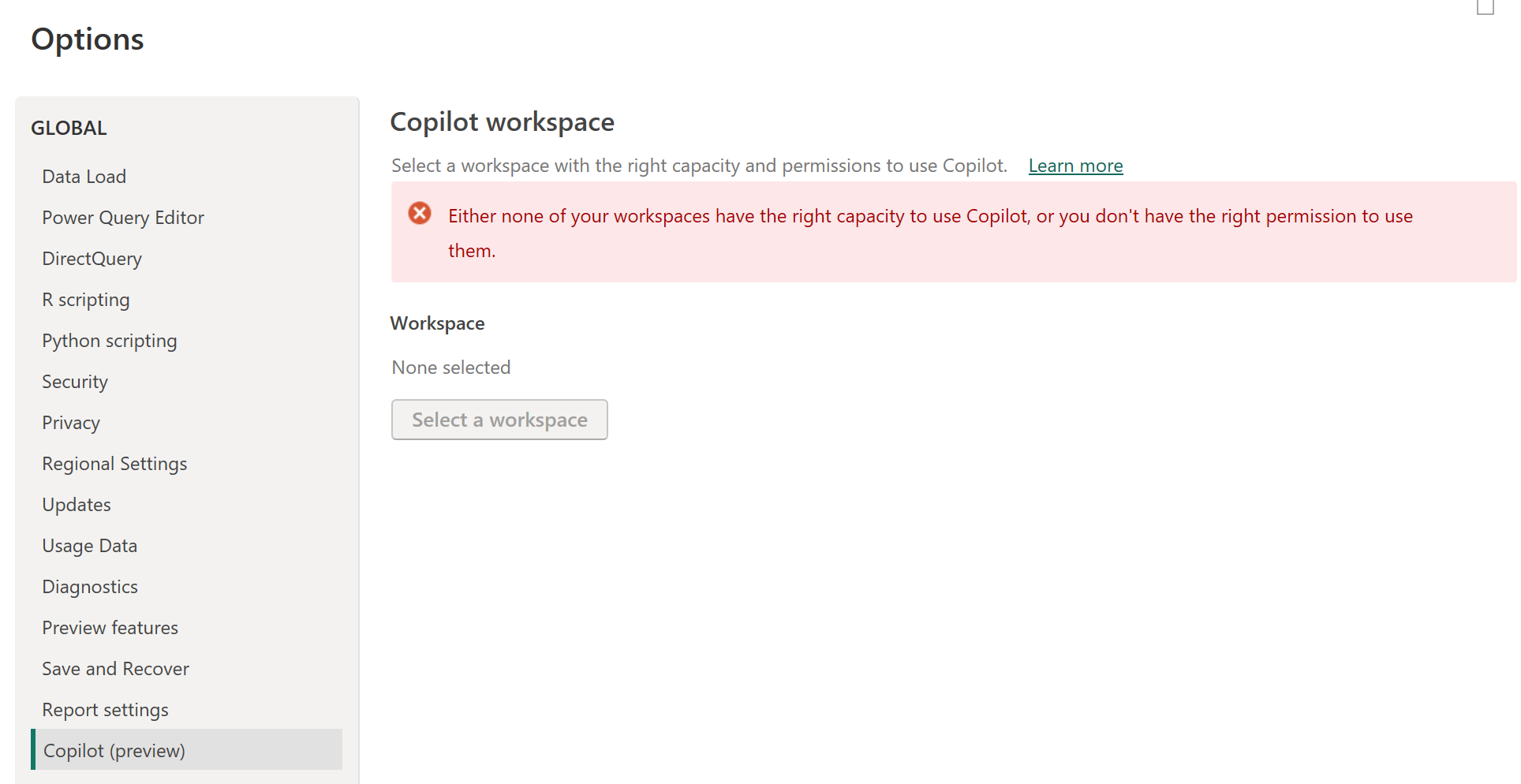
This action opens the Options window, where you can go to the Copilot (preview) settings to see which workspace you're working with and select a new workspace.
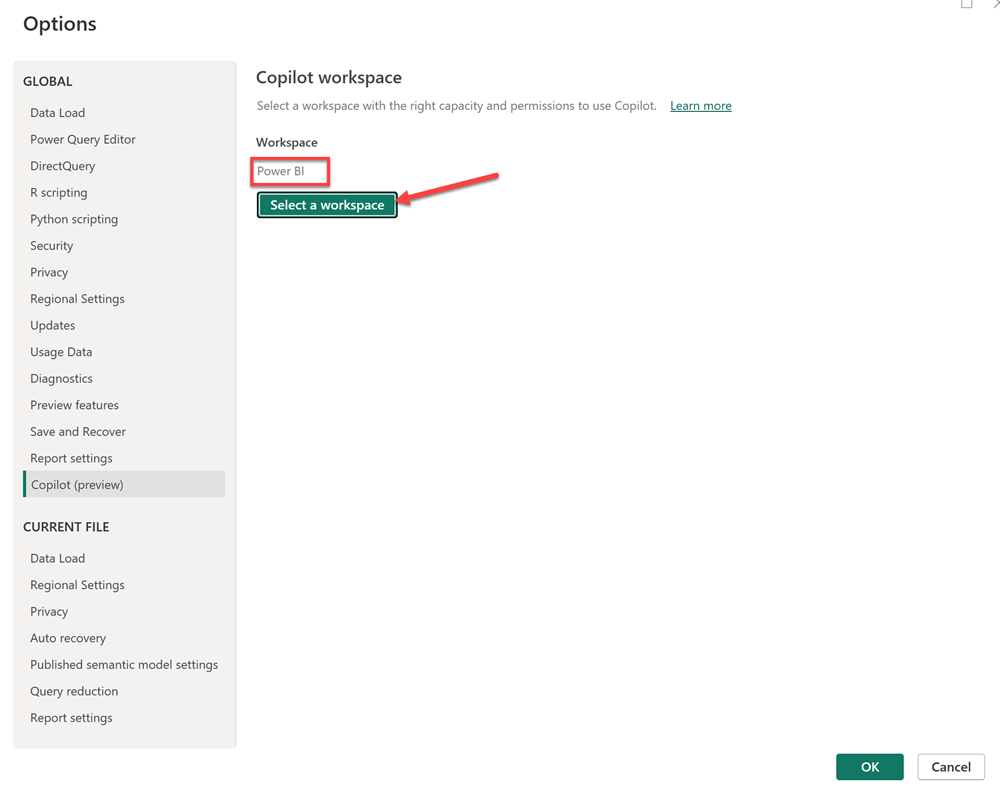
If you don't have access to any workspaces that are in the correct capacity to use Copilot, you see the following message in the Copilot (preview) settings: Either none of your workspaces have the right capacity to use Copilot, or you don't have the right permission to use them.
Now you're ready to create a report with Copilot in Power BI.
Limitations
- Copilot doesn't support workspaces that use Power BI Premium Per User (PPU).
- Power BI Desktop versions dated January 2025 and earlier don't support the report view Copilot pane. Update to the latest version to access this feature.
- Copilot doesn't support sovereign cloud environments. In these environments, you might see a 403 Forbidden error when you try to use Copilot in Power BI Desktop. For more information, see Copilot for Power BI Overview.
Send feedback
Share your feedback about the product anytime. During public preview, your feedback helps improve the product faster.
Related content
- Enable Fabric Copilot for Power BI
- Update your data model to work well with Copilot
- Create a report with Copilot in Power BI
- Write Copilot prompts for creating report pages in Power BI
- Create a narrative summary visual with Copilot for Power BI
- Write Copilot prompts for creating narrative visuals in Power BI
- Overview of Copilot for Fabric (preview)
- Frequently asked questions about Copilot for Power BI and Fabric
- Privacy, security, and responsible use for Copilot article in the Fabric documentation
- Copilot tenant settings (preview) article in the Fabric documentation