Note
Access to this page requires authorization. You can try signing in or changing directories.
Access to this page requires authorization. You can try changing directories.
Important
Microsoft Copilot Studio is a multi-harness platform. The Power Platform admin center (PPAC) provides a unified capacity management experience across all Copilot Studio harnesses, including Copilot Chat, Standard, and GitHub Copilot. Administrators can view capacity and consumption data at the environment and agent level, and can download consumption reports by environment, agent, or user.
The Microsoft Copilot Studio capacity management experience in the Power Platform admin center enables administrators to manage Copilot Studio credit capacity and monitor overall capacity consumption. This experience provides an overview of the licensing models in use. Administrators can efficiently manage their available session capacity.
View summary information
- Sign in to the Power Platform admin center.
- On the navigation pane, select Licensing.
- In the Licensing pane, under Products, select Copilot Studio.
- Select the Summary tab.
The licensing summary view shows usage of both prepaid and session-based capacity units.
When you purchase a Copilot Studio license, you get a specified number of billed Copilot Credits pooled across the tenant. You must assign these credits to an environment to enable Copilot Studio features for agents in that environment.
Capacity management features help administrators allocate prepurchased capacity across environments within the tenant, based on the anticipated usage of Copilot agents in each environment. The Capacity summary section of the page includes daily consumption data at the environment level for up to three months, which helps you determine appropriate capacity needs.
The consumption monitoring views in capacity management provide detailed, daily usage data for the current month-to-date, the last two full months, and monthly data for the past 12 months. This data supports budgeting and licensing planning.
Capacity summary
When you view the Copilot Studio summary, you see the following cards in the Capacity summary section on the page.
Pay-as-you-go credits
This card displays the count of active billing plans with the Copilot Studio meter applied, along with the month-to-date total of Copilot Studio credit billed to these plans. A billing plan in the Power Platform admin center is a configuration that administrators use to group one or more environments. By using a billing plan, administrators can track and bill Copilot Studio credit capacity usage directly to an Azure subscription on a pay-as-you-go basis.
Prepaid capacity
The Prepaid capacity card shows the prepaid capacity units available, assigned, and consumed, including capacity purchased through Copilot Credit packs or included with eligible Dynamics 365 Premium licenses. These units can be session-based or Copilot Credit capacity units, with links to manage each type.
Copilot Credits capacity tab
The Copilot Credit capacity tab displays the following cards:
Capacity consumption by product: This card shows a product-focused view of Copilot Studio credit units consumed. It details the number of units deducted from prepaid capacity packs and pay-as-you-go units.
If users consume Copilot Studio credits for Microsoft 365 Copilot Chat, the number of units consumed appears under the Microsoft 365 Copilot Chat product.
Total capacity consumption trend: Displays the daily trend of capacity consumption over the past three months.
Copilot credit usage by environment: Highlights the top environments based on Copilot Studio credit usage.
Download consumption reports
Download consumption reports to investigate unexpected credit usage without opening a support request. From the Summary tab, you can download reports that organize consumption by environment, agent, or user.
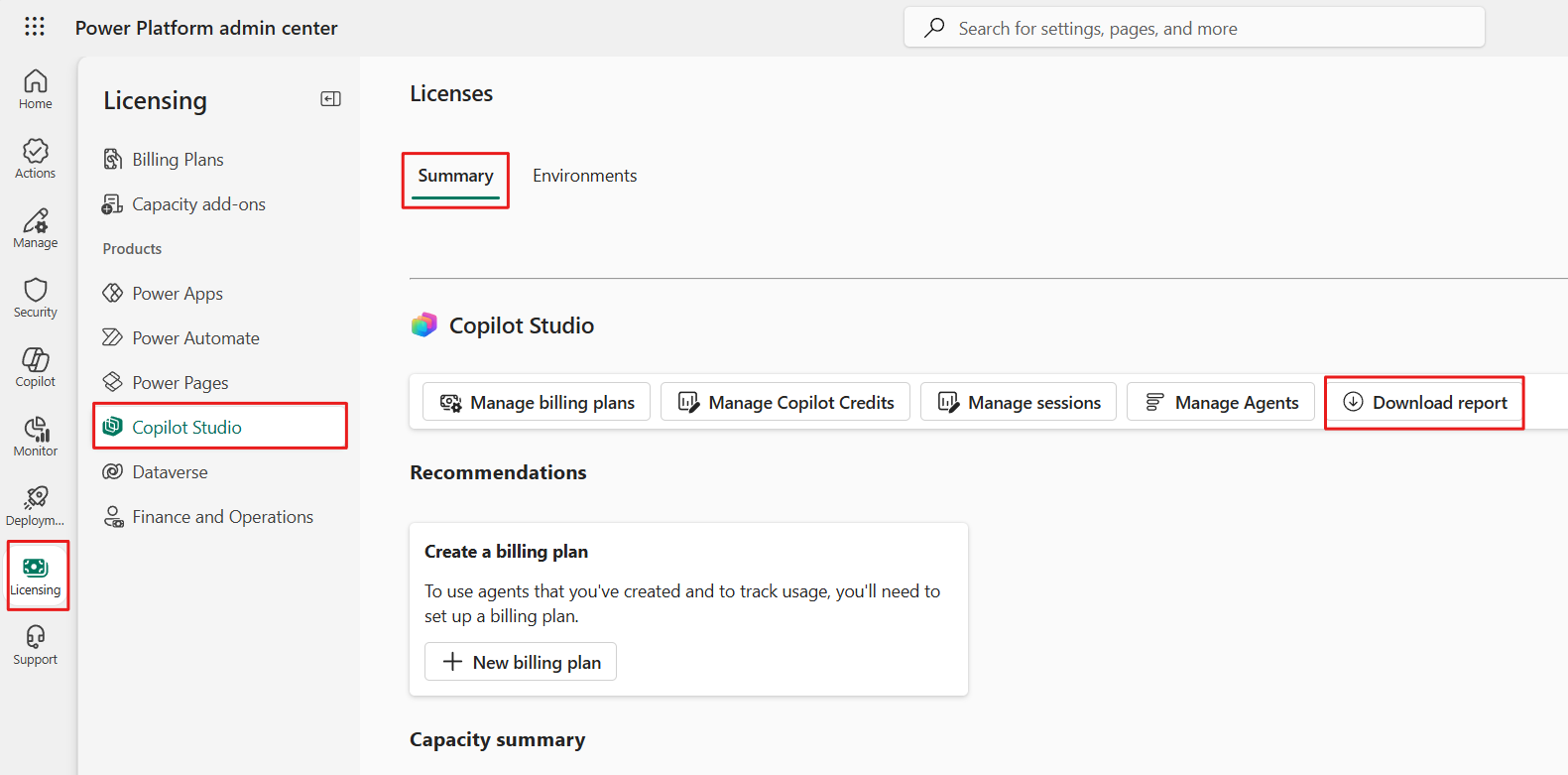
- Sign in to the Power Platform admin center.
- On the navigation pane, select Licensing.
- In the Licensing pane, under Products, select Copilot Studio.
- Select the Summary tab.
- Select Download report.
- Select the download type you need: environment, agent, or user.
- Download the report.
Start with the environment report to identify where consumption occurs. Then use the agent or user report to narrow the investigation.
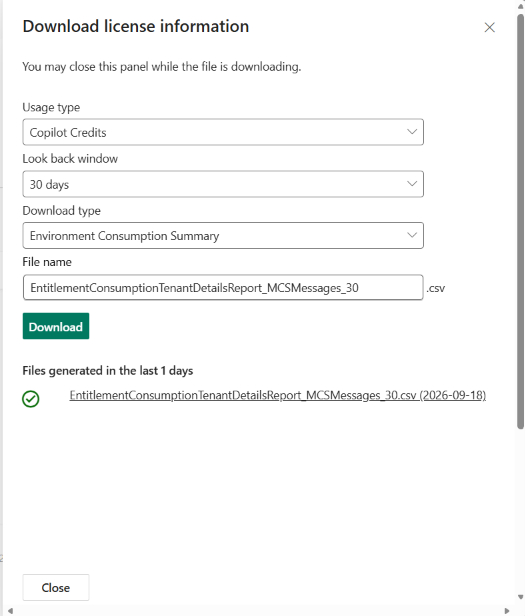
What the reports show
The reports show consumption by environment and agent. For agents powered by the standard harness, the user report also shows consumption by user. The detailed report adds the Product / AI feature, Channel, LLM model, and Knowledge sources / Tool used columns.
In the user report, usage from sessions where the user didn't sign in, for example on an agent that doesn't require authentication, can appear under the user ID 00000000-0000-0000-0000-000000000000 with no user name.
The reports don't show:
- Usage for a single conversation or message.
- Token counts, such as input, output, or cached tokens.
- The reason a row wasn't billed.
To find what drove a spike, download the detailed report for the environment for a period around the spike, and then group billed credits by agent, Product / AI feature, and LLM model.
To check the amounts billed to your Azure subscription for pay-as-you-go, use Azure Cost Management. For more information, see View usage and billing information.
The agent's Monitor page in Copilot Studio shows the agent's billed credits over time. It shows billed credits only, so it can show less consumption than these reports, which also include non-billed credits. For more information, see View an agent's billing consumption.
View credit capacity consumed per environment
The Environments tab provides details on the Copilot Studio credit capacity consumed per environment, including the number of Copilot Credits deducted from the prepaid capacity and the units billed under pay-as-you-go plans. It also indicates the environment's status, such as whether it's within capacity or in overage, if capacity is allocated, and if pay-as-you-go is used.
- Sign in to the Power Platform admin center.
- On the navigation pane, select Licensing.
- In the Licensing pane, under Products, select Copilot Studio.
- Select the Environments tab to see a list of your environments.
- Search for and select the environment you want to use and select the Select (or Reset) button.
View the Copilot Studio capacity consumed within that environment. The following cards are displayed on the Copilot Credits capacity tab:
Capacity consumption by product: This tile provides a product-focused summary of Copilot Credits consumed, showing the number of units deducted from prepaid capacity packs and/or pay-as-you-go units.
Copilot Credit consumption details: The grid displays a list of Copilot agents consuming capacity, including the associated product, feature name, and the count of billed versus nonbillable credits.
Note
Copilot Credits used to build Apps in Copilot Studio (preview) are temporarily grouped in the Top Agents by credit usage section. Under View all agents, credits used to build apps are categorized as App under Billable features.
Tip
To monitor credit consumption for agent flows, look for the Agent flow actions feature in the Copilot credit consumption details grid. Agents powered by the GitHub Copilot harness can also be referred to as Process Agents in the Power Platform admin center licensing report. When the environment has no Copilot Credits available, new agent flow runs are blocked while the parent agent continues to function for non-flow interactions. Flow authors also see a design-time warning in the Copilot Studio designer. To resolve enforcement, reallocate capacity, purchase more credits, or enable pay-as-you-go billing. For more information, see Agent flow enforcement.
Download detailed Copilot consumption for an environment
Use the detailed report to identify the agent, product, feature, channel, model, knowledge source, or tool associated with an environment's credit consumption.
- On the Environments tab, select an environment.
- On the Copilot Credits capacity tab, locate the Copilot credit consumption details grid.
- Select Download to open the Download Copilot Credits report pane where you select the report timeframe, can update the report's name, and then select Start.
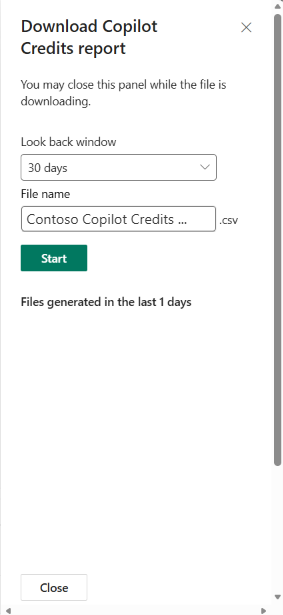
In the report, use these columns to investigate consumption:
| Column | How to use it |
|---|---|
| Agent name | Identify the agent that generated the activity. |
| Product / AI feature | Identify the product and feature that used Copilot Credits. |
| Channel | Determine where the activity originated. |
| LLM model | Identify the language model used for the activity. |
| Knowledge sources / Tool used | Identify the knowledge source or tool involved in the activity. |
| Billed credits / Non-billed credits | Compare activity that deducted credits with activity that didn't deduct credits. |
Filter or sort the report to isolate unexpected usage. For example, start with billed credits, and then group the results by agent and AI feature to identify the main source of consumption.
To investigate consumption by reasoning models for agents powered by the standard harness:
- Filter Product / AI feature to Text and generative AI tools (premium).
- Group the results by Agent name and LLM model to find the agents and models that consumed the most credits.
- Multiply the credits by 100 to estimate the billed tokens behind this consumption. Reasoning models are billed at 10 Copilot Credits per 1,000 billed tokens, so each credit represents 100 billed tokens. For example, 12,000 credits represent 1,200,000 billed tokens. If your agent also uses prompt tools with the same model, part of the credits on that line comes from the prompt tools and doesn't convert this way, so the estimate is approximate. Prompt tools are measured as described in Licensing and Copilot Credits.
To learn which tokens are billed, see How tokens are counted for reasoning models.
Manage capacity
Capacity allocation can be managed in the Power Platform admin center.
Sign in to the Power Platform admin center.
On the navigation pane, select Licensing.
In the Licensing pane, under Products, select Copilot Studio.
Select the Summary tab.
Complete one of the following actions:
- Select Manage Capacity from the Prepaid capacity card.
-or-
- Under the Copilot Studio heading, select Manage Copilot Credits or Manage sessions.
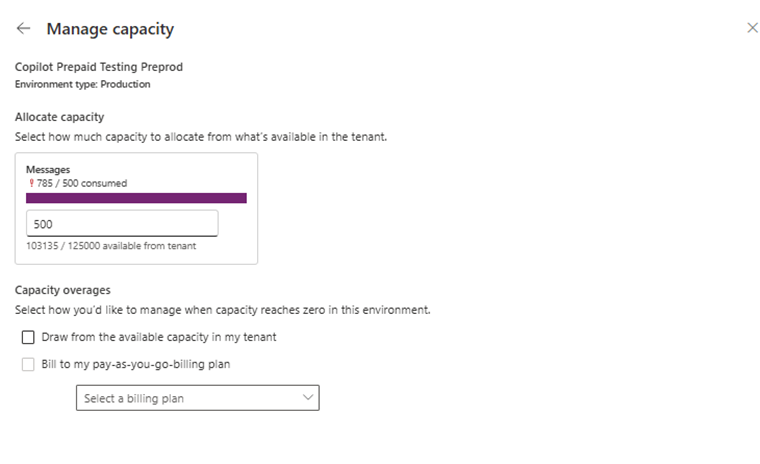
In the allocation panel, select an environment and specify the number of Copilot Credits to allocate in the Copilot Credits textbox.
Overage management
Under Capacity overages, choose how an environment can continue using Copilot Credits after it exhausts its allocated capacity:
- Select Draw from the available capacity in my tenant to let the environment use unallocated prepaid capacity from the tenant pool.
- Select Bill to my pay-as-you-go billing plan to let the environment continue usage through the selected billing plan.
For eligible Copilot Studio environments that don't have an allocation configuration, Draw from the available capacity in my tenant is selected by default.
Selecting an overage option doesn't consume credits by itself. Copilot Credits are consumed only when users or agents perform billable activities. If no overage source is enabled, the environment can consume only its allocated prepaid credits. Experiences that require credits can stop working after that allocation is exhausted.
Manage monthly consumption limits for Copilot Studio agents
Admins can set monthly consumption limits for each Copilot Studio agent, regardless of whether the environment uses prepaid capacity or pay-as-you-go billing.
Sign in to the Power Platform admin center.
On the navigation pane, select Licensing.
In the Licensing pane, under Products, select Copilot Studio.
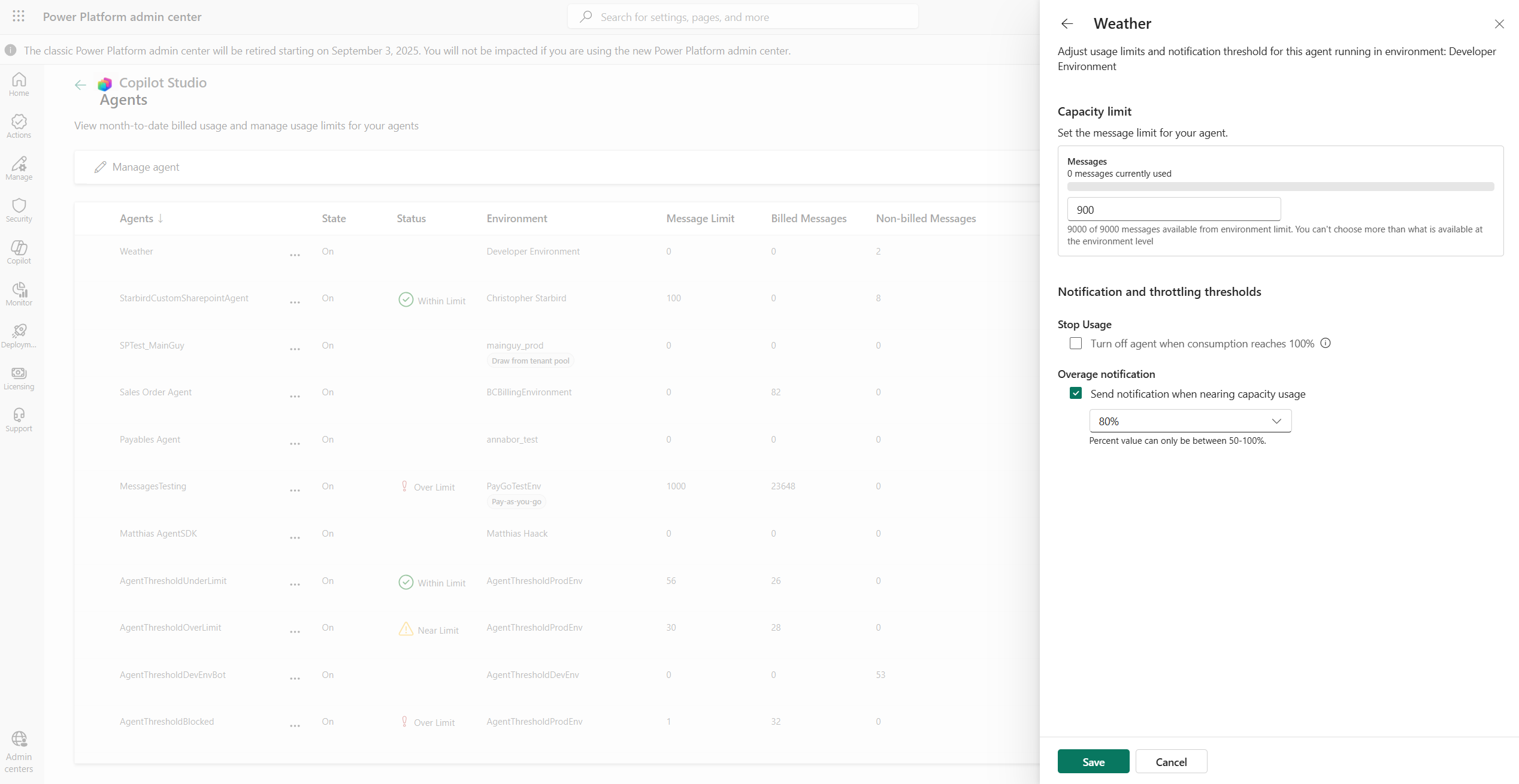
On the Summary tab, select Manage Agents. The Agents page appears where you can:
- Search for a specific agent.
- View all Copilot Studio agents across the tenant that incur billing charges.
- See configured copilot credit limits, if any.
- See month-to-date billed credits.
- Turn off an agent.
- View the environment each agent belongs to.
- Monitor agent status, such as Nearing limit, Over limit, or Within limit.
You can set a monthly limit for any agent directly from this page. For example, if an agent consumes more credits than expected, you can define a limit to control usage:
- Prepaid environments: The agent must stay within the allocated pool.
- Pay-as-you go environments: You can set any limit, and usage is billed accordingly.
After you set limits, you can configure two key guardrails:
- Notifications: Admins, both at the environment and tenant level, receive alerts when an agent's usage approaches the defined limit.
- Hard stop: The agent is automatically turned off once it hits the defined limit.
Note
- An agent's monthly limit doesn't stop the agent flows that the agent calls. Agent flows are billed and checked for capacity separately, and new agent flow runs are blocked only when the environment has no Copilot Credits available. For more information, see Agent flow enforcement.
- Limits aren't applied instantly. An agent can continue to respond for some time after it reaches its limit, so set limits and notification thresholds with some margin.
Frequently asked questions
What is a Copilot Credit?
Copilot Credits measure agent usage. One interaction with an agent can consume several credits because each feature the agent uses in that interaction has its own rate. Some features, such as text and generative AI tools (premium), bill per 1,000 tokens instead of per interaction. To learn which tokens are billed when a reasoning model orchestrates your agent, see How tokens are counted for reasoning models. For the rate of each feature, see Billing rates and management. For agents powered by the GitHub Copilot harness, see Overview of billing for agents powered by the GitHub Copilot harness.
Why should I use a pay-as-you-go plan?
Pay-as-you-go plans provide these benefits:
- Flexibility: Since your usage might fluctuate, pay-as-you-go plans allow for scalability and flexibility. You pay for only what you use.
- Business continuity: Because Copilot Studio is the way to pay for the use of agents that are critical to business continuity, the pay-as-you-go model overcomes any concern associated with reaching the limits of purchased Copilot credits.
- Availability: Your users can benefit from the agents you build, without requiring separate licenses.
- Cost savings: Reduce the hassle of prepaid capacity inventory management. No more unused capacity expires at the end of the month.
- No commitment: Get started with pay-as-you-go right away without locking into any long-term commitments and without any upfront costs.
If I use the pay-as-you-go plan, can I grant my users access to Copilot Studio?
Yes, you can manage access to Copilot Studio. In the Power Platform admin center, go to Settings and update the Copilot Author setting. Assign a security group, and only members of that group have access to Copilot Studio.