Note
Access to this page requires authorization. You can try signing in or changing directories.
Access to this page requires authorization. You can try changing directories.
Fabric records the result each time materialized lake views refresh, whether from a schedule, a manual trigger, or an API call. The Recent runs page provides a single place to confirm data freshness, identify problems, and review details.
View recent refreshes
Select the Materialized lake views tab in the ribbon, then select Recent run(s).
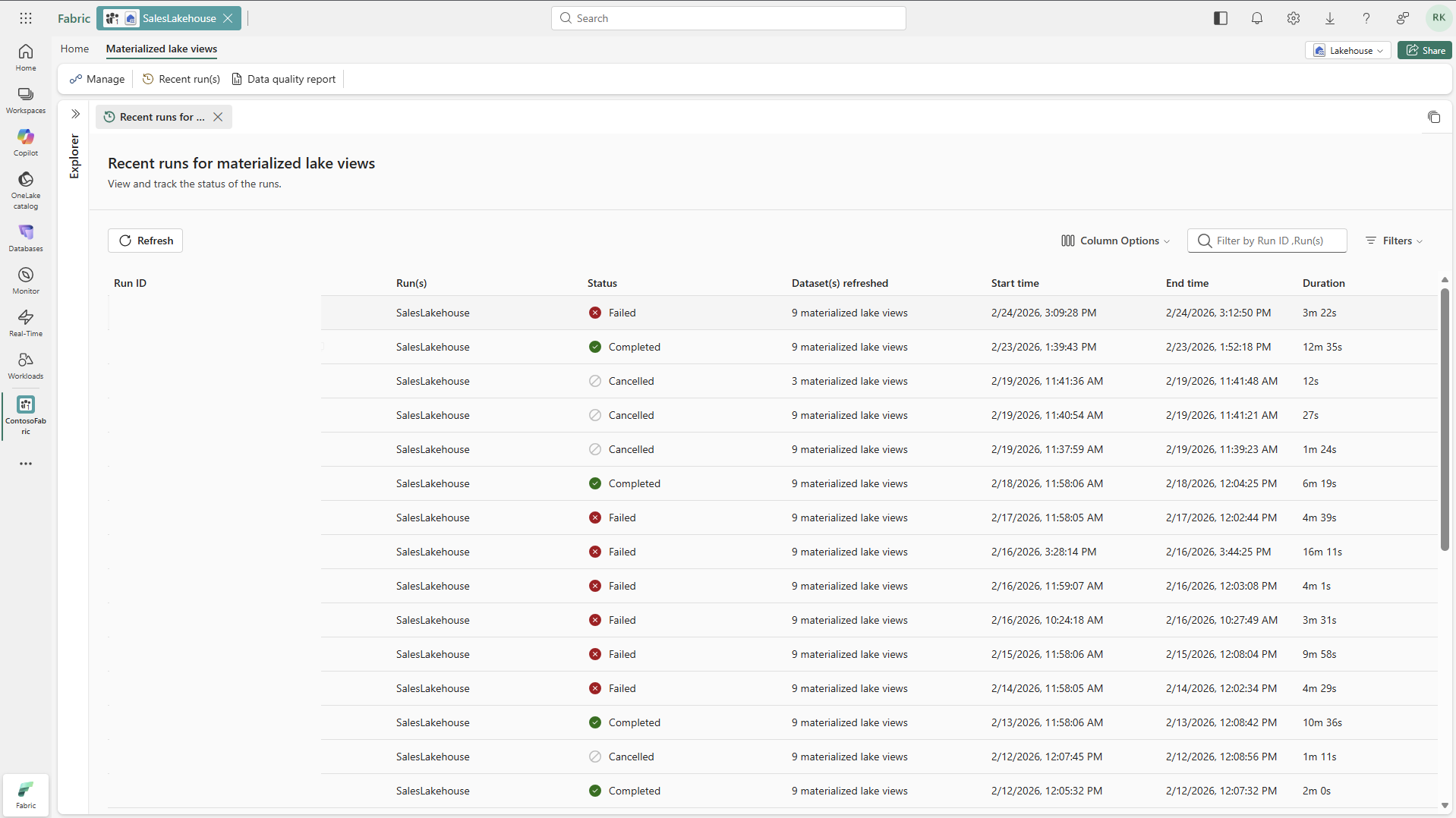
Each row represents a single refresh operation on the Lakehouse. The default columns are Run ID, Run(s), Status, and Start time. To show more columns, select Column Options. Additional columns include Refreshed materialized lake views, End time, Duration, Scheduled by, and Run type.
The Run(s) column displays the name of the schedule or run that triggered the refresh. For scheduled runs, the column shows the schedule name. For on-demand runs, it shows the name you entered when you started the run.
The following table describes each status:
| Status | Description |
|---|---|
| In progress | The refresh is running. |
| Completed | All views refreshed successfully. |
| Failed | One or more views encountered an error. Fabric marks child views of a failed view as Skipped. |
| Skipped | Fabric skipped this run because another active run was already refreshing the same view. |
| Canceled | A user Canceled the run. |
Find a specific run
When the table grows long, use these options to find a specific run:
- Search: Type a keyword in the search box to filter by Run ID or run name.
- Filters: Select Filters to filter by status (Completed, Failed, Canceled, In progress, Skipped) or other criteria.
- Column Options: Show or hide columns. Select Apply to save the selection, or select Reset to default to restore the original layout.
Tip
If you run multiple schedules on the same Lakehouse, filter by the Run(s) column to isolate a specific schedule's history.
Investigate why a run failed
When you see a failed run, follow these steps to diagnose the problem:
Open the run. Select the Run ID to open the run details page. The lineage graph at the top shows source tables on the left and materialized lake views on the right. Each view is color-coded by status.
Check the run summary. The Run details panel shows start time, end time, duration, refresh mode (Optimal or Full), run name, and overall status. The Settings section shows the Spark Environment that Fabric used.
Find the failed views. Scroll to the Activities panel, which lists every view in the run with its status and duration. Select the Failed tab to see only the views that failed.
Inspect a view. Select any materialized lake view to see its name, type, timing, status, and ABFS source path.
Read the error. Select a failed view in the lineage graph to see:
- Error Code and Message that describe the failure
- Copy all to clipboard to share the error with the team
- Detailed logs with a More details link for more information
Review a successful run
For runs that completed successfully, select the Run ID to view the lineage graph, run details, settings, and per-view timing. Use the Activities panel to check how long each view took or to verify the refresh mode.
Note
- The recent runs page retains runs from the last 30 days.
- Environment details appear only if you have access to the environment and the environment still exists.