Note
Access to this page requires authorization. You can try signing in or changing directories.
Access to this page requires authorization. You can try changing directories.
Important
Ensure proper consent transmission for users visiting from the European Economic Area (EEA), the United Kingdom, and Switzerland by implementing Consent Mode or the Transparency and Consent Framework (TCF) with your UET tags to avoid any negative impact on conversion attribution and remarketing segments. This policy reflects the requirements of the EU ePrivacy Directive and the General Data Protection Regulation (GDPR). Learn more
UET Consent Mode lets you adjust UET cookie access based on the consent status of your users. This enhances the privacy capabilities of UET and gives you control over whether first and third-party cookies are stored.
For the purposes of UET Consent Mode, first-party cookies are those created by the advertiser domain (your website), and third-party cookies are created by Microsoft Advertising (Bing.com).
Important
- If you are using the UET - Clarity integration, you must set the consent setting for Clarity separately. Learn more about Clarity cookie consent.
- It is up to you to comply with local regulations when collecting and managing consent.
Consent Management Platforms (CMPs) that support our Consent Mode
If your website uses any of these CMPs, follow the corresponding instructions to ensure Consent Mode is activated:
- Complianz
- Consent Manager
- Consentik
- Consentmo
- Cookiebot
- CookieFirst
- CookieHub
- Cookie Information
- CookieTractor
- CookieYes
- Didomi
- Iubenda
- My Agile Privacy
- OneTrust
- Pandectes
- Seers AI
- Tealium
- TrustArc
- UserCentrics
- WebToffee
- Google Tag Manager
Note
Although Google Tag Manager (GTM) is not a Consent Management Platform (CMP), it integrates with most CMPs to get consent signals. Follow the instructions provided in our GTM UET official template" to configure sending consent signals.
How it works
Consent Mode is set via a property in UET called ad_storage. The possible values for ad_storage are:
| Value for ad_storage | Description |
|---|---|
| granted | First and third-party cookies may be read and written for UET. If no default is set, UET uses granted by default. |
| denied | First-party cookies are not read nor written for UET. Third-party cookies are not written. Third-party cookies are read-only for fraud and spam purposes—not for advertising purposes. |
Consent Mode implementation: Basic or Advanced setup
Advertisers can implement Consent Mode using either the Basic or Advanced configuration.
Microsoft Advertising recommends Advanced Consent Mode as the technical best practice for advertisers. Advanced Consent Mode is designed to maximize campaign performance by enabling enhanced data modeling while supporting compliance with privacy laws by respecting user preferences.
Basic Consent Mode ensures that no tags are fired and no data collection occurs until a user explicitly grants consent.
Advanced Consent Mode enables tags to load immediately, and since consent status defaults to denied, anonymized data is collected until explicit consent is granted. If consent is denied, only anonymized data is collected and later aggregated prior to modeling.
| Attribute | Basic Consent Mode | Advanced Consent Mode |
|---|---|---|
| Tag Loading | Blocked until the user grants consent | Loads immediately with consent state set to denied by default before user makes a choice |
| Data Collection | No data is sent before a user grants consent | If consent is denied, only anonymized data is collected and later aggregated prior to modeling |
| Consent Status | Set after user grants consent | Defaults to denied before user makes a choice, updates based on user choice |
| Data Modeling | Generic modeling | More precise modeling tailored to the advertiser |
How to check if Consent Mode is working
To validate your Consent Mode implementation:
- Validate Setup — Use the validation steps provided in this documentation
- Monitor Conversion Tracking — Review your conversion data to ensure proper tracking
Need help implementing Consent Mode?
Visit Microsoft Advertising Help Center or contact your account team for support.
Note
Any information provided by Microsoft Advertising is for informational purposes only and does not constitute legal advice. Customers are responsible for ensuring compliance with applicable laws and regulations.
Example setup for AdvancedConsent Mode
Note
The following example is for Advanced Consent Mode. For Basic Consent Mode, skip step 1 and fire your UET tag where consent is granted (step 2a below) after you obtain user consent.
Set your default consent setting on every page of your website
Use the following code on each page load to set your default consent setting:
// UET tag is added here
// You can set default Consent Mode right after the UET tag
<script>
window.uetq = window.uetq || [];
window.uetq.push('consent', 'default', {
    'ad_storage': 'denied'
    });
</script>
Set ad_storage to denied by default.
Once the user provides or denies consent, update the consent setting on every page:
- Use the following code on each page to update the ad_storage property:
<script> window.uetq = window.uetq || []; window.uetq.push('consent', 'update', { 'ad_storage': 'granted' }); </script>- Call this script on subsequent pages for as long as the consent applies.
Note
- We recommend that you use the consent script in your tags so that the Consent Mode is set by default and updated when a user updates their consent settings.
- You can prevent UET from sending events to Microsoft by setting the _uetmsdns cookie to a value of 1. Learn more
Important
- If you use Consent Mode, you should continue to pass either a granted or denied value for ad_storage on every page based on your website visitors' cookie consent choices.
- For most countries, if the consent setting is not set, UET uses granted by default.
- In European Economic Area countries, along with the UK and Switzerland, Microsoft Advertising is enforcing Consent Mode. This will lead to conversion loss if the granted signal is not passed to UET when a user accepts consent. In scenarios where Consent Mode is enforced, the default value is denied.
Reading all available consent signals
If you don't implement Consent Mode directly on your website, we support reading consent signals from all available sources, such as TCF (Transparency and Consent Framework), and other standard mechanisms.
This approach simplifies the onboarding process and enables automatic consent handling—provided that:
- Your website includes a cookie banner.
- You use a standard consent solution.
If you prefer to disable this automatic logic, you can do so by setting the following parameter during UET tag initialization: enableAutoConsent: false
Note
We recommend explicitly implementing Consent Mode or TCF for full control.
Example UET tag with automatic consent disabled:
<script>
(function(w,d,t,r,u){var f,n,i;w[u]=w[u]||[] ,f=function(){var o={ti:"TAG_ID_HERE", enableAutoSpaTracking: true, enableAutoConsent: false}; o.q=w[u],w[u]=new UET(o),w[u].push("pageLoad")} ,n=d.createElement(t),n.src=r,n.async=1,n.onload=n .onreadystatechange=function() {var s=this.readyState;s &&s!=="loaded"&& s!=="complete"||(f(),n.onload=n. onreadystatechange=null)},i= d.getElementsByTagName(t)[0],i. parentNode.insertBefore(n,i)})(window,document,"script"," //bat.bing.com/bat.js","uetq"); </script>
Validating Consent Mode implementation with UET Tag Helper browser plugin
Verify the implementation of Consent Mode within UET using the UET Tag Helper.
Microsoft Edge:
- Download the UET Tag Helper in Edge.
- Select Get, and then Add extension.
By installing the UET Tag Helper, you agree to the Microsoft Service Agreement and Microsoft Privacy Statement. - Once installed, you will see the UET Tag Helper icon in Edge.
Google Chrome:
Download the UET Tag Helper in Chrome.
Select Add to Chrome, and then Add extension.
By installing the UET Tag Helper, you agree to the Microsoft Service Agreement and Microsoft Privacy Statement.Once installed, you will see the UET Tag Helper icon in Chrome.

Once the UET Tag Helper is installed, verify UET Consent Mode.
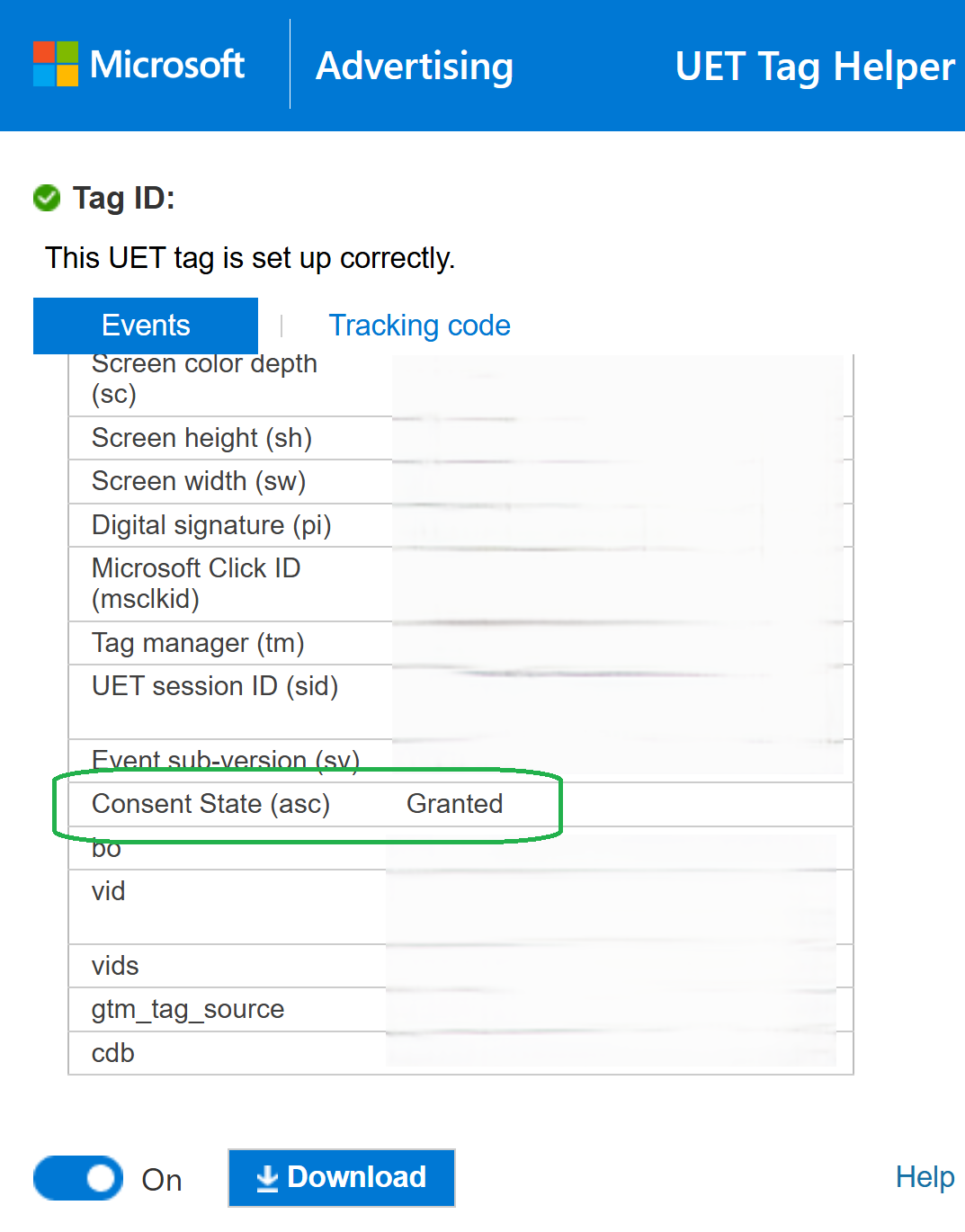
Inspect the asc parameter
The asc parameter within UET events indicates the status of user consent.
Possible values for this parameter are:
- denied
- granted
Expected behavior
Before user consent is given
- UET fired, the consent state (asc) is: Denied (preferred).
- OR UET events shouldn't be fired
After user consent is provided
- The asc parameter should be: granted for all subsequent UET events.
Validation
- Use the UET Tag Helper browser plugin to monitor UET events.
- Ensure that the asc parameter exists for all UET events and reflects the correct consent status as outlined above.
Validating Consent Mode implementation with UET Dashboard
The UET Dashboard includes a Consent signal column to help advertisers quickly assess whether valid consent signals are being captured for each UET tag event type. This feature supports compliance with privacy regulations in the European Economic Area (EEA), the United Kingdom (UK), and Switzerland by surfacing signal health directly in the dashboard. Consent signal is evaluated per event type—so each row (such as Page Load or Custom Event) is assessed independently.
Consent status is displayed using four clear labels: Healthy, Moderate, Missing, and “-”. A “Healthy” status means more than 75% of events from the past seven days include a valid consent signal. “Moderate” indicates coverage between 0% and 75%, while “Missing” means no valid signals were detected. The “-” symbol appears when the signal status is unclear.
From the navigation menu on the left, select Conversions.
Review the Consent status column in the Tag Summary header:
- Compliant: Consent signals are detected in most or all UET events, indicating proper setup.
- Needs Attention: Consent signals are missing or incomplete, suggesting the tag setup needs to be fixed.
From the navigation menu on the left, hover over Conversions and select UET tag.
Check the status listed in the Consent Signal column to verify that consent signals are appropriately configured for the UET tag:
- Healthy: Valid consent signal present in greater than 75% of events in the last 7 days.
- Moderate: Valid consent signal present in greater than 0% and less than or equal to 75% of events in the last 7 days.
- Missing: Consent signal present in 0% of events in the last 7 days.
From the navigation menu on the left, select Conversions and select the Test your tag tab.
Check the status listed in the Consent Status column to verify whether your UET tag is correctly transmitting consent information for users:
- Present: A valid consent signal is present in the event, on the specified URL, during this session.
- Not present: No consent signal is present in that event.
Consent mode and third-party measurement
Consent mode controls whether UET cookies are set and read based on user consent signals. When implemented correctly, it helps support compliance with applicable privacy laws, such as CCPA and CPRA.
Using UET data for measurement on platforms such as LinkedIn Ads doesn't change how consent mode works or your responsibilities for managing user consent.