Note
Access to this page requires authorization. You can try signing in or changing directories.
Access to this page requires authorization. You can try changing directories.
Note
- Starting on March 17, 2025, we'll automatically add one account-level logo extension to new and existing accounts. This helps promote your brand and build brand recognition.
- You may adjust and/or delete this logo extension, and we won't create it again for your account.
- Your account is ineligible for this automatic change if you're an advertiser for pharmaceuticals, financial services, or adult content. Your account will also be ineligible if you've opted out of automated business logo extensions, or if you already added logo extensions at the account, campaign, or ad group levels.
Promote your brand and stand out from the competition by displaying eye-catching logos in your ads. Logo extensions help you build brand recognition to drive more clicks and conversions on your website. Logo extensions serve on Bing across computer, tablet, and mobile devices and can appear with other extensions. You can associate your logo extensions at the account, campaign, or ad group levels, but only one extension is allowed per level. Please note we'll prioritize logo extensions during ad delivery over any automated business logo extensions you have set up.
Note
For Performance Max campaigns that have logos in an asset group and a logo extension at the account level, the asset group's logo will take priority during ad delivery.
Ability to set up in: All Bing markets
Serves in: Bing owned and operated traffic globally on computers and Copilot in Bing
Conversational Bing layout

Bing search engine results page layout
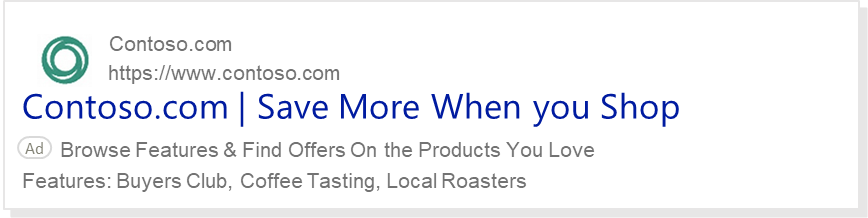
Requirements
You can add one square logo per account, campaign, or ad group. Your logos must meet the following requirements:
- Aspect ratio: 1:1
- Accepted file types: PNG and JPG
- Maximum file size: 5120 KB
- Minimum resolution: 128 x 128 pixels (recommended 128 x 128 pixels)
Create a logo extension
From the navigation menu on the left, hover over Campaigns and select Ads & extensions > Extensions.
Select Account, Campaign, or Ad group to associate your extension at one of these levels.
From the extensions dropdown, select Logo extensions.
Select Create > Add new Logo extension.
Add your Business logo.
Enter your Business name.
Enter the Domain name for your business website. For example: “contoso.com”.
Note
Your domain name shouldn't include any subdirectories.
Select Save.
You'll see the new extension added to the Selected logo extensions list. On the main extension page, select Save to finish adding the extension to your account, campaign, or ad group.
Go to the About ad extensions page for instructions to:
- Add, edit, and delete ad extensions
- Associating ad extensions with an account or campaign
Note
Standard performance reports are available for all extensions. Learn how to create a report.