Community Center | Not monitored
Tag not monitored by Microsoft.

This browser is no longer supported.
Upgrade to Microsoft Edge to take advantage of the latest features, security updates, and technical support.
' cx='32' cy='32' r='32' /%3E%3Ctext x='50%25' y='55%25' dominant-baseline='middle' text-anchor='middle' fill='%23FFF' %3ECV%3C/text%3E%3C/svg%3E)
Hello at all
I have the following situation with my excel sheet.
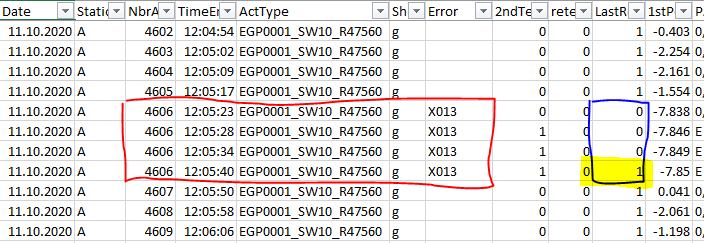
See the attached a screenshot.
If in the column "NbrA" the same number - in my case "4606" - is often then once shownd,
then I have to compare is the next cell value (number) the same.
The value of the comparing shall be shown in the column "LastR".
If the number is the same (4606 = 4606), than is result "0"
If the number is not the same (4606 ≠ 4607), then is the result "1".
Could anyone give me a suggestion how I can solve this situation in PBI? :))))
Thanks in advance
37437-20200411-column-exmp.png

Hi @Cedo Vranjes
Does column [LastR] already exist in your table? And could you post your current query code to better understand your scenario?
Hi @Lz._
We receive the information from database from production machine.
Therefore ... No, the column [LastR] does not exist in my table. The column is later added.
This column is especially for the further data analysis in excel created.
Could you be exact with "current query Code"? What do you mean?
It is possible to contact you per private message?
I guess it is better to clarify the details 1:1.
1/ Could you unmark as answered your previous reply please (this is confusing)?
2/ Organizing 1:1 isn't an option as sharing email address and info. like this isn't allowed on this forum (as on many others)
3/ Re. sharing your query code, I'm taking about your Power BI query code. If you really don't see what I mean let me know and I'll upload a picture
4/ Re. "We receive the information from database from production machine": Do you receive a file (if so, in which format) or do you connect to the database through a Power BI connector?
Hi @Lz._
1/ Sorry … I accidentally pressed the button.
2/ For sure. I suspected something like that.
3/ Yes please. I am an absolute beginner. Therefore, I am not sure, if I do the right thing. Or share the right information.
4/ Yes. We receive the file in .txt - Format. When the file is downloaded, we convert it in .docx - file and add / create the column [LastR] for make the comparison.
1/ Are you sure you use Power BI?
2/ Your last point (#4) is very confusing. WHY do you convert your text file as a Word document (.docx)?
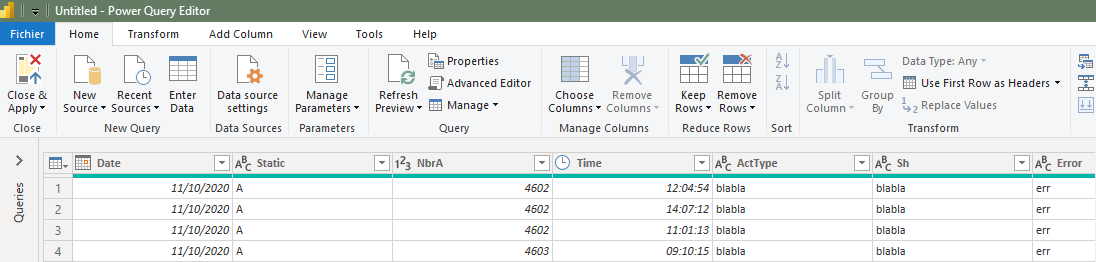
Assuming I have a text/csv file named SourceFile_CedoVranjes-2001.csv and I open and transform it in Power BI, the table would look like this:
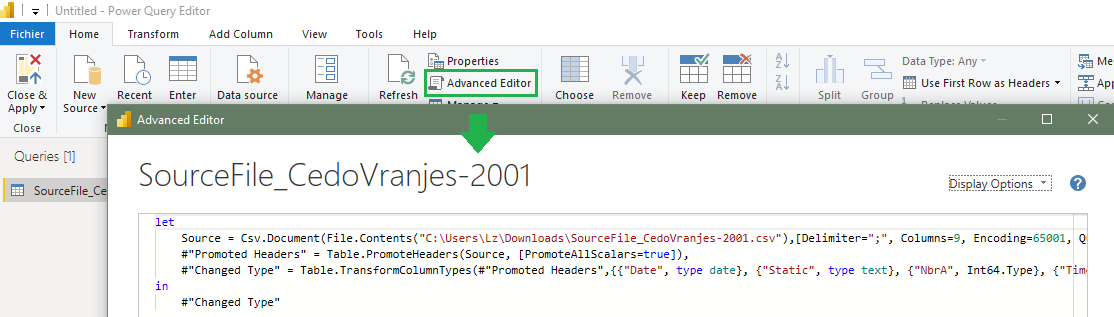
and from the Home tab (still in Power BI), if I use option Advanced Editor I get my query code, i.e.:
1/ Yes. I use the PBI.
2/ I apologize me again. Of course ... We convert the .the - file in the .xlsx - file.
The query code is :
let
Source = Folder.Files("L:\APG\EOL-Log\Murten\Osprey\Automatic Tester - CH04PD80292\JE_EOL\ProductionData\MasterOsprey"),
#"Filtered Hidden Files1" = Table.SelectRows(Source, each [Attributes]?[Hidden]? <> true),
#"Invoke Custom Function1" = Table.AddColumn(#"Filtered Hidden Files1", "Transform File", each #"Transform File"([Content])),
#"Renamed Columns1" = Table.RenameColumns(#"Invoke Custom Function1", {"Name", "Source.Name"}),
#"Removed Other Columns1" = Table.SelectColumns(#"Renamed Columns1", {"Source.Name", "Transform File"}),
#"Expanded Table Column1" = Table.ExpandTableColumn(#"Removed Other Columns1", "Transform File", Table.ColumnNames(#"Transform File"(#"Sample File"))),
#"Changed Type" = Table.TransformColumnTypes(#"Expanded Table Column1",{{"Source.Name", type text}, {"ActNbr", Int64.Type}, {"ProductionDate", type date}, {"StationEOL", type text}, {"BarCodeEOL", type text}, {"TestNbrEOL", Int64.Type}, {"TestDateEOL", type date}, {"TimeEndEOL", type time}, {"TestNameEOL", type text}, {"TestResEOL", type text}, {"2ndEOL", Int64.Type}, {"RetestEOL", Int64.Type}, {"ErrEOL", type text}, {"OtherEOL", type any}, {"StationLaser", type text}, {"BarCodeLaser", type text}, {"TestNbrLaser", Int64.Type}, {"TestDateLaser", type date}, {"TimeEndLaser", type time}, {"TestNameLaser", type text}, {"TestResLaser", type text}, {"2ndLaser", Int64.Type}, {"RetestLaser", Int64.Type}, {"ErrLaser", type text}, {"OtherLaser", type any}}),
#"Inserted Hour" = Table.AddColumn(#"Changed Type", "Hour", each Time.Hour([TimeEndEOL]), Int64.Type),
#"Filtered Rows" = Table.SelectRows(#"Inserted Hour", each [ProductionDate] >= #date(2018, 1, 1) and [ProductionDate] <= #date(2021, 12, 31)),
#"Gefilterte Zeilen" = Table.SelectRows(#"Filtered Rows", each Date.IsInCurrentWeek([ProductionDate]) or Date.IsInPreviousWeek([ProductionDate])),
#"Gefilterte Zeilen1" = Table.SelectRows(#"Gefilterte Zeilen", each Date.IsInCurrentWeek([ProductionDate]) or Date.IsInPreviousWeek([ProductionDate]))
in
#"Gefilterte Zeilen1"