Community Center | Not monitored
Tag not monitored by Microsoft.

This browser is no longer supported.
Upgrade to Microsoft Edge to take advantage of the latest features, security updates, and technical support.
' cx='32' cy='32' r='32' /%3E%3Ctext x='50%25' y='55%25' dominant-baseline='middle' text-anchor='middle' fill='%23FFF' %3ECV%3C/text%3E%3C/svg%3E)
Hello at all
I have the following situation with my excel sheet.
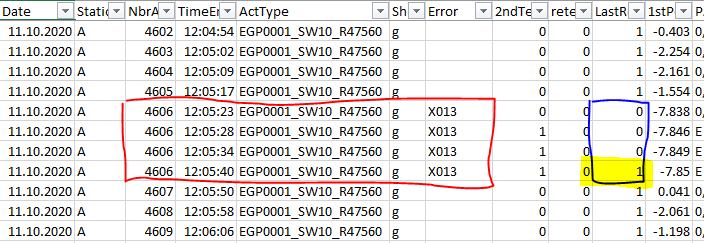
See the attached a screenshot.
If in the column "NbrA" the same number - in my case "4606" - is often then once shownd,
then I have to compare is the next cell value (number) the same.
The value of the comparing shall be shown in the column "LastR".
If the number is the same (4606 = 4606), than is result "0"
If the number is not the same (4606 ≠ 4607), then is the result "1".
Could anyone give me a suggestion how I can solve this situation in PBI? :))))
Thanks in advance
37437-20200411-column-exmp.png

Hi @Cedo Vranjes
Does column [LastR] already exist in your table? And could you post your current query code to better understand your scenario?
OK (we're almost on the same page :)
And after the last step (#"Gefilterte Zeilen1") you want to add column [LastR] with:
IF there is only 1 record with same [ActNbr] THEN 1
ELSE (if there are several records with the same [ActNbr]) THEN 0, except the last record that should get a 1
1/ Is my understanding correct? Otherwise explain the conditions to set 0 or 1 for [LastR]
2/ Assuming my understanding is correct, are all your records sorted by Date & Time?
AND If there's no sensitive data it would be great if you could upload one of your text file on OneDrive, Google drive (or any other file sharing serive), share it and post the link in your reply
1/ I have to explain the simplefy process
Unfortunately, i cannot upload any datas.
2/ Yes, datas are selected in PBI as
Thank you for your effort. The code looks good.
I consulted my internal responsible contacts. So, I can give you additional information.
The goal is to implement the Excel formula "=IF(C2<>C3;1;0)" and shown the result of comparasion in the new column "LastR".
Is it possible to give me a suggestion how the pbxi forumal has to be created?
Thank you for your help.38773-sample.pdf
Your numbering logic - for [LastR] - isn't clear to me so let's see if the following does what you want, assuming your records are already sorted as you want:
let
Source = Folder.Files("L:\APG\EOL-Log\Murten\Osprey\Automatic Tester - CH04PD80292\JE_EOL\ProductionData\MasterOsprey"),
#"Filtered Hidden Files1" = Table.SelectRows(Source, each [Attributes]?[Hidden]? <> true),
#"Invoke Custom Function1" = Table.AddColumn(#"Filtered Hidden Files1", "Transform File", each #"Transform File"([Content])),
#"Renamed Columns1" = Table.RenameColumns(#"Invoke Custom Function1", {"Name", "Source.Name"}),
#"Removed Other Columns1" = Table.SelectColumns(#"Renamed Columns1", {"Source.Name", "Transform File"}),
#"Expanded Table Column1" = Table.ExpandTableColumn(#"Removed Other Columns1", "Transform File", Table.ColumnNames(#"Transform File"(#"Sample File"))),
#"Changed Type" = Table.TransformColumnTypes(#"Expanded Table Column1",{{"Source.Name", type text}, {"ActNbr", Int64.Type}, {"ProductionDate", type date}, {"StationEOL", type text}, {"BarCodeEOL", type text}, {"TestNbrEOL", Int64.Type}, {"TestDateEOL", type date}, {"TimeEndEOL", type time}, {"TestNameEOL", type text}, {"TestResEOL", type text}, {"2ndEOL", Int64.Type}, {"RetestEOL", Int64.Type}, {"ErrEOL", type text}, {"OtherEOL", type any}, {"StationLaser", type text}, {"BarCodeLaser", type text}, {"TestNbrLaser", Int64.Type}, {"TestDateLaser", type date}, {"TimeEndLaser", type time}, {"TestNameLaser", type text}, {"TestResLaser", type text}, {"2ndLaser", Int64.Type}, {"RetestLaser", Int64.Type}, {"ErrLaser", type text}, {"OtherLaser", type any}}),

    // EFFICIENCY: Filtering [ProductionDate] should come first, otherwise you calc. #"Inserted Hour" on rows that you filter our later
    #"Filtered ProductionDate" = Table.SelectRows(#"Changed Type", each Date.IsInCurrentWeek([ProductionDate]) or Date.IsInPreviousWeek([ProductionDate])),
    #"Inserted Hour" = Table.AddColumn(#"Filtered ProductionDate", "Hour", each Time.Hour([TimeEndEOL]), Int64.Type),
    // The following steps are useless...
        // #"Filtered Rows" = Table.SelectRows(#"Inserted Hour", each [ProductionDate] >= #date(2018, 1, 1) and [ProductionDate] <= #date(2021, 12, 31)),
        // #"Gefilterte Zeilen" = Table.SelectRows(#"Filtered Rows", each Date.IsInCurrentWeek([ProductionDate]) or Date.IsInPreviousWeek([ProductionDate])),
    // The following has been moved before #"Inserted Hour" and renamed #"Filtered ProductionDate"
        // #"Gefilterte Zeilen1" = Table.SelectRows(#"Gefilterte Zeilen", each Date.IsInCurrentWeek([ProductionDate]) or Date.IsInPreviousWeek([ProductionDate]))

    #"Grouped ActNbr" = Table.Group(#"Inserted Hour", {"ActNbr"},
        {"GRP_ActNbr", each
            if Table.RowCount(_) = 1
            then Table.AddColumn(_, "LastR", each 1, Int64.Type)
            else Table.Combine(
                {
                    Table.AddColumn(Table.FirstN(_, Table.RowCount(_)-1), "LastR", each 0, Int64.Type),
                    Table.AddColumn(Table.LastN(_, 1), "LastR", each 1, Int64.Type)
                }
            ),
            type table
        }
    ),
    #"Combined ActNbr Tables" = Table.Combine(#"Grouped ActNbr"[GRP_ActNbr])

in
    #"Combined ActNbr Tables"
If Excel formula =IF(C2<>C3;1;0) does what you want, the proposal I made earlier does the same thing, more efficiently... So, please do the following to check it:
1/ Copy the sample.pdf file you upload in a folder, let's assume it's C:\MyFolder
2/ In Power BI create a new blank query (Get data > Blank query)
3/ Using the Advanced Editor > Select all > Paste the following query code. Don't hit Done now...
4/ In the Source step replace "**C:\Users\Lz\Downloads**" with **C:\MyFolder**
5/ Click Done (bottom right)
Now check column [LastR] values
QUERY CODE:
let
Source = Pdf.Tables(File.Contents("C:\Users\Lz\Downloads\sample.pdf"), [Implementation="1.1"]),
PromotedHeaders = Table.TransformColumns(Source,
{"Data", each Table.PromoteHeaders(_, [PromoteAllScalars=true]), type table}
),
CombinedTables = Table.Combine(PromotedHeaders[Data]),
ChangedTypes = Table.TransformColumnTypes(CombinedTables,
{
{"Date", type date}, {"Station", type text}, {"NbrAct", Int64.Type}, {"TimeEnd", type time},
{"ActType", type text}, {"Shift", type text}, {"Error", type text}, {"2ndTest", Int64.Type},
{"retest", Int64.Type}, {"LastRes", Int64.Type}, {"1stPos", type number}, {"PADD", type text},
{"TEST1", type text}, {"TrqTS1", Int64.Type}, {"DegTS1", type number}, {"TEST2", type text},
{"STALL2", type text}, {"TrqTS2", Int64.Type}, {"DelPos", type text}, {"Noise", type text},
{"Column21", type text}, {"DIAGA", type text}, {"LaserStr", type datetime}, {"TestTime", Int64.Type},
{"CycleTime", Int64.Type}, {"MaxDurTL", Int64.Type}, {"LateCycsTL", Int64.Type},
{"TotCycsTL", Int64.Type}, {"Time", type text}
}
),
#"Grouped ActNbr" = Table.Group(ChangedTypes, {"NbrAct"},
{"GRP_ActNbr", each
if Table.RowCount() = 1
then Table.AddColumn(, "LastR", each 1, Int64.Type)
else Table.Combine(
{
Table.AddColumn(Table.FirstN(, Table.RowCount()-1), "LastR", each 0, Int64.Type),
Table.AddColumn(Table.LastN(_, 1), "LastR", each 1, Int64.Type)
}
),
type table
}
),
#"Combined ActNbr Tables" = Table.Combine(#"Grouped ActNbr"[GRP_ActNbr])
in
#"Combined ActNbr Tables"
In the below picture [LastR] in bBlue contains the values from the above query, the Orange column use the Excel formula you posted:
