Code 12: Driver Error in Windows Hyperv VM for NVIDIA GPUs

Anonymous
2023-12-04T07:49:23+00:00

I’m facing an issue with NVIDIA GPUs in my Windows virtual machine (VM) using Hyper-V with Discrete Device Assignment (DDA).

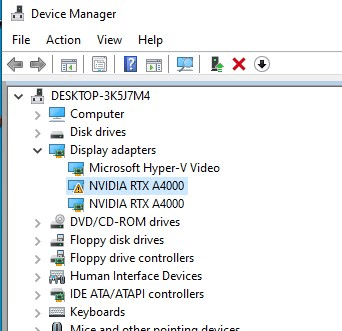
I’ve added two GPUs to my Hyper-V Windows VM, both visible in Device Manager under Display Adapters. However, one GPU is working perfectly, while the other is encountering a Code 12 error.
Here’s what I’ve tried:

  1. GPU Assignment with DDA:
    • I successfully added two GPUs to my Hyper-V Windows VM using the Discrete Device Assignment (DDA) method.
        PS C:\Users\Administrator> Dismount-VMHostAssignableDevice -LocationPath "PCIROOT(16)#PCI(0200)#PCI(0000)" -force
        PS C:\Users\Administrator> Dismount-VMHostAssignableDevice -LocationPath "PCIROOT(C9)#PCI(0200)#PCI(0000)" -force
        PS C:\Users\Administrator>Add-VMAssignableDevice -LocationPath "PCIROOT(36)#PCI(0000)#PCI(0000)" -VMName Windows10
        PS C:\Users\Administrator>Add-VMAssignableDevice -LocationPath "PCIROOT(C9)#PCI(0200)#PCI(0000)" -VMName Windows10
      
  2. NVIDIA Driver Installation:
    • After adding the GPUs, I installed the NVIDIA drivers on the VM.
  3. Device Manager Status:
    • Both GPUs are visible in Device Manager under Display Adapters.
  4. Code 12 Error:
    • One GPU is working fine.
    • The second GPU, however, displays a warning and is not functioning properly.
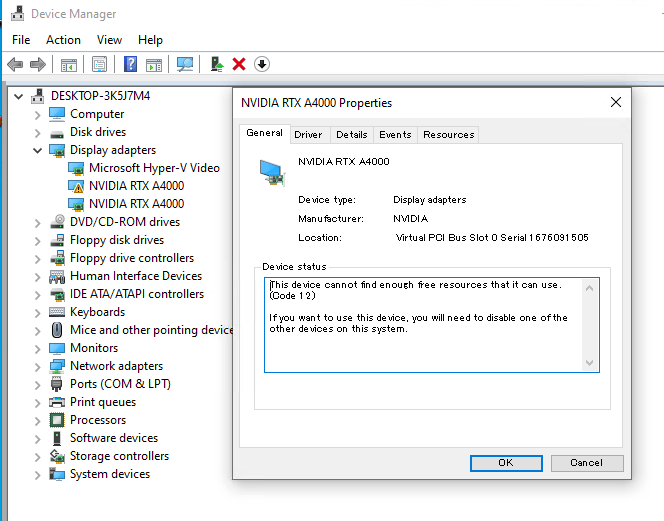
    • The error message states: “This device cannot find enough free resources that it can use. (Code 12) If you want to use this device, you will need to disable one of the other devices on this system.”
5. Disable/Enable Test:

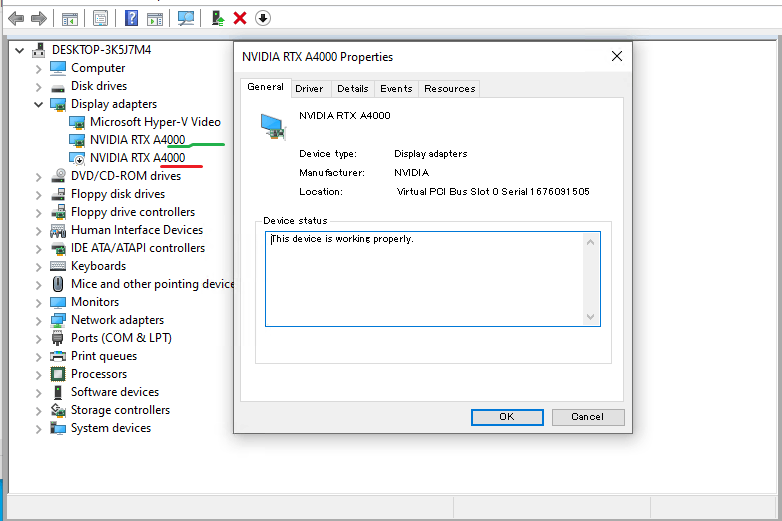
  • When I disable the GPU1 adapter, GPU2 works fine.
  • Enabling GPU1 and disabling GPU2 and vice versa also confirms the individual functionality of each GPU.
Question:
How can I overcome the Code 12 error and utilize both NVIDIA GPUs simultaneously in my Hyper-V Windows VM?

Any insights, experiences, or tips from the community would be greatly appreciated.

Thanks in advance!

Windows for business | Windows Server | Storage high availability | Virtualization and Hyper-V

Locked Question. This question was migrated from the Microsoft Support Community. You can vote on whether it's helpful, but you can't add comments or replies or follow the question.

0 comments No comments
{count} votes

11 answers

Sort by: Most helpful
  1. Anonymous
    2024-01-29T20:55:02+00:00

    We have hyper-v 2019, and windows 10vm. Using the Nvidia L40 as passthrough (no partition) to the VM we get the code 12 error. Drivers are up to date.

    we did implement this and we still get the code 12 error.

    • Enabled Write-Combining on the CPU using the cmdlet: Set-VM -GuestControlledCacheTypes $true -VMName VMName
    • Configured the 32-bit MMIO space with the cmdlet: Set-VM -LowMemoryMappedIoSpace 3Gb -VMName VMName
    • Configured greater than 32-bit MMIO space with the cmdlet: Set-VM -HighMemoryMappedIoSpace 33280Mb -VMName VMName
    0 comments No comments
  2. Anonymous
    2024-01-31T02:02:37+00:00

    Hi Mohamed,

    Hope you're doing well.

    Thanks for your update.

    Due to the limitation of forum, we cannot collect relevant logs for further troubleshooting. We suggest you to go to the Microsoft Customer Service Center to open a Premier-level case so that with their permission level and resource, Microsoft could provide you with better help on your request.

    Best Regards

    0 comments No comments
  3. Anonymous
    2024-01-31T06:24:02+00:00

    Hi Mohamed Alkhatib

    Would you please share the error screenshots, etc.?

    0 comments No comments
  4. Anonymous
    2024-01-31T06:27:11+00:00

    We fixed it by setting the memory to 65g. The l40 gpu is a 48gb card. Here is what we did:

    Set-VM -HighMemoryMappedIoSpace 65Gb -VMName vmname

    0 comments No comments
  5. Anonymous
    2024-01-31T06:41:21+00:00

    Mohammed Alkhatib1
    Great to hear this! Nice work!
    If you have any further updates or news to share, feel free to let me know. Cheers!

    0 comments No comments
