Outlook column widths:

Anonymous
2022-01-12T11:18:44+00:00

Outlook column widths: Basically I want to cut the first and second column to allow more space for the messages.

Column 1: inbox, sent, deleted, folders

Column 2: list of messages

Column 3: details of the selected message.

PS I cannot send a pic because it will have details of my e mails!

pls help

Outlook | Windows | Classic Outlook for Windows | For business

Locked Question. This question was migrated from the Microsoft Support Community. You can vote on whether it's helpful, but you can't add comments or replies or follow the question.

0 comments No comments
{count} votes

9 answers

Sort by: Most helpful
  1. Anonymous
    2022-01-12T12:23:33+00:00

    Hi Mohga, my name is Neil, and I'm an Outlook user like you.

    I'll be happy to help you with your question.

    OK, first of all, in Outlook, make sure you're in the compact view setting. To do this, click the View tab and then click on the "Change View" button and then click on "Compact".

    This is the layout you described in your question. You may already have this set this way and that's fine. I was just making sure you are in the correct view setting.

    See the picture below as an example:

    3 people found this answer helpful.
    0 comments No comments
  2. Anonymous
    2022-01-12T12:24:01+00:00

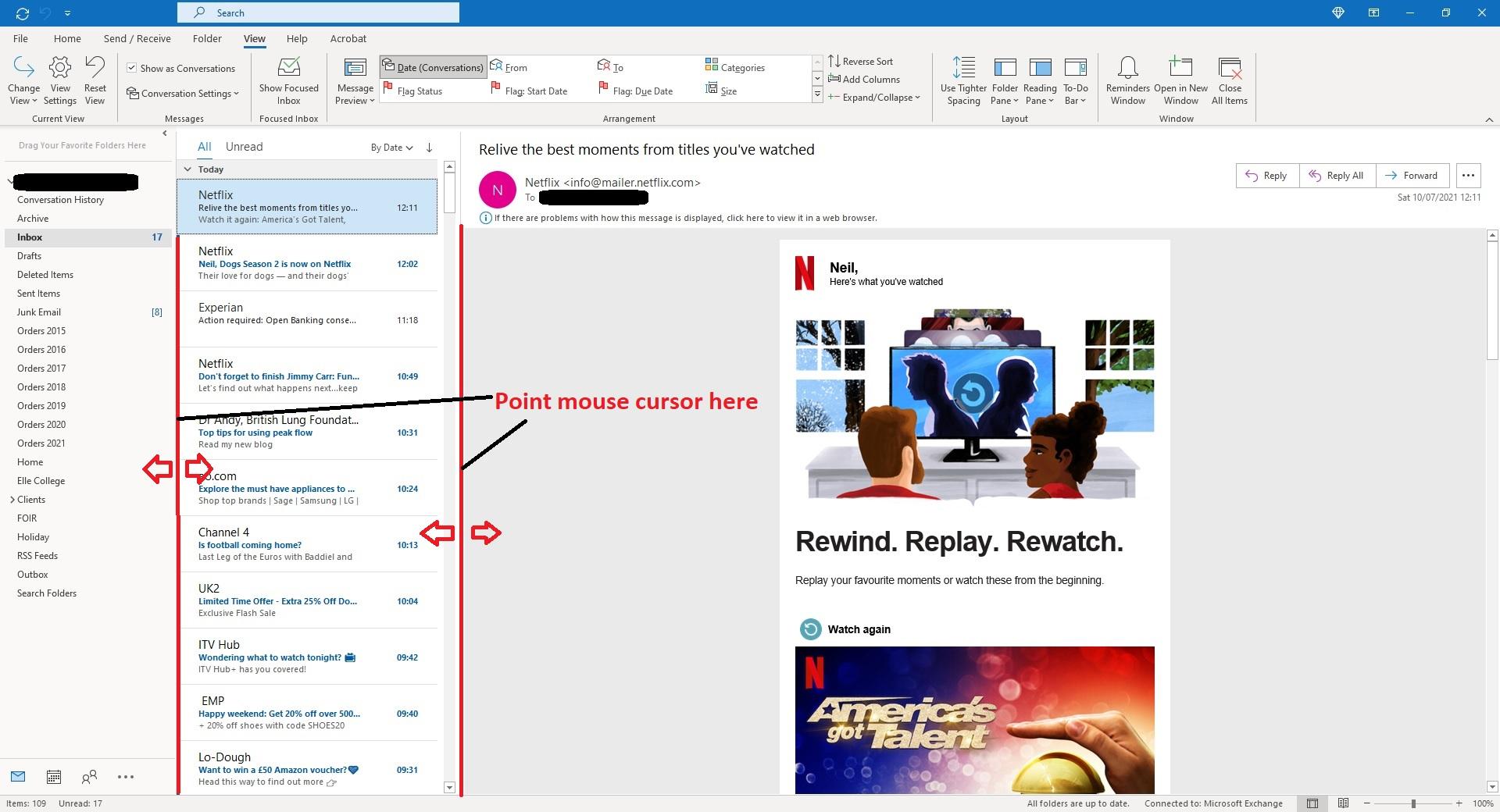
    Now, if you place your mouse cursor over the vertical separator line between the folder column and the list of messages column, it will turn into a double headed arrow pointing left and right. It can be a little tricky, but it will change. When it does this, click your mouse button down and hold it down and you will be able to drag this separator bar left and right to make the folder column thinner or wider.

    Obviously you want this to be thinner so drag it to the left as much as it will go. There is a minimum distance it can be and it will stop and you will not be able to drag it any further, so let go.

    Now you can do the same with the vertical separator bar between the list of messages and the preview pane (where the message is displayed). Point your mouse cursor over this vertical bar and get the double headed arrow and then click and hold and drag it to the left. Again there is a minimum distance that this can be. Just arrange both separator bars so you get the desired width for your messages in the preview pane.

    There is a picture below showing you where to point your mouse cursor.

    Let me know how you get on.

    Kindest regards,

    Neil
    1 person found this answer helpful.
    0 comments No comments
  3. Anonymous
    2022-01-12T12:41:07+00:00

    Thank you. That is what I have been doing but it does not move to the left . It seems that the minimum the system is set up to is very wide-unnecessarily!

    9 people found this answer helpful.
    0 comments No comments
  4. Anonymous
    2022-01-12T12:44:17+00:00

    Thanks Neil. Yes it is already "compact". The cursor refuses to move left!

    3 people found this answer helpful.
    0 comments No comments
  5. Anonymous
    2022-01-12T12:45:11+00:00

    Hi,

    Without a screenshot it is hard for me to envisage if it looks 'normal' or not. I understand that you have personal emails that you do not want to show, but could you possibly click on a folder that is empty like Archive, Drafts, Junk, etc... which does not contain any email and then take a screenshot and post it here?

    Kindest regards,

    Neil

    0 comments No comments