How do I create a custom PowerPoint template and apply it to an existing presentation?

Anonymous
2023-08-28T09:28:14+00:00

Hi. I have 89 power point presentation slides. Howewer, my professor ask me to change every slide background with his background / template.

Here's the power point my professor provides :

Nah the problem is, when I try to use this tutorial https://support.microsoft.com/en-gb/office/apply-a-template-to-an-existing-presentation-43f7fc75-db26-433b-8248-9fcd0093006b#:~:text=the%20procedures%20below.-,Select%20File%20>%20New%20from%20Template.,file%20and%20then%20click%20Choose. I copy all of my slide to that power point, and paste it (use destination theme), my original background / template does persist. it did not change

Please tell me what to do. It's too bothersome to keep manualy copy paste the slide one by one

Microsoft 365 and Office | PowerPoint | For home | Windows

Locked Question. This question was migrated from the Microsoft Support Community. You can vote on whether it's helpful, but you can't add comments or replies or follow the question.

0 comments No comments
{count} vote
Answer accepted by question author
  1. Steve Rindsberg 99,086 Reputation points MVP Volunteer Moderator
    2023-09-03T15:13:57+00:00

    First: You pasted the image onto the layout of whatever was the current slide, not to the master itself. Depending on what you want to do, this may or may not be ok. If you want the image to appear on ALL slide, as I expect you do, choose View | Slide Master then scroll to the top slide in the thumbnail pane, the one that all the other thumbnails are slightly indented under. THAT is the master; anything pasted there should appear on ALL slides.

    Next: With the image pasted onto the slide's layout, it's probably appearing on the slide, but you've got other stuff covering it up, ie your own image(s) on the slide. Select and delete anything that's not supposed to be part of every slide and delete it. The image you pasted onto the layout should then be visible.

    5 people found this answer helpful.
    0 comments No comments

12 additional answers

Sort by: Most helpful
  1. Luc Sanders 48,110 Reputation points Volunteer Moderator
    2023-09-02T12:12:49+00:00

    Bram,

    Here's what I would do, but this is just me, Steve or John may have better ideas.

    Make a copy of your teachers template (which is just a presentation).

    On this copy rename the template to xxxxxxxxxxx.zip, just say yes on the warning.

    PPT will create a folder (choose an appropriate folder to create it in) with all the elements of your presentation.

    Double click that folder, in the subfolders choose the media folder and double click it.

    You should see all the pictures that where used in the presentation.

    Now create your own presentation, go to View - master and paste the correct picture on the master (top thumbnail), put it in the background if you want. All the slide layouts will now have the same image.

    If you want a different picture for the title slide layout, right click it and choose edit background, browse and select another picture.

    Leave the master, save your presentation as a template (*.potx).

    If you create a new presentation based on your template it will contain all the pictures you added.

    Hope this helps

    0 comments No comments
  2. Steve Rindsberg 99,086 Reputation points MVP Volunteer Moderator
    2023-09-03T03:27:54+00:00

    This has my upvote

    0 comments No comments
  3. Anonymous
    2023-09-03T10:48:37+00:00

    Bram,

    Here's what I would do, but this is just me, Steve or John may have better ideas.

    Make a copy of your teachers template (which is just a presentation).

    On this copy rename the template to xxxxxxxxxxx.zip, just say yes on the warning.

    PPT will create a folder (choose an appropriate folder to create it in) with all the elements of your presentation.

    Double click that folder, in the subfolders choose the media folder and double click it.

    You should see all the pictures that where used in the presentation.

    Now create your own presentation, go to View - master and paste the correct picture on the master (top thumbnail), put it in the background if you want. All the slide layouts will now have the same image.

    If you want a different picture for the title slide layout, right click it and choose edit background, browse and select another picture.

    Leave the master, save your presentation as a template (*.potx).

    If you create a new presentation based on your template it will contain all the pictures you added.

    Hope this helps

    Hi. thank you for your help

    So, I made your zip files, since there's no folder created, I assume you want me to extract it manually, I did, and get the image in media folder.

    I then paste the image onto slide master, here's it
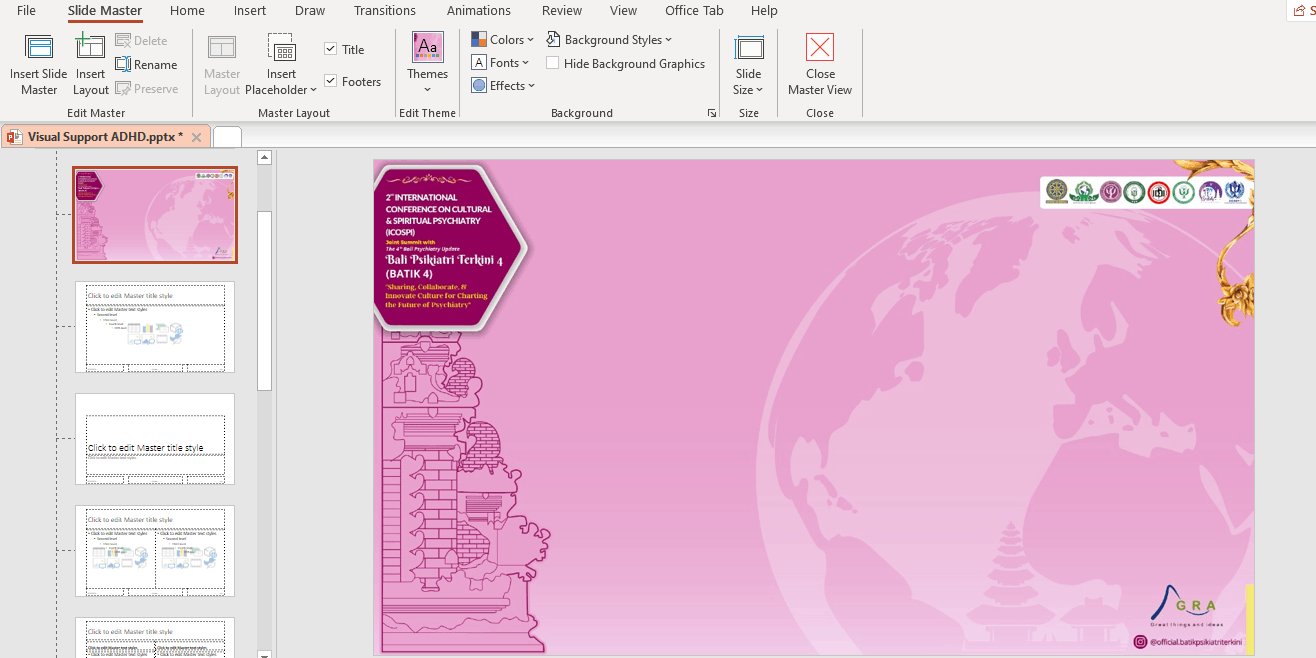
    I then close the slide master. seems nothing changed
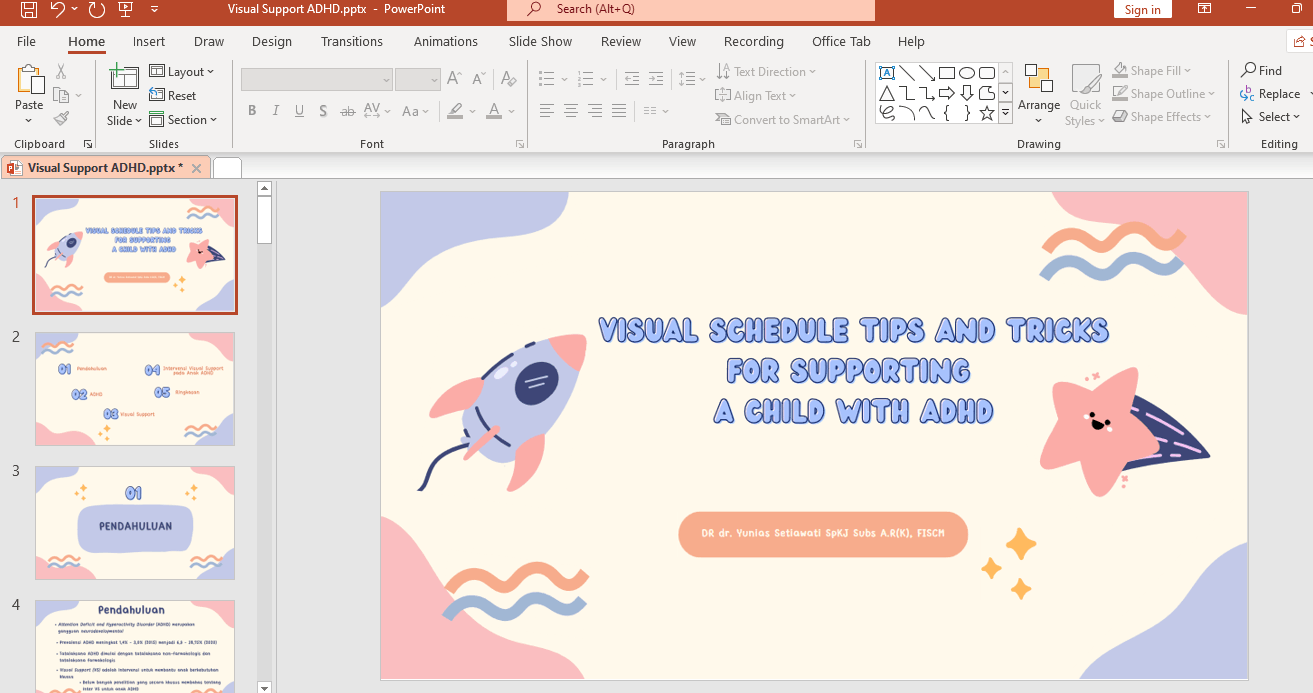
    I think I miss something here. Maybe it's related to part of your sentence "put it in the background if you want"

    I just copy and paste. so how do I put it in the background? or there's other thing I miss?

    0 comments No comments
  4. Anonymous
    2023-09-04T03:28:25+00:00

    First: You pasted the image onto the layout of whatever was the current slide, not to the master itself. Depending on what you want to do, this may or may not be ok. If you want the image to appear on ALL slide, as I expect you do, choose View | Slide Master then scroll to the top slide in the thumbnail pane, the one that all the other thumbnails are slightly indented under. THAT is the master; anything pasted there should appear on ALL slides.

    Next: With the image pasted onto the slide's layout, it's probably appearing on the slide, but you've got other stuff covering it up, ie your own image(s) on the slide. Select and delete anything that's not supposed to be part of every slide and delete it. The image you pasted onto the layout should then be visible.

    Thank you so much! Finally, it's successful. It's something that we are often asked to do, so this is really helpful for us

    Lastly, if the image that covers the slide is located at exactly the same part for every slide, is there any way to delete all of them at once? Or we must delete it manually from one slide to another?

    0 comments No comments