Hi @Pasadena Squad,
Thank you for reaching out to the Microsoft Q&A forum.
Based on your description, your Out of Office automatic reply is sending corporate disclaimer text instead of the message you saved in Automatic Replies. Thank you for testing it and sharing clear details, that helps us narrow this down quickly.
This behavior commonly occurs when a company wide mail flow disclaimer rule or a third party signature and disclaimer service appends text after Exchange generates the automatic reply. In that case, the OOF message is correct in the mailbox settings, but the outgoing reply is modified during transport on the server.
Below are some alternative steps designed to address your situation effectively:
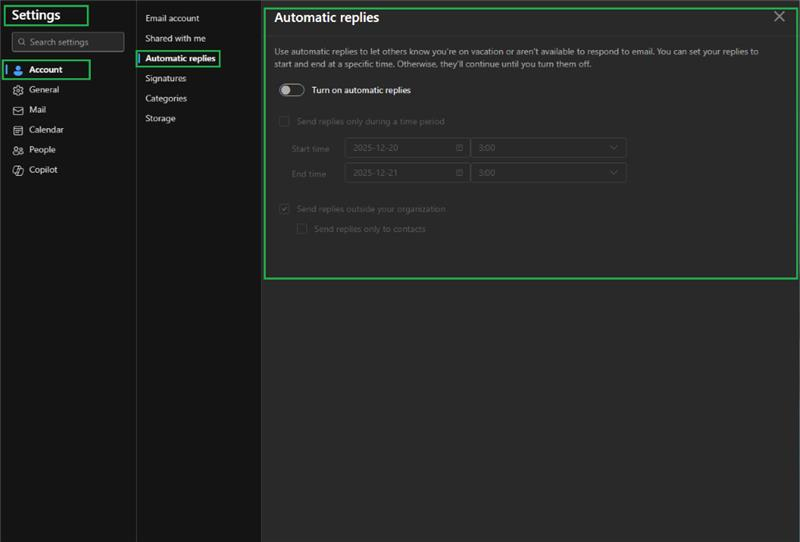
1/ Initiate the process by reviewing and confirming the Out of Office message in Outlook on the web.
- Go to Settings (gear) > Account > Automatic replies.
- Re enter your intended text for Inside and Outside your organization.
- Select Save, then turn Automatic replies Off and On once.
2/ Proceed by conducting a clean external test for accurate results.
- Send a brand new email to the mailbox from a truly external address.
- Use a unique subject line so the test is easy to identify.
- Compare the reply you receive with the text you saved.
3/ Then, verify if any signature or disclaimer tool is configured to edit outgoing emails.
- Temporarily disable any Outlook add in that manages signatures.
- If your organization uses a centralized signature service, have your admin pause it for your mailbox.
- Retest from the external address and confirm whether the disclaimer still appears.
4/ Conclude by reaching out your IT's admin to check and validate the Exchange mail flow rules.
As your account is managed by your organization, please contact your IT administrator to check your permission and policies.
- In Exchange admin center, open Mail flow > Rules.
- Look for rules that apply or append disclaimers, footers, or signatures.
- Add an exception for your mailbox or exclude automatic replies, then save and retest.
For a more efficient resolution, we recommend using your administrator account or contacting your IT administrator to submit a support request directly to Microsoft Support team.
They can raise a support ticket by visiting: Get support - Microsoft 365 admin | Microsoft Learn
As community moderators, we appreciate your understanding that our access to internal development details is limited. Our primary role is to guide users toward the appropriate resources and support channels. While we may not have visibility into deeper backend analysis, we’ll continue doing our best to support you within the scope of our responsibilities.
I hope this information is helpful. Please follow these steps and let me know if it works for you. If you have any updates regarding the issue, please feel free to share them with me.
Thank you for your patience and your understanding. If you have any questions or need further assistance, please feel free to share them in the comments on this post so I can continue to support you.
I look forward to continuing the conversation.
If the answer is helpful, please click "Accept Answer" and kindly upvote it. If you have extra questions about this answer, please click "Comment".
Note: Please follow the steps in our documentation to enable e-mail notifications if you want to receive the related email notification for this thread.
' cx='32' cy='32' r='32' /%3E%3Ctext x='50%25' y='55%25' dominant-baseline='middle' text-anchor='middle' fill='%23FFF' %3EPS%3C/text%3E%3C/svg%3E)


' cx='32' cy='32' r='32' /%3E%3Ctext x='50%25' y='55%25' dominant-baseline='middle' text-anchor='middle' fill='%23FFF' %3EVN%3C/text%3E%3C/svg%3E)