Note
Access to this page requires authorization. You can try signing in or changing directories.
Access to this page requires authorization. You can try changing directories.
Use Multicluster update and insights in Kubernetes Center (preview) to identify clusters that need upgrade attention without opening each Azure Kubernetes Service (AKS) resource individually. You can review Kubernetes version support, investigate recent upgrade failures, see upcoming upgrades, and choose a remediation path.
This article explains how to use the Azure portal experience. Reviewing insights doesn't initiate an upgrade or change a cluster's configuration.
Important
AKS preview features are available on a self-service, opt-in basis. Previews are provided "as is" and "as available," and they're excluded from the service-level agreements and limited warranty. AKS previews are partially covered by customer support on a best-effort basis. As such, these features aren't meant for production use. For more information, see the following support articles:
Prerequisites
- An Azure subscription with one or more AKS clusters.
- Read access to the clusters you want to inspect. To inspect Fleet information, you also need access to the relevant Azure Kubernetes Fleet Manager resources.
- Appropriate write permissions if you choose to change upgrade settings, enroll a cluster in long-term support (LTS), or configure Fleet upgrades. Read access alone doesn't authorize these changes.
Fleet membership isn't required to review standalone clusters.
Open upgrade insights and set the scope
- Sign in to the Azure portal.
- In the portal search box, search for and select Kubernetes center.
- In the Kubernetes center menu, expand Multicluster management, and select Multicluster update and insights.
- Review View by, Subscription, Resource group, and Location at the top of the page. Select the scope you want to investigate.
- Select Refresh when you need to reload the displayed information.

The page contains summary cards and a cluster table. Start with the cards to identify a concern, then inspect the affected clusters. Counts and resource names in the screenshots are examples, not expected values for your environment.

Find clusters that need a supported Kubernetes version
Locate Cluster Version Support Status by Tier.
Select All, Premium, Standard, or Free to examine the corresponding cluster tier.
Review the support categories:
Category What to investigate Out of support Prioritize reviewing the cluster's Kubernetes version and available upgrade options. Out of support (LTS eligible) The version is outside its current support coverage, but the cluster is a candidate for LTS. Eligibility doesn't mean LTS is already enabled. Expiring soon Plan the next upgrade before the current support coverage ends. In support The cluster is currently within the support coverage shown by the experience. Continue to review its upgrade policy. Select a category's linked count to open the corresponding cluster list.
Open a cluster to review its version and configuration before choosing an upgrade or support-plan change.
For version-specific support dates, use the AKS Kubernetes version support policy, rather than dates or version numbers in a screenshot.
The card also provides Enable LTS for Eligible Clusters. Treat LTS enrollment as a configuration and billing decision, not a way to clear a warning without review. LTS requires the Premium tier and an explicit LTS support plan. For more information, see Long-term support for AKS versions.
Investigate a failed upgrade
- Locate Cluster upgrade issues, and read the time window and checked-cluster count. The card shows recent upgrade issues over the last 14 days.
- Select View all Upgrade issues.
- In Upgrade Failure Clusters, search by cluster name or filter by Subscription, Resource group, Location, or Error code.
- For an affected cluster, compare Current Kubernetes version and Target Kubernetes version, then read Error details.
- Select View cluster to continue investigating the affected resource.
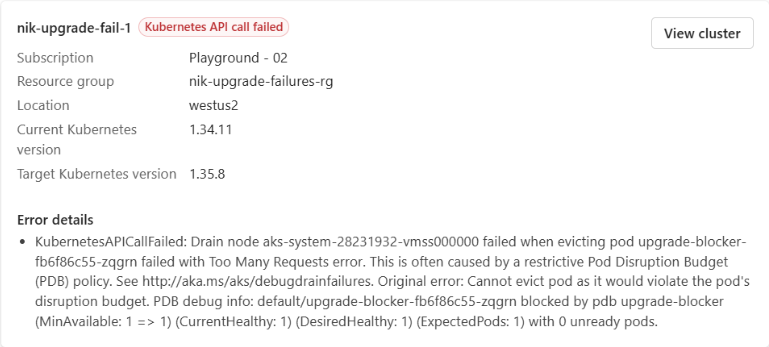
For example, the screenshot shows a node-drain failure because evicting a pod would violate its pod disruption budget (PDB). Use the error to identify the workload and review its availability requirements before retrying. Don't remove disruption protections solely to make an upgrade succeed.
Note
A failed cluster provisioning state isn't necessarily an upgrade failure. Recommendations can identify clusters whose state blocks upgrades even when Cluster upgrade issues has no matching recent upgrade failure. If the upgrade-issues action is disabled, read the card's status and coverage before drawing conclusions.
Review upgrades planned for the next 14 days
- Locate Upcoming Upgrades to review active upgrades and the upcoming schedule.
- Select View all Upcoming upgrades.
- Use the calendar to identify a date with planned upgrades. Select that date to narrow the results.
- Use Upgrade type, Date, or the resource filters to focus the list.
- Review each entry's upgrade type, planned start time, and any target-version or estimated-duration information shown.
- Select View cluster to inspect the cluster before the planned operation.
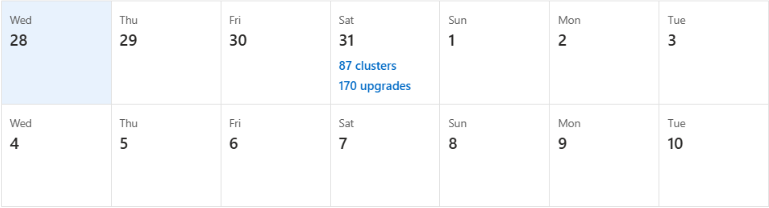
A cluster can have more than one upgrade operation, such as a Kubernetes version upgrade and a node OS upgrade. For that reason, a day's upgrade count can exceed its cluster count. Check the time-zone label on planned start times when coordinating a maintenance window, and treat duration estimates as estimates.
In the main table, Next upgrade only describes the next 14 days. A blank value doesn't establish that automatic upgrades are disabled.
Choose a remediation path
In Recommendations, identify the issue you want to address. Examples include standalone clusters without auto-upgrade, clusters still at risk despite auto-upgrade, blocked cluster states, and fleets without auto-upgrade.
Read the affected-resource count and support-status breakdown.
Select Review or Remediate for that recommendation.
Where the Set up multicluster upgrades chooser is offered, select a path:
Path When to use it Staged Fleet runs Coordinate upgrades across clusters using staged rollout and Fleet management. Individual cluster auto-upgrades Configure upgrade policies on selected clusters without requiring Fleet membership.
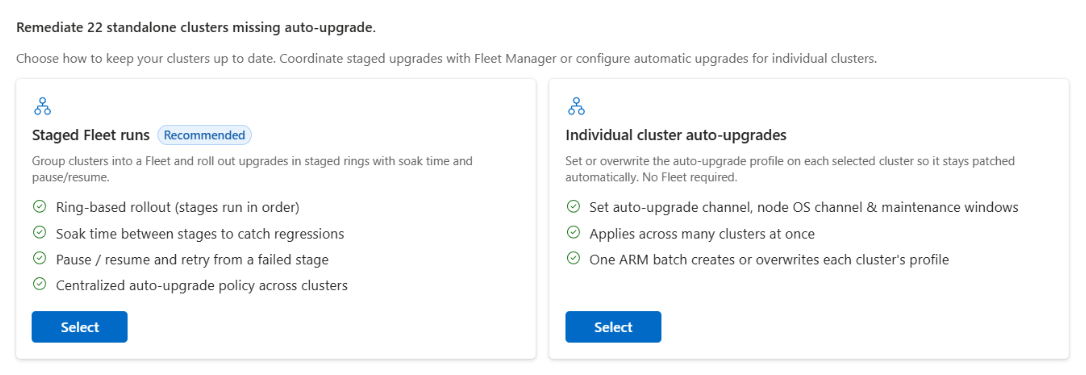
For individual cluster auto-upgrades, the workflow provides Cluster selection, Schedule & upgrade options, and Review steps. Review the eligible clusters, intended upgrade channels, and maintenance settings before submitting a configuration change.
Important
The individual-cluster path can create or overwrite existing auto-upgrade profiles across multiple clusters. Review existing settings and the selected resources before submitting. Opening the chooser doesn't apply changes.
A patch policy alone doesn't move a cluster to a newer Kubernetes minor version. When a cluster remains at risk, review whether its upgrade policy meets your version-support requirements. For policy details, see Automatically upgrade an AKS cluster. For staged updates, see Update clusters using Fleet Manager.
Review Fleet update runs
- Locate Fleet Update runs status.
- Review the displayed run states, including Failed, Running, Stopped, Completed, Not started, and Pending.
- Select View runs to continue into the run details.
- Investigate failed or pending work before starting additional updates.
Fleet update runs describe orchestrated operations. They aren't a substitute for checking each cluster's support status.
Find a specific cluster and verify the outcome
In the cluster table, use Search by cluster name and the Kubernetes version, Next upgrade, Support status, Auto Upgrade, and Node OS AutoUpgrade filters.

After an approved configuration change or completed upgrade:
- Return to Multicluster update and insights, and select Refresh.
- Find the affected cluster.
- Verify its displayed Kubernetes version, support status, and upgrade policies against the intended outcome.
- For an upgrade operation, also verify completion in the cluster or Fleet run details. A configured policy or planned date isn't proof that an upgrade completed.