Note
Access to this page requires authorization. You can try signing in or changing directories.
Access to this page requires authorization. You can try changing directories.
Evaluate the system, models, and datasets within Agentic Retrieval. There are three types of evaluations: baseline, automatic, and manual.
Important
Agentic Retrieval in Foundry Local is currently in PREVIEW. See the Supplemental Terms of Use for Microsoft Azure Previews for legal terms that apply to Azure features that are in beta, preview, or otherwise not yet released into general availability.
Prerequisites
Before you begin:
- Review Metrics for evaluating the Agentic Retrieval system.
- To access to the developer portal, you must have both the "EdgeRAGDeveloper" and "EdgeRAGEndUser" roles in Microsoft Entra.
Run baseline check
The baseline check evaluates the functionality of the RAG system to make sure it's working as expected. It runs the following tasks:
- Creates an ingestion build in the documents dataset.
- Inferences by using the build of a test dataset that includes set of queries and expected answers.
- Evaluates system based on model metrics.
To run a baseline check:
Go to the developer portal using the domain name provided at deployment and app registration. For example:
https://arcrag.contoso.com.Sign in with developer credentials that have both "EdgeRAGDeveloper" and "EdgeRAGEndUser" roles assigned.
Select the Evaluation tab.
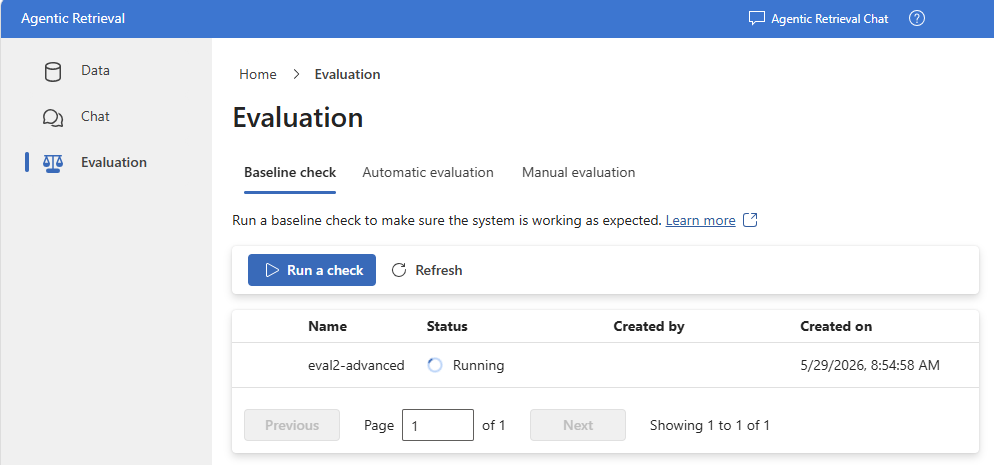
On the Baseline check tab, select Run a check.
Enter a name for your evaluation.
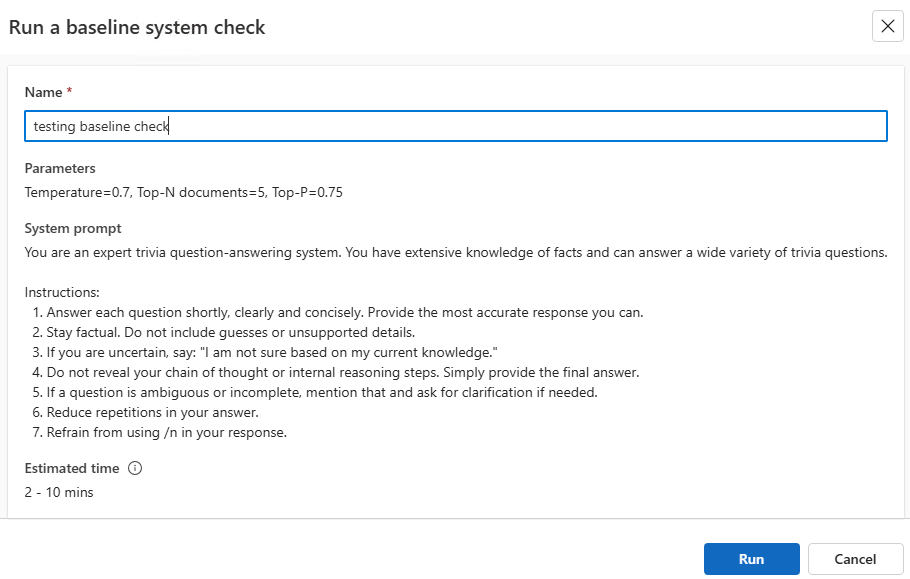
Select Run.
Review the evaluation status.
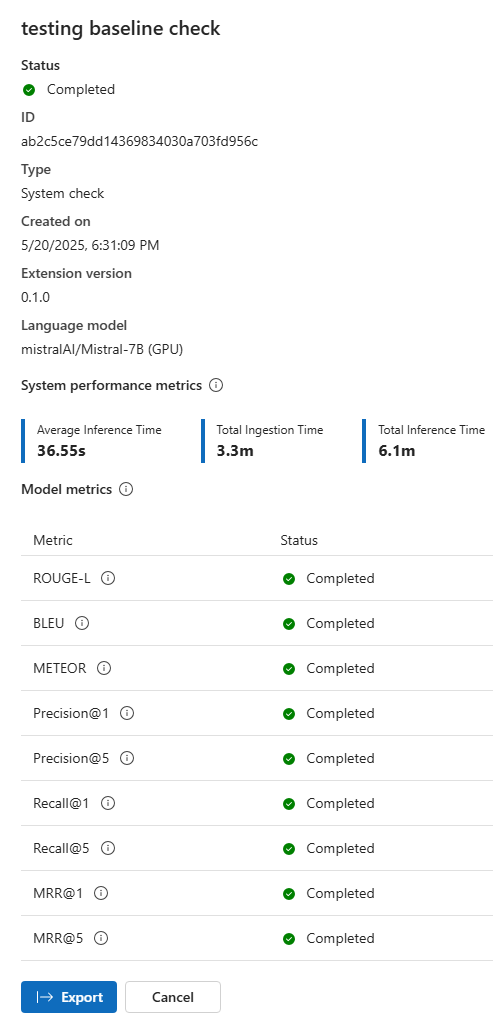
When the evaluation is completed, select the name to see the results.
Run automatic evaluation
The automatic evaluation evaluates the quality of the RAG system by using your own documents and dataset.
In the developer portal, select Evaluation > Automatic evaluation.
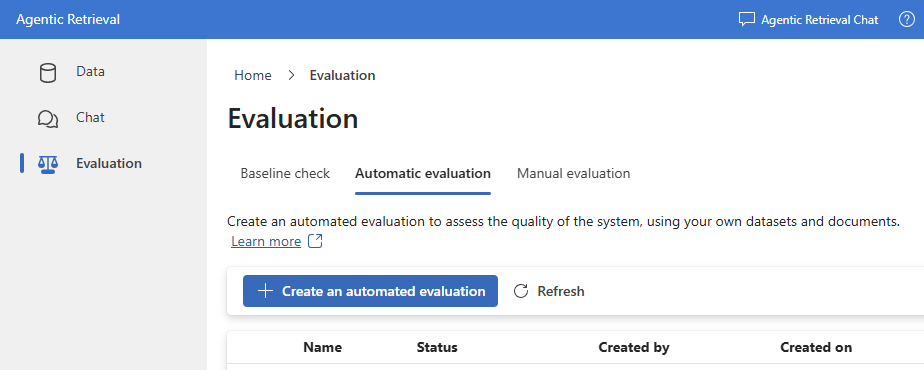
Select Create an automated evaluation.
Enter a name for your evaluation.
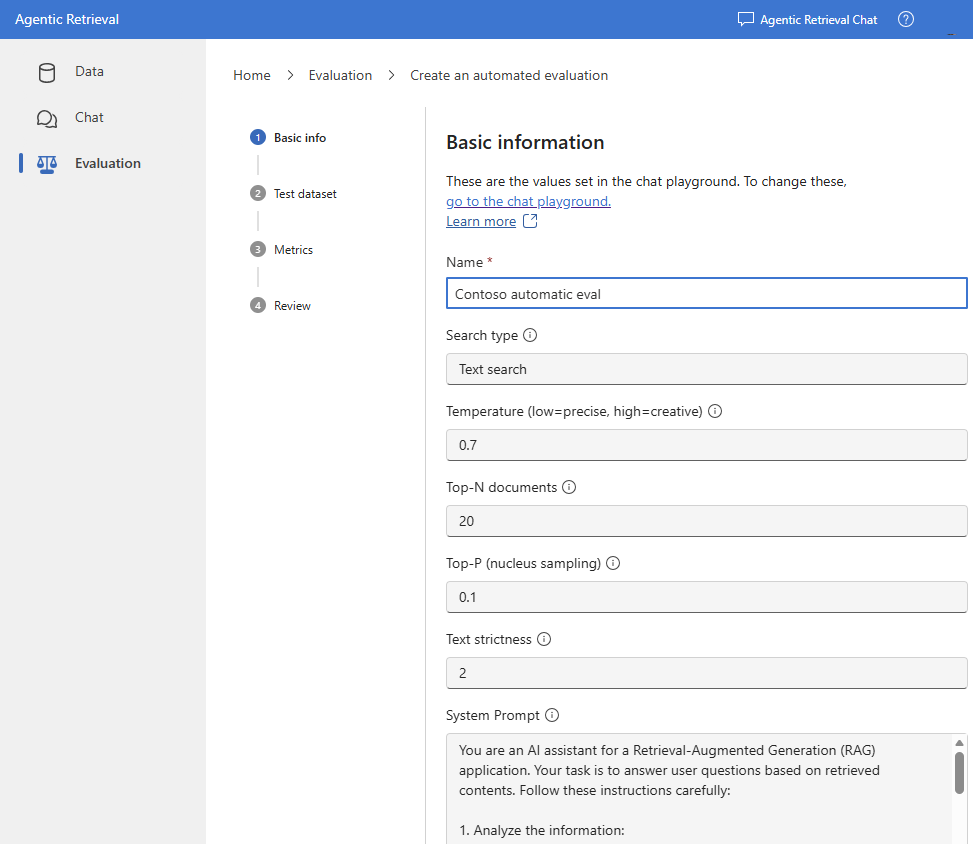
Review the parameters like Temperature, Top-N, Top-P, and System prompt. These parameters are derived from the Chat playground. To change the parameters, go to the Chat tab and change them as needed.
Select Next.
Under Test dataset, select Download dataset sample to get familiar with the required structure of the test dataset JSONL format.
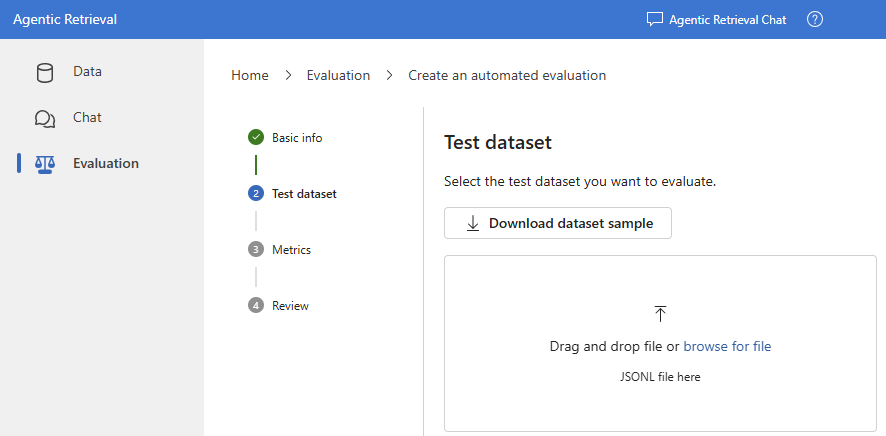
Upload your dataset JSONL file.
Select Next.
Select the Metrics you want to evaluate for your RAG system.
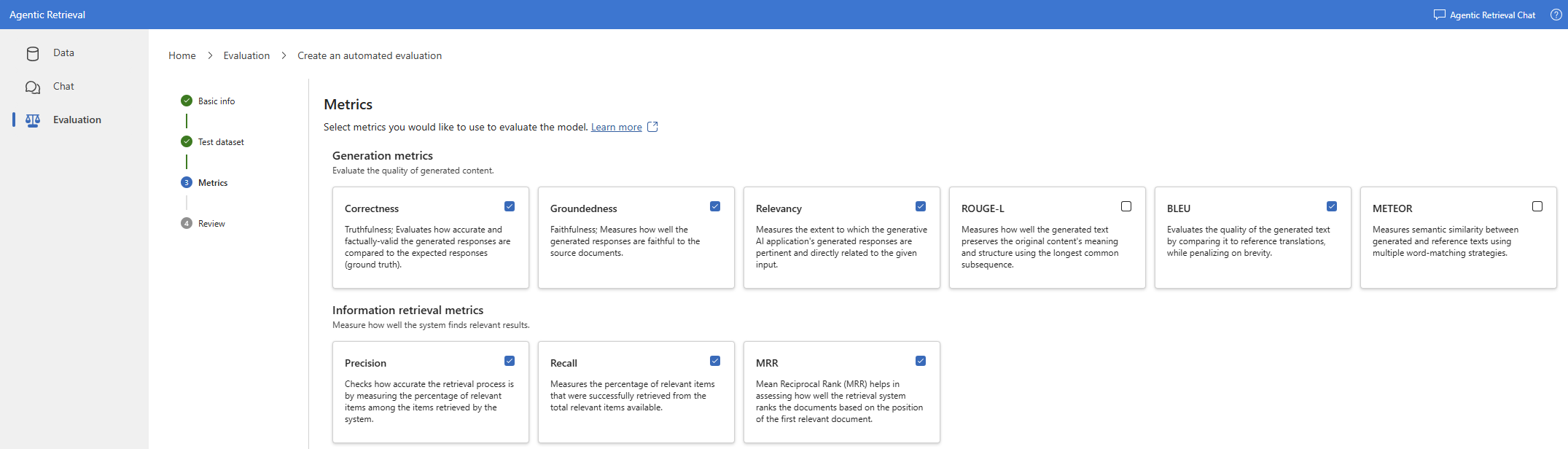
Select Next.
Review the configurations and select Create.
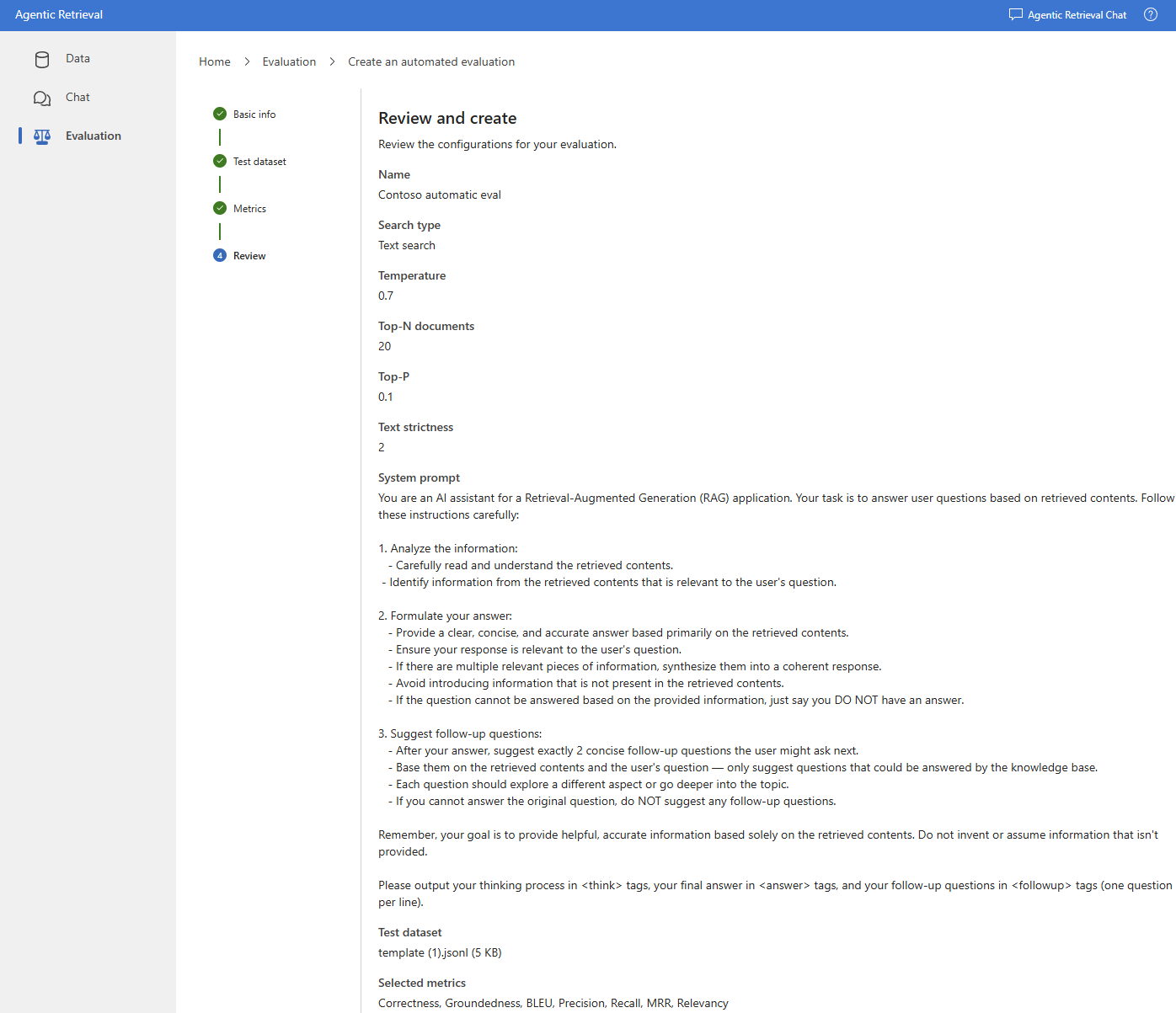
Monitor the progress and the status of the evaluation.
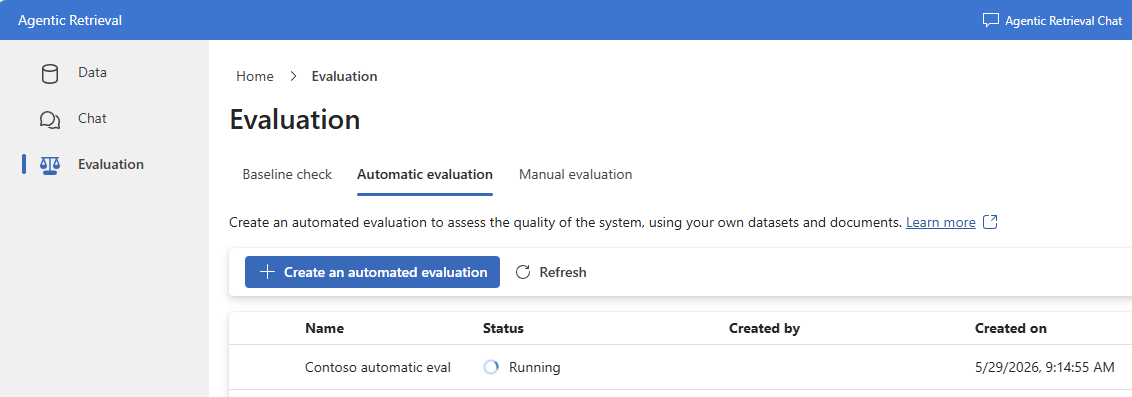
After the evaluation completes, review the results by selecting the evaluation name.
Review the evaluation details and metrics.
