Note
Access to this page requires authorization. You can try signing in or changing directories.
Access to this page requires authorization. You can try changing directories.
You can copy data from your Azure Managed Lustre file system to long-term storage in Azure Blob Storage. This article covers two methods for exporting data:
- Manual export job — Export data on demand by using a one-time export job.
- Auto-export — Continuously synchronize new and changed files from your file system to Blob Storage automatically.
Note
Export jobs are available only when you integrate Azure Blob Storage with your Azure Managed Lustre file system during file system creation. For more information, see Azure Blob Storage integration. If you didn't integrate a blob container when you created the file system, you can use client file system commands to copy the data without creating an export job.
Limitations
The following limitations apply to export operations:
- Only one import or export action can run at a time. For example, if an export job is in progress and you attempt to start another export job, you receive an error.
- Export jobs copy only files that are new or changed. If the file that you imported from the blob container during file system creation is unchanged, the export job doesn't export the file.
- Files with metadata changes only aren't exported. Metadata changes include owner, permissions, extended attributes, and name changes (renamed). This limitation applies to both manual export and auto-export.
- Files that you delete in the Azure Managed Lustre file system aren't deleted in the original blob container during the export job. The export job doesn't delete files in the blob container.
- Blob names must conform to certain naming rules. Acceptable blob names differ slightly from acceptable POSIX file names. The export process preserves special characters in file names by properly escaping them when exporting to blobs. However, a file name that violates a blob-naming rule (for example, exceeding the maximum blob name length) results in an error when you attempt to export that file.
- For auto-export: Metadata changes such as renames, ownership updates, or permission adjustments currently aren't synchronized.
- For auto-export: When you delete files, directories, or symbolic links in the file system, they aren't removed from the Blob Storage container.
- Azure Blob Storage doesn't support hard links. Each hard link is exported as a unique blob. If you import those blobs, they become independent files.
Manual export job
A manual export job copies new or changed files from the file system to the blob container that you specified when you created the file system.
Create an export job
Follow these steps to create an export job in the Azure portal:
In the Azure portal, open your Azure Managed Lustre file system. Under Settings, select Blob integration.
Select + Create new job.
In the Job Type dropdown menu, select Export.
In the File system path field, enter a string to specify what you want to export.
The export job exports all new or changed files in the file system whose file names begin with this string. The job writes files to the blob container with the same file path (or prefix) that they have in the Lustre file system. To avoid overwriting existing files in the blob container, ensure the path of the file in your Lustre file system doesn't overlap the existing path of the file in the blob container.
The following screenshot shows the configuration settings for an export job in the Azure portal.

Monitor or cancel an export job
You can monitor or cancel export jobs in the Recent jobs section of the Blob integration pane.
Only one archive job runs at a time. To cancel the job that's in progress, select the Cancel link for that job in the Recent jobs table. The Cancel link isn't available for completed jobs.
Retry an export job
If an export job doesn't finish successfully, you can retry the export by creating a new export job. The new job copies only the files that weren't copied during the previous job.
Retries can be common when you attempt to export data from active file systems where data is frequently changing. To learn more about these scenarios, see Run export jobs in active file systems.
Run export jobs in active file systems
In active file systems, changes to files during the export job can cause the job to fail. This failure status indicates that not all data in the file system was exported to Blob Storage. In this situation, retry the export by creating a new export job. The new job copies only the files that weren't copied in the previous job.
In file systems with a lot of activity, retries might fail multiple times because files are frequently changing. To verify that a file was successfully exported to Blob Storage, check the time stamp on the corresponding blob. After the job finishes, you can also view the logging container that you configured at deployment time to see detailed information about the export job. The logging container provides diagnostic information about which files failed, and why they failed.
If you're preparing to decommission a cluster and want to perform a final export to Blob Storage, ensure that all I/O activities are halted before you initiate the export job. This approach helps guarantee that all data is exported, because it avoids errors due to file system activity.
Learn about metadata for exported files
When you export files from the Azure Managed Lustre file system to the blob container, the export job saves extra metadata to simplify reimporting the contents to a file system.
The following table lists POSIX attributes from the Lustre file system that the export job saves in the blob metadata as key/value pairs:
| POSIX attribute | Type |
|---|---|
owner |
int |
group |
int |
permissions |
octal or rwxrwxrwx format; sticky bit is supported |
The export job saves directory attributes in an empty blob. This blob has the same name as the directory path and contains the following key/value pair in the blob metadata: hdi_isfolder : true.
You can modify the POSIX attributes manually before using the container to hydrate a new Lustre cluster. Edit or add blob metadata by using the key/value pairs described earlier.
Copy a Lustre blob container with azcopy or Storage Explorer
You can move or copy the blob container that the Lustre file system uses by using azcopy or Storage Explorer.
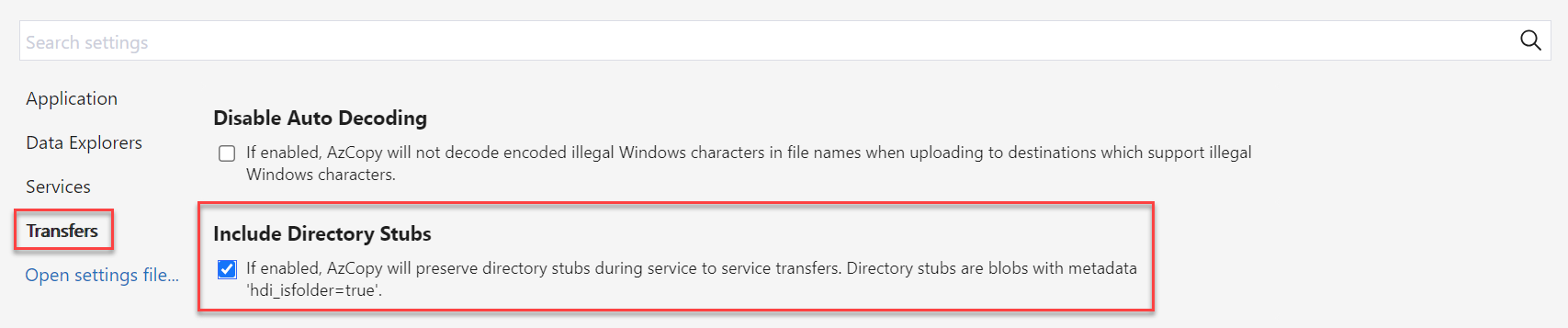
For azcopy, you can include directory attributes by adding the following flag:
--include-directory-stub
When you include this flag, directory POSIX attributes are preserved during a transfer (for example, owner, group, and permissions). If you use azcopy on the storage container without this flag, or with the flag set to false, the transfer includes the data and directories. However, the directories don't retain their POSIX attributes.
In Storage Explorer, you can enable this flag in Settings by selecting Transfers and selecting the box for Include Directory Stubs.
Auto-export
The auto-export feature for Azure Managed Lustre is a capability that automatically synchronizes changes in your Azure Managed Lustre file system with a linked Azure Blob Storage container.
By using this feature, you can help ensure that new and modified files in the file system are reflected in the associated Blob Storage container without manual intervention. This feature streamlines data management and improves synchronization for long-term storage.
Auto-export functionality
Auto-export works by continuously monitoring changes in the Azure Managed Lustre file system. Based on the export policy you configure, it updates the contents of the associated Blob Storage container to reflect these changes. This feature provides a seamless and automated process for replicating data.
Here's how auto-export handles different types of changes:
- New file creation, new directory, and file content changes: The blob integration process identifies new files, directories, and data that changed. It starts an export job automatically. Auto-export ensures that the latest version of the file is transferred to Blob Storage.
Auto-export works through continuous export iterations. When an iteration finishes, the blob integration process scans the file system for any new files, directories, or content changes. It starts a new iteration of an export job.
Export job logs in your configured logging container can help you identify synchronization issues and understand why operations fail.
Configure auto-export
Enable auto-export on an existing Azure Managed Lustre file system that has an associated Blob Storage container configured. You can configure auto-export by using the Blob integration settings in the Azure portal.
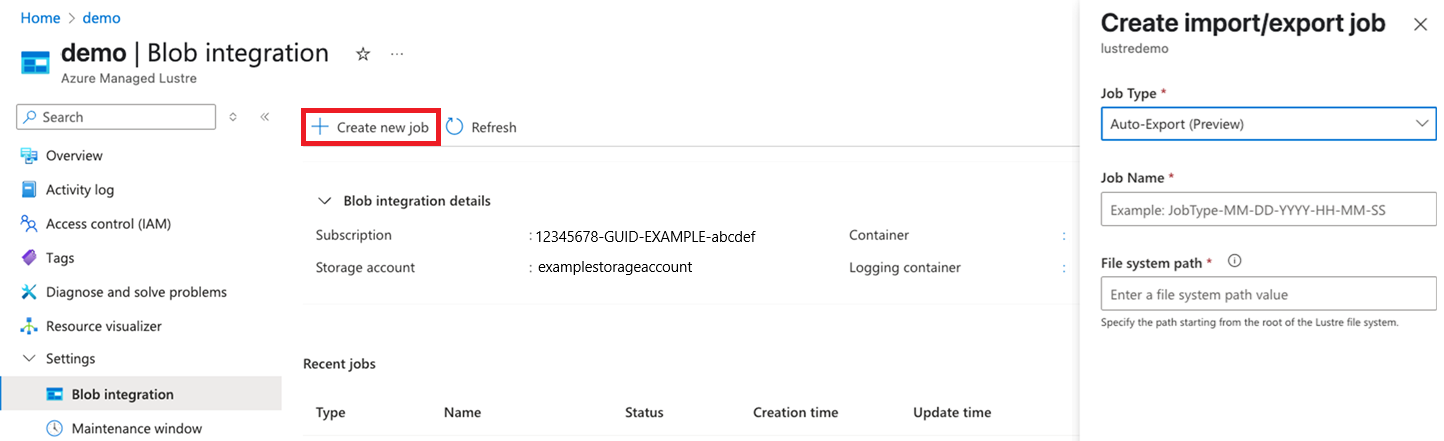
To create a new auto-export job, follow these steps:
In the Azure portal, open your Azure Managed Lustre file system. Under Settings, select Blob integration.
Select + Create new job.
In the Job Type dropdown, select Auto-Export.
In the File system path field, specify a directory path by entering a string.
The system continually exports all new or changed files in the file system under this path (prefix). The system writes files to the blob container with the same file path (or prefix) that they have in the Lustre file system. The only exception is if your Lustre file was imported from that path in the blob container.
Monitor and manage auto-export
Use the Azure portal to monitor auto-export activities and manage configurations.
The Blob integration pane displays details of export activities in the Recent jobs section, including the status of recent jobs and metrics related to automatic synchronization.
To cancel an in-process job, select the Cancel link for that job in the Recent jobs table. The Cancel link is available only for the current job.
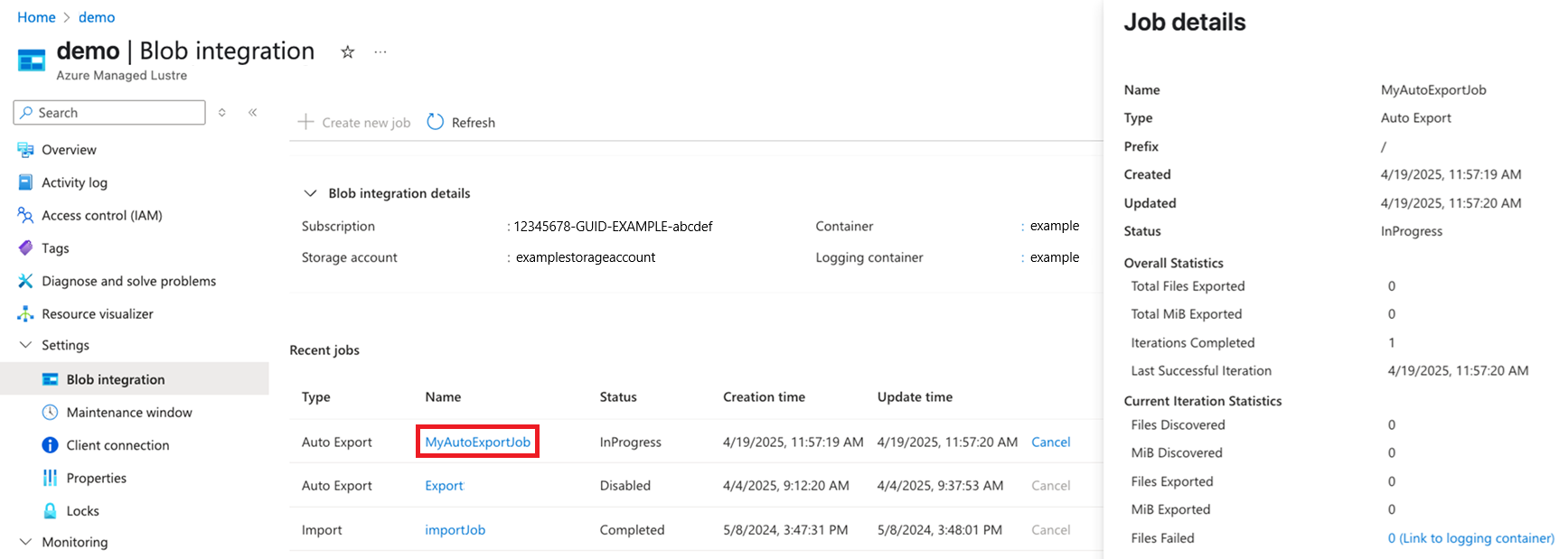
To view the metrics of an auto-export job, select the Name value of the job. The Metrics pane appears on the side panel in the portal.
Auto-export metrics
In the portal, metrics are grouped into two main categories: Overall and Current Iteration.
Overall statistics
Statistics after enabling Auto-Export
Total Files Exported
Count of files successfully copied to the associated blob container after enabling auto-export.
Total MiB Exported
Aggregate file size (in MiB) successfully copied to the associated blob container after you enable auto-export.
Iterations Completed
Count of times the blob integration process identified new or changed data and initiated a new export job.
Last Successful Iteration
The finish time stamp of the last iteration that successfully exported all data to the associated blob container.
Current Iteration Statistics
Statistics about the current activity
Files Discovered
Count of files that the export job is currently exporting, including files already successfully copied to the associated blob container in this iteration.*
MiB Discovered
Aggregate file size in MiB that the export job is currently exporting, including files already successfully copied to the associated blob container in this iteration.*
Files Exported
Count of new and changed files successfully copied to the associated blob container.
MiB Exported
The aggregate file size in MiB of new and changed data successfully copied to the associated blob container.
Files Failed
Total number of files that failed to copy during the current iteration. Select this link to go to the Logging Container page to view the logs associated with this auto-export job.
* The metrics for the current ongoing iteration represent so far. For example, Files Discovered is the number of the files discovered for exporting at the moment of reporting. The next reporting cycle might show that more files are discovered.
Considerations and best practices for auto-export
When you use the auto-export feature, consider the following best practices to ensure smooth operation:
- Conflict management: If a file is modified in both the file system and Blob Storage, there's a risk of overwrite. Use application-level coordination to prevent conflicting edits.
- Disable auto-export before deletion: Before you delete a file system or its blob integration process, ensure that all queued updates are synchronized. Verify that the Last Successful Iteration Time is recent and the Files Failed metric is zero to avoid data loss. Then, disable auto-export.