Note
Access to this page requires authorization. You can try signing in or changing directories.
Access to this page requires authorization. You can try changing directories.
Azure Managed Lustre integrates with Azure Blob Storage to simplify the process of importing data from a blob container to a file system. You can configure this integration during cluster creation, and you can create an import job any time after the cluster is created.
This article covers two methods for importing data:
- Manual import job — Import data on-demand using a one-time import job.
- Auto-import — Continuously synchronize data from Blob Storage to your file system using the change feed.
Note
When you import data from a blob container to an Azure Managed Lustre file system, only the file names (namespace) and metadata are imported into the Lustre file system namespace.
The actual contents of a blob are imported when a client first accesses the file. When you first access the data, there's a slight delay while the Lustre Hierarchical Storage Management (HSM) feature pulls in the blob contents to the corresponding file in the file system. This delay only occurs the first time a file is accessed.
You can prefetch the contents of a blob container by using the Lustre lfs hsm_restore command from a mounted client with sudo capabilities. To learn more, see Restore data from Blob Storage.
Limitations
The following limitations apply to import operations:
- Only one blob integration job can run at a time. This limitation includes manual import, manual export, auto-import, and auto-export jobs.
- Auto-import requires Azure Blob Storage change feed. Change feed doesn't support storage accounts with hierarchical namespace enabled, and its retention period must be at least seven days.
- Don't use
lfs hsm_*commands while auto-import is running. Doing so can cause consistency issues between the blob container and the Lustre file system. - Auto-import deletions are one-way, from Blob Storage to Lustre, and apply only to changes that occur after auto-import is enabled. Deletions that occurred before enablement aren't removed during the initial full sync scan.
Prerequisites
- Existing Azure Managed Lustre file system: Create one by using the Azure portal, Azure Resource Manager, or Terraform. To learn more about blob integration, see Blob integration prerequisites.
Manual import job
A manual import job lets you import data from a blob container into an existing Azure Managed Lustre file system when you choose.
Note
Only one import or export job can run at a time. For example, if an import job is in progress, and you try to start another import or export job, you get an error.
Configure import options and start the job
To configure the import options and start the job, follow these steps:
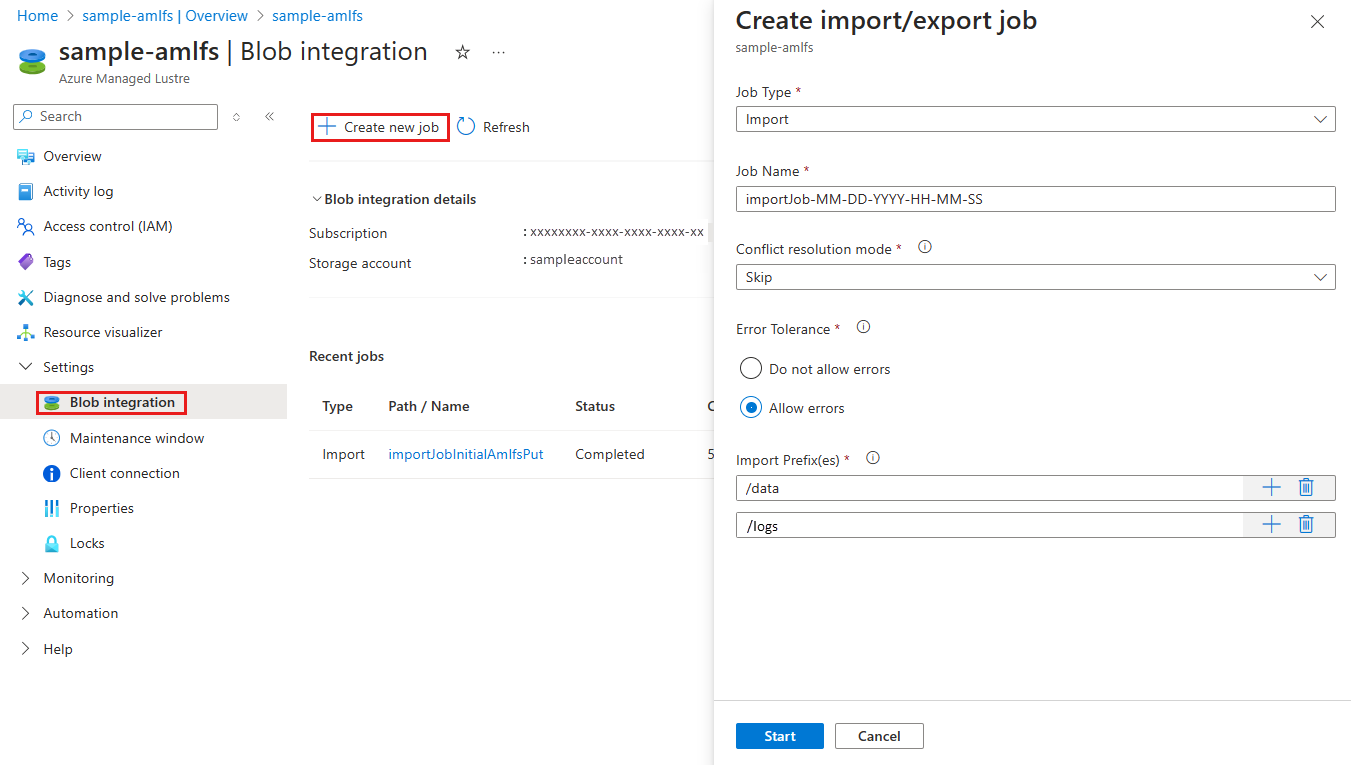
In the Azure portal, open your Azure Managed Lustre file system. Under Settings, select Blob integration.
Select + Create new job.
Select Import from the Job type dropdown menu.
Enter a name for the import job in the Job Name field.
Select a value for the Conflict resolution mode field. This setting determines how the import job handles conflicts between existing files in the file system and the new files that you import. In this example, select Skip. To learn more, see Configure import options.
Select a value for Error tolerance. This setting determines how the import job handles errors that occur during the import process. In this example, select Allow errors. To learn more, see Configure import options.
To filter the data that you're importing from Blob Storage, enter import prefixes. The Azure portal allows you to enter up to 10 prefixes. In this example, specify the prefixes
/dataand/logs. To learn more, see Configure import options.After you configure the job, select Start to begin the import process.
The following screenshot shows the import job configuration settings in the Azure portal.
Import prefix
When you import data from a blob container, you can optionally specify one or more prefixes to filter the data imported into the Azure Managed Lustre file system. File names in the blob container that match one of the prefixes are added to a metadata record in the file system. When a client first accesses a file, the system retrieves its contents from the blob container and stores them in the file system.
In the Azure portal, use the Import prefix fields on the Advanced tab during cluster creation to specify the data to import from your blob container. These fields apply only to the initial import job. You can't change the import prefix after the cluster is created.
For an import job, you can specify import prefixes when you create the job. From the Azure portal, you can specify import prefixes in the Import prefix fields. You can also specify the import prefix when you use the REST API to create an import job.
Keep the following considerations in mind when you specify import prefixes:
- The default import prefix is
/. This default behavior imports the contents of the entire blob container. - If you specify multiple prefixes, the prefixes must not overlap. For example, if you specify
/dataand/data2, the import job fails because the prefixes overlap. - If the blob container is in a storage account with hierarchical namespace enabled, you can think of the prefix as a file path. The system includes items under the path in the Azure Managed Lustre file system.
- If the blob container is in a storage account with a nonhierarchical (or flat) namespace, you can think of the import prefix as a search string that the system compares with the beginning of the blob name. If the name of a blob in the container starts with the string you specified as the import prefix, the system makes that file accessible in the file system. Lustre is a hierarchical file system, and
/characters in blob names become directory delimiters when the system stores them in Lustre.
Conflict resolution mode
When you import data from a blob container, you can specify how to handle conflicts between the blob container and the file system. This option only applies to import jobs that run for existing clusters. The following table shows the available conflict resolution modes and their descriptions:
| Mode | Description |
|---|---|
fail |
If a conflict is detected, the import job fails immediately with an error. |
skip |
If a conflict is detected, the import job skips the file. |
overwrite-dirty |
The import job evaluates a conflicting path to see if it should be deleted and reimported. To learn more, see overwrite-dirty mode. |
overwrite-always |
The import job evaluates a conflicting path and always deletes or reimports if it's dirty, or releases if it's clean. To learn more, see overwrite-always mode. |
Overwrite-dirty mode
The overwrite-dirty mode evaluates a conflicting path to see if it should be deleted and reimported. At a high level, the overwrite-dirty mode checks the HSM state.
If the HSM state is Clean and Archived (the Lustre file system detects that its data is in sync with the blob container), it updates only the attributes, if necessary. Otherwise, it deletes the file and reimports it from the blob container.
When you check the HSM state, it's not a guarantee that the file in the Lustre file system matches the file in the blob container. If you must ensure that the file in the Lustre file system matches the file in the blob container as closely as possible, use the overwrite-always mode.
Overwrite-always mode
The overwrite-always mode evaluates a conflicting path and always deletes or reimports if it's dirty, or releases if it's clean. This mode is useful when you want to ensure that the file system is always in sync with the blob container. It's also the most expensive option, because it releases or deletes and reimports every previously restored file upon first access.
Error tolerance
When you import data from a blob container, you can specify the error tolerance. The error tolerance level determines how the import job handles transient errors that occur during the import process (for example, operating system errors or network interruptions). Errors in this context don't refer to file conflicts, which the conflict resolution mode handles.
The following error tolerance options are available for import jobs:
- Do not allow errors (default): The import job fails immediately if any error occurs during the import.
- Allow errors: The import job continues if an error occurs, and the error is logged. After the import job completes, you can view errors in the logging container.
Considerations for blob import jobs
The following items are important to consider when you import data from a blob container:
- Only one import or export action can run at a time. For example, if an import job is in progress, and you attempt to start another import job, you get an error.
- You can cancel import jobs. You can cancel an import job started on an existing cluster, or an import job initiated during cluster creation.
- Cluster deployment can return successfully before the corresponding import job is complete. The import job continues to run in the background. You can monitor the import job's progress in the following ways:
- Azure portal: The Azure portal displays the status of the import job. Go to the file system and select Blob integration to view the import job status.
- Lustre file in root directory: A file named similar to
/lustre/IMPORT_<state>.<timestamp_start>is created in the Lustre root directory during import. The<state>placeholder changes as the import progresses. The file is deleted when the import job finishes successfully.
- To view details about a completed import job, check the logging container. The logging container contains logs for the import job, including any errors or conflicts that occurred during the import.
- If the import job fails for any reason, you might not have complete statistics about the import job, such as the number of files imported or number of conflicts.
Monitor the manual import job
After you create the import job, monitor its progress to ensure it finishes successfully.
To view the job details, follow these steps:
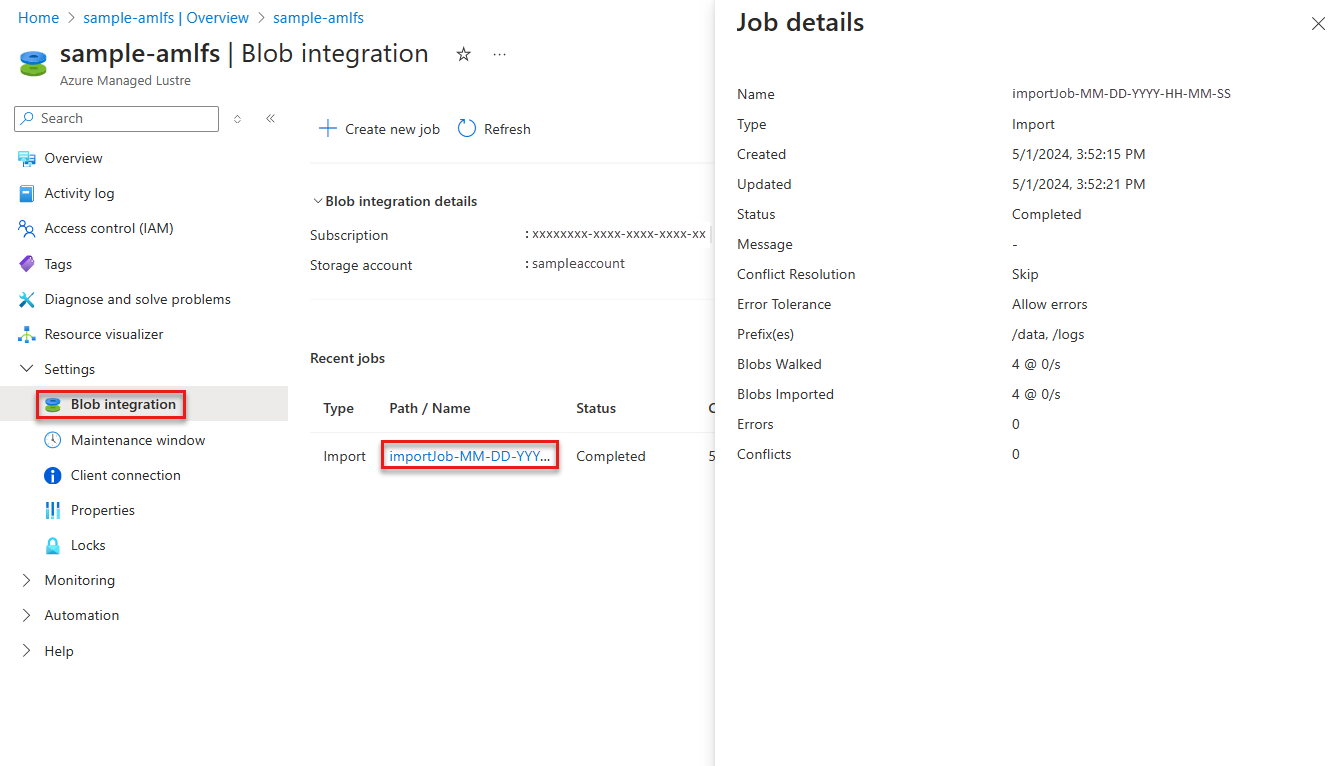
- In the Azure portal, open your Azure Managed Lustre file system. Under Settings, select Blob integration.
- Select the import job you want to monitor from the list of recent jobs.
- View the Job details pane for information about the job, including the job status, start time, blobs imported, and any errors or conflicts that occurred during the import process.
The following screenshot shows the job details for an import job in the Azure portal.
When the job finishes, view the logging container to see detailed information about the import process, including any errors or conflicts that occurred. This information is available only after the job finishes.
Auto-import
The auto-import feature in Azure Managed Lustre enables seamless synchronization of data from an Azure Blob Storage container into an Azure Managed Lustre cluster. By using this functionality, you can treat Blob Storage as a cold tier and Azure Managed Lustre as a high-performance hot tier. This method automatically reflects changes made in Blob Storage within the Lustre namespace.
How the auto-import feature works
The auto-import feature in Azure Managed Lustre continuously monitors changes in the associated Azure Blob Storage container by using the Azure Blob Storage change feed feature.
Based on the configured import policy, it updates the contents of the Azure Managed Lustre namespace to reflect these changes. The auto-import feature provides users with a seamless and automated data replication process.
After you create the job, the auto-import process consists of two phases:
The first phase is the full sync scan. The full sync scan compares the blob container namespace with the Azure Managed Lustre namespace and imports any new or modified files into the Azure Managed Lustre namespace.
The second phase is the blob sync scan. The blob sync scan begins after the full sync scan finishes. The blob sync scan continuously monitors change feed for updates, importing new or modified files and processing deletions into the Azure Managed Lustre namespace.
For pricing details, see the change feed documentation.
Prerequisites for auto-import
- You need an existing Azure Managed Lustre file system. You can create one by using the Azure portal, Azure Resource Manager, or Terraform. To learn more about blob integration, see Blob integration prerequisites.
- Azure Blob Storage change feed must be enabled on the storage account associated with the Azure Managed Lustre file system.
Configure auto-import
The auto-import feature is enabled on an existing Azure Managed Lustre file system that has an associated Blob Storage container configured. Configure auto-import in the blob integration settings in the Azure portal.
To create a new auto-import job, follow these steps:
In the Azure portal, open your Azure Managed Lustre file system. Under Settings, select Blob integration.
Select + Create new job.
In the Job Type dropdown menu, select Auto-Import.
Enter a name for the import job in the Job Name field.
Select a value for the Conflict resolution mode field. This setting determines how the import job handles conflicts between existing files in the file system and files being imported. In this example, select Skip. To learn more, see Conflict resolution mode.
To filter the data from Blob Storage, enter import prefixes. The Azure portal allows you to enter up to 10 prefixes. In this example, specify the prefixes
/dataand/logs. To learn more, see Import prefix.Decide if you want to select Enable deletions, which enables propagation of deletions from Azure Blob Storage to Azure Managed Lustre.
After you configure the job, begin the import process by selecting Start.
Monitor and manage the auto-import feature
After you create the auto-import job, monitor its progress in the Azure portal.
The Blob integration pane displays details of import activities in the Recent jobs section, including the status of recent jobs and metrics related to automatic synchronization.
To cancel the job that's in progress, select the Cancel link for that job in the Recent jobs table. The Cancel link is available only for the current auto-import job.
To view the metrics of an auto-import job, select the name of the job. The Metrics pane appears on the right side of the portal.
Auto-import metrics
Metrics are grouped into two main categories, Full sync and Blob sync.
| Full sync statistics | Statistics for the initial full sync phase of auto-import |
|---|---|
| Imported Files | Count of files successfully imported to the Lustre namespace from the associated blob container during the initial full sync phase. |
| Imported Directories | Count of directories successfully imported to the Lustre namespace from the associated blob container during the initial full sync phase. |
| Imported Symlinks | Count of symbolic links successfully imported to the Lustre namespace from the associated blob container during the initial full sync phase. |
| Preexisting Files | Count of files with the same path and name that already exist in the Lustre namespace. Files already contain the same expected data and metadata as their corresponding blobs. |
| Preexisting Directories | Count of directories encountered in the Lustre namespace during the initial full sync phase that already contain expected metadata as the corresponding blob. |
| Preexisting Symlinks | Count of symbolic links encountered in the Lustre namespace during the initial full sync phase that already contain expected metadata and target as the corresponding blob. |
| Total Blobs Imported | Count of blobs imported into the Lustre namespace from the blob container during the initial full sync phase. The number is a superset of imported files, directories, and symbolic links. |
| Rate of Blob Import | The per-second count of blobs imported from blob to Lustre during the initial full sync phase. |
| Total Blobs Walked | Count of blobs scanned during the full sync phase. |
| Rate of Blob Walk | The per-second count of blobs scanned during the full sync phase. |
| Total Conflicts | Count of encounters with blobs that have the same path and name of an existing object in the Lustre namespace, but that differ in terms of one or more areas, including type of object, data, and metadata. |
| Total Errors | The total number of errors that failed to import blobs to the Lustre file system during the initial full sync phase. Select this link to go to the Logging Container page to view the logs associated with this auto-import job. |
| Blob sync statistics | Statistics about activity related to monitoring the change feed |
|---|---|
| Imported Files | Count of files successfully imported to the Lustre namespace from the associated blob container after the initial full sync phase. |
| Imported Directories | Count of directories successfully imported to the Lustre namespace from the associated blob container after the initial full sync phase. |
| Imported Symlinks | Count of symbolic links successfully imported to the Lustre namespace from the associated blob container after the initial full sync phase. |
| Preexisting Files | Count of files with the same path and name that already exist in the Lustre namespace after the initial full sync phase that already contain expected data and metadata as the corresponding blob. |
| Preexisting Directories | Count of directories encountered in the Lustre namespace after the initial full sync phase that already contain expected metadata as the corresponding blob. |
| Preexisting Symlinks | Count of symbolic links encountered in the Lustre namespace after the initial full sync phase that already contain expected metadata and target as the corresponding blob. |
| Total Blobs Imported | Count of blobs imported into the Lustre namespace from the blob container after the initial full sync phase. The number is a superset of imported files, directories, and symbolic links. |
| Rate of Blob Import | Per-second count of blobs imported from blob to the Lustre file system after the initial full sync phase. |
| Deletions | Count of files deleted during the blob Sync phase. |
| Total Conflicts | Count of encounters with blobs that have the same path and name of an existing object in the Lustre namespace after the initial full sync phase, but that differ in terms of one or more areas. For example, the type of object, data, and metadata. |
| Total Errors | The total number of import failures after the initial full sync phase. Select this link to go to the Logging Container page to view the logs associated with this auto-import job. |
| Last Change Feed Event Consumed Time | Time stamp of the last change feed event processed for this auto-import job. |
| Last Time Fully Synchronized | Most recent time stamp when all change feed events were processed for this auto-import job. |
Considerations and best practices for auto-import
When you use auto-import, consider the following best practices to ensure smooth operation:
- Review the behavior of the change feed feature, specifically the specifications.
- Auto-import depends on the change feed. It's limited to the timeliness of events published to the change feed. The change feed currently suggests that events are published "within minutes."
Here are best practices for deletions:
During the initial scan, delay changes (including deletions). Apply any change feed events, including deletions, that occur while the initial scan runs after the scan finishes. Expect a temporary period where the Lustre file system might still show files that you deleted in the blob container during the scan.
Deletion behavior is explicitly tied to the selected conflict mode. The following table demonstrates the behavior for each mode when Enable deletions is enabled:
File previously modified in Lustre? Conflict resolution mode Perform Deletion? Yes Overwrite if dirty Yes. Yes Skip No. File remains in Lustre. No Overwrite if dirty Yes. No Skip Yes.