Note
Access to this page requires authorization. You can try signing in or changing directories.
Access to this page requires authorization. You can try changing directories.
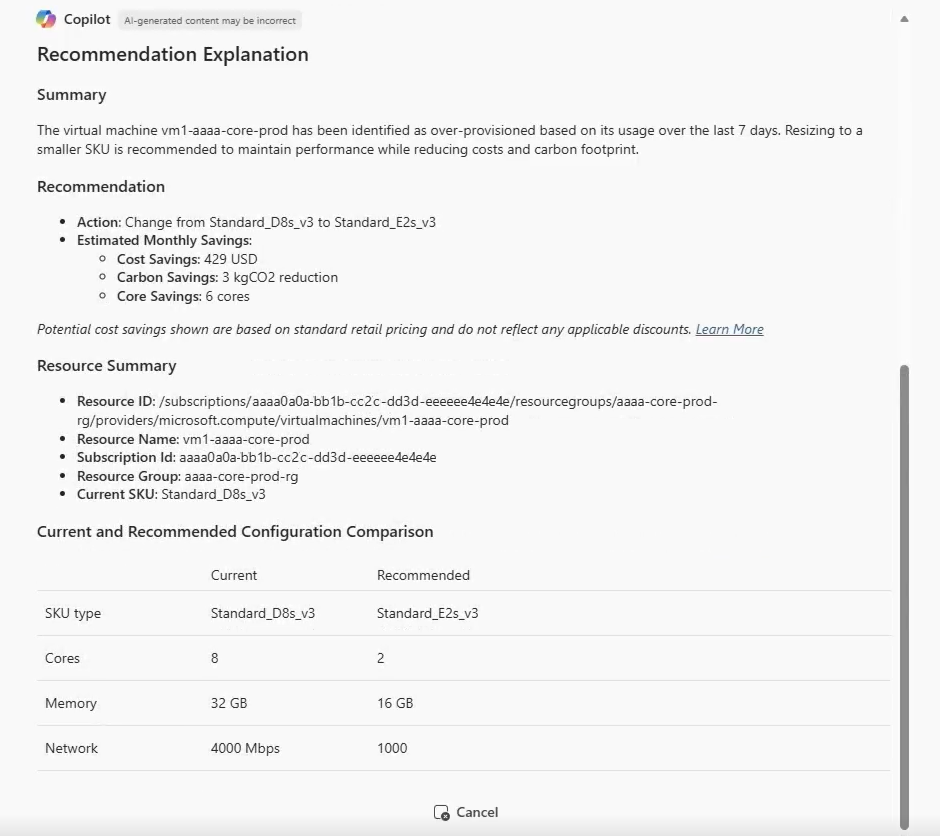
The Azure Copilot Optimization Agent helps you with optimization tasks. You can take actions to reduce costs and carbon emissions for your Azure resources while maintaining performance. The Optimization Agent provides detailed optimization recommendations and helps you understand the reasons behind them, including alternative options for you to compare. To help you implement the recommended changes, the Optimization Agent generates Azure CLI or PowerShell scripts that you can deploy.
Important
The Azure Copilot Optimization Agent is currently in PREVIEW. See the Supplemental Terms of Use for Microsoft Azure Previews for legal terms that apply to Azure features that are in beta, preview, or otherwise not yet released into general availability.
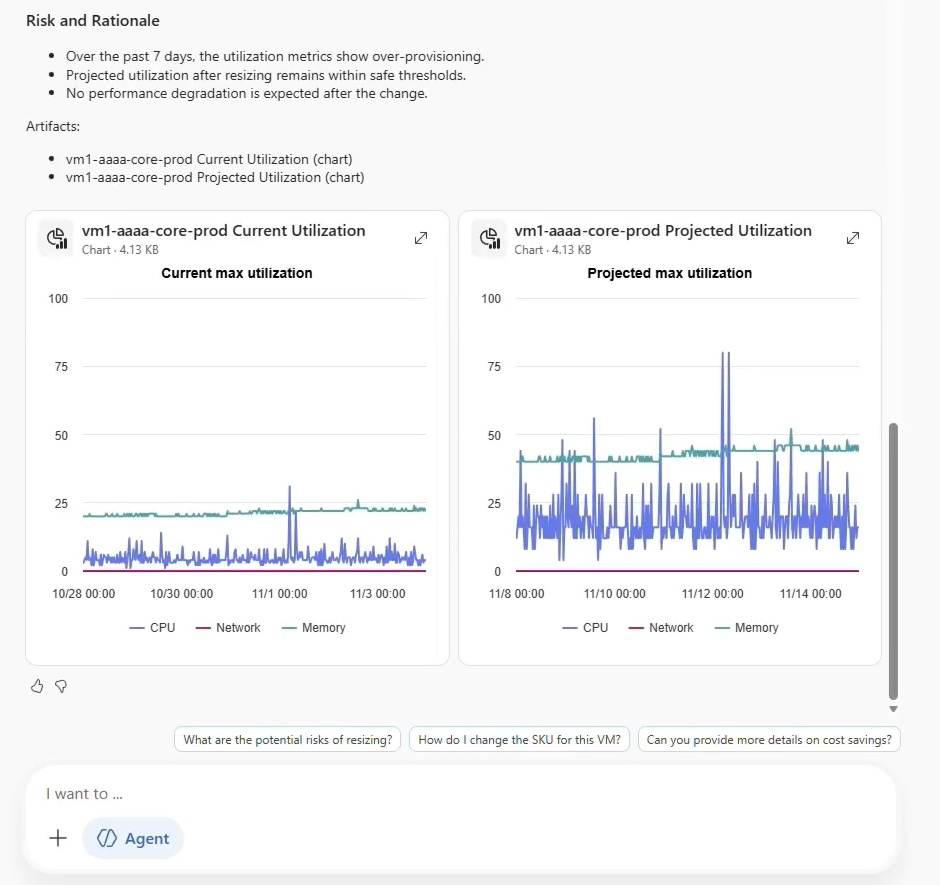
To help you understand and act on optimization, Azure Copilot can generate charts that show the expected results of applying recommendations.
Note
Administrators can enable or disable access to the Azure Copilot Optimization Agent and other Azure Copilot agents. If you don't see the Optimization Agent as an option when starting a new chat, check with your administrator.
Supported resource types
Currently, the Optimization Agent provides recommendations for the following resource types:
- Virtual machines (VMs)
- Virtual Machine Scale Sets (VMSS)
Use optimization agent capabilities
You can get started with optimization recommendations in several ways:
- From the Azure Copilot chat pane, select Optimization from the New chat options in Azure Copilot. Ask for optimization recommendations for your subscription or specific resources. For the best results, specify the subscription GUID or ARM Resource URI in your prompt, rather than the resource names, unless the resource is clear from the current context.
- From the Azure Advisor cost recommendations page, select Optimize next to an impacted VM or VMSS resource.
Optimization sample prompts
Here are a few examples of the kinds of prompts you can use with the Optimization Agent. Modify these prompts based on your real-life scenarios, or try additional prompts to create different kinds of queries. For the best results, specify the subscription GUID or ARM Resource URI in your prompt. Once you're already working on a subscription or resource, you can refer to it by name in further questions.
- "Show me the top five cost-saving opportunities for subscription
aaaa0a0a-bb1b-cc2c-dd3d-eeeeee4e4e4e." - "Show me cost saving recommendations for
subscriptions/aaaa0a0a-bb1b-cc2c-dd3d-eeeeee4e4e4e/resourcegroups/acss-demo/providers/microsoft.compute/virtualmachines/ContosoVM1." - "Explain the recommendation for ContosoVM1."
- "Is there an alternate recommendation for ContosoVM1?"
- "Generate a PowerShell script to apply the recommended optimizations for ContosoVM1."
- "Can you provide a CLI script to apply those optimizations?"
- "Summarize total potential cost and carbon reduction from all active recommendations."
Current considerations and limitations
Keep in mind the following considerations and limitations when working with the Azure Copilot Optimization Agent.
- The Optimization Agent can't automatically create or update budgets and alerts.
- By default, when asking for recommendations across a subscription, the response will show five items. You can ask for a specific number of top recommendations, with a maximum of ten items per query.
- If the context isn't already clear, you may need to provide the subscription GUID or ARM Resource URI for the resource you want to optimize, rather than the resource name.
- If your prompt doesn't specify the subscriptions you're referring to, the agent automatically takes the first 10 subscriptions selected in your Azure Portal subscription directory.