Note
Access to this page requires authorization. You can try signing in or changing directories.
Access to this page requires authorization. You can try changing directories.
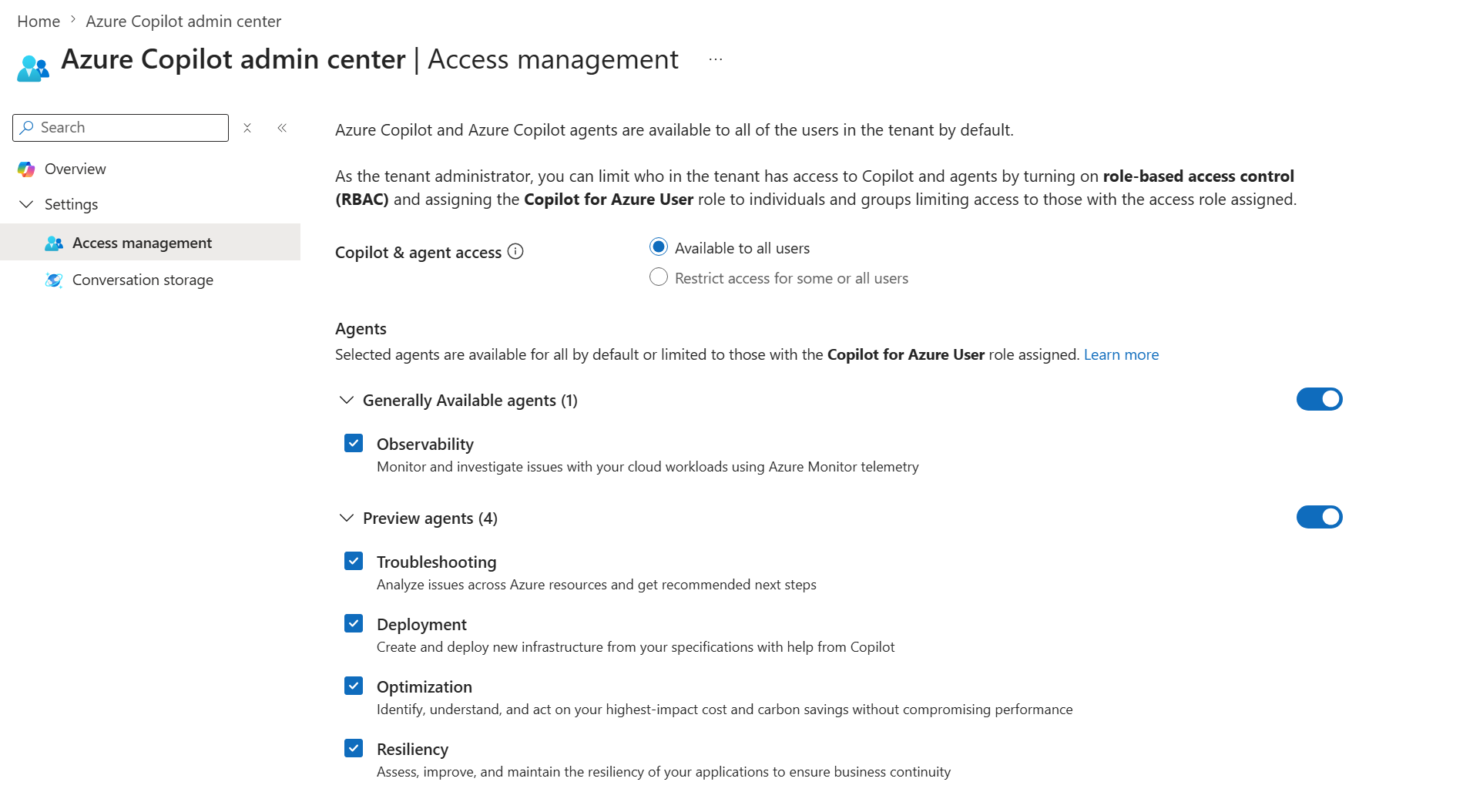
By default, Azure Copilot is available to all users in a tenant. However, Global Administrators can manage access to Azure Copilot for their organization. Access can also be optionally granted to specific Microsoft Entra users or groups.
If Azure Copilot is not available for a user, they'll see an unauthorized message when they select the Copilot button in the Azure portal.
Note
In some cases, your tenant may not have access to Azure Copilot by default. Global Administrators can enable access by following the steps described in this article at any time.
As always, Azure Copilot only has access to resources that the user has access to. It can only take actions that the user has permission to perform, and requires confirmation before making changes. Azure Copilot complies with all existing access management rules and protections such as Azure role-based access control (Azure RBAC), Privileged Identity Management, Azure Policy, and resource locks.
Manage user access to Azure Copilot and agents
To manage access to Azure Copilot for users in your tenant, any Global Administrator in that tenant can follow these steps.
Elevate your access so that your Global Administrator account can manage all subscriptions in your tenant.
In the Azure portal, search for Azure Copilot admin center and select it.
In the service menu, under Settings, select Access management.
To grant access to all users in that tenant, select Available to all users.
To restrict access to specific Microsoft Entra users or groups, select Restrict access for some or all users.
Assign the Copilot for Azure User role to specific users or groups. For detailed steps, see Assign Azure roles using the Azure portal. Only users and groups with this role will have access to Azure Copilot.
To prevent any users in your tenant from accessing Azure Copilot, remove the Copilot for Azure User role from all users and groups.
When you're finished, remove your elevated access.
Global Administrators for a tenant can change Access management selections at any time.
Manage enablement of Azure Copilot agents
To manage access to agents in Azure Copilot for users in your tenant, any Global Administrator in that tenant can follow these steps:
Elevate your access so that your Global Administrator account can manage all subscriptions in your tenant.
In the Azure portal, search for Azure Copilot admin center and select it.
In the service menu, under Settings, select Access management.
Select which Azure Copilot Agents to make available to their users. Select the check box for each agent to enable it, or clear the check box to disable it. You can also select to enable all Generally Available agents or all Preview agents.
When you're finished, remove your elevated access.
Global Administrators for a tenant can change the Access management selection at any time.
Currently, you can manage access to the following agents:
Generally available agents:
Preview agents:
Note
Access to the Optimization Agent is managed here, even though that agent isn't available through the Azure Copilot chat window. For more information, see the Observability Agent documentation.
If you remove access to an agent that was previously enabled, users in your tenant can't access that agent, and past conversation with that agent isn't available in their chat history. Be sure to inform users in your tenant before you remove access to an agent.
Manage conversation history
You can choose whether to store Azure Copilot conversation history in your tenant's own Cosmos DB instance. For more information, see Bring your own storage for conversation history in Azure Copilot.
Next steps
- Learn more about Azure Copilot.
- Read the Responsible AI FAQ for Azure Copilot.
- Explore the capabilities of Azure Copilot and learn how to write effective prompts.