Note
Access to this page requires authorization. You can try signing in or changing directories.
Access to this page requires authorization. You can try changing directories.
Important
This feature is in Beta. To use it, a workspace admin must turn on Governed agentic app-building from the Previews page. See Manage Azure Databricks previews.
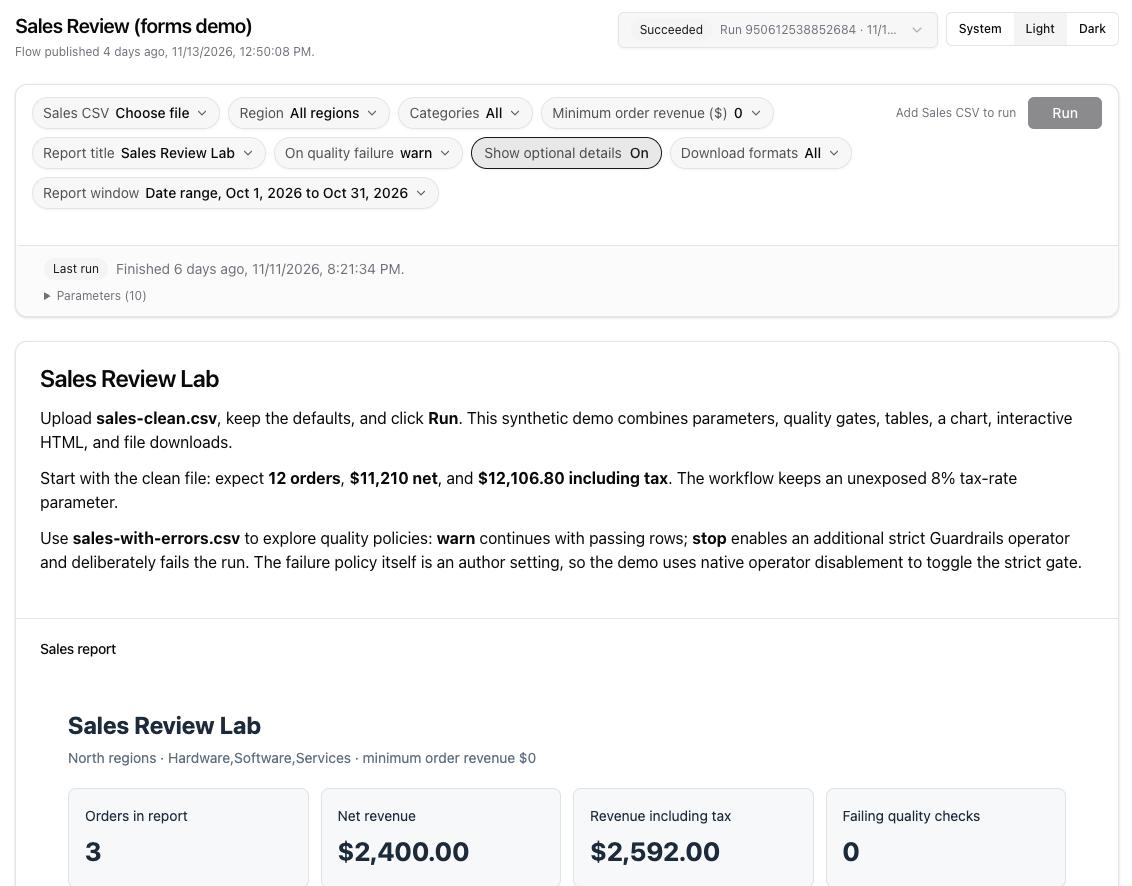
Designer Apps let you turn a data workflow into a simple app that your colleagues can run on their own. You build the workflow once in a Lakeflow Designer visual data prep, and then publish it as an app with a form. People who use the app choose their own values in the form, such as a region, a date range, or a file to upload, and click Run. They see the results without opening the workflow or writing code.
For example, a data analyst builds a workflow that summarizes sales. They publish it as an app. A regional manager opens the app, picks their region and a quarter, uploads the latest sales file, and gets a report and a downloadable summary. The analyst doesn't have to run the workflow for each request.
Use Designer Apps when people who don't build workflows need to run the same workflow with different inputs, for example, to filter a report by region or to process a file they upload. For apps that you build from a natural-language description instead of a visual data prep, see Genie App Builder.
People who build and publish apps are app authors. People who open and run them are app users.
What a Designer App contains
A Designer App is a Databricks app that you build inside a visual data prep file. Each app belongs to one visual data prep file, and a file can have more than one app. An app contains the following:
- A form: Asks app users for values, such as a region, a date range, or a file to upload. Each input in the form sends a value to a parameter of the visual data prep. You can group inputs in sections, show inputs only when a condition is met, and offer choices whose options show their own inputs. See Build the form for a Designer App.
- Output blocks: Show the results of an operator, such as a table, a chart, an HTML page, or files that app users can download.
- Markdown blocks: Add headings, instructions, and other text.
You build the app next to the canvas in Lakeflow Designer, and then publish it into an App Space. After you publish, you share the app with the people who need it. They open the app URL, set the values in the form, and click Run.
Data access and permissions
App users run the visual data prep with the runner job's run-as identity and data permissions, not their own. App users might read or change data that they can't access directly. The first time you publish an app, Lakeflow Designer asks you to acknowledge this before it creates the app.
Important
Share a Designer App only with people who are allowed to read and write the data that the visual data prep uses.
To let someone open and run a published app, grant them the CAN USE permission on the app. Users who have the CAN MANAGE permission on the App Space can also run every app in it. See Share the app.
App users need one of the workspace access entitlements, such as Consumer access. They don't need permissions on the runner job or on the data that the visual data prep reads. See Access entitlements.
Requirements
To build and publish a Designer App, you need the following:
- A workspace admin must turn on the Governed agentic app-building preview, which turns on App Spaces. Without it, Lakeflow Designer doesn't show the Apps button, and you can't create apps. See Manage Azure Databricks previews.
- An active App Space must exist, and it must give each app its own identity. App Spaces that use a shared service principal aren't supported. See App Spaces.
- You must have the Workspace access entitlement. See Access entitlements.
- You must have permission to manage the app and to read the App Space.
- You must have edit access to the visual data prep file. You can't create or publish apps from a read-only file.
- To ask app users to upload files, you need a Unity Catalog volume to store the uploads. See What are Unity Catalog volumes?.
Limitations
- You can publish a Designer App only into an App Space. After the app is created, you can't move it to a different App Space.
- An app can have up to 20 output and Markdown blocks.
- Table outputs show up to 1,000 rows.
- File uploads can be up to 5 GB.
- An app with file outputs runs one job run at a time. Other apps run up to five runs at a time. Additional runs wait in a queue.
- An output in the app can't depend on an Output operator that writes a file every time an app user clicks Run but isn't in the app as a file output, or on an Output operator whose output type the app doesn't support as a file output. Publishing stops and names the operator.
- A parameter whose name starts with
_lb_can't be in the app's form. Designer Apps reserve that prefix and a few other parameter names for the runner job.