Note
Access to this page requires authorization. You can try signing in or changing directories.
Access to this page requires authorization. You can try changing directories.
Azure DevOps Services | Azure DevOps Server | Azure DevOps Server 2022
Use Azure Artifacts permissions to control access to feeds, packages, views, and pipelines. This article explains the available permission levels for Azure Artifacts settings, feeds, views, and pipeline identities.
Azure Artifacts settings
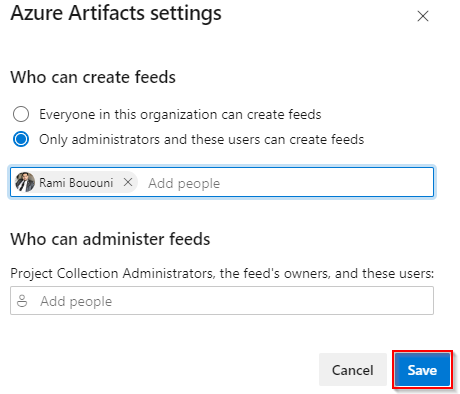
Use Azure Artifacts settings to control who can create feeds and who can administer feeds across Azure Artifacts.
Important
You must be a Feed Owner or a Project Collection Administrator to configure Azure Artifacts settings.
Sign in to your Azure DevOps organization, and then go to your project.
Select Artifacts, then select your feed from the dropdown menu.
Select the Azure Artifacts settings icon on the right.
Choose Who can create feeds and Who can administer feeds, and then select Save.
Feed settings
Use feed settings to manage feed-level access, package sharing, retention policies, view permissions, and upstream sources. To add users or groups to a feed:
Sign in to your Azure DevOps organization, and then go to your project.
Select Artifacts, then select your feed from the dropdown menu.
Select the gear icon to open Feed settings.
Select Permissions, then select Add users/groups.
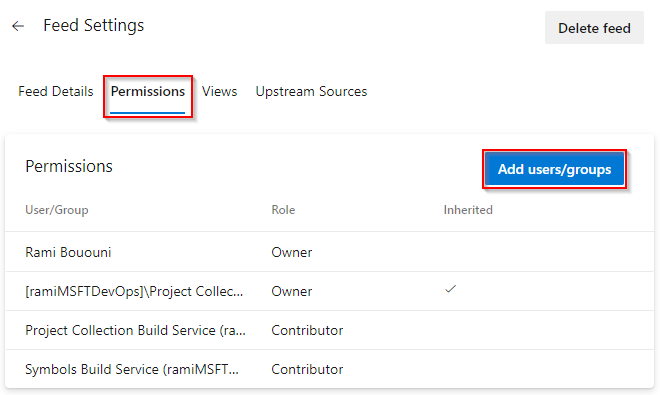
Add the user or group, and then assign the appropriate role:
- Feed Owner: Can manage feed settings, manage upstream sources, allow external package versions, and delete packages or the feed itself, in addition to all Contributor permissions.
- Feed Publisher (Contributor): Can publish, promote, deprecate, and unlist packages, in addition to all Collaborator permissions.
- Feed and Upstream Reader (Collaborator): Can save packages from upstream sources, in addition to all Reader permissions.
- Feed Reader: Can list, view, and download packages from the feed.
Select Save when you're ready.
Note
By default, the Project Collection Build Service (organization-scoped) and the project-level Build Service (project-scoped) are assigned the Feed and Upstream Reader (Collaborator) role.
Note
By default, the Project Collection Build Service is automatically assigned the Feed and Upstream Reader (Collaborator) role for newly created collection-scoped feeds.
Feed roles and permissions
Each feed role grants a specific set of capabilities. Use the following table to decide which role to assign:
| Permission | Feed Reader | Feed and Upstream Reader (Collaborator) | Feed Publisher (Contributor) | Feed Owner |
|---|---|---|---|---|
| List packages in the feed | ✓ | ✓ | ✓ | ✓ |
| Download/install/restore packages | ✓ | ✓ | ✓ | ✓ |
| Save packages from upstream sources | ✓ | ✓ | ✓ | |
| Publish packages | ✓ | ✓ | ||
| Promote packages to a view | ✓ | ✓ | ||
| Deprecate/unlist/yank packages | ✓ | ✓ | ||
| Delete/unpublish packages | ✓ | |||
| Add/remove upstream sources | ✓ | |||
| Allow external package versions | ✓ | |||
| Edit feed settings | ✓ | |||
| Delete a feed | ✓ |
Note
Project Collection Administrators and Azure Artifacts Administrators are automatically granted the Feed Owner role for all feeds in the project.
Feed views settings
Feed views let you share selected package versions without exposing everything in the feed. A common pattern is to share validated packages through one view while keeping in-progress packages private.
By default, each feed includes three views: @Local, @Prerelease, and @Release. You can rename or delete the @Prerelease and @Release views. The @Local view contains all packages published directly to the feed, as well as packages saved from upstream sources.
Important
Users who can access a view can download packages through that view even if they don't have direct access to that feed. If you need to fully restrict package access, you must restrict access to both the feed and its views.
Sign in to your Azure DevOps organization, and then go to your project.
Select Artifacts, then select your feed from the dropdown menu.
Select the gear icon to open Feed settings.
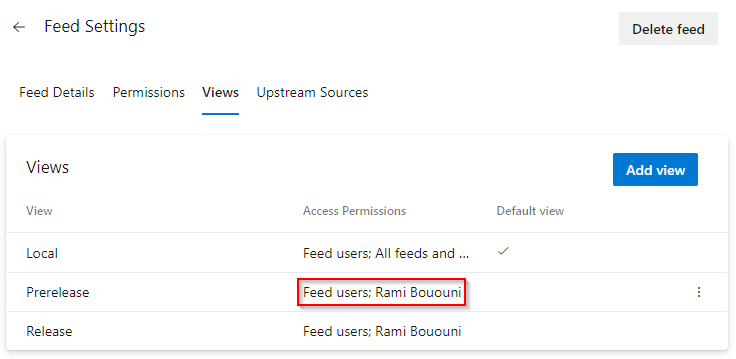
Select Views, select the ellipsis next to the view, and then select Edit.
To restrict access to the view, change Visibility to Specific people.
Important
Views inherit permissions from the parent feed. If you set a view's visibility to Specific people without specifying any users or groups, the view's permissions will default back to the permissions of the parent feed.
Select Save when you're done. The Access permissions column updates to reflect your changes.
Note
To add a feed from a different organization as an upstream source, the target feed owner must share the target view with All feeds and people in organizations associated with my Microsoft Entra tenant. This can be done by navigating to Feed Settings > Views, selecting the ellipsis next to the specified view, selecting Edit, and adjusting the permissions.
Pipelines permissions
To access a feed from a pipeline, the corresponding build identity must have the necessary permissions.
The project-level build identity is named [Project name] Build Service ([Organization name]), for example FabrikamFiber Build Service (codesharing-demo). The organization-level build identity is named Project Collection Build Service ([Organization name]), for example Project Collection Build Service (codesharing-demo).
To add a build identity to a feed:
Sign in to your Azure DevOps organization, and then go to your project.
Select Artifacts, then select your feed from the dropdown menu.
Select the gear icon
 to open Feed settings.
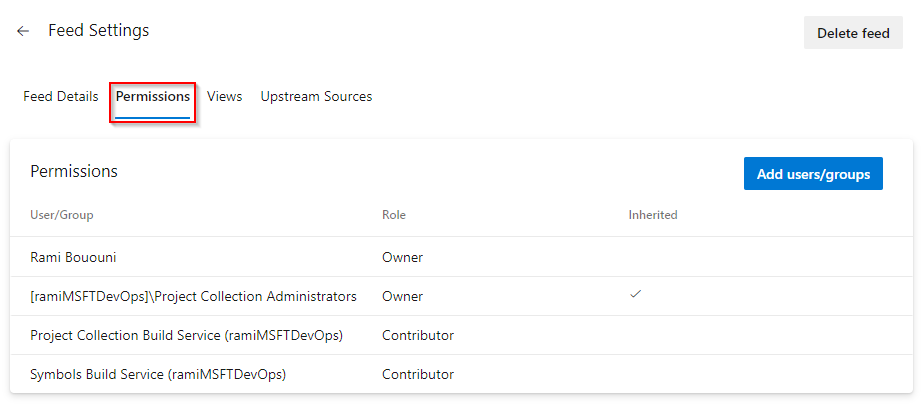
Select Permissions, and then select Add users/groups.
Add the build identity and assign it the Feed and Upstream Reader (Collaborator) role.
If the pipeline needs to publish packages, assign the Feed Publisher (Contributor) role to both the Project Collection Build Service identity and the project-level Build Service identity.
Examples
See the examples below to learn how to authenticate and publish packages to your feed with Azure Pipelines.
| Package Type | Article |
|---|---|
| NuGet | Publish NuGet packages with Azure Pipelines |
| Npm | Publish npm packages with Azure Pipelines |
| Maven | Publish Maven artifacts with Azure Pipelines |
| Python | Publish Python packages with Azure Pipelines |
| Cargo | Publish Cargo packages with Azure Pipelines |
| Universal Packages | Publish Universal Packages with Azure Pipelines |
| Package Type | Article |
|---|---|
| NuGet | Publish NuGet packages with Azure Pipelines |
| Npm | Publish npm packages with Azure Pipelines |
| Maven | Publish Maven artifacts with Azure Pipelines |
| Python | Publish Python packages with Azure Pipelines |
| Cargo | Publish Cargo packages with Azure Pipelines |
Note
If your pipeline uses the project-level build identity and needs to access a feed in a different project, you must configure that other project to grant the build identity at least the Edit project-level information permission.