Note
Access to this page requires authorization. You can try signing in or changing directories.
Access to this page requires authorization. You can try changing directories.
Azure DevOps Services | Azure DevOps Server | Azure DevOps Server 2022
Azure Artifacts enables developers to publish and download NuGet packages from feeds or public registries. Feeds can be either private, allowing you to share packages with specific users, or public, making your packages accessible to anyone on the internet.
This article guides you through creating a feed, configuring your project, and publishing and downloading NuGet packages.
Prerequisites
| Product | Requirements |
|---|---|
| Azure DevOps | - An Azure DevOps organization. - An Azure DevOps project. - Download and install nuget.exe version 4.8.0.5385 or later. We recommend NuGet 5.5.x or later, which includes important bug fixes for cancellations and timeouts. |
Set up the Azure Artifacts Credential Provider
The Azure Artifacts Credential Provider enables secure authentication to your Azure Artifacts feeds. To use it with nuget.exe, you must first add it to NuGet’s plugin search path. For details, see Plugin Installation and discovery. Once the plugin is added, follow the installation steps for your operating system:
Use one of the following methods to install the Azure Artifacts Credential Provider:
Manual installation
Download the latest Microsoft.NetFx48.NuGet.CredentialProvider.zip release.
Extract the zip file.
Copy the
netfxfolder from the extracted archive to%UserProfile%/.nuget/plugins/. Thenetfxfolder is required for nuget.exe compatibility.
Install using the helper script
Alternatively, you can use the automated helper script for a streamlined installation. Ensure you have PowerShell 5.1 or later, and then run:
iex "& { $(irm https://aka.ms/install-artifacts-credprovider.ps1) } -AddNetfx"
See the Azure Artifacts Credential Provider repository for more details.
Create a feed
Sign in to your Azure DevOps organization and navigate to your project.
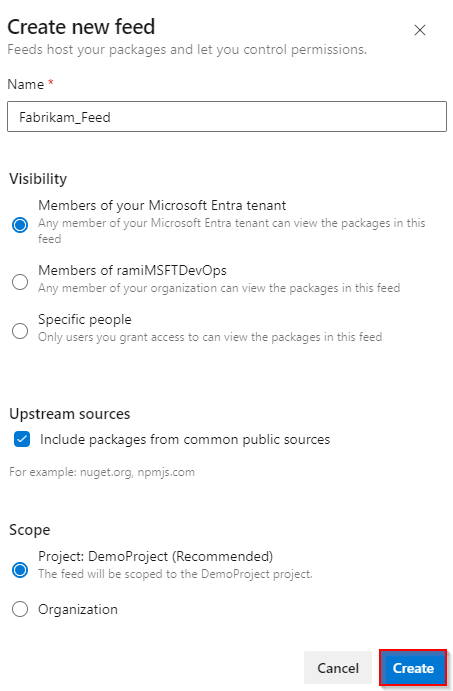
Select Artifacts, and then select Create Feed.
Provide a Name for your feed, choose the Visibility option that defines who can view your packages, check Include packages from common public sources if you want to include packages from sources like nuget.org or npmjs.com, and for Scope, decide whether the feed should be scoped to your project or the entire organization.
Select Create when you're done.
Sign in to your Azure DevOps server, and then go to your project.
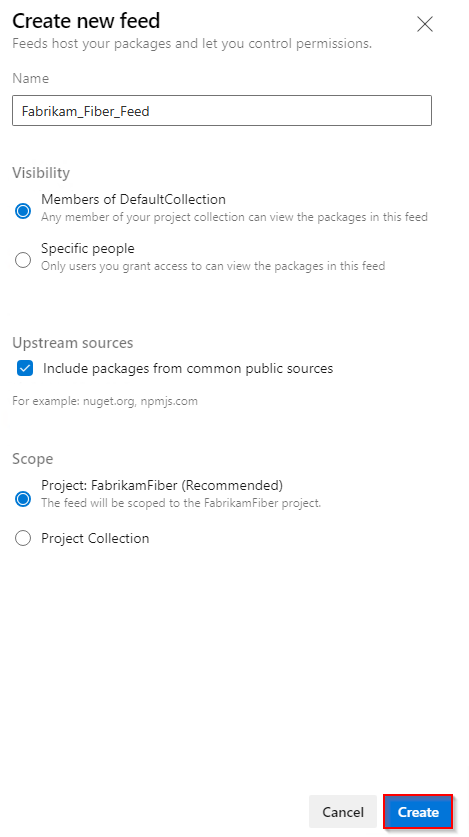
Select Artifacts, and then select Create Feed.
Provide a Name for your feed, choose the Visibility option that defines who can view your packages, check Include packages from common public sources if you want to include packages from sources like nuget.org or npmjs.com, and for Scope, decide whether the feed should be scoped to your project or the entire organization.
Select Create when you're done.
Note
By default, the Build Service for the project (for example: projectName Build Service (orgName)) is assigned the Feed and Upstream Reader (Collaborator) role when a new feed is created.
Connect to a feed
Sign in to your Azure DevOps organization, and then go to your project.
Select Artifacts, and then select your feed from the dropdown menu.
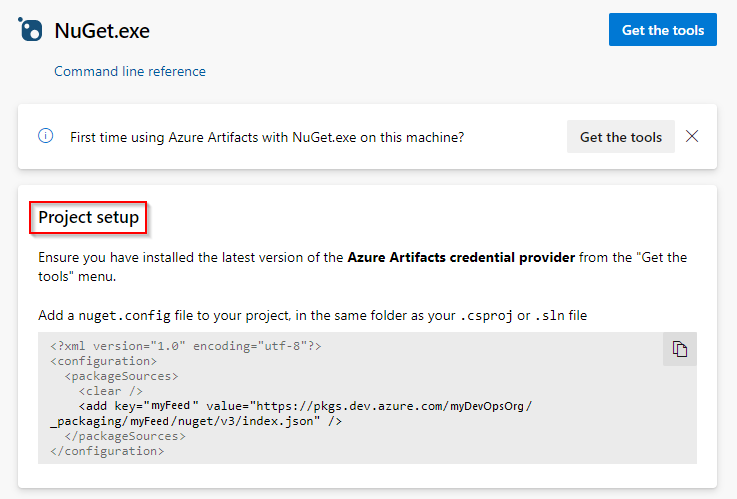
Select Connect to Feed, and then select NuGet.exe from the left navigation pane. If this is your first time using Azure Artifacts with Nuget.exe, make sure you've installed the prerequisites.
Follow the provided instructions under the Project setup section to set up your nuget.config file and connect to your Azure Artifacts feed.
Sign in to your Azure DevOps server, and then go to your project.
Select Artifacts, and then select your feed from the dropdown menu.
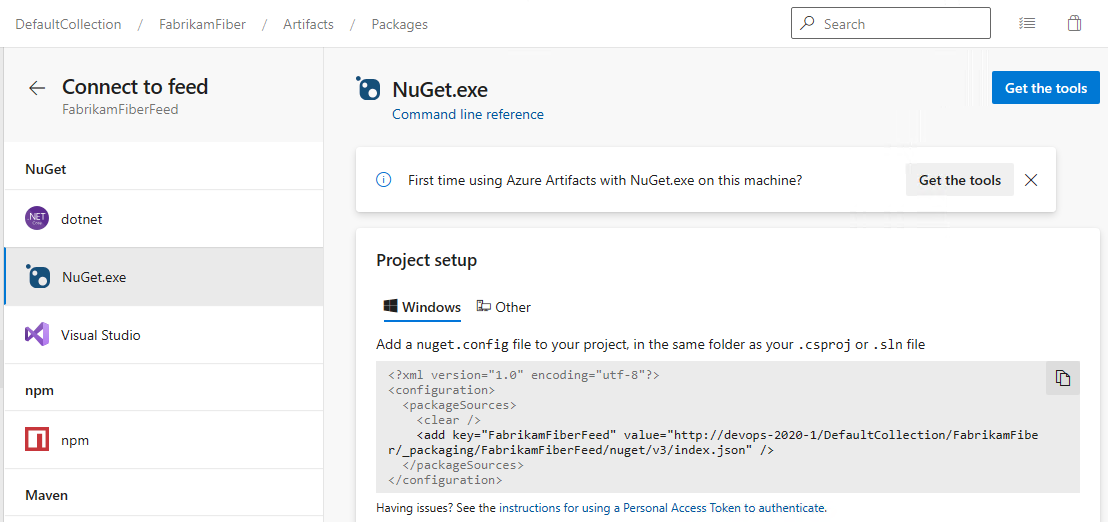
Select Connect to Feed, and then select NuGet.exe from the left navigation pane.
Follow the provided instructions under the Project setup section to set up your nuget.config file and connect to your Azure Artifacts feed.
Publish packages to your feed
Note
To publish packages to a feed, you must be a Feed Publisher (Contributor) or higher. See Manage permissions for more details.
To publish a package to your feed, run the following command. The ApiKey parameter is required, but you can use any arbitrary string as its value.
nuget.exe push -Source <SOURCE_NAME> -ApiKey key <PACKAGE_PATH>
Examples
Project-scoped feed:
nuget.exe push -Source https://pkgs.dev.azure.com/myOrganization/MyProject/_packaging/MyFeed/nuget/v3/index.json -ApiKey AZ release/myDemoPackage.1.0.0.nupkgOrganization-scoped feed:
nuget.exe push -Source https://pkgs.dev.azure.com/myOrganization/_packaging/myFeed/nuget/v3/index.json -ApiKey AZ release/myDemoPackage.1.0.0.nupkg
Note
The ApiKey is required, but you can use any arbitrary value when publishing to Azure Artifacts feeds.
Download packages from your feed
To restore packages from your feed, run the following command in your project directory:
nuget.exe restore
Note
Searching for packages in upstream sources using the NuGet Package Explorer is not supported.