Note
Access to this page requires authorization. You can try signing in or changing directories.
Access to this page requires authorization. You can try changing directories.
Azure DevOps Services | Azure DevOps Server | Azure DevOps Server 2022
Azure Artifacts upstream sources make it easy for developers to pull packages from public registries like nuget.org and npmjs.com. In this article, you learn how to set up your project and use the command line to consume NuGet packages from the NuGet Gallery.
Prerequisites
| Product | Requirements |
|---|---|
| Azure DevOps | - An Azure DevOps organization. - An Azure DevOps project. - An Azure Artifacts feed. - Download and install the .NET SDK version 9.0.200 or later. |
Set up the Azure Artifacts Credential Provider
To authenticate with your feed, you must first install the Azure Artifacts Credential Provider. Using the tool installer included with dotnet, you can install the credential provider from the CLI using the following command:
dotnet tool install --global Microsoft.Artifacts.CredentialProvider.NuGet.Tool
If your repository-level nuget.config is configured to use only Azure Artifacts sources, run the install command from outside that directory, or explicitly set nuget.org as the source:
dotnet tool install --global Microsoft.Artifacts.CredentialProvider.NuGet.Tool --source https://api.nuget.org/v3/index.json
Optionally, pin the tool to a major version (for example, in container images where reproducibility matters):
dotnet tool install --global Microsoft.Artifacts.CredentialProvider.NuGet.Tool --version 2.* --source https://api.nuget.org/v3/index.json
First usage
The first time you perform an operation that requires authentication, use one of the following approaches:
- Run the command with
--interactivesodotnetcan prompt you to sign in. This is the recommended approach for most local development scenarios.
Before you run an interactive command, make sure your project is set up and your feed is added to nuget.config. For setup details, see project setup.
Once your project is set up and connected to your feed, navigate to your project directory and run:
dotnet restore --interactive
This command signs you in and acquires a session token. After sign-in succeeds, you can run authenticated commands without --interactive while the cached session token remains valid. For more information, see Session token cache locations.
- For non-interactive scenarios, such as Docker containers and custom automation, provide credentials through environment variables.
For Azure Pipelines, use the NuGetAuthenticate@1 task to authenticate to your feed before running commands such as dotnet restore or dotnet nuget push. See Restore NuGet packages with Azure Pipelines for more details.
Create a feed and enable upstream sources
If you haven't created a feed yet, follow the steps below to create a new feed and enable upstream sources. If you already have a feed, proceed to the next step to add the NuGet Gallery as an upstream source.
Sign in to your Azure DevOps organization and navigate to your project.
Select Artifacts, and then select Create Feed.
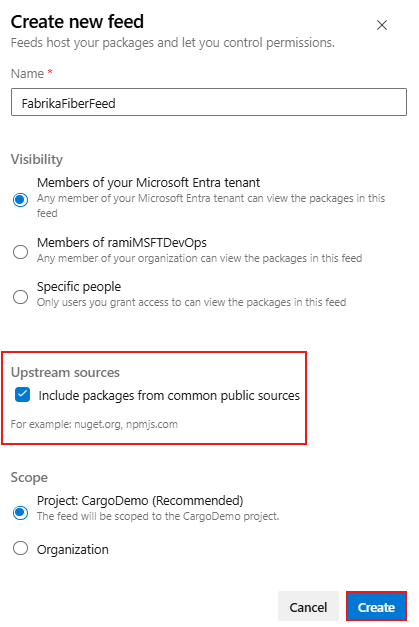
Provide a Name for your feed, select the Visibility option to define who can view your packages, and choose your Scope. Azure Artifacts recommends scoping feeds to a project rather than the entire organization.
Make sure to check the Include packages from common public sources option, as you'll need this to consume packages from public registries such as nuget.org, npmjs.com etc.
Select Create when you're done.
Add NuGet Gallery upstream source
If you checked the Upstream sources checkbox when creating your feed (as shown in the previous section), the NuGet Gallery should have been added automatically to your feed’s upstream sources. If you're working with a different feed or forgot to check that option, you can manually add the NuGet Gallery by following these steps:
Sign in to Azure DevOps, and then navigate to your project.
Select Artifacts, and then select your feed from the dropdown menu.
Select the gear icon button
 to navigate to your Feed settings.
Select Upstream Sources, and then select Add Upstream.
Select Public source, select NuGet Gallery from the dropdown menu, and then select Add.
Select Save at the top right corner, then select Save again to confirm and apply your changes.
Connect to your feed
In this section, you learn how to set up your project to authenticate with your Azure Artifacts feed and save packages from upstream sources such as the NuGet Gallery.
Sign in to your Azure DevOps organization, and then navigate to your project.
Select Artifacts, and then select your feed from the dropdown menu.
Select Connect to feed, and then select NuGet.exe.
Make sure you've installed the prerequisites, then add a nuget.config file in the same folder as your .csproj or .sln file.
Paste the XML snippet provided in the Project setup section into your file. Your file should resemble the following:
Project-scoped feed:
<?xml version="1.0" encoding="utf-8"?>
<configuration>
  <packageSources>
    <clear />
    <add key="<SOURCE_NAME>" value="https://pkgs.dev.azure.com/<ORGANIZATION_NAME>/<PROJECT_NAME>/_packaging/<FEED_NAME>/nuget/v3/index.json" />
  </packageSources>
</configuration>
Organization-scoped feed:
<?xml version="1.0" encoding="utf-8"?>
<configuration>
  <packageSources>
    <clear />
    <add key="<SOURCE_NAME>" value="https://pkgs.dev.azure.com/<ORGANIZATION_NAME>/_packaging/<FEED_NAME>/nuget/v3/index.json" />
  </packageSources>
</configuration>
Sign in to your Azure DevOps collection, and then navigate to your project.
Select Artifacts, and then select your feed from the dropdown menu.
Select Connect to Feed, and then select NuGet.exe from the left navigation pane.
Follow the instructions in the Project setup section to connect to your feed.
Install packages from NuGet Gallery
Note
To save packages from upstream sources, you must be a Feed and Upstream Reader (Collaborator) or higher. See Manage permissions for more details.
Now that your project is configured to authenticate with your Azure Artifacts feed, you can proceed to install packages from the NuGet Gallery upstream. In this example, you'll install the MCP C# SDK for the Model Context Protocol for .NET applications to interact with MCP clients and servers:
Navigate to the NuGet Gallery at
https://www.nuget.org/.Search for the ModelContextProtocol, then select it to open the details page.
Select the .NET CLI tab, and copy the command. In this example, the command is:
dotnet add package ModelContextProtocol --version 0.3.0-preview.4Open a command prompt window, navigate to your project directory, then paste your command and press Enter to install the package.
Once installed, a copy of the package will be automatically saved to your feed, ensuring availability if NuGet Gallery is down and protecting your workflow from other corrupted or malicious packages from the public registry.
Note
To save packages from upstreams, you must have the Feed and Upstream Reader (Collaborator) role or higher. See Feed roles and permissions for more details.
View saved packages
Sign in to Azure DevOps, and navigate to your project.
Select Artifacts, then select your feed from the dropdown menu.
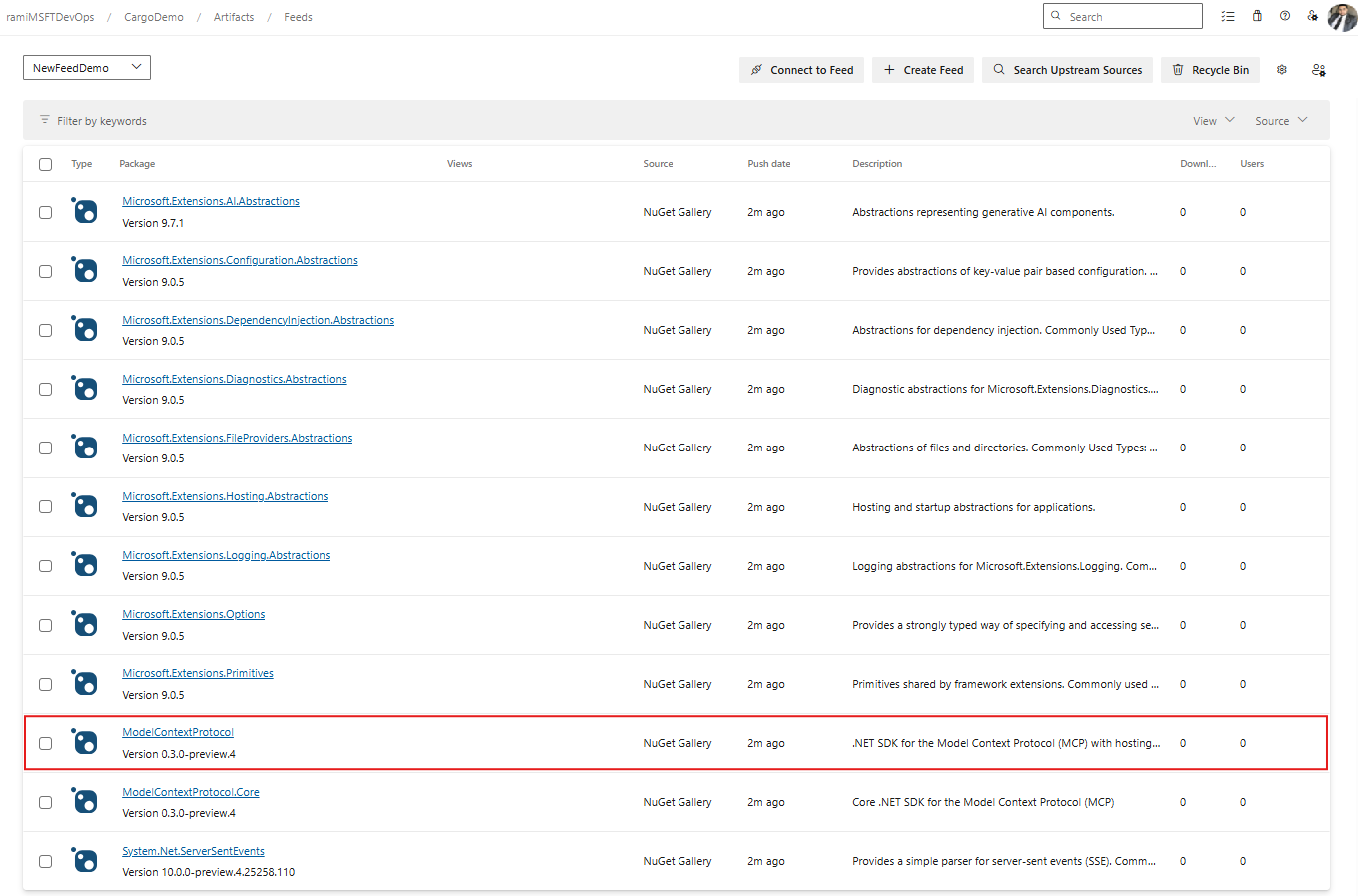
Select the NuGet Gallery source from the dropdown menu to filter for packages from this upstream.
The ModelContextProtocol packages, installed in the previous step, is now available in our feed. Azure Artifacts automatically saved a copy to your feed.