Note
Access to this page requires authorization. You can try signing in or changing directories.
Access to this page requires authorization. You can try changing directories.
Important
Items marked (preview) in this article are currently in public preview. This preview is provided without a service-level agreement, and we don't recommend it for production workloads. Certain features might not be supported or might have constrained capabilities. For more information, see Supplemental Terms of Use for Microsoft Azure Previews.
Warning
When you connect to Work IQ, you may incur costs and data may be sent outside the Azure compliance boundary and processed according to the applicable service terms and data handling policies. It is your responsibility to manage whether your data will flow outside of your organization's compliance and geographic boundaries and any related implications, and that appropriate permissions, boundaries, and approvals are provisioned.
You're responsible for carefully reviewing and testing applications you build in the context of your specific use cases and making all appropriate decisions and customizations. This includes implementing your own responsible AI mitigations, such as metaprompts, content filters, or other safety systems, and ensuring your applications meet appropriate quality, reliability, security, and trustworthiness standards. See the Foundry Agent Service transparency note.
Note
For information on optimizing tool usage, see best practices.
Work IQ is the intelligence layer that grounds Microsoft 365 Copilot and your agents in real-time, shared context across your organization. It captures signals from emails, meetings, files, chats, and business systems, and applies semantic understanding so agents can reason over work data and take action. All requests run in the context of the signed-in user and honor Microsoft 365 permissions.
You connect your Foundry agent to Work IQ through the Agent-to-Agent (A2A) protocol. Your agent delegates natural-language tasks to Work IQ as a peer agent — for example, "Summarize my recent emails about Project Contoso" — and Work IQ handles retrieval, reasoning, and response synthesis against the user's Microsoft 365 data.
Usage support
| Microsoft Foundry support | Python SDK | C# SDK | JavaScript SDK | Java SDK | REST API | Basic agent setup | Standard agent setup |
|---|---|---|---|---|---|---|---|
| Work IQ | ✔️ | — | — | — | ✔️ | ✔️ | ✔️ |
Prerequisites
Note
Virtual network (VNet) integration is not supported. Your Foundry project must not use a VNet-restricted endpoint.
Before you begin, make sure you have:
- A Microsoft 365 Copilot license. Users who call Work IQ tools through your agent must also have this license.
- An active Microsoft Foundry project with a deployed model.
- Azure RBAC roles:
- Foundry User role on the Foundry project for the developer identity, the agent's runtime identity, and any user identity involved in OAuth flows.
- Foundry Project Manager role on the Foundry project for creating a Foundry connection to the Work IQ endpoint.
- A Microsoft Entra Global Administrator who can grant admin consent for
WorkIQAgent.Askin your tenant and create or delegate app registrations.
How it works
- Your agent dispatches a tool call — When the agent model identifies a task that requires Microsoft 365 data, it emits a tool call to the
work_iq_previewtool. - Foundry routes the request to Work IQ via A2A — Foundry uses the Agent-to-Agent (A2A) protocol to forward the natural-language query to Work IQ as a peer agent. Authentication uses On-Behalf-Of (OBO) so the request runs in the context of the signed-in user.
- Work IQ retrieves and reasons over M365 data — Work IQ queries the user's emails, meetings, files, chats, and other Microsoft 365 signals. It applies semantic understanding to synthesize a response grounded in the user's actual work context, honoring Microsoft 365 permissions and sensitivity labels throughout.
- The result is returned to your agent — Work IQ returns the synthesized response to Foundry via A2A. Your agent incorporates it into its reply to the user.
Connect to Work IQ
Add the Work IQ tool to your agent
import os
from azure.identity import DefaultAzureCredential
from azure.ai.projects import AIProjectClient

PROJECT_ENDPOINT = os.environ["FOUNDRY_PROJECT_ENDPOINT"]
MODEL_DEPLOYMENT = os.environ.get("FOUNDRY_MODEL_DEPLOYMENT_NAME", "gpt-4o-mini")
WORKIQ_CONNECTION_NAME = "workiq-conn"
AGENT_NAME = "workiq-agent"

project = AIProjectClient(
    endpoint=PROJECT_ENDPOINT,
    credential=DefaultAzureCredential(),
)
openai = project.get_openai_client()

# Retrieve the Work IQ connection
workiq_conn = project.connections.get(WORKIQ_CONNECTION_NAME)

# Create an agent with the Work IQ tool
agent = project.agents.create_version(
    agent_name=AGENT_NAME,
    definition={
        "model": MODEL_DEPLOYMENT,
        "instructions": (
            "You are a helpful assistant with access to the user's "
            "Microsoft 365 work context through Work IQ. "
            "Use Work IQ to answer questions about emails, meetings, "
            "documents, and organizational knowledge."
        ),
        "tools": [
            {
                "type": "work_iq_preview",
                "project_connection_id": workiq_conn.id,
            }
        ],
    },
)
print(f"Agent created (id: {agent.id}, name: {agent.name}, version: {agent.version})")

# Invoke the agent
user_input = "Summarize my recent emails about Project Contoso."
stream_response = openai.responses.create(
    stream=True,
    input=user_input,
    extra_body={"agent_reference": {"name": agent.name, "type": "agent_reference"}},
)

for event in stream_response:
    if event.type == "response.output_text.delta":
        print(event.delta, end="", flush=True)
    elif event.type == "response.completed":
        print(f"\n\nCompleted. Full response: {event.response.output_text}")

# Clean up
project.agents.delete_version(agent_name=agent.name, agent_version=agent.version)
Expected output: The agent calls Work IQ with the user's query. Work IQ retrieves and synthesizes the user's relevant emails, grounded in their Microsoft 365 permissions. The agent returns the synthesized summary as streamed text.
Step 1: Create the agent with the Work IQ tool:
POST {project_endpoint}/agents/{agent_name}/versions?api-version=v1
Authorization: Bearer {token}
Content-Type: application/json

{
  "model": "gpt-4o-mini",
  "instructions": "You are a helpful assistant with access to the user's Microsoft 365 work context through Work IQ.",
  "tools": [
    {
      "type": "work_iq_preview",
      "project_connection_id": "/subscriptions/{sub}/resourceGroups/{rg}/providers/Microsoft.CognitiveServices/accounts/{account}/projects/{project}/connections/{connection-name}"
    }
  ]
}
Step 2: Create a conversation session:
POST {project_endpoint}/openai/v1/conversations
Authorization: Bearer {token}
Content-Type: application/json

{}
The response includes a id field. Use it in the next step.
Step 3: Send a request to the agent:
POST {project_endpoint}/openai/v1/responses
Authorization: Bearer {token}
Content-Type: application/json

{
  "conversation": "{conversation_id}",
  "input": "Summarize my recent emails about Project Contoso.",
  "agent_reference": {
    "type": "agent_reference",
    "name": "{agent_name}"
  }
}
The response includes metadata about the agent execution and a text field in content with the synthesized answer.
Note
Use token scope https://ai.azure.com/.default when getting the bearer token.
Authentication and security
Work IQ uses Microsoft Entra ID delegated authentication. All requests run in the context of the signed-in user. Application-only (app-only) authentication isn't supported. Microsoft 365 permissions are enforced automatically — Work IQ agents can never access data that the signed-in user isn't already permitted to see.
Only Bring your own Entra app (On-Behalf-Of authentication) is supported for Work IQ connections. This gives your Entra admin explicit control over which applications can retrieve Microsoft 365 data through Work IQ: the admin reviews and grants the WorkIQAgent.Ask permission specifically for your registered app.
Set up your Entra app (one-time, per organization)
An Entra admin must complete the following steps before you can create a Work IQ connection in Foundry.
Provision the Work IQ service principal (one-time)
Before you create the app registration, a Global Administrator must provision the Work IQ service principal in your tenant. If this step is skipped, the Work IQ option won't appear when you search API permissions.
Follow Step 1: Create the Work IQ service principal in the Work IQ API quickstart. A 201 Created response from Graph Explorer confirms success. A conflict error means the principal already exists — continue to the next step.
Create the app registration
Go to the Microsoft Entra admin center. In the left navigation, select Entra ID > App registrations.
Select New registration. Give the app a descriptive name and set Supported account types to Accounts in this organizational directory only. Select Register.
Copy the Application (client) ID. You need this value when creating the Foundry connection.
Select API permissions > Add a permission > APIs my organization uses. Search for Work IQ (application ID
fdcc1f02-fc51-4226-8753-f668596af7f7), select Delegated permissions, select WorkIQAgent.Ask, then select Add permissions.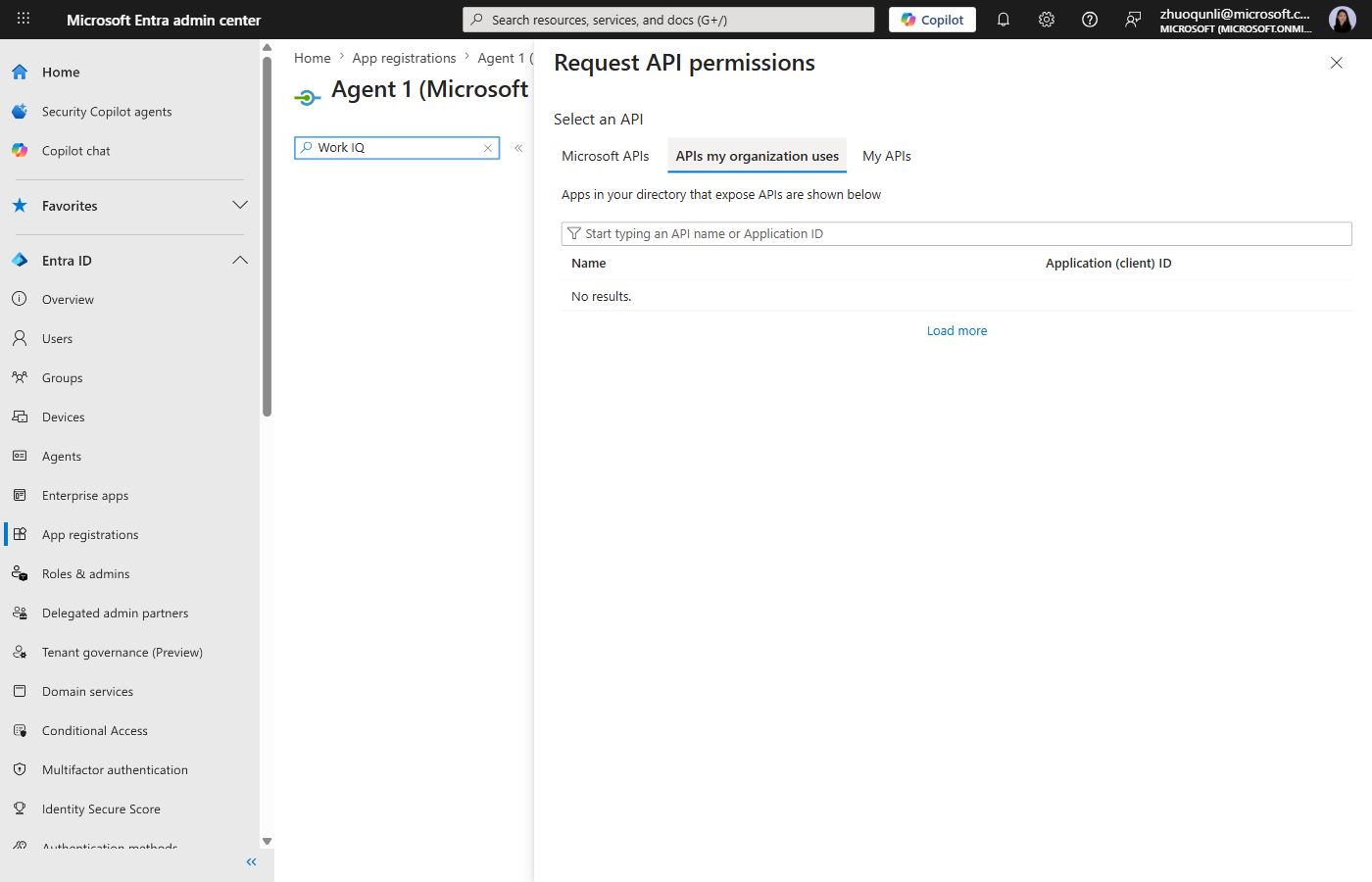
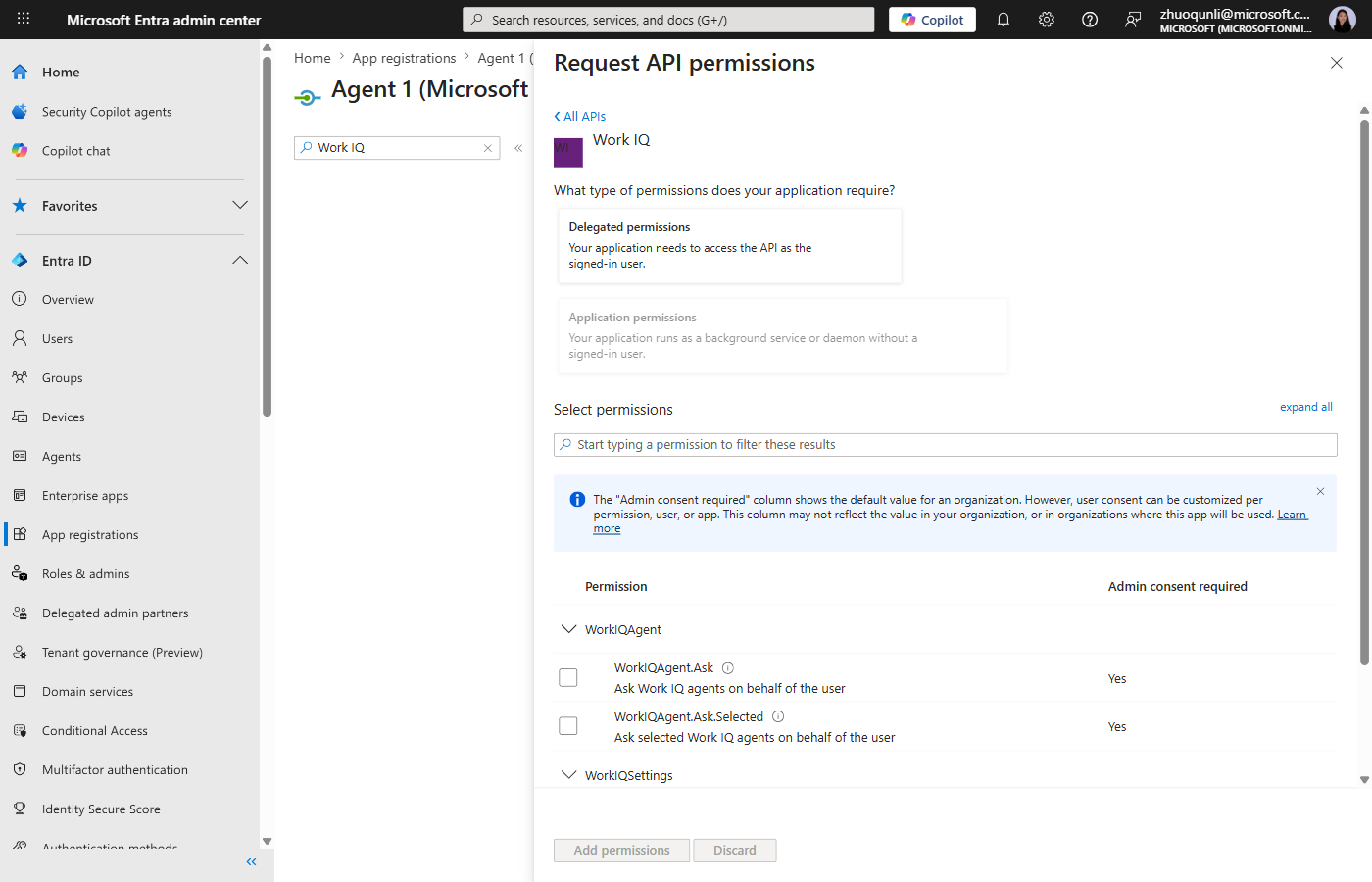
Select Grant admin consent for [your tenant]. Review the confirmation dialog and select Yes.
Important
Granting tenant-wide admin consent requires the Global Administrator role in Microsoft Entra ID. If you don't have this role, ask your organization's Global Administrator to complete this step.
Select Certificates & secrets > New client secret. Add a description and expiration. Select Add, then immediately copy the secret Value — it's only shown once.
Copy your Directory (tenant) ID from the Microsoft Entra ID overview page.
Fill in the Foundry connection values
In Microsoft Foundry, open your project and go to Settings > Connections > New connection > Work IQ. Fill in the following fields:
| Field | Value |
|---|---|
| Client ID | Application (client) ID from step 3 |
| Client secret | Client secret value from step 6 |
| Authorization URL | https://login.microsoftonline.com/{tenant-id}/oauth2/v2.0/authorize |
| Token URL | https://login.microsoftonline.com/{tenant-id}/oauth2/v2.0/token |
| Refresh URL | https://login.microsoftonline.com/{tenant-id}/oauth2/v2.0/token |
| Scopes | api://workiq.svc.cloud.microsoft/WorkIQAgent.Ask,offline_access |
Replace {tenant-id} with your Directory (tenant) ID from step 7. Select Save to create the connection.
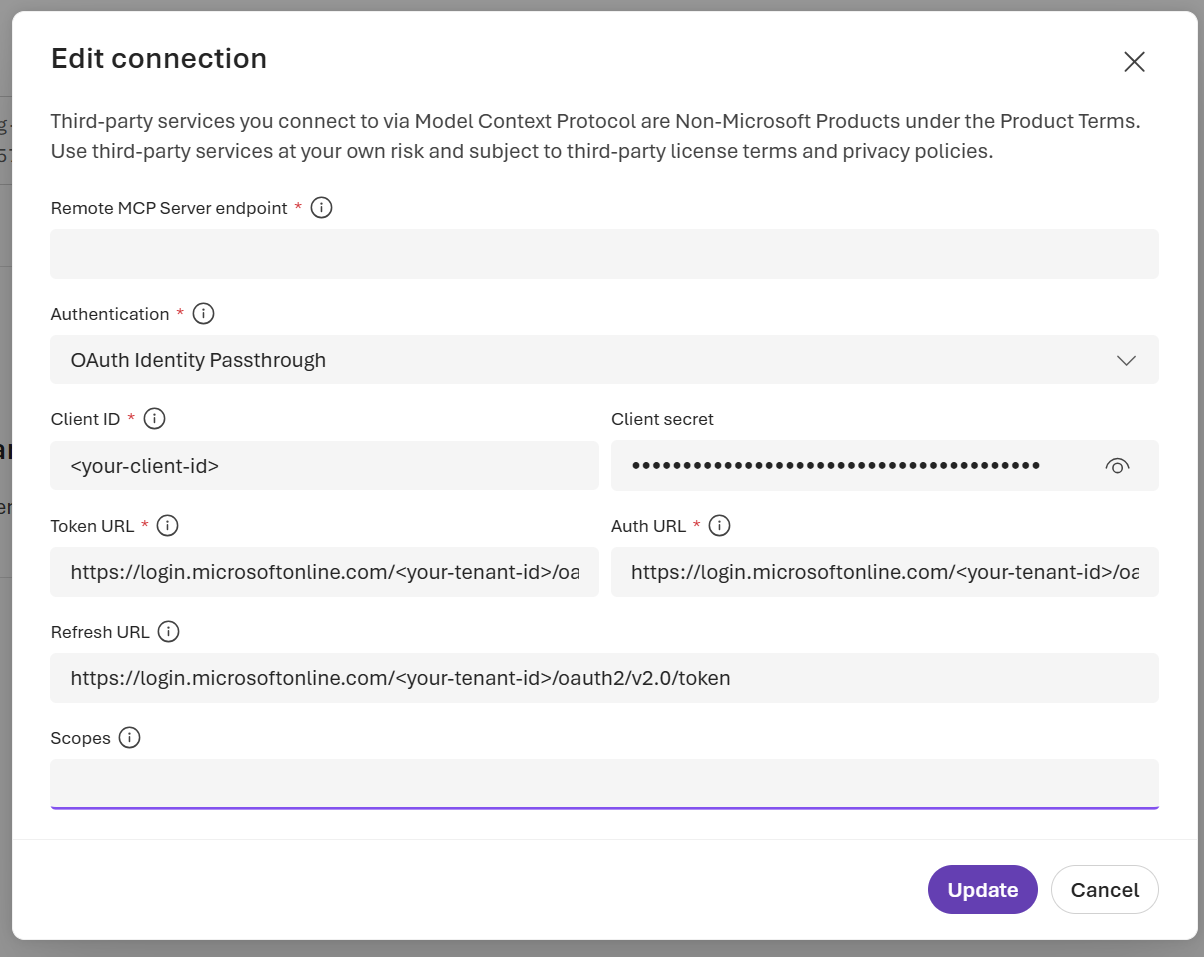
Important
Connection fields can't be edited after creation. If you enter incorrect values, delete the connection and create a new one.
Add the redirect URI to your app registration
After Foundry creates the connection, it displays an OAuth redirect URL. Add this URL to your app registration:
- In the Microsoft Entra admin center, go to Entra ID > App registrations and select your app.
- Select Authentication > Add a platform > Web.
- Under Redirect URIs, paste the OAuth redirect URL from Foundry.
- Select Configure.
Create the connection with the REST API
As an alternative to the Foundry portal, use the Azure Resource Manager API to create the Work IQ connection programmatically.
Step 1: Acquire a token
ARM_TOKEN=$(az account get-access-token \
  --resource https://management.azure.com \
  --query accessToken -o tsv)
Step 2: Create the connection
SUBSCRIPTION_ID=<your-subscription-id>
RESOURCE_GROUP=<your-resource-group>
ACCOUNT_NAME=<your-foundry-account-name>
PROJECT_NAME=<your-project-name>
CONNECTION_NAME=<name-for-this-connection>
TENANT_ID=<your-tenant-id>
CLIENT_ID=<your-client-id>
CLIENT_SECRET=<your-client-secret>

curl --request PUT \
  --url "https://management.azure.com/subscriptions/$SUBSCRIPTION_ID/resourceGroups/$RESOURCE_GROUP/providers/Microsoft.CognitiveServices/accounts/$ACCOUNT_NAME/projects/$PROJECT_NAME/connections/$CONNECTION_NAME?api-version=2025-04-01-preview" \
  --header "Authorization: Bearer $ARM_TOKEN" \
  --header "Content-Type: application/json" \
  --data '{
    "tags": null,
    "location": null,
    "name": "'"$CONNECTION_NAME"'",
    "type": "Microsoft.MachineLearningServices/workspaces/connections",
    "properties": {
      "authType": "OAuth2",
      "group": "ServicesAndApps",
      "category": "RemoteA2A",
      "expiryTime": null,
      "target": "https://workiq.svc.cloud.microsoft/a2a/",
      "isSharedToAll": true,
      "sharedUserList": [],
      "TokenUrl": "https://login.microsoftonline.com/'"$TENANT_ID"'/oauth2/v2.0/token",
      "AuthorizationUrl": "https://login.microsoftonline.com/'"$TENANT_ID"'/oauth2/v2.0/authorize",
      "RefreshUrl": "https://login.microsoftonline.com/'"$TENANT_ID"'/oauth2/v2.0/token",
      "Scopes": [
        "api://workiq.svc.cloud.microsoft/WorkIQAgent.Ask",
        "offline_access"
      ],
      "Credentials": {
        "ClientId": "'"$CLIENT_ID"'",
        "ClientSecret": "'"$CLIENT_SECRET"'"
      },
      "metadata": {
        "ApiType": "Azure"
      }
    }
  }'
A successful response returns HTTP 200 or 201. The response body includes a properties.oauthRedirectUrl field — use that value as the redirect URI in your Entra app registration (see Add the redirect URI to your app registration).
Data governance and compliance
Work IQ operates entirely within the Microsoft 365 trust boundary. The following commitments apply when you route agent requests through Work IQ.
Data residency
Work IQ retrieves data from your organization's Microsoft 365 tenant. Data doesn't leave your tenant or cross regional boundaries during retrieval. The data's location follows your Microsoft 365 tenant data residency configuration, not your Foundry project region. For details, see Microsoft 365 Copilot privacy and data handling policies.
Privacy and data handling
All Work IQ requests are governed by the Microsoft 365 Copilot privacy and data handling policies. Key commitments:
- Work IQ doesn't use customer content to train or improve underlying AI models.
Access control and permissions
Work IQ enforces Microsoft 365 permissions automatically on every request. Agents can only access data that the signed-in user is already authorized to see — no elevation of privilege is possible:
- Role-based access control, sensitivity labels, and information barriers defined in Microsoft 365 are respected.
Compliance certifications
Work IQ inherits Microsoft 365's compliance certifications. For details, see Microsoft 365 Copilot privacy and data handling policies.
Admin management
As an Entra admin, you control which applications in your tenant can access Work IQ data on behalf of users. The following sections describe the key controls available to you.
Grant or revoke admin consent
Admin consent for WorkIQAgent.Ask is required before any user in your organization can authenticate through the app. You can manage consent at any time:
- Grant consent: In the Microsoft Entra admin center, go to Entra ID > App registrations > select the app > API permissions. Select Grant admin consent for [your tenant].
- Revoke consent: On the same API permissions page, select the
WorkIQAgent.Askpermission and select Revoke admin consent. Existing tokens remain valid until they expire; no new tokens can be issued after revocation.
Troubleshooting
| Symptom | Likely cause | Resolution |
|---|---|---|
403 Forbidden |
User missing Microsoft 365 Copilot license | Assign the license and wait 15–30 minutes for provisioning. |
401 Unauthorized |
Token audience mismatch | Ensure the token is issued for api://workiq.svc.cloud.microsoft, not for a different resource. |
403 Forbidden with Required scopes = [...] |
Admin consent for WorkIQAgent.Ask not granted |
An admin must grant consent for the app registration. |
| Agent gets no response or empty result | Work IQ index hasn't built yet after license assignment | Wait 15–30 minutes and retry. |
Principal does not have access to API/Operation |
Agent identity missing Foundry User role at project scope | Assign Foundry User at both account scope and project scope. |