Note
Access to this page requires authorization. You can try signing in or changing directories.
Access to this page requires authorization. You can try changing directories.
In this quickstart, you connect to an Azure HorizonDB instance by using Python. You then use SQL statements to query, insert, update, and delete data in the database from macOS, Ubuntu Linux, and Windows platforms.
The steps in this article include PostgreSQL authentication.
PostgreSQL authentication uses accounts stored in PostgreSQL and you need to manage the rotation of the passwords by yourself.
This article assumes that you're familiar with developing using Python, but you're new to working with Azure HorizonDB.
Prerequisites
- An Azure account with an active subscription. Create an account for free.
- An Azure HorizonDB cluster. To create Azure HorizonDB cluster, refer to Create an Azure HorizonDB cluster.
- Python 3.8+.
- Latest pip package installer.
Add firewall rules for your client workstation
- If you created your Azure HorizonDB cluster with Public access (allowed IP addresses), you can add your local IP address to the list of firewall rules on your cluster. Refer to Networking in Azure HorizonDB (Preview).
Prepare your development environment
Change to a folder where you want to run the code and create and activate a virtual environment. A virtual environment is a self-contained directory for a particular version of Python plus the other packages needed for that application.
Run the following commands to create and activate a virtual environment:
py -3 -m venv .venv
.venv\Scripts\activate
Install the Python libraries
Install the Python libraries needed to run the code examples.
Install the psycopg module, which enables connecting to and querying a PostgreSQL database.
# Recommended: install the binary wheel that bundles a compatible libpq wrapper (Windows/macOS)
python -m pip install "psycopg[binary]"

# Linux alternative (if you prefer building against system libpq):
sudo apt-get update
sudo apt-get install -y libpq-dev build-essential python3-dev
python -m pip install psycopg
Add authentication code
In this section, you add authentication code to your working directory and perform any additional steps required for authentication and authorization with your cluster instance.
Before you add the authentication code, make sure the required packages for each example are installed.
Required packages (examples in this article):
- Password example:
psycopg(recommended:python -m pip install "psycopg[binary]")
Optional: create a requirements.txt with these entries and install with python -m pip install -r requirements.txt for reproducible installs.
Copy the following code into an editor and save it in a file named get_conn.py.
import urllib.parse
import os

def get_connection_uri():

   # Read URI parameters from the environment
   dbhost = os.environ['DBHOST']
   dbname = os.environ['DBNAME']
   dbuser = urllib.parse.quote(os.environ['DBUSER'])
password = os.environ['DBPASSWORD']
sslmode = os.environ['SSLMODE']
db_uri = f"host={dbhost} dbname={dbname} user={dbuser} password={password} sslmode={sslmode}"
   # Construct connection URI
   return db_uri
Get database connection information.
Using the Azure portal:
From the left-hand menu in Azure portal, select All resources, and then search for the cluster you have created.
Select the cluster name.
In the resource menu, select Overview. Hover the mouse over the value shown as Primary endpoint (read/write), and select the Copy to clipboard button.
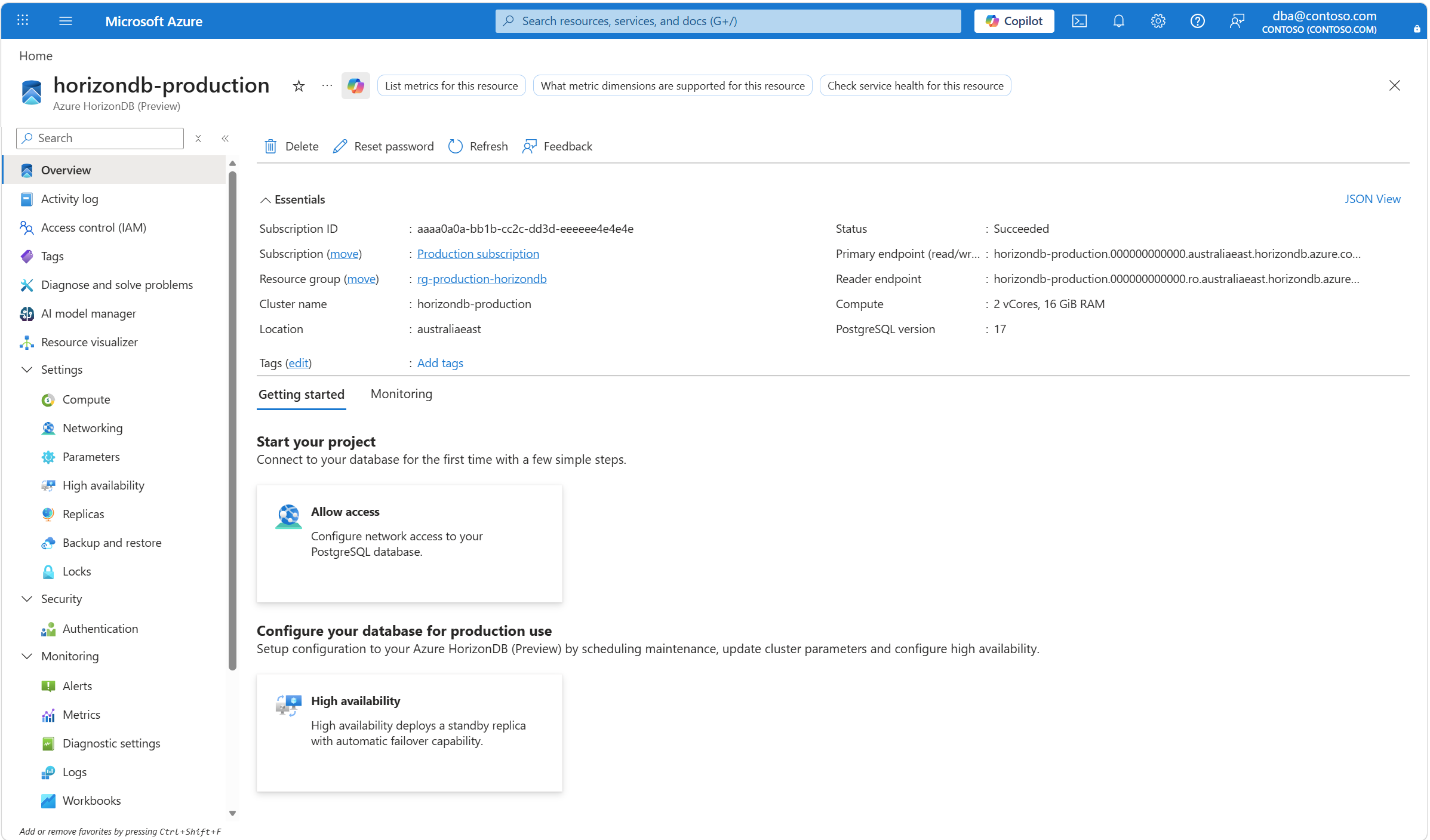
If you forget the password of the administrator login, you can reset it using the Reset password button.
Set environment variables for the connection URI elements:
set DBHOST=<cluster-name>
set DBNAME=<database-name>
set DBUSER=<username>
set DBPASSWORD=<password>
set SSLMODE=require
How to run the Python examples
For each code example in this article:
Create a new file in a text editor.
Add the code example to the file.
Save the file in your project folder with a .py extension, such as postgres-insert.py. For Windows, make sure UTF-8 encoding is selected when you save the file.
In your project folder type
pythonfollowed by the filename, for examplepython postgres-insert.py.
Create a table and insert data
The following code example connects to your Azure HorizonDB cluster using the psycopg.connect function, and loads data with a SQL INSERT statement. The cursor.execute function executes the SQL query against the database.
import psycopg
from get_conn import get_connection_uri

conn_string = get_connection_uri()

conn = psycopg.connect(conn_string)
print("Connection established")
cursor = conn.cursor()

# Drop previous table of same name if one exists
cursor.execute("DROP TABLE IF EXISTS inventory;")
print("Finished dropping table (if existed)")

# Create a table
cursor.execute("CREATE TABLE inventory (id serial PRIMARY KEY, name VARCHAR(50), quantity INTEGER);")
print("Finished creating table")

# Insert some data into the table
cursor.execute("INSERT INTO inventory (name, quantity) VALUES (%s, %s);", ("banana", 150))
cursor.execute("INSERT INTO inventory (name, quantity) VALUES (%s, %s);", ("orange", 154))
cursor.execute("INSERT INTO inventory (name, quantity) VALUES (%s, %s);", ("apple", 100))
print("Inserted 3 rows of data")

# Clean up
conn.commit()
cursor.close()
conn.close()
When the code runs successfully, it produces the following output:
Connection established
Finished dropping table (if existed)
Finished creating table
Inserted 3 rows of data
Read data
The following code example connects to your Azure HorizonDB cluster and uses cursor.execute with the SQL SELECT statement to read data. This function accepts a query and returns a result set to iterate over by using cursor.fetchall().
import psycopg
from get_conn import get_connection_uri

conn_string = get_connection_uri()

conn = psycopg.connect(conn_string)
print("Connection established")
cursor = conn.cursor()

# Fetch all rows from table
cursor.execute("SELECT * FROM inventory;")
rows = cursor.fetchall()

# Print all rows
for row in rows:
    print("Data row = (%s, %s, %s)" %(str(row[0]), str(row[1]), str(row[2])))

# Cleanup
conn.commit()
cursor.close()
conn.close()
When the code runs successfully, it produces the following output:
Connection established
Data row = (1, banana, 150)
Data row = (2, orange, 154)
Data row = (3, apple, 100)
Update data
The following code example connects to your Azure HorizonDB cluster and uses cursor.execute with the SQL UPDATE statement to update data.
import psycopg
from get_conn import get_connection_uri

conn_string = get_connection_uri()

conn = psycopg.connect(conn_string)
print("Connection established")
cursor = conn.cursor()

# Update a data row in the table
cursor.execute("UPDATE inventory SET quantity = %s WHERE name = %s;", (200, "banana"))
print("Updated 1 row of data")

# Cleanup
conn.commit()
cursor.close()
conn.close()
Delete data
The following code example connects to your Azure HorizonDB cluster and uses cursor.execute with the SQL DELETE statement to delete an inventory item that you previously inserted.
import psycopg
from get_conn import get_connection_uri

conn_string = get_connection_uri()

conn = psycopg.connect(conn_string)
print("Connection established")
cursor = conn.cursor()

# Delete data row from table
cursor.execute("DELETE FROM inventory WHERE name = %s;", ("orange",))
print("Deleted 1 row of data")

# Cleanup
conn.commit()
cursor.close()
conn.close()